Audio Loopback
Audio Loopback sends a selected stereo source from iD48 back to the computer on USB input channels 23+24. This is useful for streaming, screen recording, podcasting and recording computer playback back into a DAW.
Loopback shares USB input channels 23+24 with ADAT inputs 15+16. Choosing a loopback source replaces ADAT 15+16 on those USB inputs. Select ADAT 15+16 in Input Routing to disable loopback and restore those digital inputs.
Choose the loopback source
Open Setup > Input Routing in the iD Software Mixer and choose the source for inputs 23+24.
| Source | What is sent to USB inputs 23+24 |
|---|---|
| ADAT 15+16 | Optical ADAT input channels 15+16; Loopback disabled |
| DAW 1+2 | DAW playback channels 1+2 |
| DAW 3+4 | DAW playback channels 3+4 |
| DAW 5+6 | DAW playback channels 5+6 |
| DAW 7+8 | DAW playback channels 7+8 |
| DAW 9+10 | DAW playback channels 9+10 |
| Master Mix | The complete Main/Master mix from the iD Software Mixer |
| Cue A-D | The selected Cue mix |
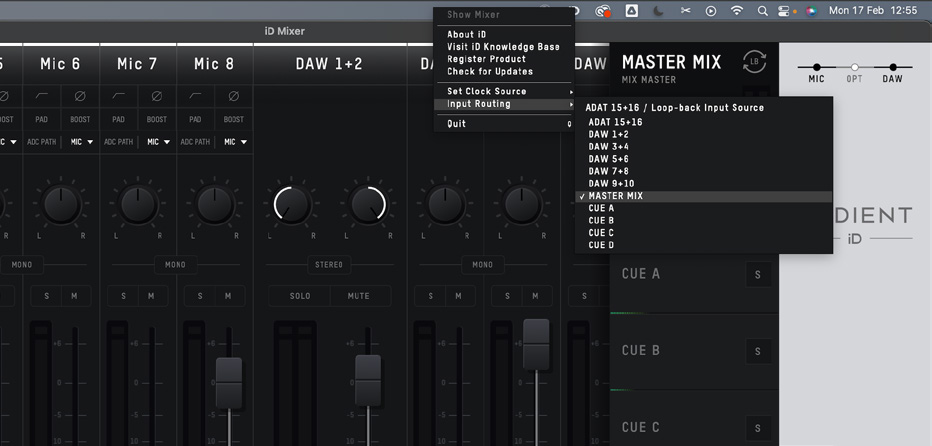
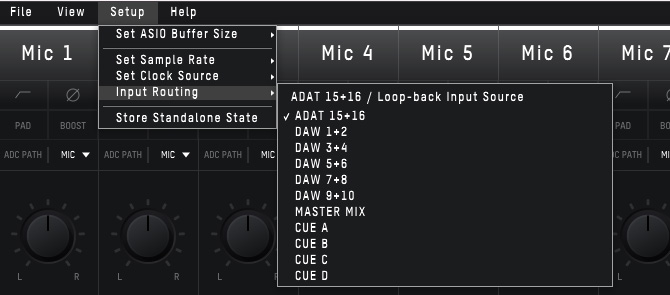
Record or stream loopback
- Choose the required source in Input Routing.
- In your recording, streaming or conferencing application, select iD48 inputs 23+24 as the stereo input.
- Check the input meter before recording or streaming.
For computer playback only, select the DAW return pair carrying that playback.
For computer playback plus microphones/instruments, build the required combination in Master Mix or one of the Cue A-D mixes, then select that mix as the loopback source.
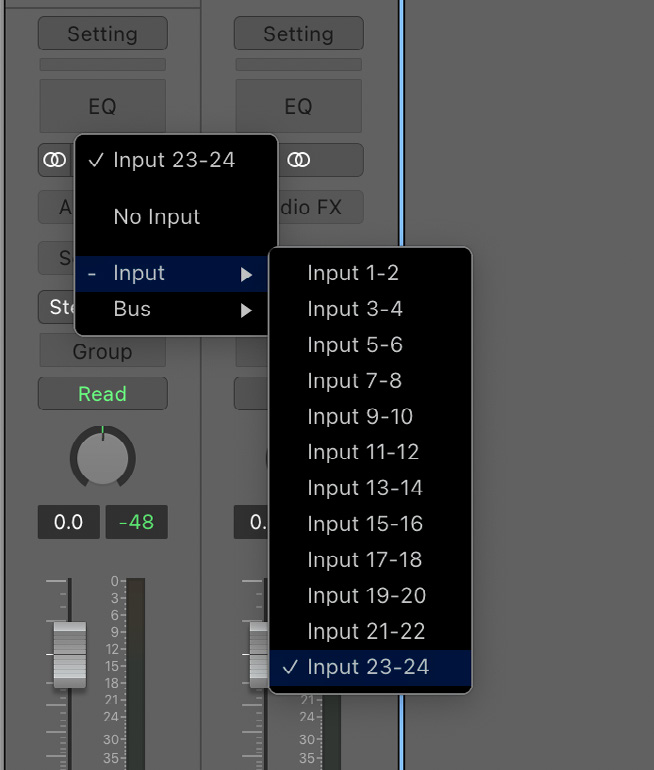
Some applications expose only the first stereo input pair and therefore cannot select iD48 inputs 23+24. Use an application or driver mode that exposes the full iD48 input set.
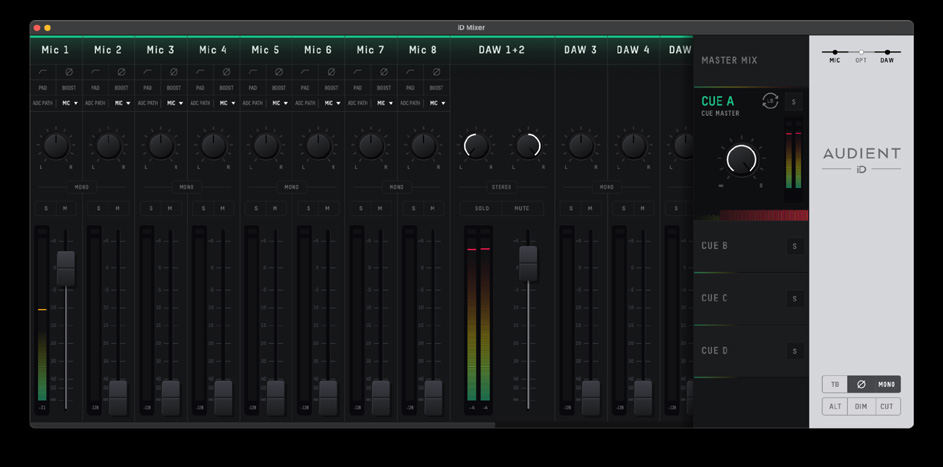
Loopback source indicator
A Loopback icon identifies the DAW return or mix currently selected as the loopback source.

Keep system playback separate from the main monitor return
Where the operating system/application allows it, send system playback to an alternate DAW pair rather than DAW 1+2. This keeps your normal monitor playback on 1+2 while another pair is dedicated to loopback.
macOS
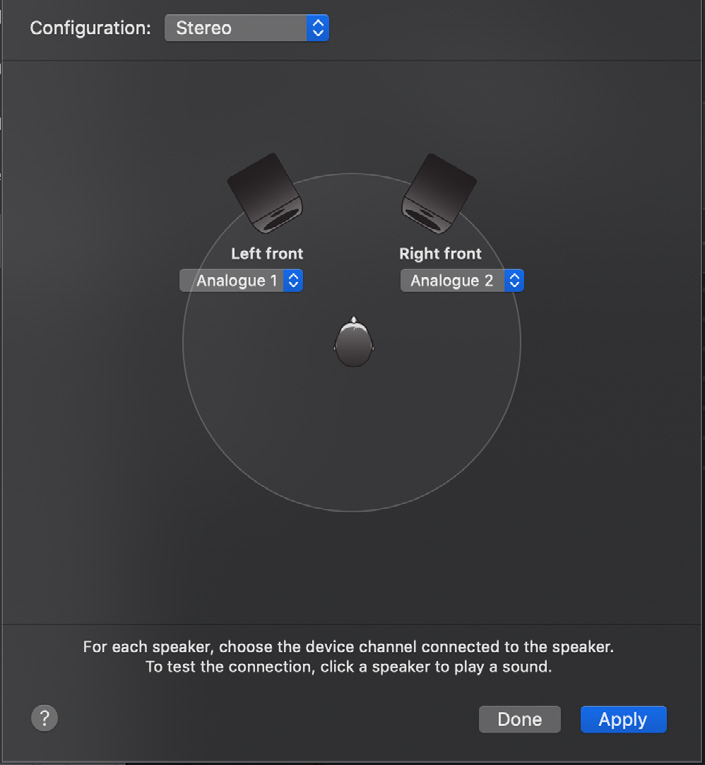
In Audio MIDI Setup, select iD48 and use Configure Speakers to choose the required output channels for system audio.
Windows
Open Settings > System > Sound and choose the appropriate iD48 output pair for the application/system playback you want to capture. The corresponding DAW return can then be selected as the loopback source in Input Routing.
Continue to Presets, Firmware and Shortcuts.