Presets, Firmware and Shortcuts
Save and load mixer presets
Mixer presets let you store and recall iD Software Mixer configurations for different sessions and workflows.
Save a preset
- Set up the iD Software Mixer as required.
- Choose File > Save, or press Command + S on macOS / Ctrl + S on Windows.
- Enter a preset name and select Save.
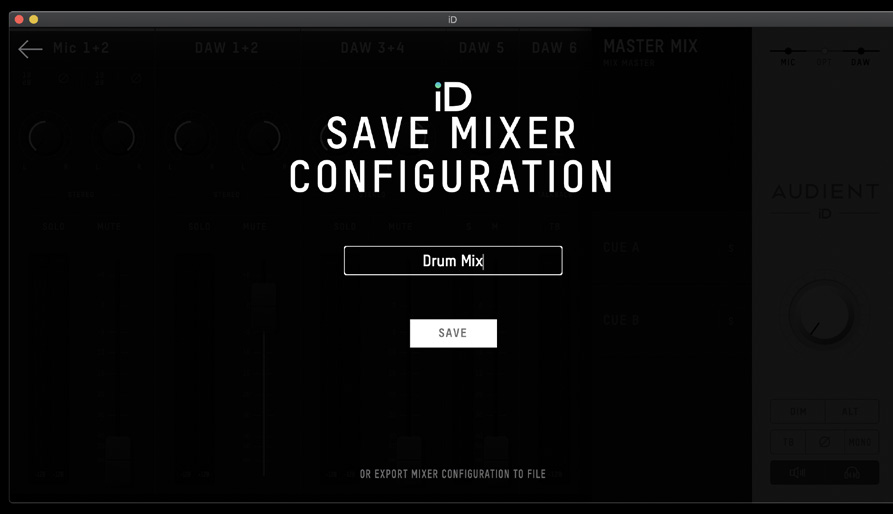
Use Export Mixer Configuration at the bottom of the Save window to write a preset file to a chosen location. This is useful for keeping the preset with a DAW session or transferring it to another computer.
Load a preset
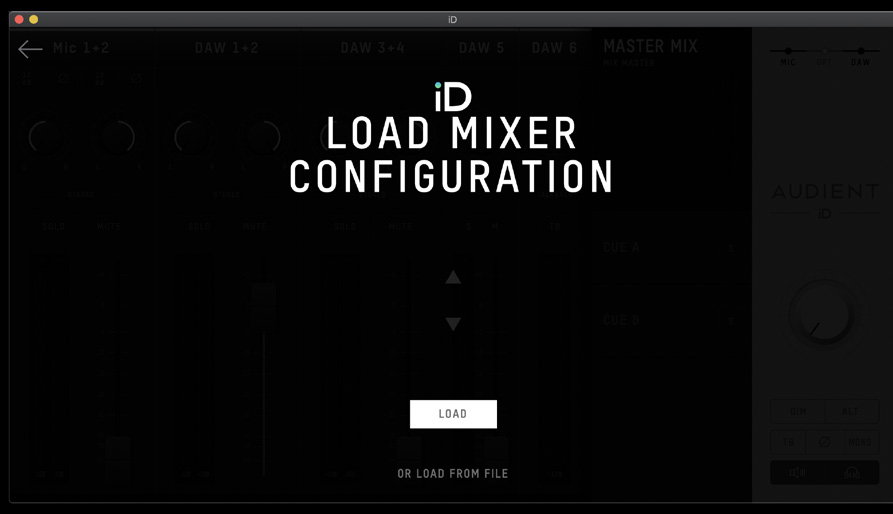
- Choose File > Open, or press Command + O on macOS / Ctrl + O on Windows.
- Select a saved configuration and choose Load.
- To open a preset from a specific file location, choose Load From File.
Store Standalone State
Use Setup > Store Standalone State to save the current iD48 mixer/routing configuration into the hardware for use without a connected computer.
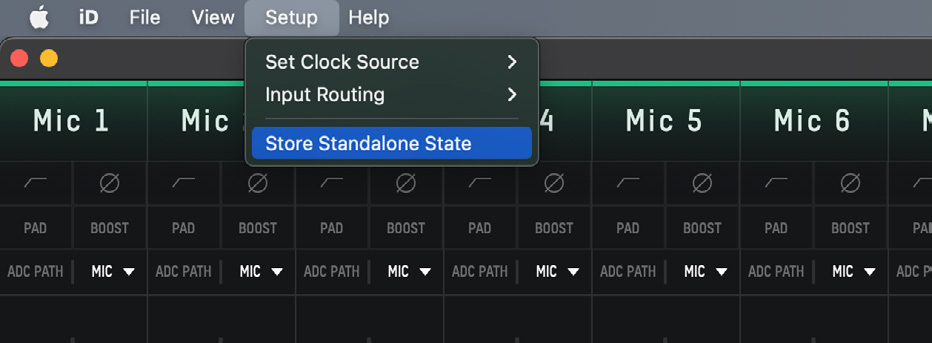
Storing a new Standalone State overwrites the previously stored state. The saved state is recalled when iD48 next powers up, so it can also be used to store preferred default monitor/routing settings.
The Standalone State does not store the state of the hardware phantom-power switches. Enable +48 V manually for any microphone input that requires it.
Menu bar and taskbar controls
On macOS, the iD application is available from the menu-bar icon. On Windows, right-click the iD icon in the system tray/taskbar notification area.
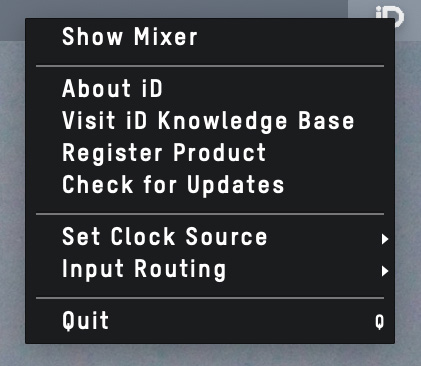
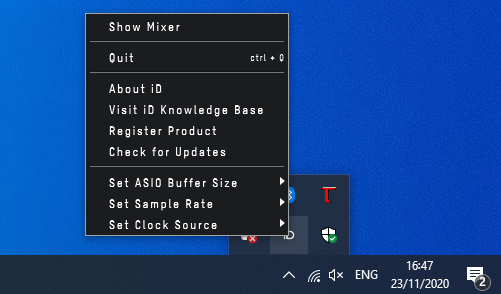
Depending on operating system and software version, the menu provides access to functions including:
- Show Mixer
- About iD
- Visit iD Knowledge Base
- Register Product
- Check for Updates
- Set Clock Source
- Input Routing for Loopback
- Quit
Windows also provides Set Sample Rate and Set ASIO Buffer Size.
See Audio Loopback for Input Routing.
Firmware updates
The iD application can check for current iD48 firmware automatically when online, or you can check manually.
- Open the iD Software Mixer.
- Open Help > Check for Updates.
- If an update is available, continue to launch Audient Firmware Upgrade.
- Choose From audient.com for the current online release, or use a local firmware file only when instructed/provided by Audient Support.
- Close DAWs and other applications using iD48 when prompted.
- Select Update and leave mains power and USB connected until completion is confirmed.
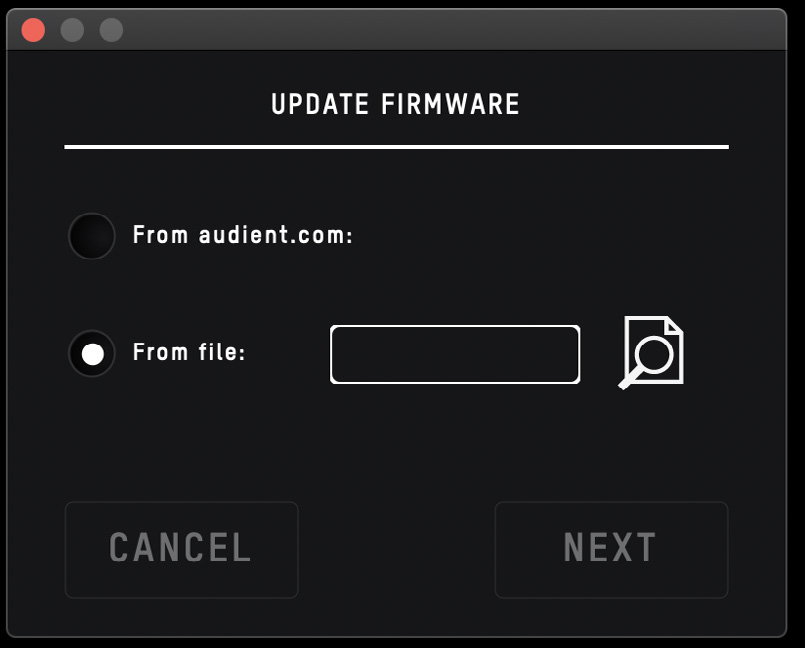
Do not power off or disconnect iD48 while firmware is being written.
Keyboard shortcuts
The following shortcuts are available in the iD Software Mixer. Additional shortcuts may be added in later software versions.
| Location | macOS | Windows | Action |
|---|---|---|---|
| Faders | Alt + Click | Alt + Click | Reset fader to unity gain (0 dB) |
| Pans | Alt + Click | Alt + Click | Reset pan to centre |
| Solos | Command + Click | Ctrl + Click | On a soloed channel, clear all solos; on an unsoloed channel, make it solo-exclusive |
| Meters | Alt + Click | Alt + Click | Click a peak-hold indicator to clear all clip indicators |
| Mixer configuration | Command + S | Ctrl + S | Save mixer configuration |
| Mixer configuration | Command + O | Ctrl + O | Load mixer configuration |
| View modes | Command + 1 | Ctrl + 1 | View Mic/Line Inputs |
| View modes | Command + 2 | Ctrl + 2 | View Optical/Digital Inputs |
| View modes | Command + 3 | Ctrl + 3 | View DAW Mix Inputs |
| View modes | Command + 4 | Ctrl + 4 | View System Panel |
Continue to DAW Setup.