DAW Setup
The exact appearance of DAW menus can change between software releases. If a screenshot differs from your installed version, follow the current menu path described in the text.
Before configuring a DAW, install the current iD software/driver and connect iD48 as described in Installation and Firmware.
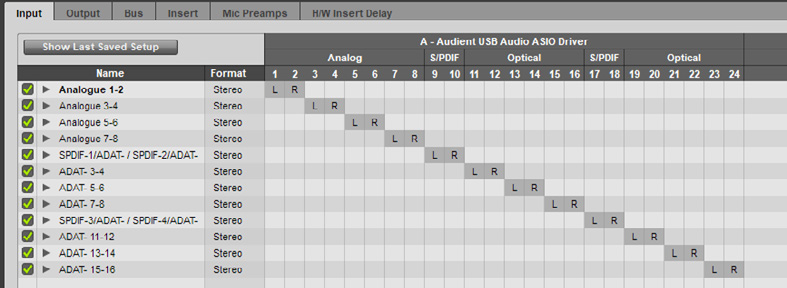
Pro Tools
- Open Setup > Playback Engine.
- Select iD48 as the Playback Engine.
- Open Setup > I/O.
- Use the Input and Output tabs to create/default the iD48 paths required by the session.
Logic Pro
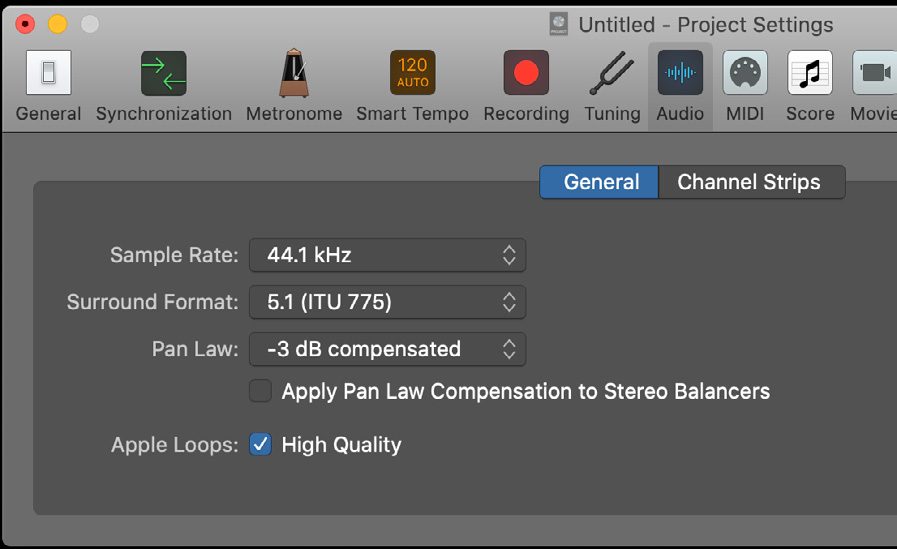
- Open Logic Pro > Settings > Audio.
- In Devices, choose iD48 for the Input Device and Output Device.
- Set the project sample rate from File > Project Settings > Audio when required.
- Create audio tracks and select the required iD48 input channels.
Cubase / Nuendo
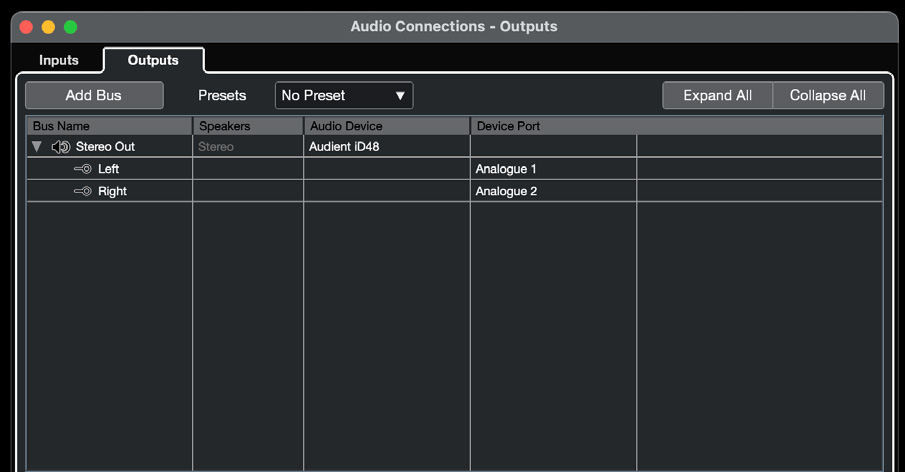
- Open Studio > Studio Setup.
- Select Audio System and choose the Audient/iD48 ASIO driver.
- Open Studio > Audio Connections (or press F4) to configure the required input and output buses.
- Assign the relevant iD48 ports to each bus.
Ableton Live
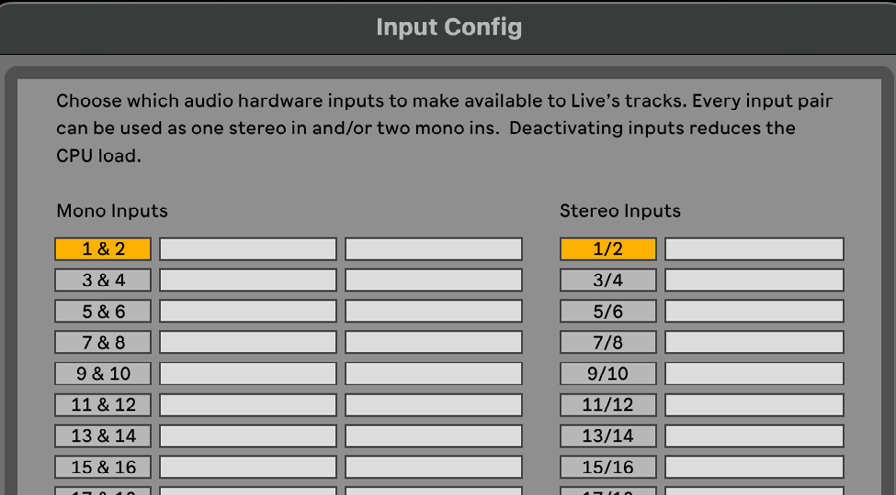
- Open Live > Settings on macOS, or Options > Settings on Windows. You can also use Command/Ctrl + ,.
- Open the Audio settings page.
- Select iD48 as the audio input and output device/driver.
- Open Input Config and Output Config to enable the channel pairs required by your Live Set.
- Choose the required iD48 input on each audio track.
note
DAW screenshots are visual examples and may differ from the installed DAW version. Use the written menu paths above where the interface has changed.
Continue to Troubleshooting and FAQ.