Installation and Firmware
Register iD48 in Audient ARC to access the current iD software, Windows driver and product resources.
Current system support
Current Audient guidance supports the iD range on macOS 10.13.6 (High Sierra) through macOS 15.x (Sequoia) and macOS 26 Tahoe, with Intel or Apple silicon processors and 1 GB RAM minimum. Windows support is currently Windows 10 and Windows 11, with 1 GB RAM minimum and a compatible Intel/AMD/ARM system.
Check Audient's maintained compatibility information before a major operating-system update; support for future OS releases should not be assumed.
USB and power connection
- iD48 is powered from its mains power inlet. The USB connection carries audio/control data; it does not power the interface.
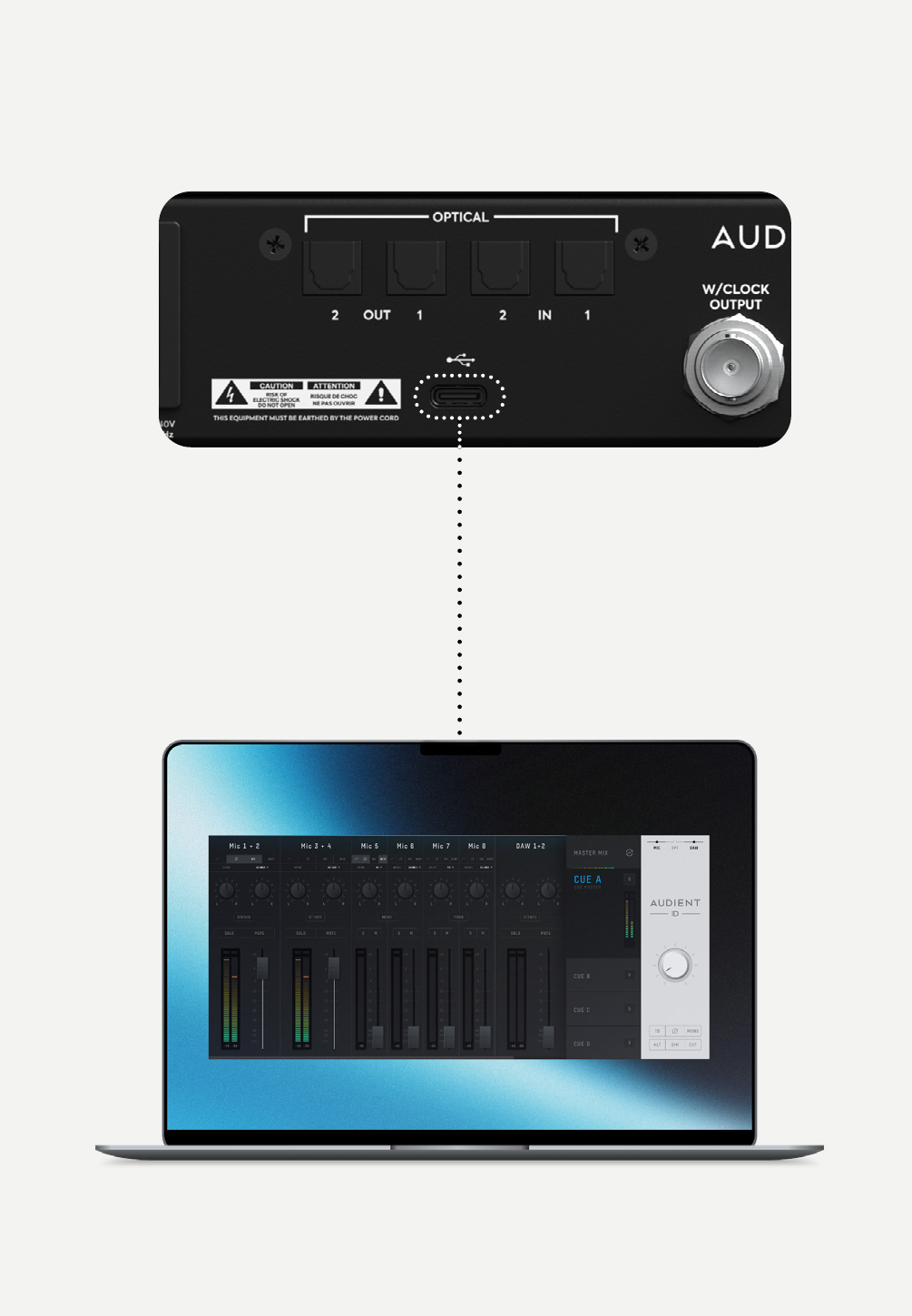
- Connect iD48 to the computer using the included USB-C to USB-C cable.
- A suitable third-party USB-C to USB-A data cable can be used where required.
- iD48 uses USB 2.0 High Speed and can be connected to a USB 2.0 or later compatible host port.
macOS
- Register iD48 in Audient ARC and download the current iD software.
- Open the downloaded file and drag the iD application into Applications.
- Connect the USB cable between iD48 and the Mac, then connect mains power and power the interface on.
- Run the iD application from Applications.
- Follow any on-screen firmware-update prompt before beginning work.
Windows
- Register iD48 in Audient ARC and download the current Windows iD installer.
- Close audio applications, run the installer and follow its on-screen instructions.
- Connect iD48 after the driver/software has been installed. Windows may take a few moments to finish device setup.
- Launch the iD application from the Start menu.
- Follow any on-screen firmware-update prompt before beginning work.

Launching the iD application
On macOS, the iD application is installed in Applications and its menu-bar icon provides quick access to supported functions while it is running.
On Windows, the iD application runs from the Start menu and its system-tray icon provides quick access to settings such as sample rate and ASIO buffer size.
See Software Mixer for the mixer controls and System Panel, Routing and Talkback for global routing and clock settings.
Audient ARC registration
Register the product in Audient ARC using its serial number/PIN as required. Current ARC policy allows second-hand products to be registered for driver access and support services; current promotional eligibility is governed by the ARC terms in force at the time of registration.
Second-hand ARC registration and the hardware warranty are separate. The current three-year limited hardware warranty is not transferable to a second owner. See Warranty and Service.
Firmware updates
Provided the computer has internet access, the iD application periodically checks for iD48 firmware updates. You can also check manually:
- Open the iD application.
- Open Help > Check for Updates.
- If an iD48 firmware update is available, accept the prompt to launch Audient Firmware Upgrade.
- Choose From audient.com when the computer is online. If you need to update from a local firmware file, use the local-file option supplied by Audient Support.
- Close any DAW or other application using iD48 when prompted.
- Click Update and allow the process to complete without disconnecting power or USB.
- Close the updater after the completion message appears.
For release-specific changes, use Audient's maintained iD48 Firmware Changelog.
Continue to Inputs and ADC Paths.