Monitor Controller & Independent Mixes
Horizon provides a Main Mix for the normal control-room balance and four Independent Mixes, A–D, for alternate monitoring balances that can be created and recalled independently.
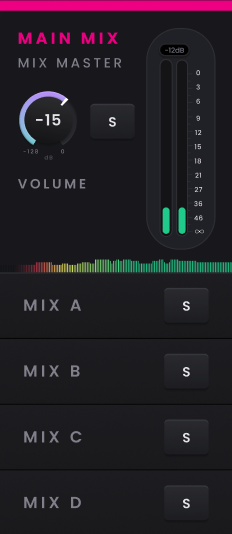
Building an Independent Mix
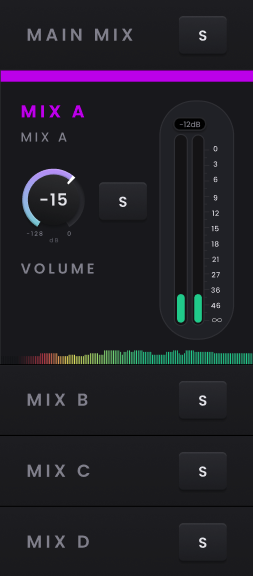
Select Mix A, B, C or D from the Mixer Monitor Panel, then use the same channel faders, Pan, Mute and Solo controls you use in the Main Mix to create the required balance. The first time an Independent Mix is opened its channels start from their defaults; after that, Horizon Control saves changes automatically so the mix is ready when you return to it.
Use these mixes for any monitoring balance that needs to stay independent of the Main Mix. Each Independent Mix has its own master volume, and Solo lets you send that complete mix to the main monitor path so you can check it from the control room without changing the saved Main Mix.
Using the Monitor Controller
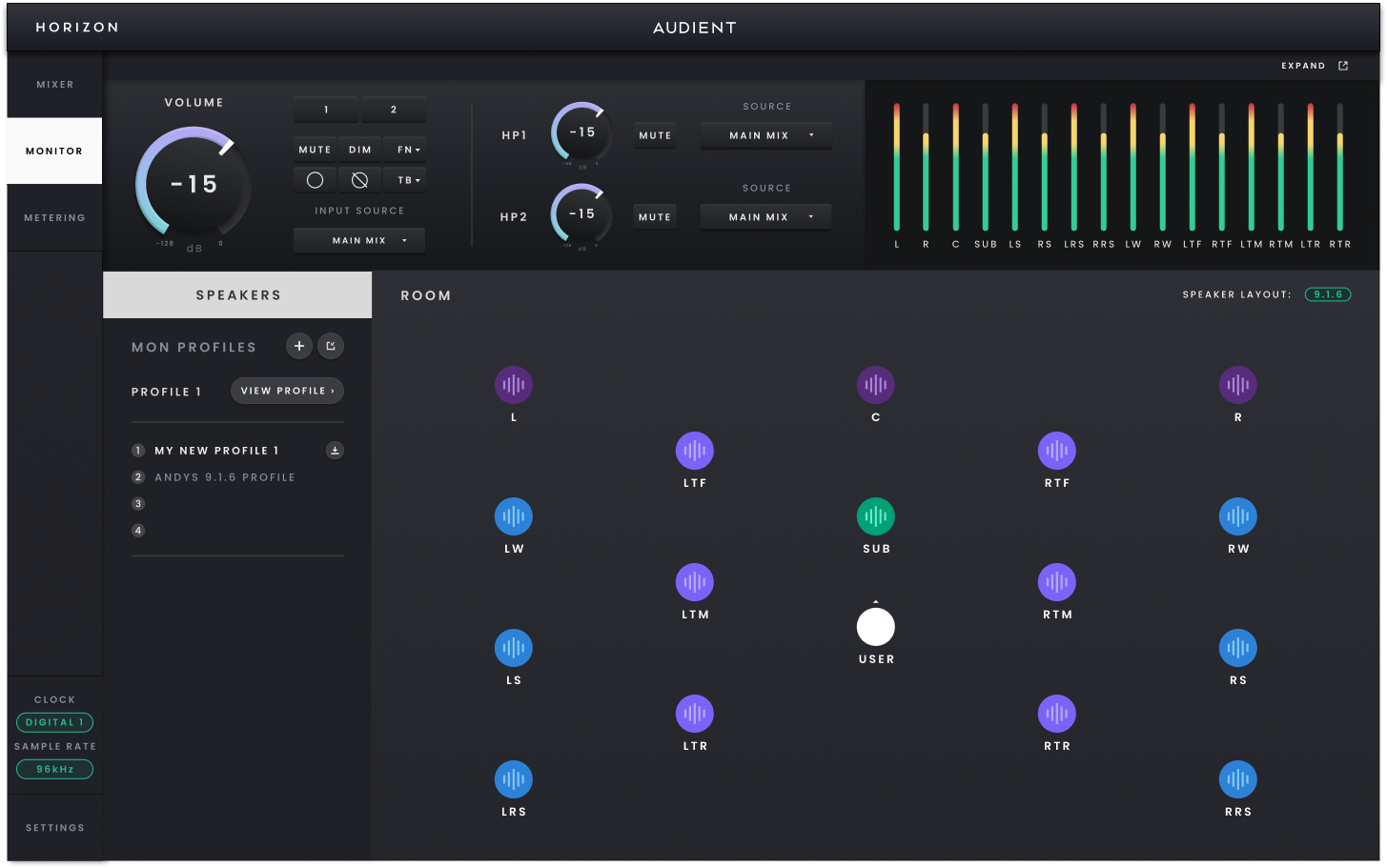
Open the dedicated Monitor view when you want more space for the active monitoring system. It controls the same state as the Monitor Panel in the Mixer, so changes made in either view are reflected in the other.
In a multi-device Horizon system, monitoring follows the Primary Horizon device. When a different connected Horizon is configured as Primary through Hardware Settings, the Monitor Controller follows it and the host system recalls the previous monitoring configuration associated with that device.
Everyday monitor control
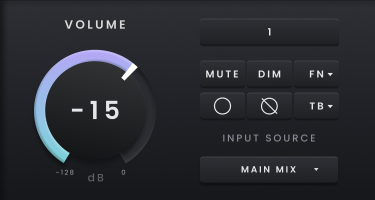
The main Monitor Controller controls are:
-
Output Level — sets the listening level of the active monitor outputs.
-
Mute — mutes the active monitor output.
-
Dim — reduces the monitor level without changing the current volume setting. The default Dim amount is −10 dB and can be changed in Monitor Settings.
-
Mono — monitors the mono channel selected in Monitor Settings: Left, Centre or Right.
-
Mid/Side — uses the mono and polarity states to remove centre content and audition the side information.
Choosing what you monitor
Choose the monitor source according to what you need to hear:

-
Main Mix — monitors the normal Horizon control-room mix.
-
Independent Mix A–D — monitors one of the saved independent balances, useful for checking an alternate monitoring balance.
-
Host Computer — bypasses the Horizon Mixer and monitors the host playback path directly.
Talkback

Talkback latches on and off: select it once to enable Talkback and again to disable it. The internal talkback microphone is available as a dedicated channel on the device.
Monitor Profiles and speaker metering
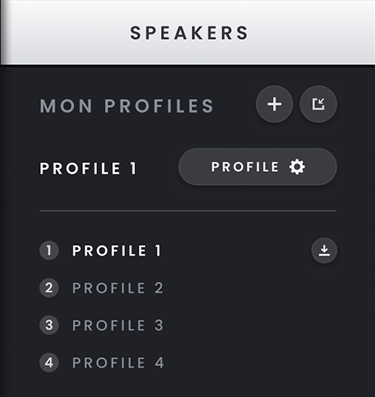
The Monitor Controller follows the active Monitor Profile and its Speaker Layout. Changing to a profile that uses a different layout updates both the active monitoring configuration and the speaker meters shown in the Monitor view. The Room display also reflects the active layout and provides signal feedback when audio is present on a speaker output. In the Room display, click a speaker to mute it or Shift-click to solo it. To clear the current speaker mute/solo states, Option-click. The Monitor window's status bar shows the active Monitor Profile name.

Use the expand control when you want the Monitor Controller to remain visible in a separate window while you work elsewhere in Horizon Control. Close and dock it when you want to return it to the main application.
