Mixer & Channel Strips
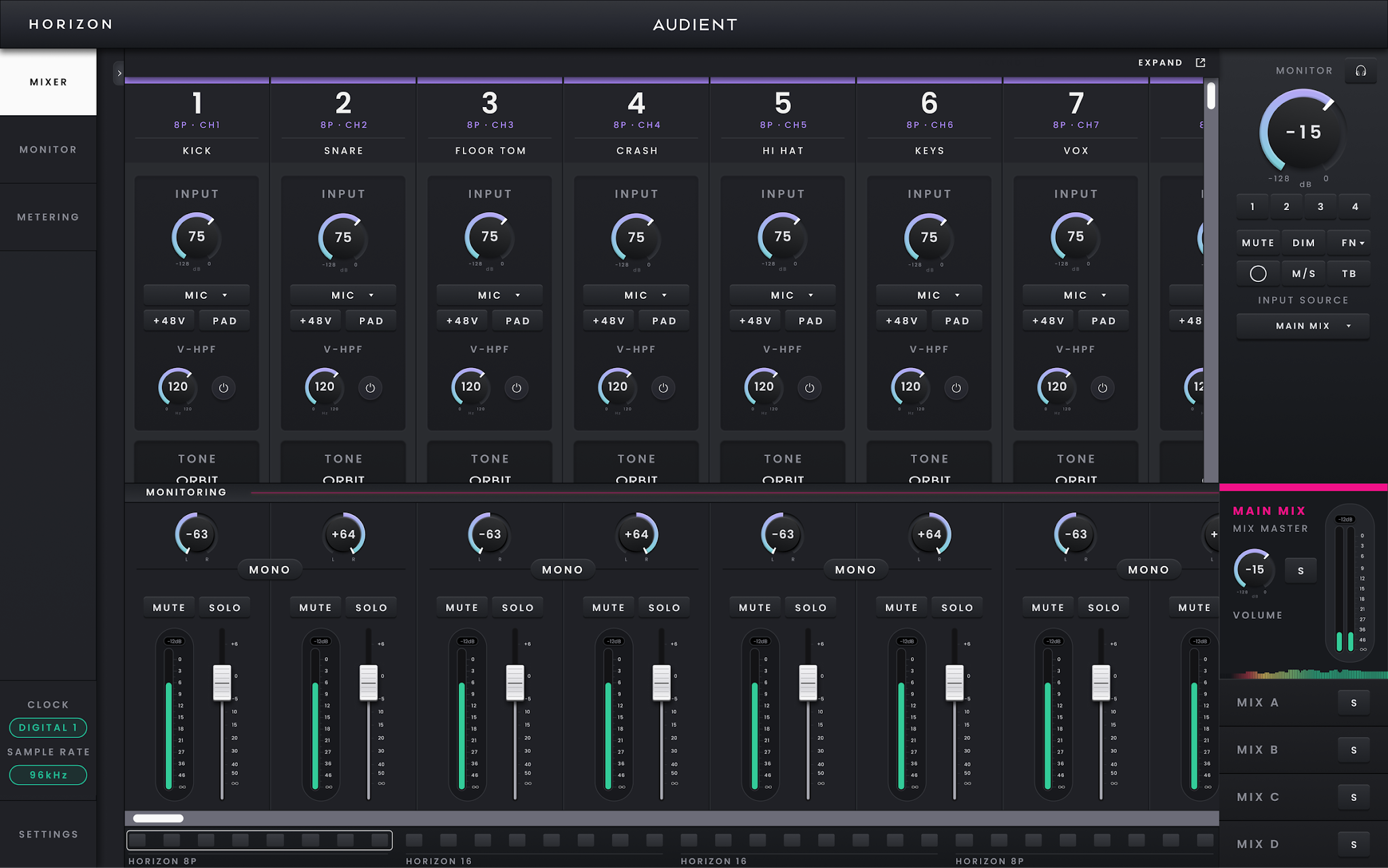
Horizon Control Mixer.
The Mixer is the main working area in Horizon Control. It brings the Horizon 16 inputs, computer playback and low-latency monitoring together in one place, letting you build the monitoring balance you need without changing the level being recorded in your DAW.
Working in Horizon Control
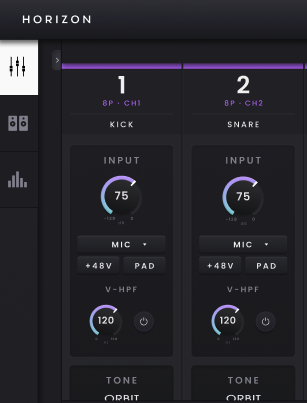
Horizon Control opens to the Mixer. Use the side navigation to move to the dedicated Monitor or Metering views when you need more space for those functions, and open Hardware Settings for device, clocking and routing configuration.
The current clock source and sample rate remain visible while you work; double-click either status indicator when you need to change it.
In a system with several Horizon devices, the Mixer keeps each unit's channels together and follows the device order set in Hardware Settings. The Fast Scroll Bar beneath the Mixer provides a quicker way to move through larger channel configurations, while colour coding helps identify which hardware a channel belongs to.

Understanding Horizon 16 channels
Each channel strip represents a source available to the Horizon monitoring system. The top of the strip shows the channel number, the Horizon device and hardware channel it belongs to, and the channel name.

Double-click the name to replace the default label with something useful to the session, such as Synth, Mix Stem or Playback.
A Horizon 16 contributes 16 D-sub line inputs and two TRS line inputs, with additional digital inputs available according to the selected Digital Mode and sample rate. It also provides 34 Virtual Channels from the host computer, shown as 17 stereo pairs by default.
Horizon 16 is a line-level interface, so its analogue channel strips do not contain microphone-preamp controls. The D-sub inputs 1–16 and TRS inputs 17–18 arrive in the Mixer as line-level sources ready to be named, metered and mixed for monitoring; their analogue input level is not adjusted from the Mixer channel strip.
Building a monitor mix
The lower part of each channel strip controls the monitoring path only. This is deliberately separate from the record path: moving a monitoring fader, changing Pan, muting or soloing a channel changes what you hear in the active Main or Independent Mix without changing the input level being sent to the DAW.
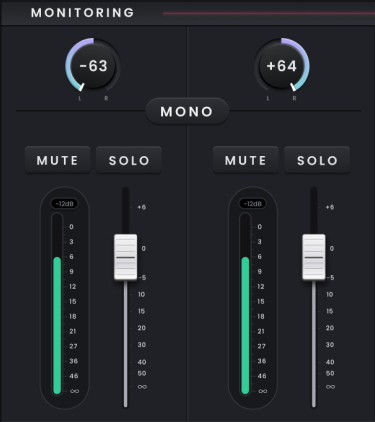
Use the fader to set the channel level in the current mix, Pan to position it in the stereo field, and Mute or Solo when you need to remove or isolate a source while checking the balance. Channels can be used as mono or stereo pairs where appropriate. The monitoring fader runs from −∞ to +6 dB and starts at unity, while the channel meter uses its own scale up to 0 dBFS.
This separation is particularly useful when recording or tracking through a larger system: once the source level reaching the DAW is established, you can continue adjusting the monitoring balance without disturbing the recorded signal.
Digital and computer playback channels

Digital inputs appear alongside the analogue channels and follow the active ADAT or S/PDIF mode. In ADAT mode the available channel count reduces at higher sample rates; Horizon Control updates the Mixer so only the channels currently available are shown.
Computer playback appears as Virtual Channels. Horizon 16 provides 34 Virtual Channels, shown as 17 stereo pairs by default, and these can be changed to mono where required. Use them to bring DAW returns or other computer playback into the Horizon monitoring system alongside the physical analogue and digital inputs.
The Monitor Panel remains available from the Mixer so you can adjust the active monitor level and move between the Main Mix and Independent Mixes without leaving the page. The same states are reflected in the dedicated Monitor view.