Digital I/O & Clocking
Digital audio devices must share a common timing reference. A system with the wrong clock source or mismatched sample rates can produce clicks, pops, distortion or a failure to lock to an incoming digital signal.
Configure the complete digital system so that one device acts as clock master and the other connected devices synchronise to it.
Clock source

Horizon Control provides the following clock-source options:
-
Internal — uses the Horizon system's internal clock.
-
Digital 1 — synchronises Horizon to the incoming digital signal on Digital 1.
-
Digital 2 — synchronises Horizon to the incoming digital signal on Digital 2.
-
External (Word Clock) — synchronises the Horizon system to an external BNC word-clock source.
Use Internal when Horizon is supplying the timing reference for the connected digital system. Select Digital 1 or Digital 2 when Horizon needs to follow the incoming digital signal on that optical bank. Use External (Word Clock) when Horizon needs to follow a separate BNC word-clock master.
When using Digital 1 or Digital 2 as the clock source, make sure the source device is configured as the clock master and that both devices use the same sample rate.
Sample rate

The selected Horizon sample rate is global across the connected Horizon system. The DAW session and any connected digital equipment should use the same rate.
Supported sample rates are:
-
44.1 kHz;
-
48 kHz;
-
88.2 kHz;
-
96 kHz;
-
176.4 kHz;
-
192 kHz.
Horizon Control displays the current clock source and sample rate as status indicators. Double-click either indicator to open Hardware Settings.
ADAT mode
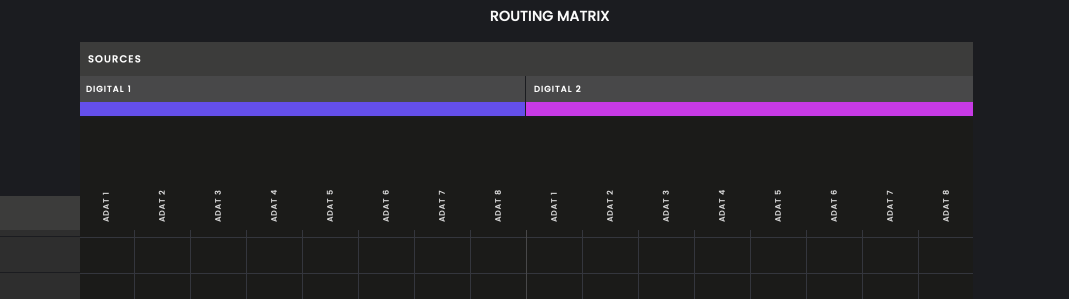
Horizon 16 provides two optical digital inputs and two optical digital outputs. In ADAT mode, the available channel count changes with sample rate.
The figures below apply to each input or output direction:
| Sample rate | Digital 1 | Digital 2 | Total channels per direction |
|---|---|---|---|
| 48 kHz | 8 channels | 8 channels | 16 channels |
| 96 kHz | 4 channels | 4 channels | 8 channels |
| 192 kHz | 2 channels | 2 channels | 4 channels |
At the higher sample rates, the first channels of each digital port remain available while the later channels become unavailable. At 96 kHz, for example, channels 1–4 of each digital port remain available.
S/PDIF mode
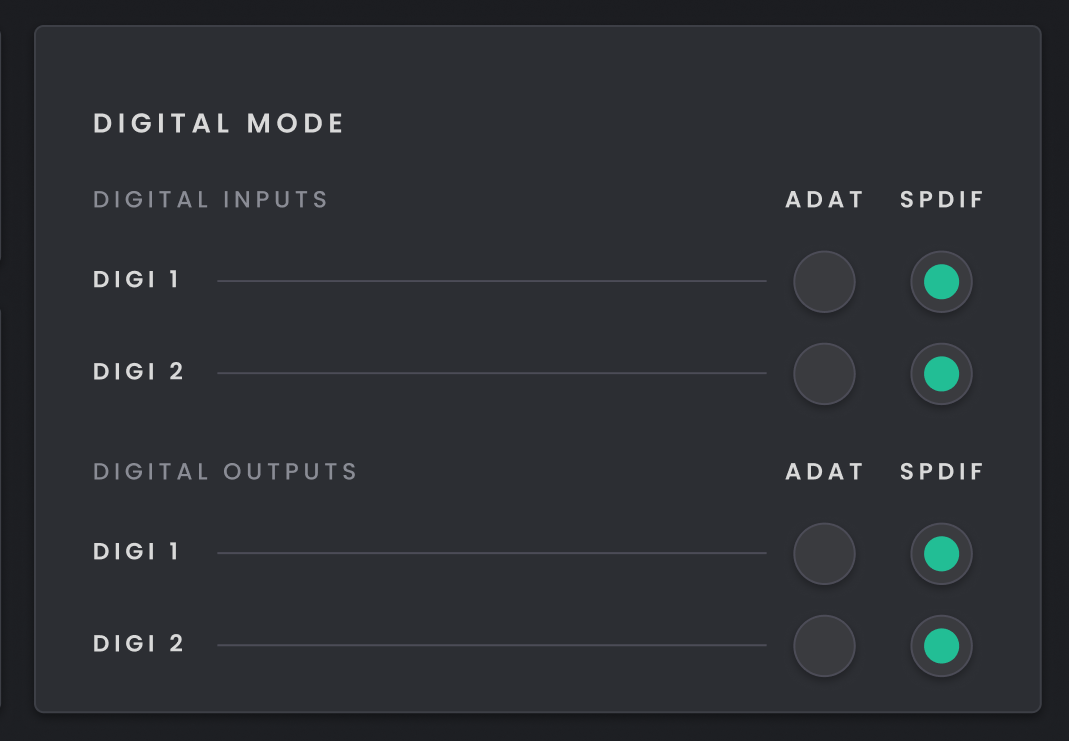
S/PDIF is a two-channel digital format. When S/PDIF is selected in Digital Mode, digital inputs and outputs 1–2 are shown in Horizon Control and the Routing Matrix updates to reflect the selected mode.
S/PDIF supports sample rates up to 96 kHz.
Clocking several Horizon devices
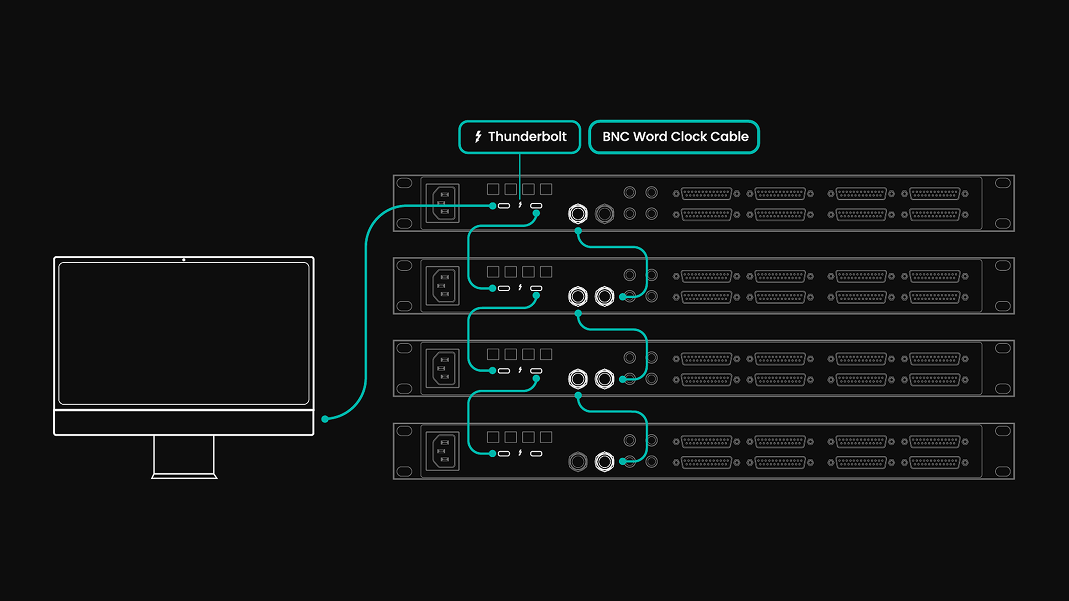
Several Horizon devices can be connected over Thunderbolt, but a separate BNC word-clock connection is required for synchronisation.
The Primary Horizon device uses its internal clock for the Horizon-to-Horizon chain and supplies word clock to each secondary Horizon device. Thunderbolt carries host audio/data between devices; it does not replace the BNC word-clock connection. Only one device in the complete digital system should act as clock master.
Using an external word-clock master
When the Horizon system is following an external BNC word-clock source:
-
Connect the external clock source to the Horizon word-clock input.
-
Select External (Word Clock) in Hardware Settings.
-
Make sure the external source and Horizon use the same sample rate.
-
Check the Horizon 16 Status view to confirm that the expected sample rate and digital clock state are shown.
75 Ω termination

Horizon 16 provides switchable 75 Ω word-clock termination.
When Horizon 16 is the final or only receiving device in a BNC word-clock chain, enable Word Clock Termination. Word Clock Termination can be changed from the Horizon 16 front-panel Settings view.
Checking digital status from the front panel

Open Settings > Status on Motion UI to check:
-
the current sample rate;
-
whether the digital input is operating as ADAT or S/PDIF;
-
the digital-input clock status.
This provides a quick way to check the digital system from the front panel while the powered-on host computer remains connected over Thunderbolt.