Routing and Monitoring
A key feature of a monitor controller is signal routing. NERO provides flexible routing for the speakers and headphone outputs.
Control-room input selection
When assigning an input to a control-room output, the active input button on the front panel illuminates orange to indicate that the input is active.
Headphone input sources
To route an input to a specific headphone output, use the SRC button beside the relevant headphone volume control.
- Press SRC to enter headphone source mode.
- The SRC and Input Select LEDs illuminate green.
- Press the required input button to select the source.
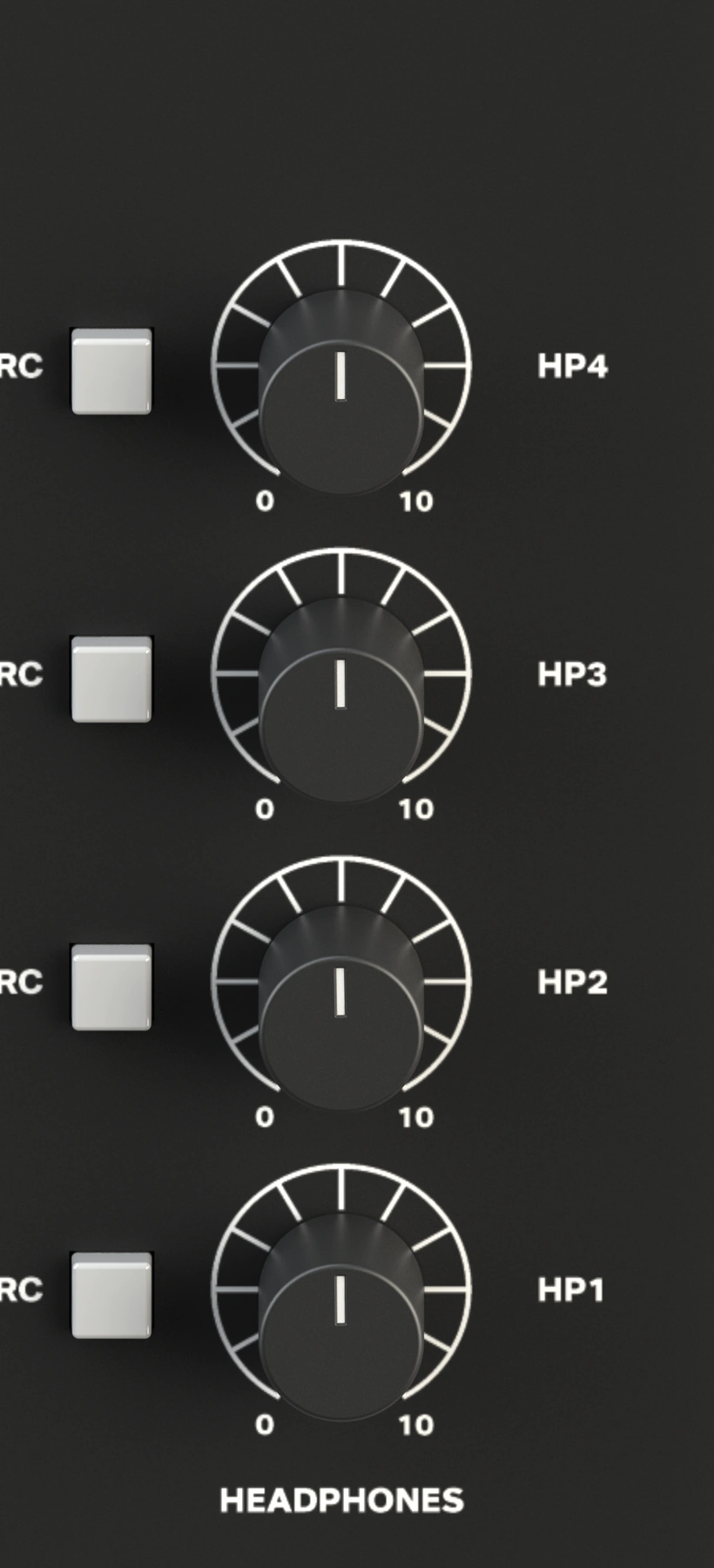
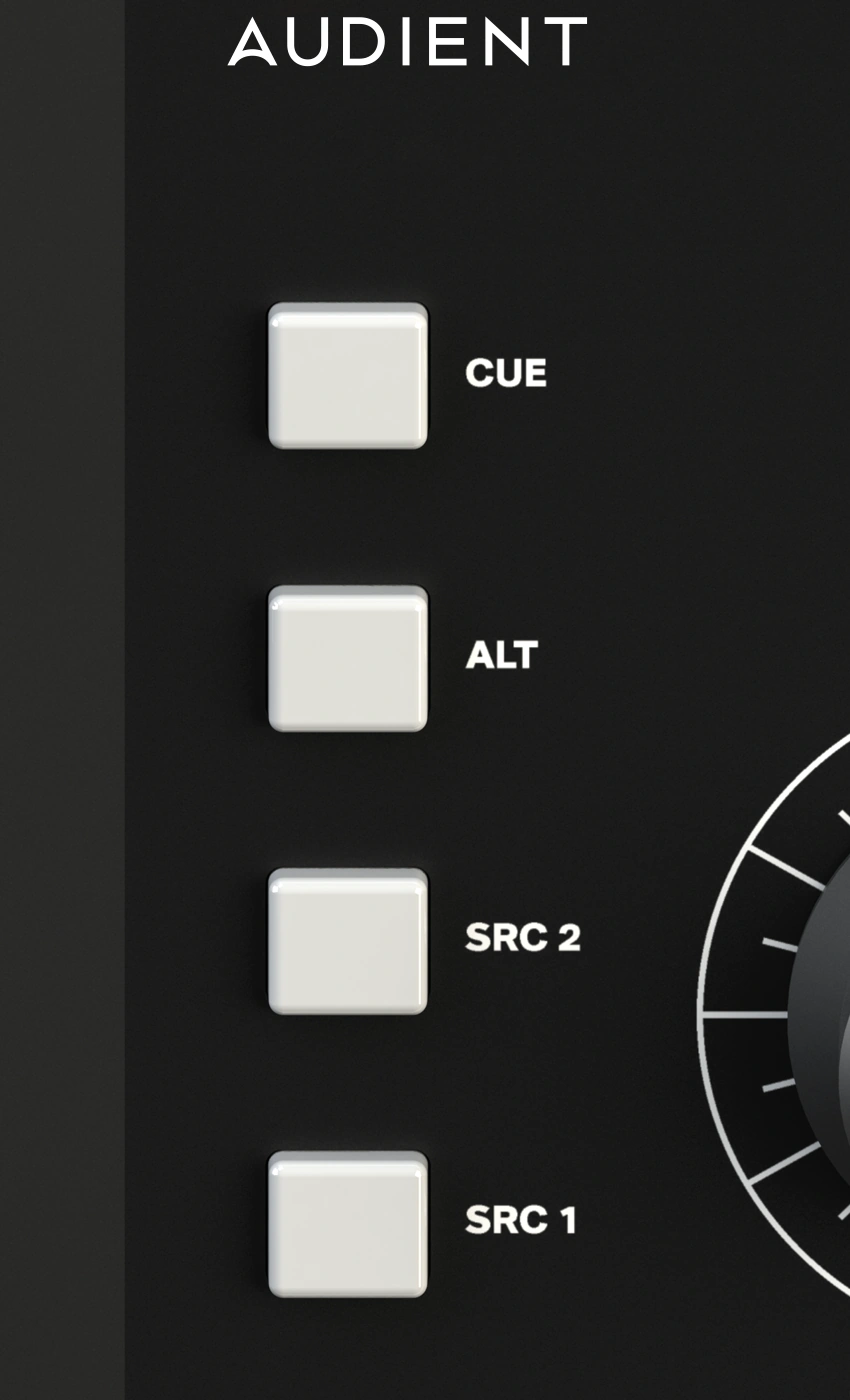
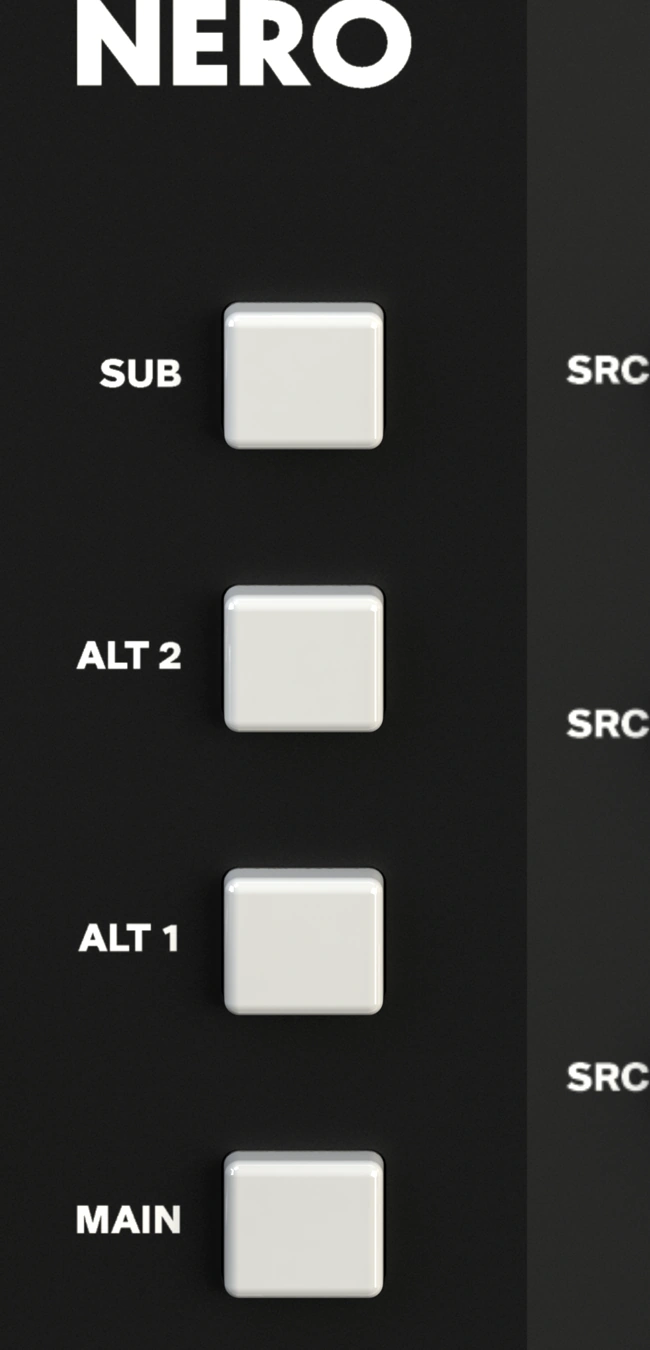
Headphone 1 following the control room
Headphone 1 can be routed from any source. It can also follow the control-room source by deselecting all headphone sources.
- Press the currently active input button.
- All input LEDs are off when Headphone 1 is following the control-room input.
- Talkback is not available while in this headphone source-selection mode.
By default:
- Headphone 1 follows the control-room source.
- Headphones 2 to 4 default to the Cue input.
Talkback routing from headphone source mode
While in headphone source mode, the Talkback button can be toggled to route or unroute the talkback signal to that headphone output.
By default, Talkback is routed to Headphones 2 to 4.
For the full Talkback controls, see Talkback.
Speaker output selection
Use the selection buttons in the Control Room section of the front panel to choose which speaker set you want to monitor.
Volume control
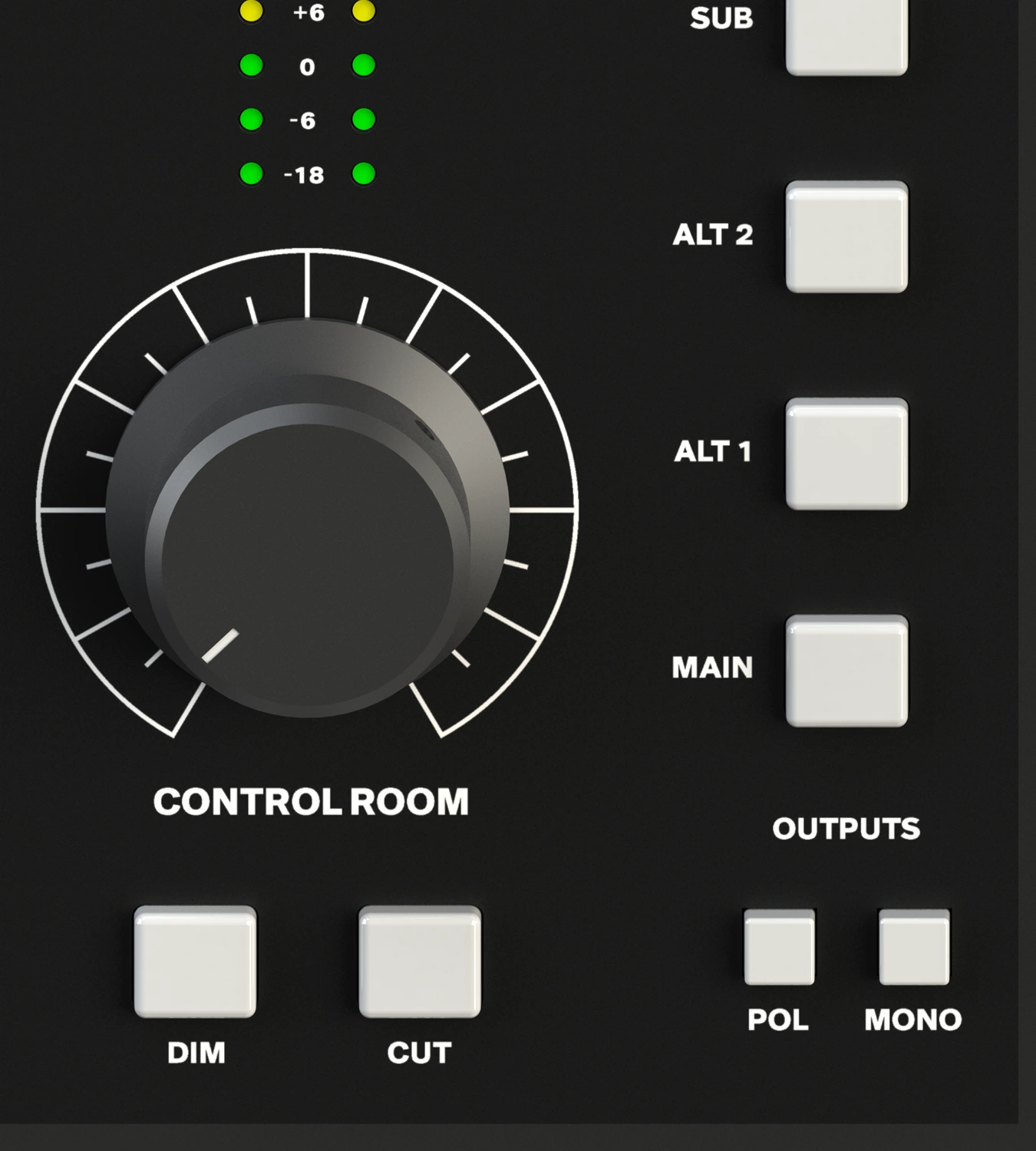
The speaker-output volume is controlled by the large Control Room volume knob.
NERO uses Audient's Precision Matched Attenuation Technology. The attenuation circuit is analogue, while a microcontroller precisely sets the resistance used for attenuation. This keeps the left and right channels closely matched across the control range and avoids the channel-tracking variation that can occur with a conventional stereo potentiometer.
Monitoring functions
NERO provides console-style monitoring controls.
Dim
Dim reduces the speaker output volume by a preset amount.
The default attenuation is -15 dB, but it can be adjusted to taste. See User Defined Dim.
Cut
Cut turns all speakers off. This is useful when you need to talk to the performers or monitor only on headphones.
Mono
Mono sums the left and right channels of the stereo signal together to check compatibility with mono speakers and single-speaker playback devices.
The Mono button can also be held for momentary operation.
Polarity
Polarity flips the polarity, or phase, of the left input.
Used together with Mono, this allows you to listen to the sides of a mix, which is useful when checking stereo reverbs and delays.
The Polarity button can also be held for momentary operation.
Next steps
Continue to Talkback.