Smart Touchpoints and Stored Settings
Saving your routing
You can save the routing setup so that NERO powers up in the same configuration the next time it is switched on.
To save the routing state:
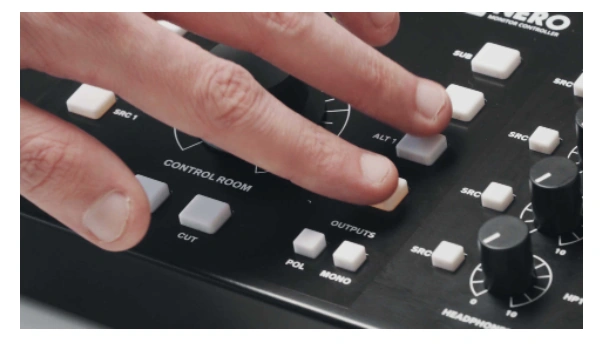
- Press the active speaker-output button and any other speaker-output button simultaneously.
- A successful save is indicated by the Dim LED flashing green and the Cut LED flashing red.
Factory reset
To reset NERO to its factory-default settings:
- Power off the unit.
- Hold down DIM and CUT, and continue holding them.
- Power the unit back on using the rear-panel power switch.
- After three seconds, release DIM and CUT.
The unit should now be reset.
Smart Touchpoints
Smart Touchpoints allow different monitoring-routing options to be configured quickly.
Hold a Smart Touchpoint to enter setup mode, select the required routing options, then press it again to save.
Speaker level matching
Different speaker systems can produce different listening levels because of differences in power-amplifier or speaker sensitivity.
NERO provides trim control on the Alt speaker outputs so they can be matched to the level of the Main speakers.
Audient recommends using a pink-noise generator and an SPL meter.
- Send pink noise to the Main speakers.
- Note the SPL level.
- Select the Alt speaker output that you want to calibrate and hold its button until it flashes.
- Rotate the main volume control up or down until the SPL matches the reading from the Main speakers.
- Press the flashing Alt speaker button again to save the calibration.
NERO provides a trim range of ±15 dB, which is sufficient in most cases.
If the speakers are too far apart in level for this range, check whether the speakers or power amplifier provide their own trim controls. If they do not, consider suitable in-line attenuators, or pads.
Smart Mono Mode
NERO can configure a speaker output as permanently mono so that you do not have to activate Mono every time you switch to that speaker.
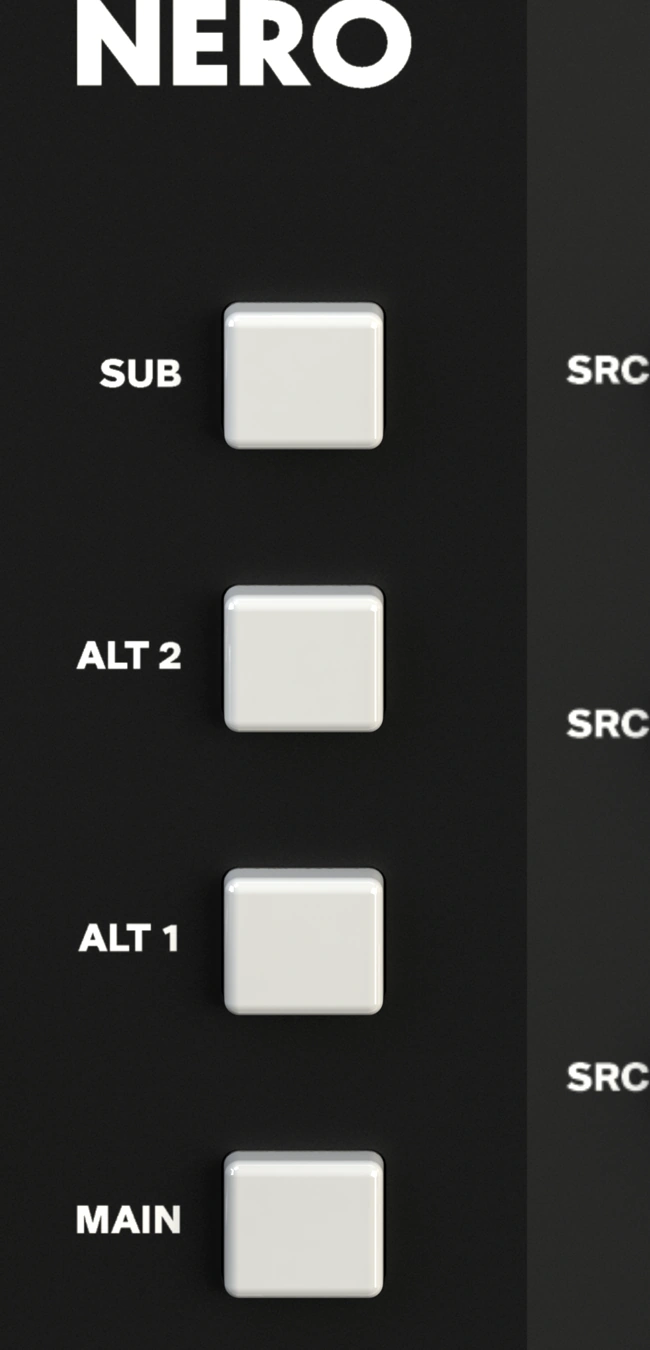
- Hold the required speaker-output button until it flashes.
- Press Mono.
- Press the flashing speaker-output button again to save.
When that speaker output is selected, Mono is activated in the background, but the Mono button does not illuminate.
The Mono button can still be toggled normally when using other speaker outputs.
Assignable Sub output
The Sub output can be linked with any speaker output so that it is activated automatically when you switch to that speaker output.
- Hold the required speaker-output button until it flashes.
- Press Sub.
- Press the flashing speaker-output button again to save.
The Sub output will now activate automatically when switching to that output.
The Sub output can still be toggled manually using the Sub button without losing the saved routing preset.
User Defined Dim
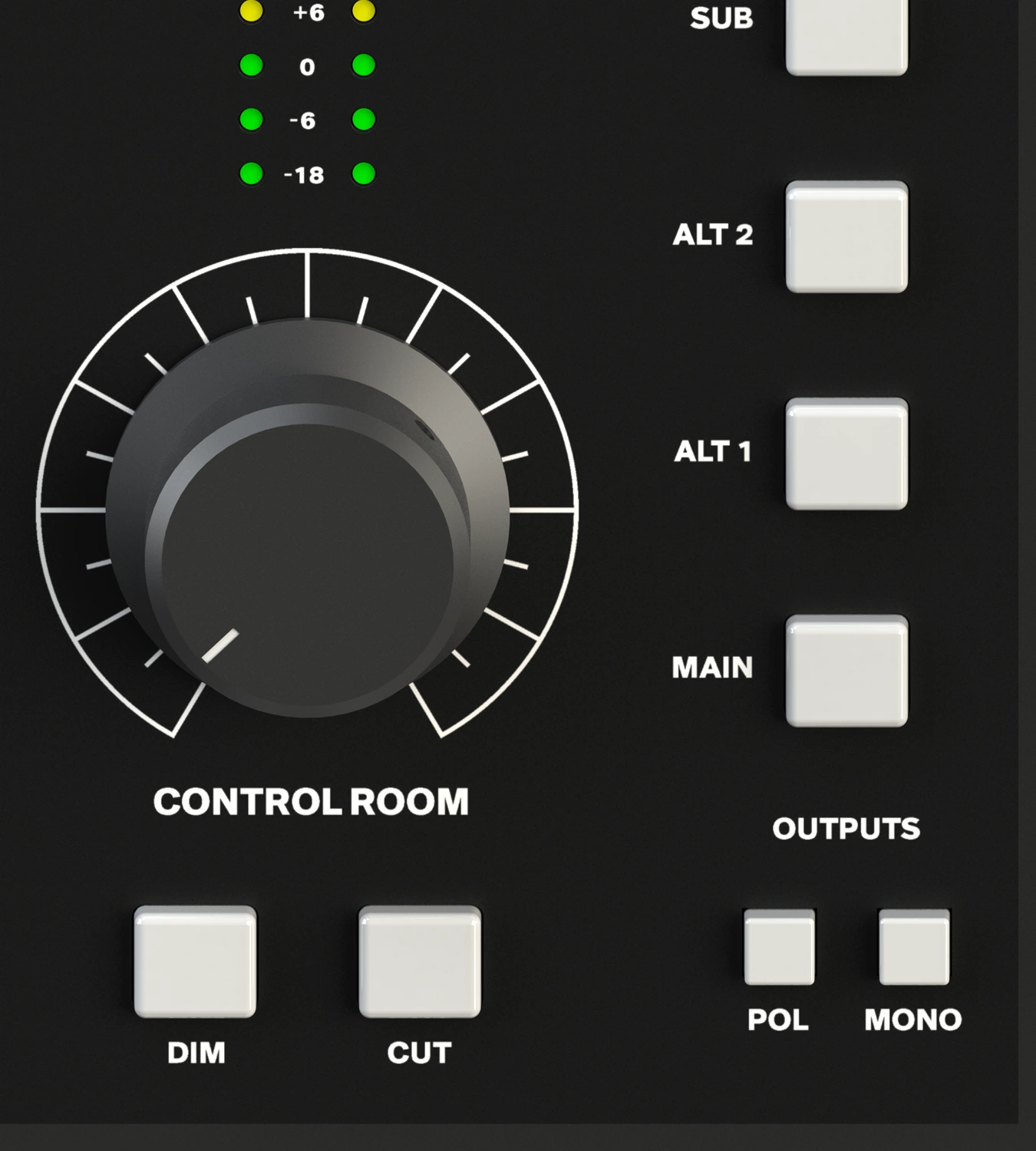
The amount of attenuation provided by Dim defaults to -15 dB, but it can be adjusted.
- Hold Dim until the button flashes.
- Rotate the main volume control to the desired Dim level.
- Press Dim again to save the setting.
Talkback routing
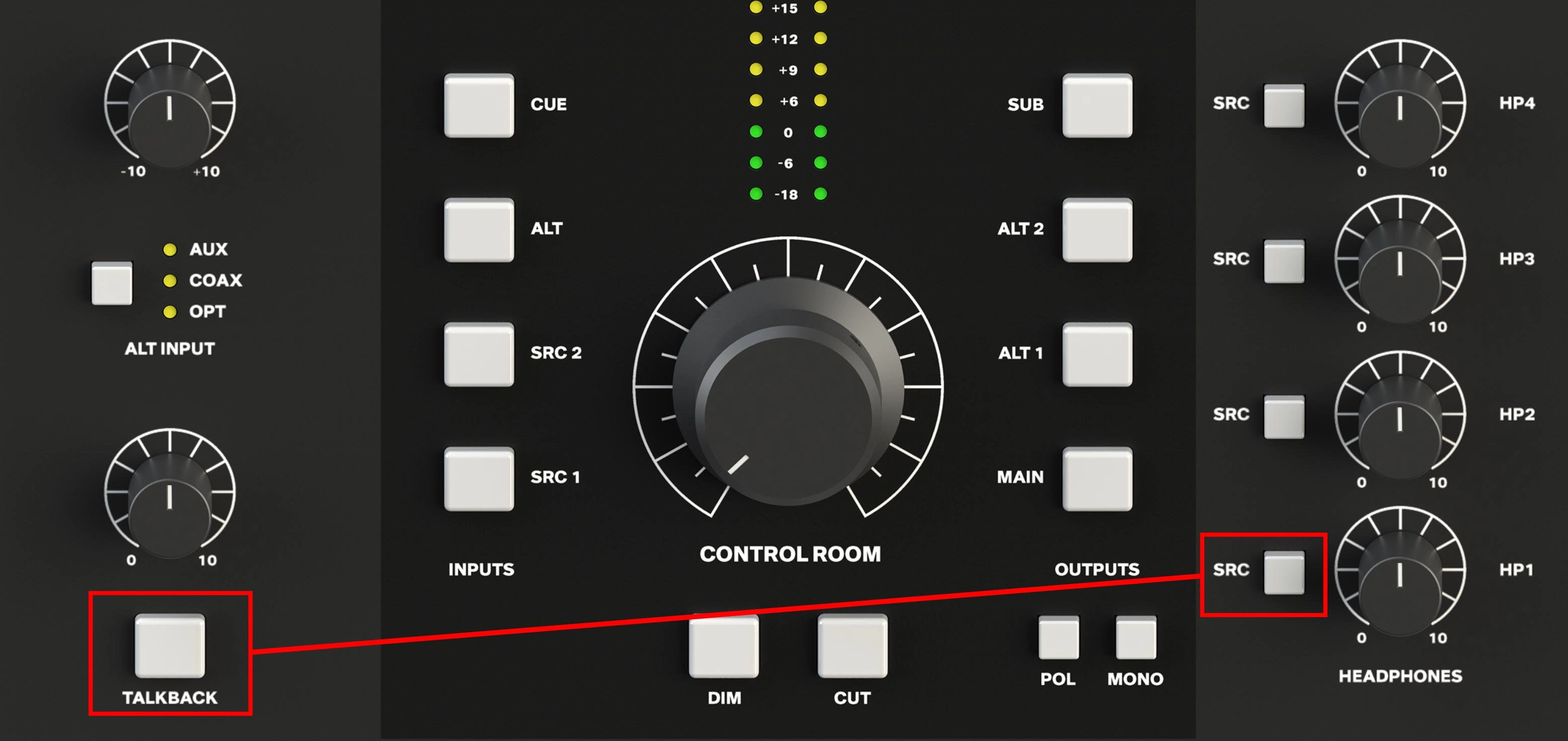
Talkback can be assigned independently to each headphone output.
- Press the SRC button for the required headphone output to enter source-selection mode.
- Press Talkback. When the Talkback button is illuminated red, Talkback is assigned to that headphone output.
- Press the SRC button again to exit source-selection mode and store the setting.
Talkback cannot be used normally while NERO remains in headphone source-selection mode.
Next steps
Continue to Signal Flow.