Monitoring and Output Controls
EVO 4 uses the Control Knob for speaker and headphone level, direct-monitoring balance and input pan. The speaker and headphone outputs share the same output level.
Monitoring connections and controls
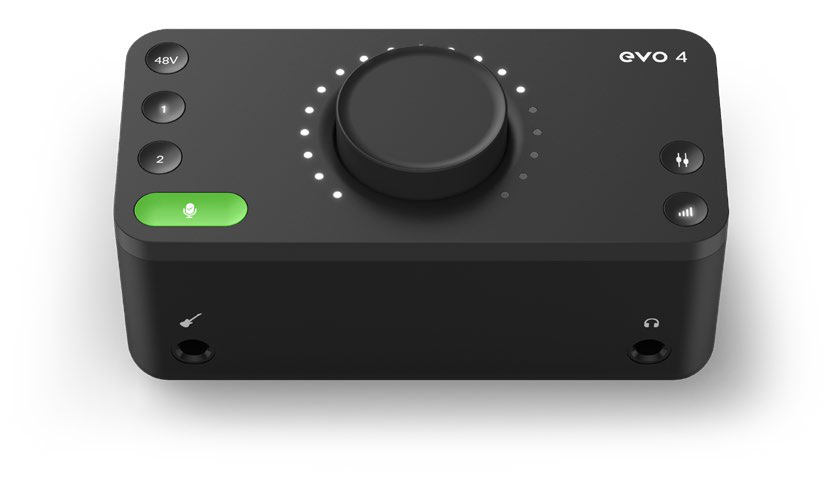
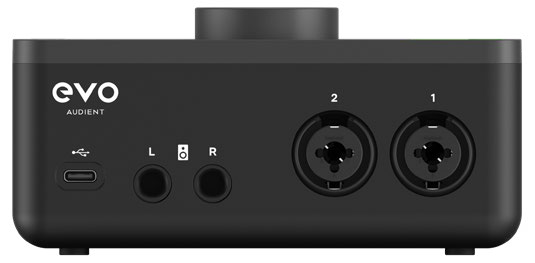
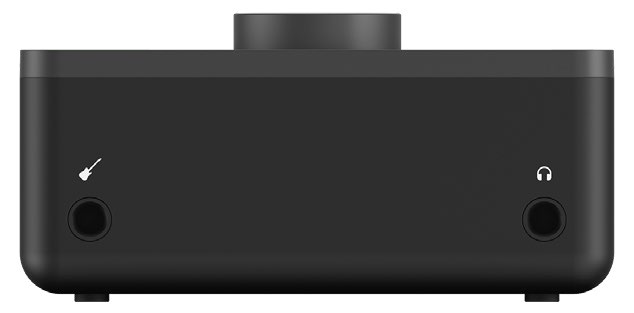
Adjust the output volume
- Press the Output Volume button.
- Turn the Control Knob to set the listening level.
- Use the meter ring as an indication of the current relative level.
The same volume control applies to both the monitor outputs and the headphone output.
Use Monitor Mix
Monitor Mix balances the direct input signals against audio played back from the computer. Direct monitoring lets the inputs reach the outputs with very little delay, avoiding the latency that can occur when monitoring through recording software.
- Press Monitor Mix.
- Turn the Control Knob anti-clockwise to hear more of the direct inputs.
- Turn the Control Knob clockwise to hear more computer playback.
- Set the control between the two sides to hear a blend of both.
A single illuminated point on the meter ring shows the current Monitor Mix position.
When direct monitoring is being used, disable software input monitoring in the recording application when hearing both paths would create an unwanted doubled or delayed signal.
Use Monitor Pan
Monitor Pan positions the two direct input signals in the left-right monitor mix. This can provide separation between two sources and allows a stereo pair to be monitored in stereo.
- Press and hold Monitor Mix to enter Monitor Pan mode.
- Turn the Control Knob to move the inputs between the left and right channels.
- Release the Monitor Mix button when the required position is set.
SmartMuting
Connecting headphones to the front headphone output automatically mutes the rear monitor outputs. Disconnect the headphones to restore the monitor outputs.
This automatic behaviour means that EVO 4 cannot play through its monitor and headphone outputs at the same time. The outputs also do not have independent mixes or level controls.
Mute the output
Press and hold the Output Volume button to mute the output. The button flashes while muted.
Press and hold the button again to unmute the output.
Next steps
Continue to EVO Control Software for computer-based control and saved configurations, or Audio Loopback to route computer audio into recording or streaming software.