Audio Loopback
EVO 4 includes an Audio Loopback Mixer that can send computer playback and the two analogue inputs to a stereo loopback input for recording or streaming.
Open it from the EVO application menu by selecting Show Loopback Mixer.
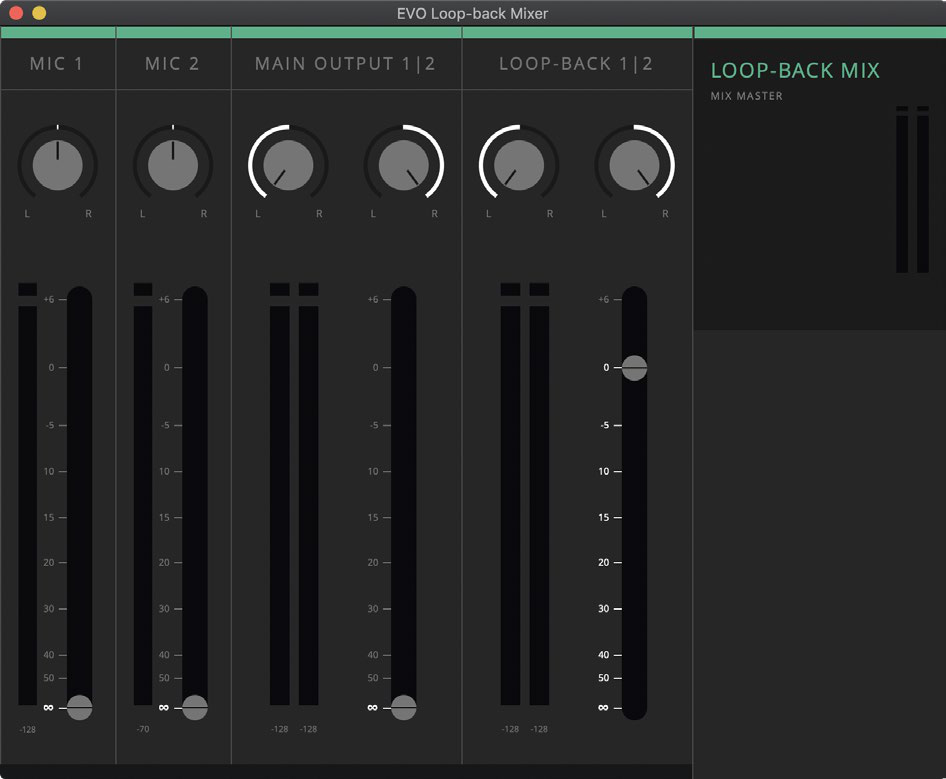
Loopback mixer sources
Mic 1
Receives EVO 4 input 1. This is the rear Mic/Line input, or the front instrument input when an instrument cable is connected.
The channel includes a pan control for positioning the signal in the stereo loopback mix.
Mic 2
Receives the rear Mic/Line input 2 and includes a pan control.
DAW 1+2
Receives the normal computer playback that would usually be sent to the speakers or headphones.
If the loopback mix is being monitored while recording or streaming, keeping DAW 1+2 raised can create a feedback loop in some routing setups. Reduce this fader if feedback occurs.
Loopback 1+2
Receives EVO 4's dedicated loopback playback channels. These are separate from the normal playback outputs, so audio can be sent to the loopback mix independently of the main playback feed.
Record or stream the loopback mix
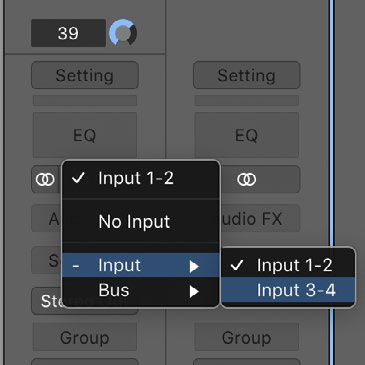
In the recording, streaming or communications application, select EVO 4's stereo loopback input.
Depending on the software, this may appear as:
- Loopback 1+2
- Input 3+4
The exact control used to select an audio input depends on the application. Refer to that application's documentation if required.
Send application audio directly to loopback
Some applications allow their output channels to be selected directly. Where available, route the application's output to EVO 4 Loopback 1+2.
For software without its own output-channel selection, use the operating-system routing described below.
macOS loopback setup
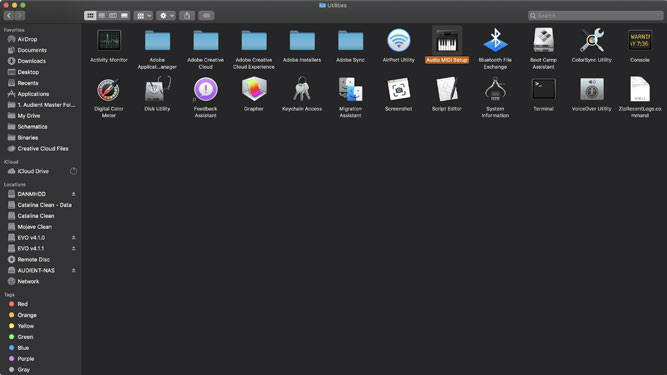
- Open Finder > Applications > Utilities > Audio MIDI Setup.
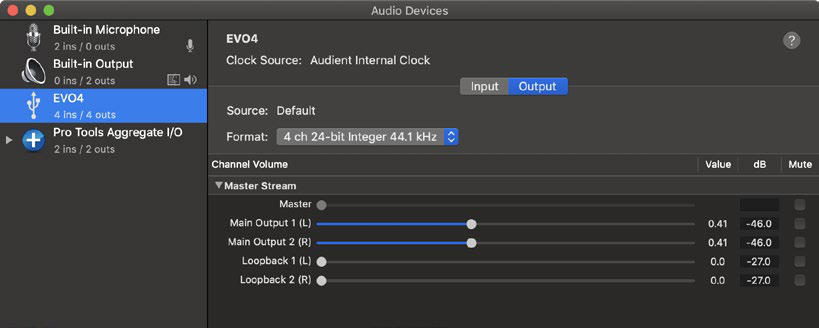
- Select EVO 4 from the list of audio devices.
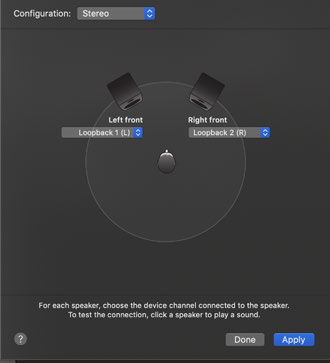
- Select Configure Speakers.
- Set the left output to Loopback 1.
- Set the right output to Loopback 2.
- Apply the configuration.
- Open the recording or streaming application.
- Select Loopback 1+2 or Input 3+4 as its input.
Computer audio routed through this configuration is sent to the Audio Loopback Mixer, where it can be combined with the EVO 4 inputs.
Windows loopback setup
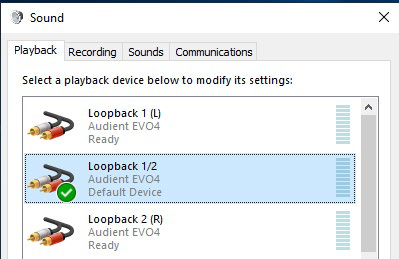
- Open Control Panel > Hardware and Sound > Sound.
- Open the Playback tab.
- Select Loopback 1+2 from the output-device list.
- Select Set Default Device.
- Open the recording or streaming application.
- Select Loopback 1+2 as its input.
Applications using the Windows default playback device will now send their audio to the EVO 4 loopback channels.
Audio loopback is not available when EVO 4 is used with iOS or iPadOS.
Save loopback settings
Loopback Mixer settings are stored as part of an EVO configuration together with EVO Control settings.
See EVO Control Software for saving, exporting and opening configurations.
Next steps
Continue to Firmware Updates, or return to EVO Control Software for application controls and saved configurations.