EVO Control Software
The EVO application provides computer-based access to EVO 4 controls, the Audio Loopback Mixer, firmware updates and Windows audio settings.
Open the EVO application after installation. The EVO icon remains available in the macOS menu bar or the Windows system tray, where EVO Control and the Loopback Mixer can be opened when EVO 4 is connected.
EVO application menu
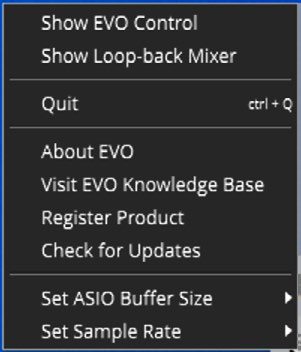
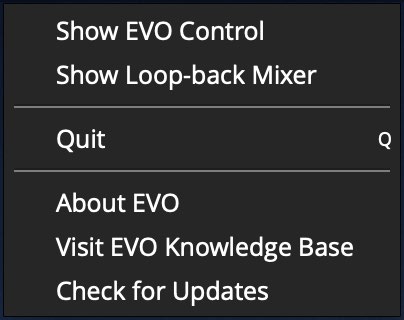
Application menu
Show EVO Control
Opens EVO Control so that EVO 4 settings can be adjusted from the computer.
Show Loopback Mixer
Opens the Audio Loopback Mixer, where the sources sent to the loopback inputs can be adjusted.
See Audio Loopback for the mixer sources and routing process.
Quit
Fully closes the EVO application and stops it running in the background.
About EVO
Shows information about the installed EVO application, including its version.
Visit EVO Knowledge Base
Opens the Audient support site for EVO setup guides, FAQs and additional help.
Check for Updates
Checks whether an EVO 4 firmware update is available. If an update is available, the application prompts you to install it.
See Firmware Updates for the update process.
Set ASIO Buffer Size - Windows only
Adjusts the ASIO buffer size used by the Windows driver. Smaller buffer sizes reduce latency but increase the processing demand on the computer.
Set Sample Rate - Windows only
Selects a sample rate of 44.1 kHz, 48 kHz, 88.2 kHz or 96 kHz.
Where possible, use the same sample rate in the EVO application and the recording software.
EVO Control
EVO Control provides remote access to the main EVO 4 controls from the computer.
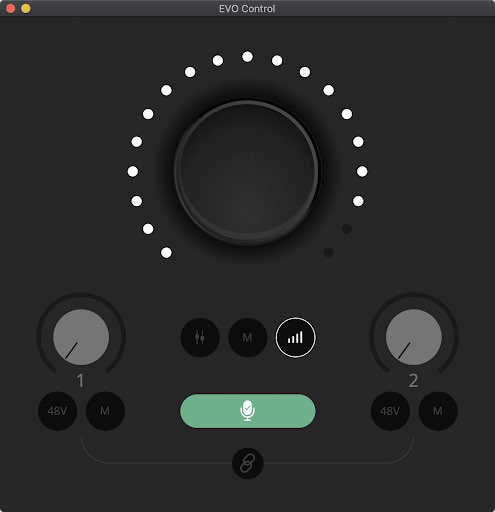
Main Control Knob
Controls either the main output volume or Monitor Mix, depending on the selected function.
Meter Ring
Shows the level of audio being played from EVO 4. When Monitor Volume or Monitor Mix is adjusted, the ring temporarily shows the value of that control before returning to audio metering.
Microphone controls
Each input has controls for:
- Input gain
- 48 V phantom power
- Input mute
The controls for inputs 1 and 2 are independent.
Stereo Link
Links inputs 1 and 2 as a stereo pair. Gain and mute are linked between the channels, while phantom power remains independently controlled for each input.
See Input Controls and Smartgain for stereo-link operation.
Monitor Mix
Balances the direct microphone or instrument inputs against computer playback for monitoring through the speakers or headphones.
See Monitoring and Output Controls for the monitoring process.
Main Output Mute
Mutes the main output of EVO 4.
Main Output Volume
Selects the main output level so it can be adjusted using the Main Control Knob.
Smartgain
Runs Smartgain from EVO Control.
- Select Smartgain.
- Select the input channels to be analysed.
- Select Smartgain again to start the process.
- Perform the loudest section of the source being recorded.
- EVO 4 analyses the selected inputs and sets their gain automatically.
The Smartgain indicator flashes green when the process completes. If EVO 4 does not detect a sufficient signal, the indicator flashes red. Check the source connection and enable phantom power if the connected microphone requires it.
Smartgain can also be used while the two inputs are stereo linked.
For the complete Smartgain procedure, see Input Controls and Smartgain.
Save a configuration
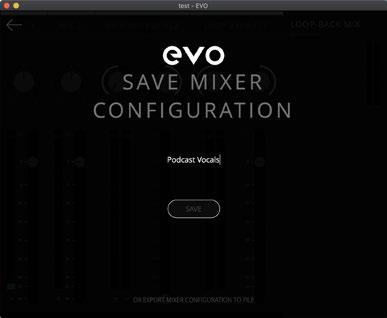
EVO 4 can save the EVO Control and Audio Loopback Mixer settings together for later recall.
- Open File > Save.
- Enter a name for the configuration.
- Select Save.
To transfer the configuration to another computer or EVO 4 user, select Export Mixer Setting to File and save the file to the required location.
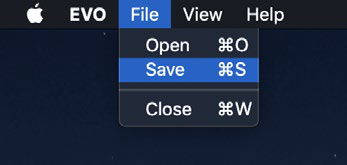
Open a saved configuration
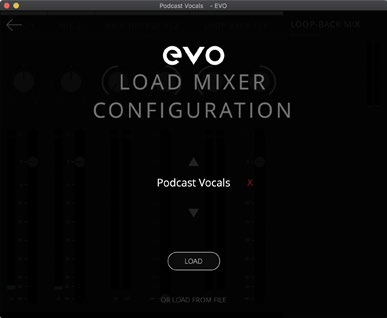
- Open File > Open.
- Select the required saved configuration from the list.
To open a configuration stored as a file, select Load From File and choose the required file.
A saved configuration can be deleted from the saved-configuration list by selecting the red X beside it.
Next steps
Continue to Audio Loopback to configure computer audio for recording or streaming.