Mixer & Channel Strips
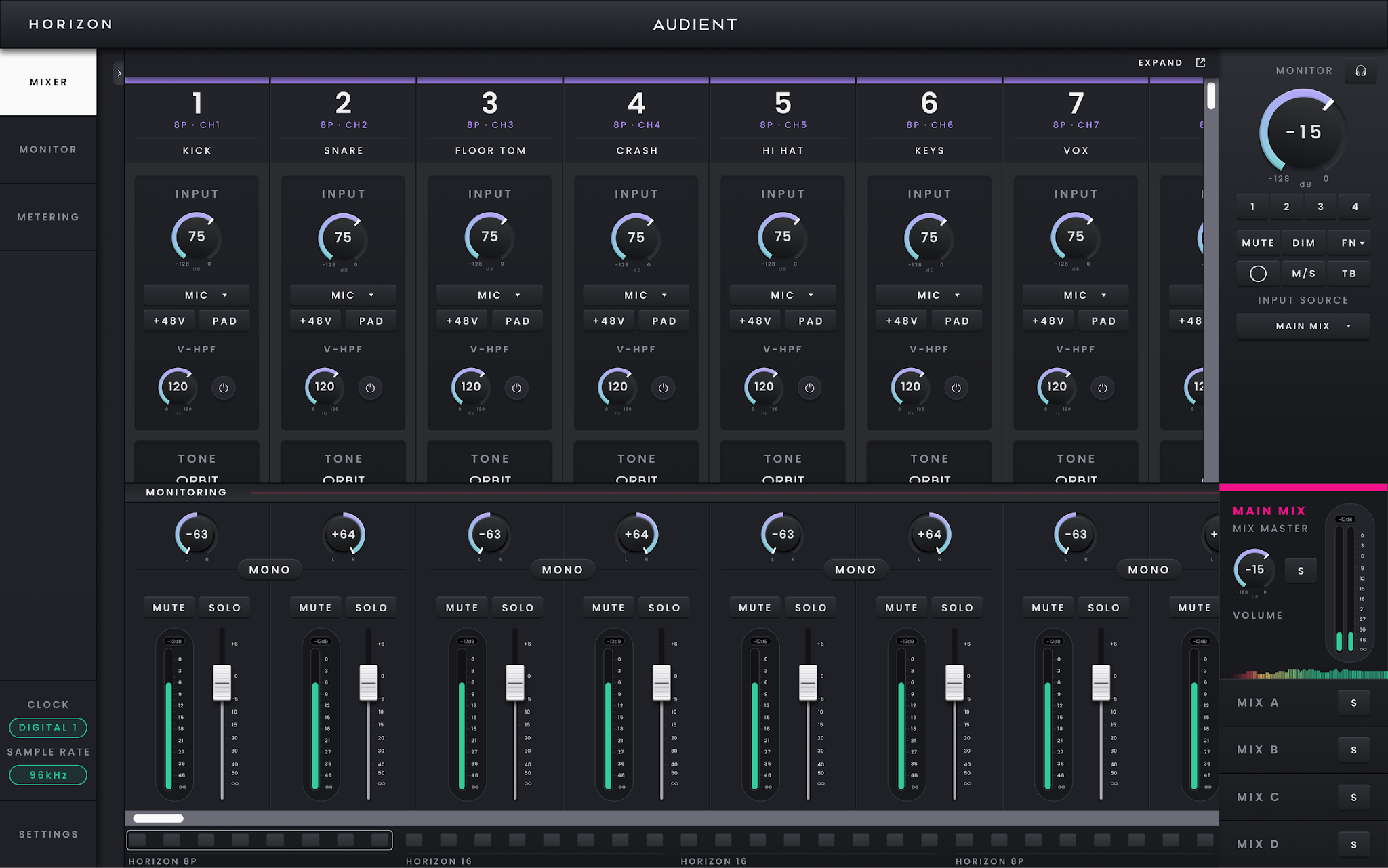
Horizon Control Mixer.
The Mixer is the main working area in Horizon Control. It brings the Horizon 8P inputs, computer playback and low-latency monitoring together in one place, so you can set up sources and build what you need to hear without changing the level being recorded in your DAW.
Working in Horizon Control
Horizon Control opens to the Mixer. Use the side navigation to move to the dedicated Monitor or Metering views when you need a larger view of those functions, and open Hardware Settings for device, clocking and routing configuration. The navigation can be collapsed and the application window resized when you want to give the Mixer more screen space.
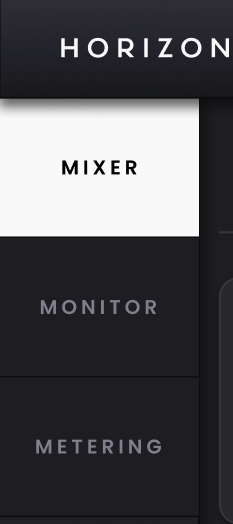
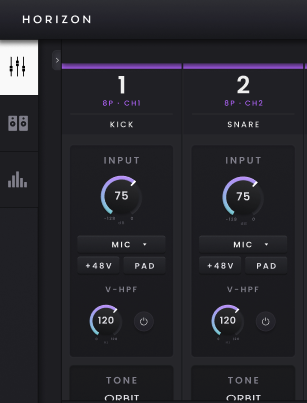
The current clock source and sample rate remain visible while you work. Double-click either status indicator when you need to change the corresponding setting in Hardware Settings.

Understanding the channel strips
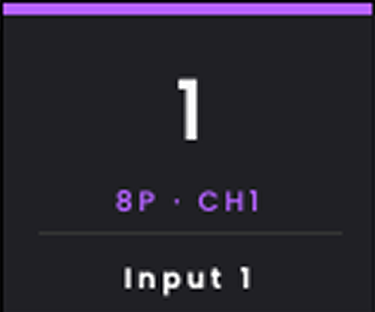
Each channel strip represents a source available to the Horizon monitoring system. The top of the strip shows the channel number, the Horizon device it belongs to (identified by colour), the hardware channel number and the channel name. Double-click the name to replace the default label with something useful to the session, such as Vocal, Guitar or Playback.
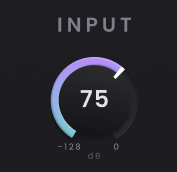
On Horizon 8P, the analogue input strips also give you control of the preamp before the signal reaches the monitoring section. Use Input Gain to set the analogue level. Choose the required Mic/Line, D-sub Line or Instrument source via the dropdown selector.
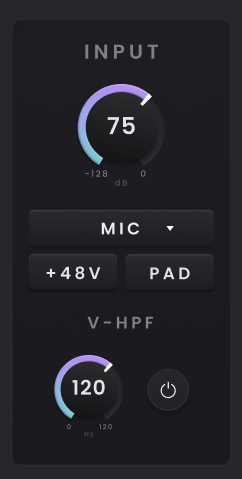

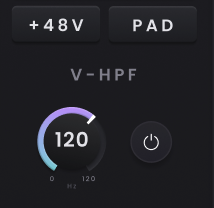
Enable +48 V, Pad or the high-pass filter where needed. The front-panel Instrument inputs are available on channels 1 and 2.
ORBIT changes the microphone-input impedance, which can alter the way some microphones interact with the preamp. Choose Low for 220 Ω, Medium for 1200 Ω or High for 2800 Ω. The controls shown in the strip change with the selected input type, so settings that do not apply to the current source are hidden.
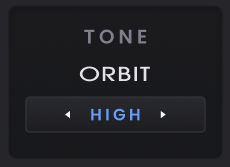
ORBIT is not available when the input mode is set to Line Return.
Building a monitor mix
The lower part of each channel strip is for monitoring. This is deliberately separate from the record path: moving a monitoring fader, changing Pan, muting or soloing a channel changes what you hear in the active mix without changing the input level being sent to the DAW.
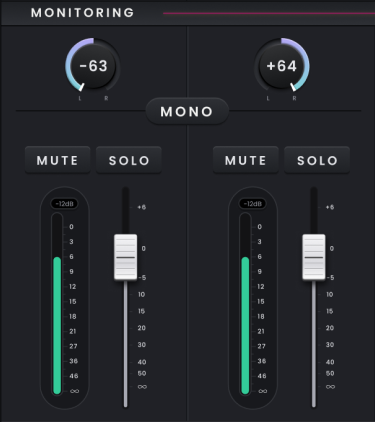
Use the fader to set the channel level in the current Main or Independent Mix, Pan to position it in the stereo field, and Mute or Solo when you need to remove or isolate it while checking the balance. Channels can also be used as mono or stereo pairs where appropriate. The monitoring fader runs from −∞ to +6 dB and starts at unity, while the channel meter uses its own scale up to 0 dBFS.
This separation between the input and monitor paths is useful when recording: once the preamp gain is set correctly for the DAW, you can continue changing the performer's or control-room balance without disturbing the recorded level.
Digital and computer playback channels
ADAT inputs appear in the Mixer alongside the analogue inputs, but they do not show Horizon preamp controls because their gain is set before the signal reaches Horizon. The number of available digital channels follows the selected digital mode and sample rate.
Computer playback appears as Virtual Channels. Horizon 8P provides 32 Virtual Channels, shown as 16 stereo pairs by default, and these can be changed to mono where required. Use them to bring DAW or other computer playback into the same monitoring mixes as the live Horizon inputs.
