Front Panel & Motion UI

Horizon 8P front panel.
Selecting an input channel opens its Input Summary on the Motion UI display. The front panel also provides monitor and headphone output control.
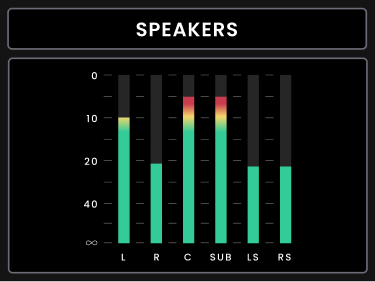
Metering is the normal idle view. Temporary parameter and status screens appear when you make changes from the hardware or Horizon Control, then the display returns to the appropriate input or output metering view after a period of inactivity.
First power-up
On first power-up:
- The Horizon startup animation and Welcome screen are shown.

- Turn the Control Wheel to set the Motion UI brightness, then press the Control Wheel to continue.

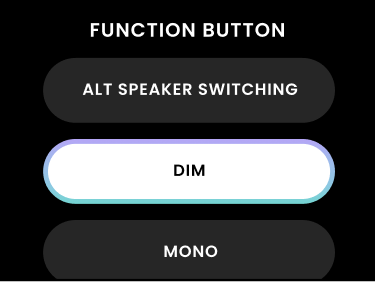
- Choose the initial Function button assignment from the options presented during onboarding.
- Complete the setup to enter the normal output-metering view.
Dim is assigned by default.
Selecting an input channel
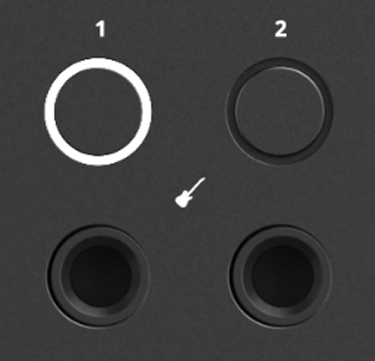
Press one of the numbered channel buttons to select the corresponding input. The Input Summary opens for the selected channel. After a period of inactivity, the display returns to input metering.
Adjusting input gain
Turn the Control Wheel to adjust the gain of the selected input. The gain value is shown on the Motion UI while it changes, and gain changes made in Horizon Control are reflected on the Motion UI.
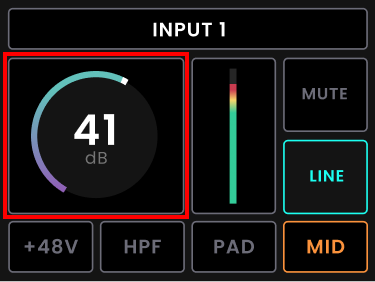
Horizon 8P provides 75 dB of input gain.
Selecting the input type
Each input channel can use its rear-panel Mic/Line input or the corresponding Line (D-sub) return.
Channels 1 and 2 also provide front-panel JFET Instrument Inputs. Select the channel you want to configure on the Horizon 8P front panel, then press the Input button to choose its input mode. You can also select the input mode in Horizon Control. Channels 1 and 2 offer Mic/Line, Line (D-sub) and Instrument; channels 3–8 offer Mic/Line and Line (D-sub). Connecting an instrument does not automatically select Instrument mode.
Phantom power
+48 V phantom power is available on the Horizon 8P preamp inputs when Mic/Line is selected. It is unavailable when a channel is using its D-sub return or when channels 1 or 2 are using the Instrument Input.
Press the +48 V button for the selected channel to toggle phantom power. Motion UI will briefly display Phantom Power is enabled before returning to the input summary with Phantom Power on the selected input. This will also be reflected in the channel strip in Horizon Control.
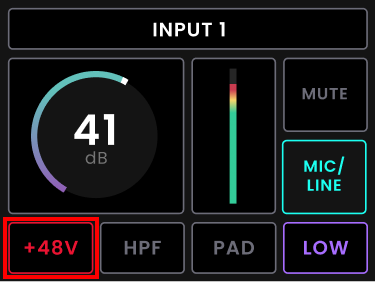
If you try to enable +48 V while it is unavailable, the Motion UI briefly displays +48 V Not Available before returning to the Input Summary.

ORBIT Variable Impedance Control
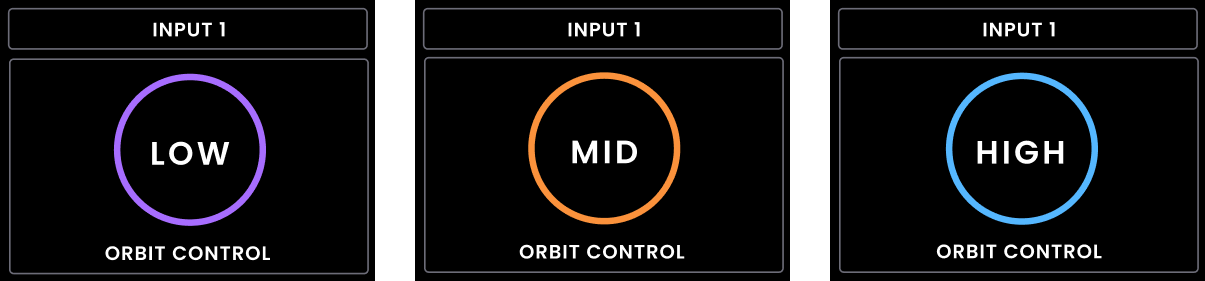
ORBIT Variable Impedance Control provides three input-impedance settings when Mic/Line is selected:
| Setting | Input impedance |
|---|---|
| Low | 220 Ω |
| Medium | 1200 Ω |
| High | 2800 Ω |
Press the ORBIT button for the selected channel to cycle through Low, Medium and High.
The selected setting is shown briefly on the Motion UI and remains visible in the Input Summary. Changes made using ORBIT on the hardware are reflected in Horizon Control, and changes made in Horizon Control are reflected on the hardware.
High-pass filter
The variable high-pass filter can be switched on or off for the selected preamp input. Press the HPF button for the selected channel to switch the filter on or off. The Motion UI briefly displays the new state, and the state is reflected in Horizon Control.

The cutoff-frequency range is 20 Hz to 250 Hz.
To adjust the cutoff frequency:
-
Press and hold the HPF button for the selected channel to open the frequency-edit screen.
-
Turn the Control Wheel to adjust the cutoff frequency.

- Press the Control Wheel to confirm the settings, press again to save.

The selected cutoff frequency is retained when the high-pass filter is switched off and on.
Pad
The Pad attenuates the selected Horizon 8P preamp input by 10 dB. Pad can be enabled or disabled from the Horizon Control input channel strip.

Muting an input
Press and hold the numbered channel button for the selected input to mute or unmute it. The Motion UI briefly displays the new mute state. Input mute can also be controlled from Horizon Control.

Input Summary and metering
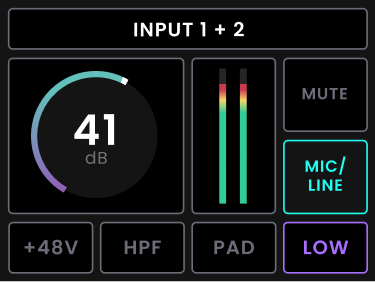
The Input Summary displays the selected channel's gain, +48 V state, HPF, Pad, ORBIT setting, input mode and mute status. After a period of inactivity, the display returns to input metering.
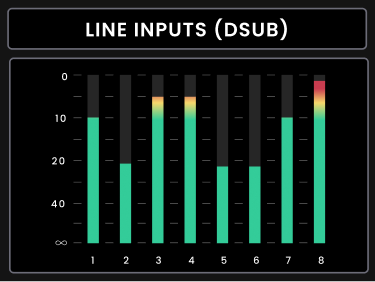
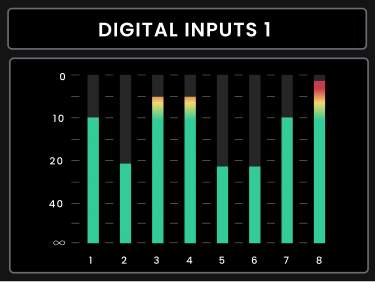
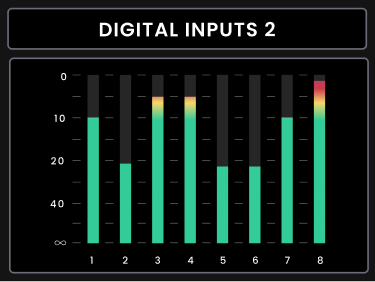
Press the Control Wheel while viewing input metering to cycle through:
- Mic/Line inputs
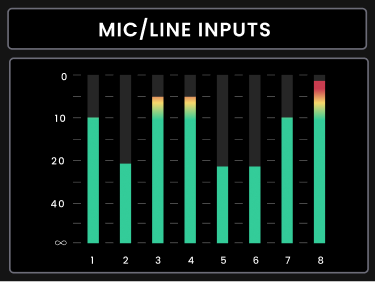
- D-sub line inputs
- Digital inputs 1 and 2
Output metering and monitor level
Horizon 8P starts in output mode. With the main Volume control selected, turn the Control Wheel to adjust the monitor level.
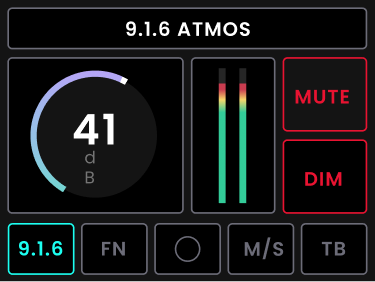
The Output Summary displays the active Speaker Layout name, output level, speaker configuration and the current Function, Mono, Mid/Side, Talkback, Dim and Mute states.
Press the Control Wheel to cycle through the available output-metering views:
- Speakers

- Headphone outputs

Muting the monitor output
Press and hold the main Volume button for approximately one second to mute the monitor output. The Volume button pulses while muted and the Motion UI briefly displays the new mute state. The mute remains active if you navigate to another output. Hold the Volume button again to unmute.

Function button
The Function button toggles the monitoring function assigned to it. It can be assigned to Dim, Mono, Mid/Side, Reference Level or Talkback; Dim is assigned by default. Function assignment can be changed from the front panel or from Horizon Control, and the two remain linked. When the assigned function changes state, the Motion UI briefly displays the new state and Horizon Control reflects the same status.
Headphone outputs
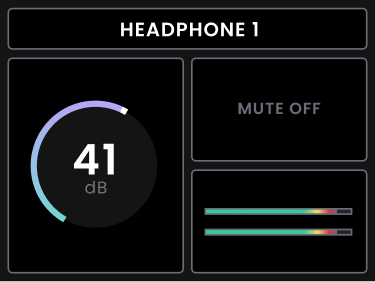
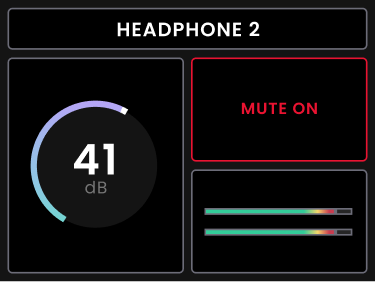
Horizon 8P provides two independently controlled headphone outputs. Select HP1 or HP2 to open its Output Summary, then turn the Control Wheel to adjust its level. The selected headphone level, mute state and output metering are shown on the Motion UI and level changes are reflected in Horizon Control.
Press and hold the selected headphone button to mute or unmute that headphone output.
Front-panel settings
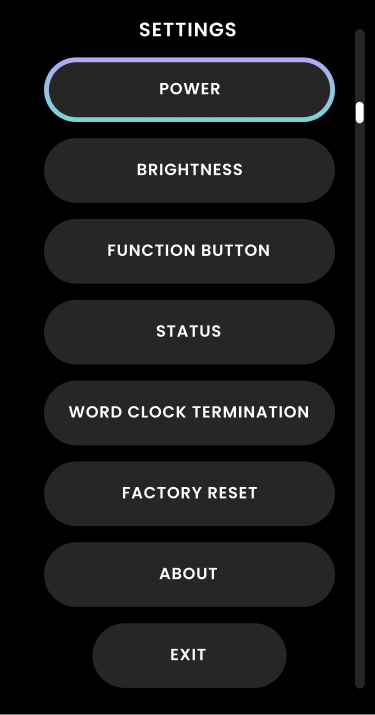
Press and hold the Control Wheel for three seconds to open the front-panel Settings view. Turn the Control Wheel to navigate and press it to make a selection.
The front-panel Settings view provides access to:
| Option | Description |
|---|---|
| Power | Powers down Horizon 8P. If the unit has been powered down from Settings, briefly press and release the Control Wheel once to power it on again. |
| Brightness | Adjusts the brightness of the Motion UI display and front-panel LEDs. |
| Function button | Changes the function assigned to the front-panel Function button. |
| Status | Displays the current sample rate, digital input format (ADAT or S/PDIF), and digital input clock status. |
| Word clock termination | Enables or disables 75 Ω word clock termination. |
| Factory reset | Restores the unit to its factory settings. |
| About | Displays the product name, serial number, FPGA version, firmware version, front-panel firmware version and copyright information. |
| Sleep | Provides access to the hardware sleep setting. |
Brightness

Status

Word Clock Termination

Factory Reset

About
