Input Controls and Smartgain
Use input buttons 1–4 to select a channel before changing its gain, phantom-power or mute setting. EVO 8 can set input gain automatically with Smartgain or manually with the Control Knob.
Input controls
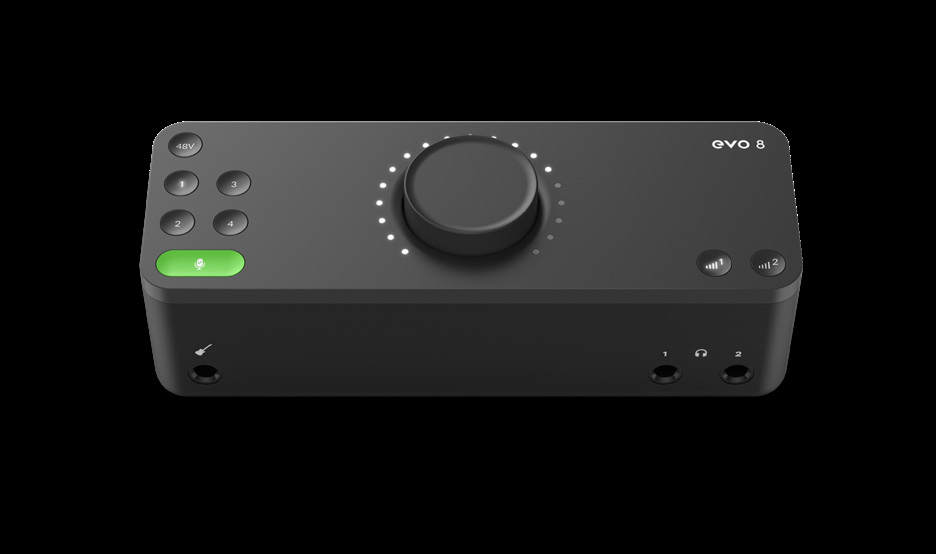
Select an input
Press input button 1, 2, 3 or 4 to select that channel. Turn the Control Knob to change the selected input gain. The LED ring around the Control Knob indicates the approximate gain setting while it is being adjusted.
Set the gain manually
- Press the numbered button for the required input.
- Turn the Control Knob to adjust the gain.
- Perform at the loudest level expected during the recording.
- Check that the signal is strong without overloading the input or producing distortion.
For line-level sources, connect a balanced 1/4-inch TRS cable to the centre of the combination input. The line-input path provides additional headroom for higher-level signals.
Set the gain with Smartgain
Smartgain analyses the selected inputs and sets their gains automatically. EVO 8 can set multiple inputs during the same Smartgain process.
- Press the green Smartgain button.
- Wait for the Smartgain LED to illuminate green and the four input buttons to flash.
- Press one or more input buttons to select the channels to be adjusted.
- Press Smartgain again to begin the process.
- Start playing, singing or performing at the loudest level expected during the recording.
- Continue performing while the Smartgain LED flashes red and the Control Knob LEDs indicate that Smartgain is listening.
- Wait for Smartgain to finish setting the levels.
- The Smartgain button flashes green twice when the process has completed successfully.
After Smartgain finishes, select an individual input and turn the Control Knob when a small manual adjustment is required.
If Smartgain does not complete successfully, check the source and cable connections, confirm that the source is producing sufficient level, and enable phantom power when the connected microphone requires it.
Link inputs as stereo pairs
EVO 8 can link inputs 1+2 or 3+4 as stereo pairs.
Press input buttons 1 and 2 together, or 3 and 4 together, to link or unlink the pair.
When a pair is linked:
- The two channels use matched gain settings.
- Selecting one channel also selects the linked channel.
- The EVO software mixer displays the pair as a stereo channel.
Stereo linking is useful for stereo line-level equipment or an instrument recorded with two microphones.
Enable phantom power
Some microphones, normally condenser microphones, require 48 V phantom power.
- Press the numbered button for the required microphone input.
- Press 48V.
- Check that the 48V button remains illuminated red.
Repeat the procedure to disable phantom power on the selected channel.
Check the microphone manufacturer's instructions before enabling phantom power. Only enable 48 V when the connected microphone requires it.
USB power and phantom power
- When EVO 8 is connected to a USB-C host that can provide 1.5 A, phantom power can be used on all four microphone inputs at the same time.
- When EVO 8 is connected to a USB-A host, phantom power is limited to two channels at a time.
Set the instrument-input gain
Connecting a cable to the front instrument input routes the instrument to input channel 1 and overrides the rear input 1 connection.
Set its gain in the same way as the other inputs:
- Press input button 1 and turn the Control Knob for manual gain adjustment.
- Select input 1 during the Smartgain procedure for automatic gain setting.
See Hardware and Connections for instrument cable and routing information.
Mute an input
Press and hold input button 1, 2, 3 or 4 to mute that channel. The button flashes while the input is muted.
Press and hold the same button again to unmute the channel.
Next steps
Continue to Monitoring and Output Controls to configure the two speaker/headphone output pairs.