Audio Loopback
EVO 8 provides a stereo loopback input for sending computer playback, or a mix created in the EVO Mixer, into recording, streaming or communications software.
The loopback signal appears on EVO 8 input channels 5+6. Select the required source from Set Loopback Source in the EVO application menu.
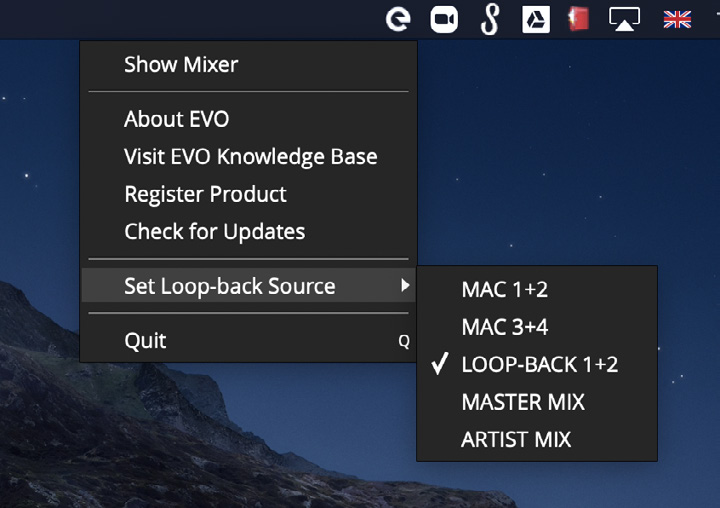
Loopback sources
Mac/Windows 1+2
Uses the computer playback being sent to EVO 8 outputs 1+2. This is normally the main playback pair used by DAWs, media players and other applications.
Mac/Windows 3+4
Uses the computer playback being sent to EVO 8 outputs 3+4.
Loopback 1+2
Uses EVO 8's dedicated loopback playback channels, which are computer outputs 5+6.
This allows computer audio to be sent to loopback independently from the normal 1+2 or 3+4 playback pairs.
Master Mix
Uses the main monitor mix created in the EVO Mixer. This can combine EVO 8's analogue inputs with computer playback into a single stereo feed.
Artist Mix
Uses the Artist Mix created in the EVO Mixer. This allows the loopback feed to use a different balance from the main mix.
Artist Mix must first be enabled in the EVO Mixer. See EVO Mixer and Configurations.
Choose a routing method
Use one of the following approaches depending on what you need to capture:
- Use Mac/Windows 1+2 or 3+4 to capture an existing computer playback pair.
- Use Loopback 1+2 when an application can be routed to EVO 8's dedicated loopback playback channels.
- Use Master Mix to combine analogue inputs and computer playback using the main EVO Mixer balance.
- Use Artist Mix to create a dedicated loopback balance separate from the main monitor mix.
Record or stream the loopback signal
In the destination recording, streaming or communications application, select EVO 8's stereo loopback input.
Depending on the application, this may appear as:
- Loopback 1+2
- Input 5+6
The exact control used to choose an input depends on the application.
Send application audio directly to the dedicated loopback channels
Some applications allow their output channels to be selected directly. Where available, route that application's output to EVO 8's dedicated Loopback 1+2 playback pair.
For applications that only use the operating system's default output, use the macOS or Windows process below.
macOS dedicated loopback setup
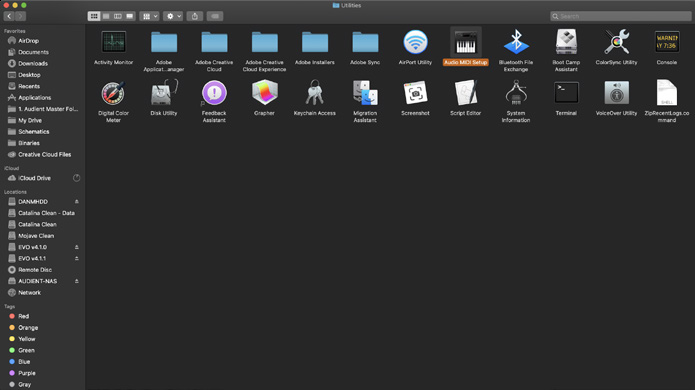
- Open Finder > Applications > Utilities > Audio MIDI Setup.
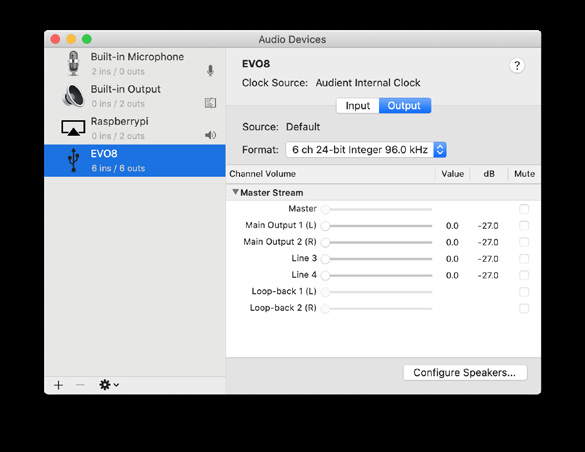
- Select EVO 8 from the list of audio devices.
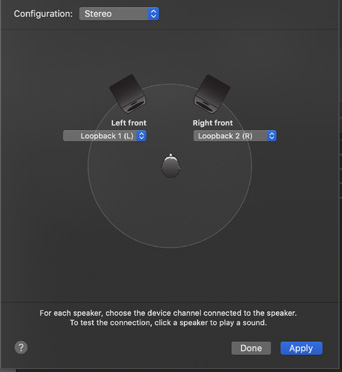
- Select Configure Speakers.
- Set the left output to Loopback 1.
- Set the right output to Loopback 2.
- Apply the configuration.
- Open the recording or streaming application.
- Select Loopback 1+2 or Input 5+6 as its input.
Computer audio using the configured macOS output is now sent to EVO 8's dedicated loopback playback channels.
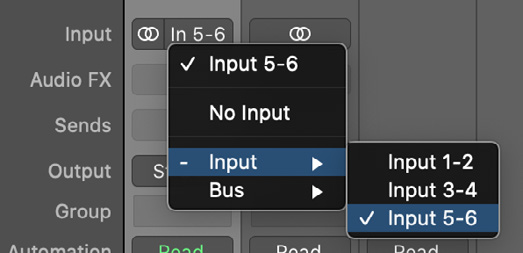
If Master Mix or Artist Mix is selected as the loopback source instead, create the required balance in the EVO Mixer rather than routing the operating-system output to Loopback 1+2.
Windows dedicated loopback setup
- Open Control Panel > Hardware and Sound > Sound.
- Open the Playback tab.
- Select Loopback 1+2 from the playback-device list.
- Select Set Default Device.
- Open the recording or streaming application.
- Select Loopback 1+2 or Input 5+6 as its input.
Applications using the Windows default playback device will now send their audio to EVO 8's dedicated loopback playback channels.
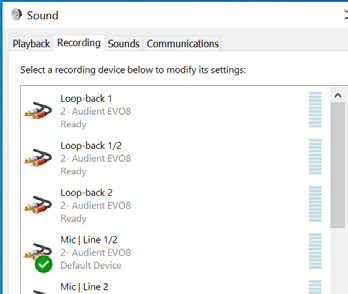
If Master Mix or Artist Mix is selected as the loopback source, create the required balance in the EVO Mixer instead.
Save the mixer setup
EVO 8 mixer settings can be saved as configurations for later recall or transfer to another computer.
See EVO Mixer and Configurations.
Next steps
Continue to Firmware Updates, or return to EVO Mixer and Configurations for mixer, Artist Mix and saved-configuration controls.