EVO Mixer and Configurations
The EVO application provides computer-based control of EVO 8's low-latency mixer, microphone preamps, output mixes, device settings and saved configurations.
After installation, the EVO icon is available from the macOS menu bar or Windows system tray. With EVO 8 connected, open the application and select the mixer option to display the EVO Mixer.
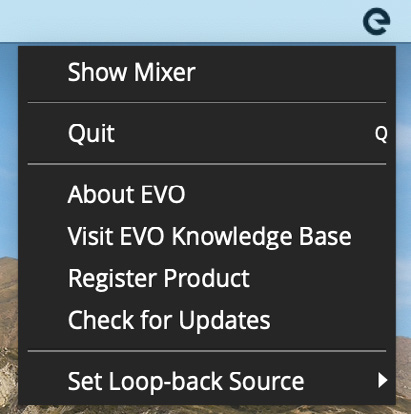
Application menu
The EVO 8 manual documents the following application-menu functions.
Show Mixer
Opens the EVO software mixer.
Quit
Fully closes the EVO application and stops it running in the background.
About EVO
Shows information about the EVO software and connected device, including software and firmware version information.
Visit EVO Knowledge Base
Opens the Audient Help Desk for EVO 8 support information.
Register Product
Opens Audient ARC for product registration and bundled resources.
EVO 8 should already be registered before installing the current software. See Software Installation and Registration.
Check for Updates
Checks for available EVO 8 updates and prompts you when an update is available.
See Firmware Updates for the update process.
Set Loopback Source
Selects the source sent to EVO 8's loopback inputs.
See Audio Loopback for the available sources and operating-system routing procedures.
Set ASIO Buffer Size - Windows only
Adjusts the ASIO buffer size used by the Windows driver. Lower buffer sizes reduce latency but increase the processing demand on the computer.
Set Sample Rate - Windows only
On Windows, selects 44.1 kHz, 48 kHz, 88.2 kHz or 96 kHz. Use the same sample rate in the EVO application and recording software where possible.
On macOS, set EVO 8's sample rate using Audio MIDI Setup rather than the EVO application.
EVO Mixer
The EVO Mixer controls the monitoring balance for recording, mixing or content creation.
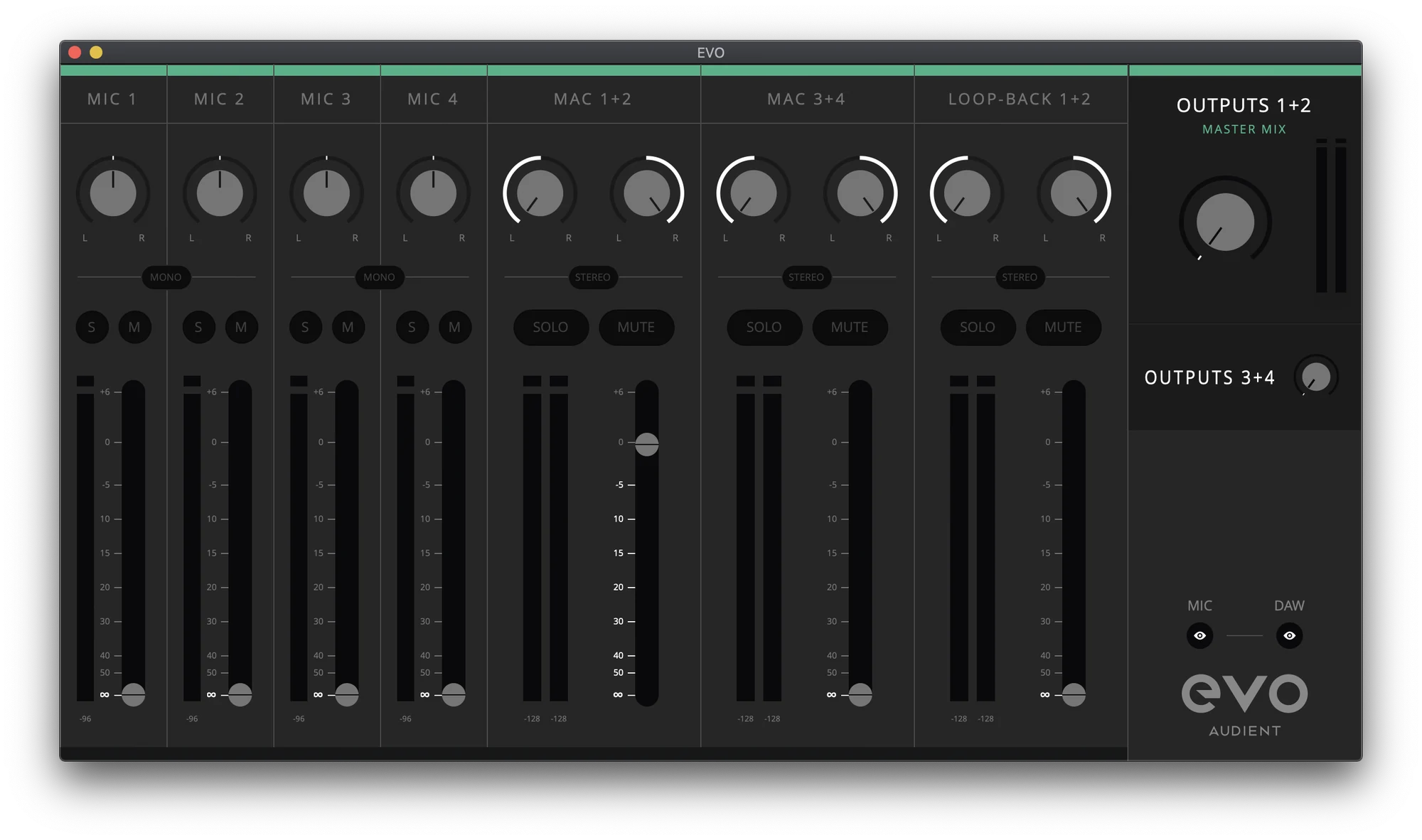
Channel controls
Each mixer channel provides the controls applicable to that channel:
- Pan - positions the signal between the left and right sides of the selected output mix.
- Stereo/Mono - links adjacent channels for stereo sources or stereo microphone techniques.
- Solo (S) - monitors the selected channel while muting the other non-soloed mixer channels.
- Mute (M) - removes the channel from the selected monitor mix.
- Meter - shows the signal level. If the red Clip indicator appears, reduce the input gain or the playback level feeding that channel.
- Fader - sets the level sent to the selected output mix. Up to +6 dB of monitoring gain is available above unity.
Mixer sources
Mic 1–4
These channels receive EVO 8's four analogue inputs. Raise a fader to monitor that input through the selected speaker or headphone mix with low latency.
Mac/Windows 1+2 and 3+4
These channels receive computer playback sent to EVO 8 output pairs 1+2 and 3+4. They can carry DAW playback, software instruments, media players or other computer audio.
Output master sections
The master sections for Outputs 1+2 and Outputs 3+4 control the level of the two output mixes independently.
The Mic and DAW eye buttons can be used to hide those channel groups from the mixer when they are not required.
Remote microphone preamp controls
EVO 8's microphone preamps can be controlled from the EVO Mixer.
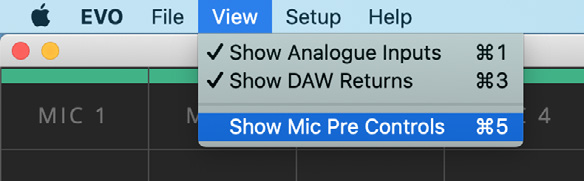
- Open the View menu.
- Select Show Mic Pre Controls.
- Use the gain control shown on each input channel to adjust the EVO 8 preamp gain.
- Use the +48V control to enable or disable phantom power for that input when required.
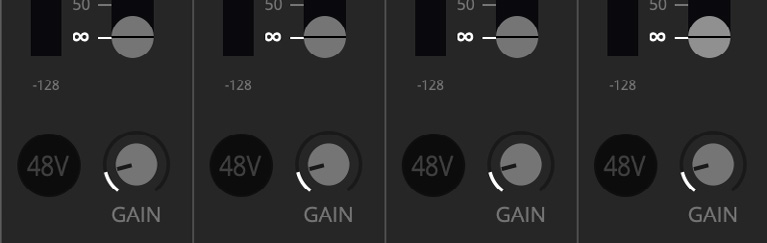
For hardware gain, Smartgain and phantom-power operation, see Input Controls and Smartgain.
Artist Mix
Artist Mix provides a separate monitor mix for Outputs 3+4 / Headphone output 2, while the main mix remains on Outputs 1+2 / Headphone output 1.
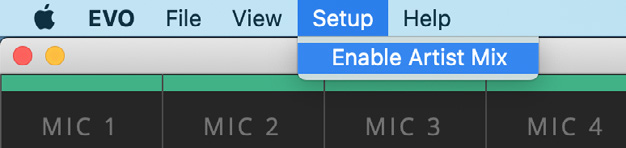
Enable Artist Mix
- Open the Setup menu in the EVO Mixer.
- Select Enable Artist Mix.
- Select Output 3+4 in the mixer master section.
- Adjust the second set of faders to create the artist's monitor mix.
The Artist Mix is identified by a yellow band across the top of the mixer.
A common setup is to use the main mix for an engineer on outputs 1+2 while sending a different balance to an artist on outputs 3+4 or headphone output 2.
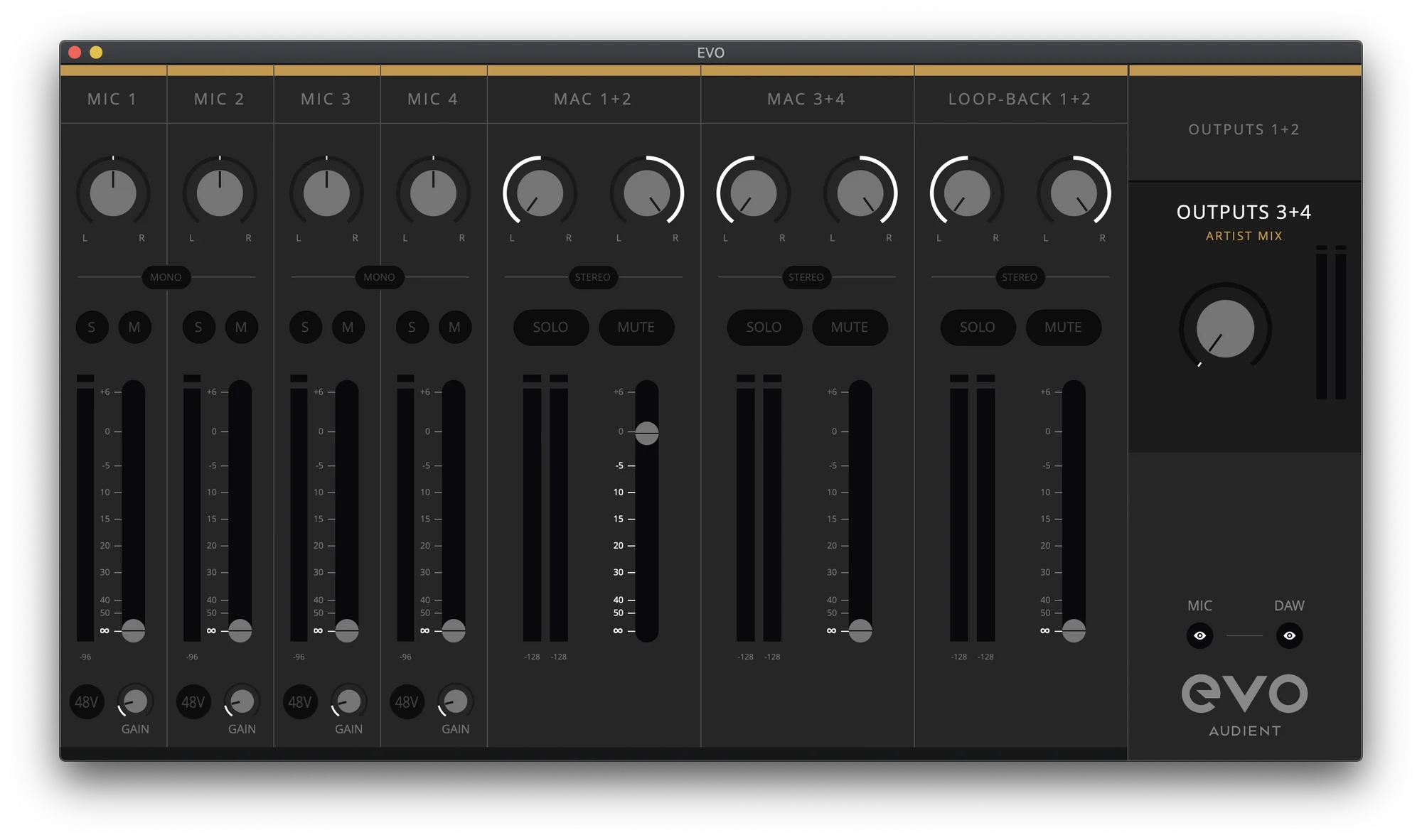
To send DAW audio only to the Artist Mix, route that audio to EVO 8 outputs 3+4 in the DAW. It appears on the Mac/Windows 3+4 mixer channel, where its level can be set differently in the main and Artist mixes.
Save a mixer configuration
EVO 8 can save its mixer settings for later recall.
- Open File > Save.
- Enter a name for the configuration.
- Select Save.
To transfer a configuration to another computer or EVO 8 user, select Export Mixer Setting to File and save the file to the required location.
Open a saved configuration
- Open File > Open.
- Select the required saved configuration from the list.
To open a configuration stored as a file in the current EVO application, use File > Open > Open Mixer Configuration From File and choose the required .XML file.
A saved configuration can be deleted from the saved-configuration list by selecting the red X beside it.
Next steps
Continue to Audio Loopback to choose a loopback source and route computer audio into recording or streaming software.