Getting Started
This page covers the essential steps for connecting EVO 8, setting input levels and preparing to record.
1. Install the EVO software
Register EVO 8 through Audient ARC to access the latest EVO software, Windows driver and product resources.
- macOS: EVO 8 operates without a separate audio driver. Installing the EVO application is recommended for mixer control, loopback and firmware updates.
- Windows: Install the current EVO driver and software before connecting EVO 8.
See Software Installation and Registration for the complete registration and installation procedures.
EVO 8 is not officially supported for use with iOS. Audient recommends using EVO 8 with a supported macOS or Windows computer.
2. Connect EVO 8
- Turn down the level of any connected speakers or headphones.
- Connect EVO 8 to the computer using a suitable USB data cable.
- Connect active speakers to outputs 1+2, or connect headphones to headphone output 1.
- Select EVO 8 as the input and output device in the computer’s audio settings and in the recording application.
Connecting headphones to headphone output 1 automatically mutes speaker outputs 1+2. Connecting headphones to headphone output 2 automatically mutes speaker outputs 3+4.
3. Connect a microphone, line-level source or instrument
- Connect microphones to inputs 1–4 using XLR cables.
- Connect balanced line-level sources to inputs 1–4 using 1/4-inch TRS cables.
- Connect a guitar, bass or other high-impedance instrument to the front-panel JFET instrument input using a 1/4-inch TS cable.
The instrument input is routed to input channel 1 and overrides the rear mic/line connection for channel 1 while a plug is inserted.
4. Enable phantom power when required
Some microphones require 48 V phantom power.
- Press the numbered button for the microphone input.
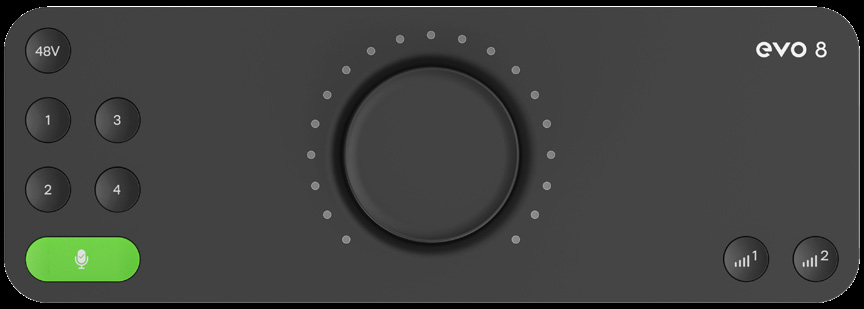
- Press 48V.
- Check that the 48 V button illuminates red.
Check the microphone manufacturer’s instructions before enabling phantom power. Only enable 48 V when the connected microphone requires it.
When EVO 8 is connected to a suitable USB-C host that can provide 1.5 A, phantom power can be used on all four channels. When connected to a USB-A host, phantom power is limited to two channels at a time.
5. Set the input gain with Smartgain
- Press the green Smartgain button.
- Press one or more input buttons to select the channels to be analysed.
- Press Smartgain again.
- Perform the loudest part of the material you intend to record while EVO 8 analyses the signals.
- Wait for Smartgain to finish setting the input levels.
The Smartgain button flashes green when the process succeeds. If Smartgain does not detect a suitable signal, check the connections, source level and phantom-power setting before trying again.
Setting gain manually
- Press the numbered button for the input.
- Turn the Control Knob to adjust the input gain.
- Perform at the loudest expected level and check the LED meter around the Control Knob.
6. Set the listening level
- Press Output Volume button 1 to control speaker outputs 1+2 or headphone output 1.
- Turn the Control Knob to set the listening level.
- If using the second output pair, press Output Volume button 2 and adjust its level separately.
7. Prepare the recording application
- Select EVO 8 as the application’s audio device.
- Create an audio track.
- Select the EVO 8 input connected to the source.
- Arm the track for recording.
- Check the input meter and begin recording.
Next steps
Continue to Hardware and Connections for detailed connection information, Input Controls and Smartgain for recording-level controls, or Monitoring and Output Controls for speaker and headphone operation.