Organising the Mixer
As the number of channels in a Horizon system grows, the Mixer gives you a few simple ways to keep the session manageable without changing the underlying audio routing.
Working with stereo sources
Pair two supported sequential channels when they belong to the same stereo source.
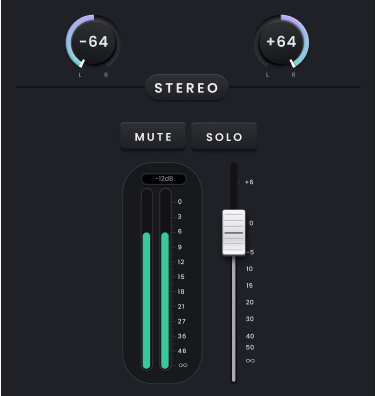
Pairs are created as 1–2, 3–4 and so on; an offset pair such as 2–3 cannot be linked. Physical input channels start in mono, while Virtual Channels are stereo by default.
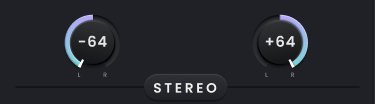
When two channels are paired, the monitoring strips become one stereo channel with a single fader, shared Mute and Solo controls and a stereo meter. Where a parameter supports stereo linking, the linked control changes both sides together. Select Stereo again when you want to return to two independent mono channels.
Moving around a larger Mixer
Use the horizontal scrollbar to move through channels outside the visible part of the Mixer and the vertical scrollbar when the full channel strip does not fit in the current window.
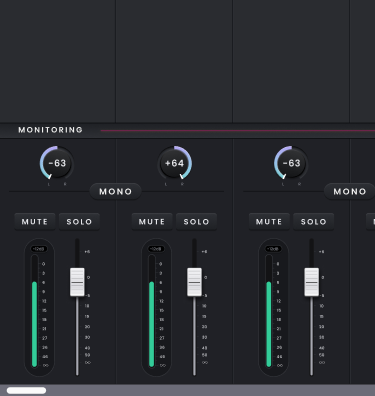
The Fast Scroll Bar is hidden when only one Horizon device is connected. In cascaded systems it becomes available for quicker navigation through the channel list. The blocks within the Fast Scroll Bar represent approximate areas of the Mixer rather than individual channel strips; select a block to jump to the corresponding area.

If you want to keep the Mixer visible while working elsewhere in Horizon Control, use the expand control to open the Mixer and monitoring section in a separate window. Close the expanded window to dock it back into the main application.
