Routing Matrix
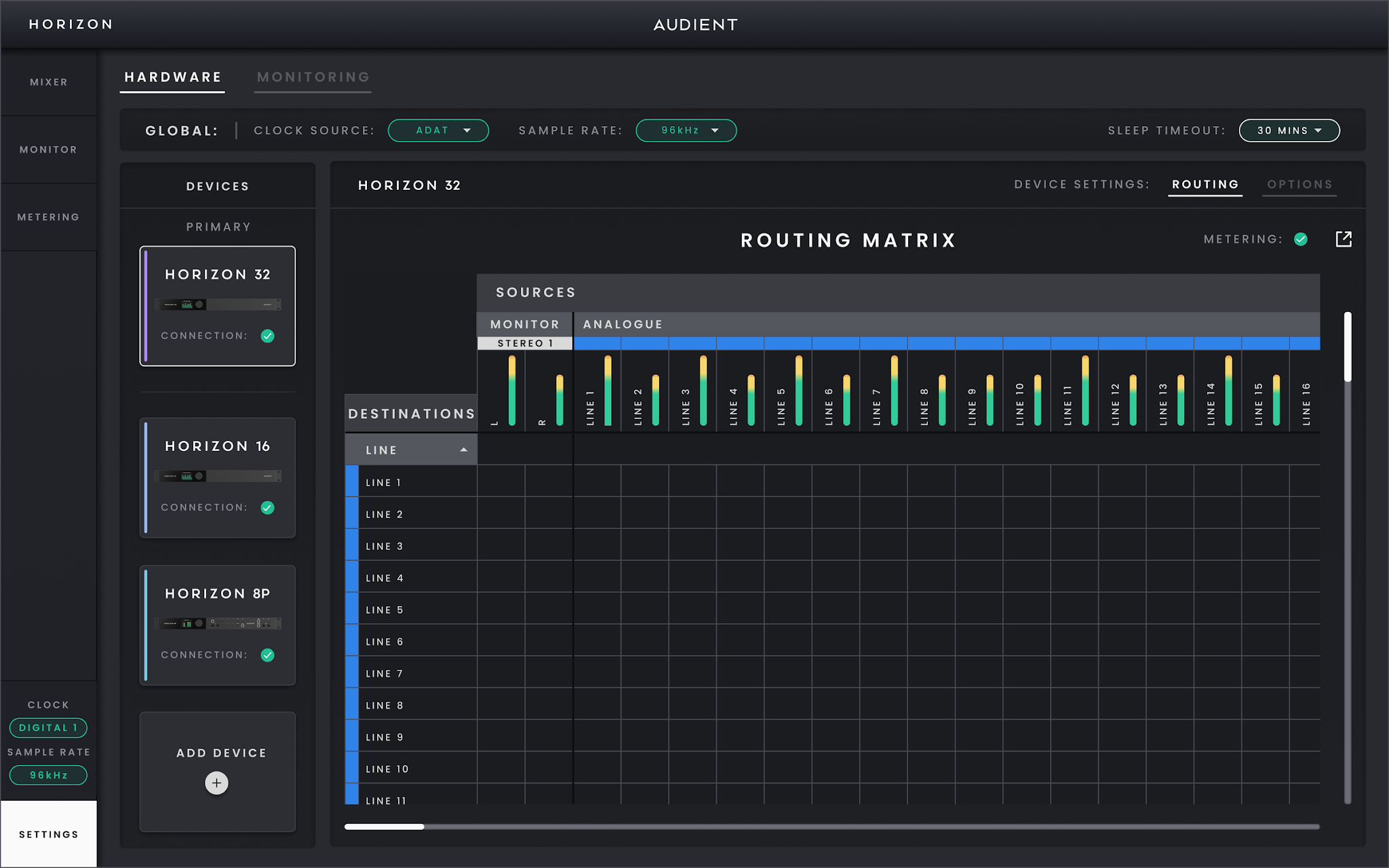
Horizon 32 Routing Matrix.
Use the Routing Matrix when you need to decide which Horizon source feeds a physical output. The matrix is opened from Hardware Settings and is shown separately for each connected Horizon device, so select the device you want to route before making changes.
Reading the matrix
Sources run across the top.
The Shared Mixbus provides the left and right outputs for the Main Mix and Independent Mixes. Because it is shared across all connected Horizon devices, you can route these mixes to physical outputs on the Horizon selected in the Routing Matrix. For example, you can send an Independent Mix to a headphone amplifier.

Physical destinations of the selected Horizon device run down the left.

A filled cell means that the source at the top of that column is connected to the destination on that row.
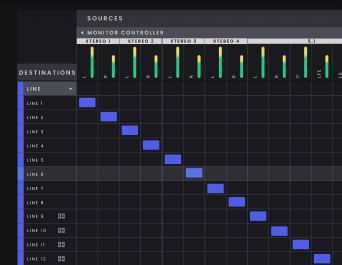
Hover over a cell when you need help tracing the corresponding source and destination through a large matrix.

Routing is local to the selected Horizon device. The matrix can route a source to an output on that unit, but it cannot send an audio channel directly from one Horizon device into a physical output on another. When the Primary Horizon device is selected, its Monitor Controller Speaker Layout sources also appear in the matrix; secondary devices show their normal audio sources and destinations without those monitoring sources.
On Horizon 32, the available source groups include the local analogue line inputs, Digital Inputs 1 and 2, the 50 Virtual Channels from the host computer and, on the Primary device, the saved Monitor Controller Speaker Layouts. The digital source names and available channels follow the current ADAT or S/PDIF mode and sample rate.
Physical destinations include D-sub line outputs 1–32, TRS line outputs 33–34 and Digital Outputs 1 and 2. When the TRS outputs are being used by the monitoring system, Horizon Control identifies the corresponding monitor path in the routing view.


Making a route
Find the source across the top of the matrix and the required physical destination down the left, then select the cell where they meet. The cell fills to show that the route is active. Select it again when you want to remove the route.
The matrix updates automatically when the Digital Mode or sample rate changes, so ADAT channel counts reduce at higher sample rates and S/PDIF presents the two-channel digital path instead.
Speaker Layouts created for monitoring also appear in the Primary device's source area. Route the logical speaker positions from the Monitor Profile manually to the required physical outputs.
For larger systems, use the expand control to open the Routing Matrix in a separate window so it can remain visible while you work elsewhere in Horizon Control.