Monitor Profiles & Speaker Layouts
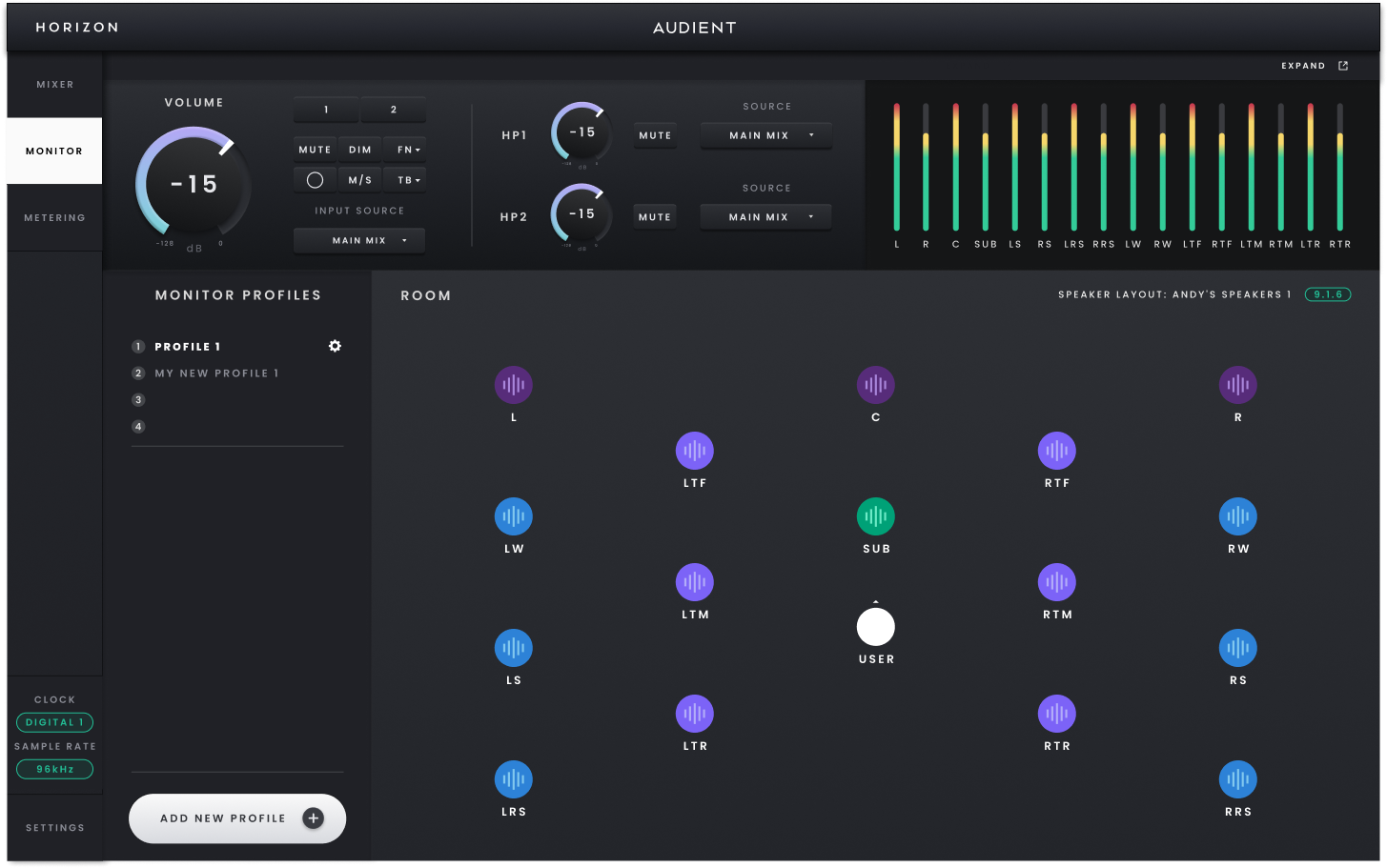
Monitor Profiles and the active Speaker Layout in Horizon Control.
Monitor Profiles let you move between different monitoring setups without rebuilding the speaker configuration each time. A profile stores the monitoring configuration together with the Speaker Layout it uses, so recalling a profile also updates the Monitor Controller and Metering views to the correct speaker system.
Horizon Control supports up to 32 Monitor Profiles and six Speaker Layouts. Four profiles can be kept in Favourites for quick access, with additional profiles available in the scrollable library. A Speaker Layout can be shared by several profiles, so you do not need to repeat the channel configuration simply because two profiles use different trims or monitoring settings.
Creating a Monitor Profile
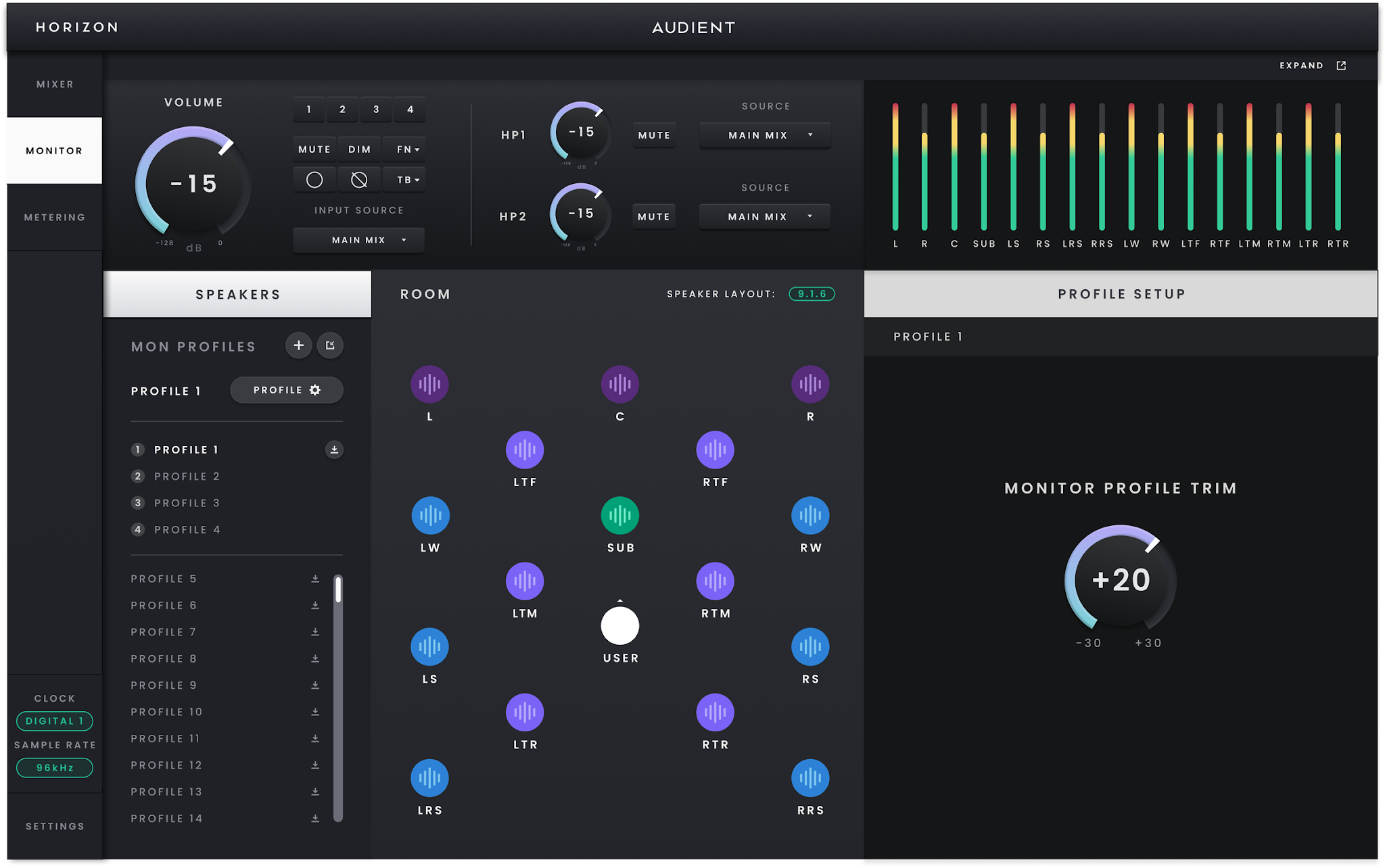
Monitor Profile setup.
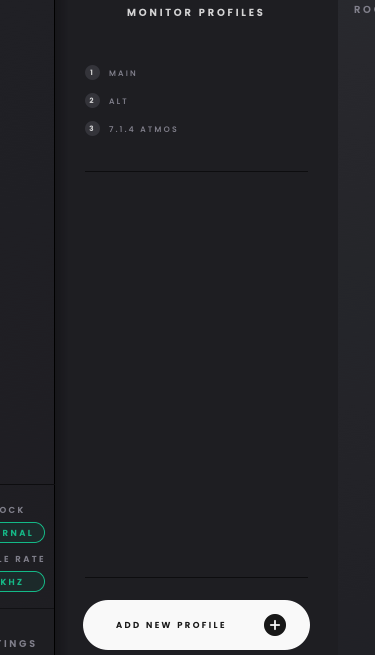
- Create a new Monitor Profile from the Monitor Profiles area.
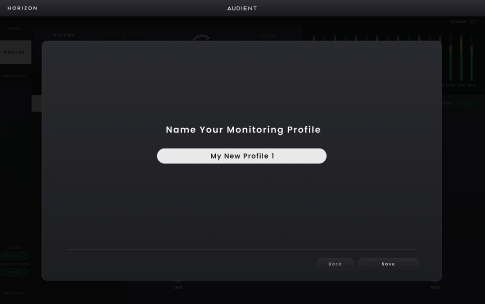
- Name the Monitor Profile.
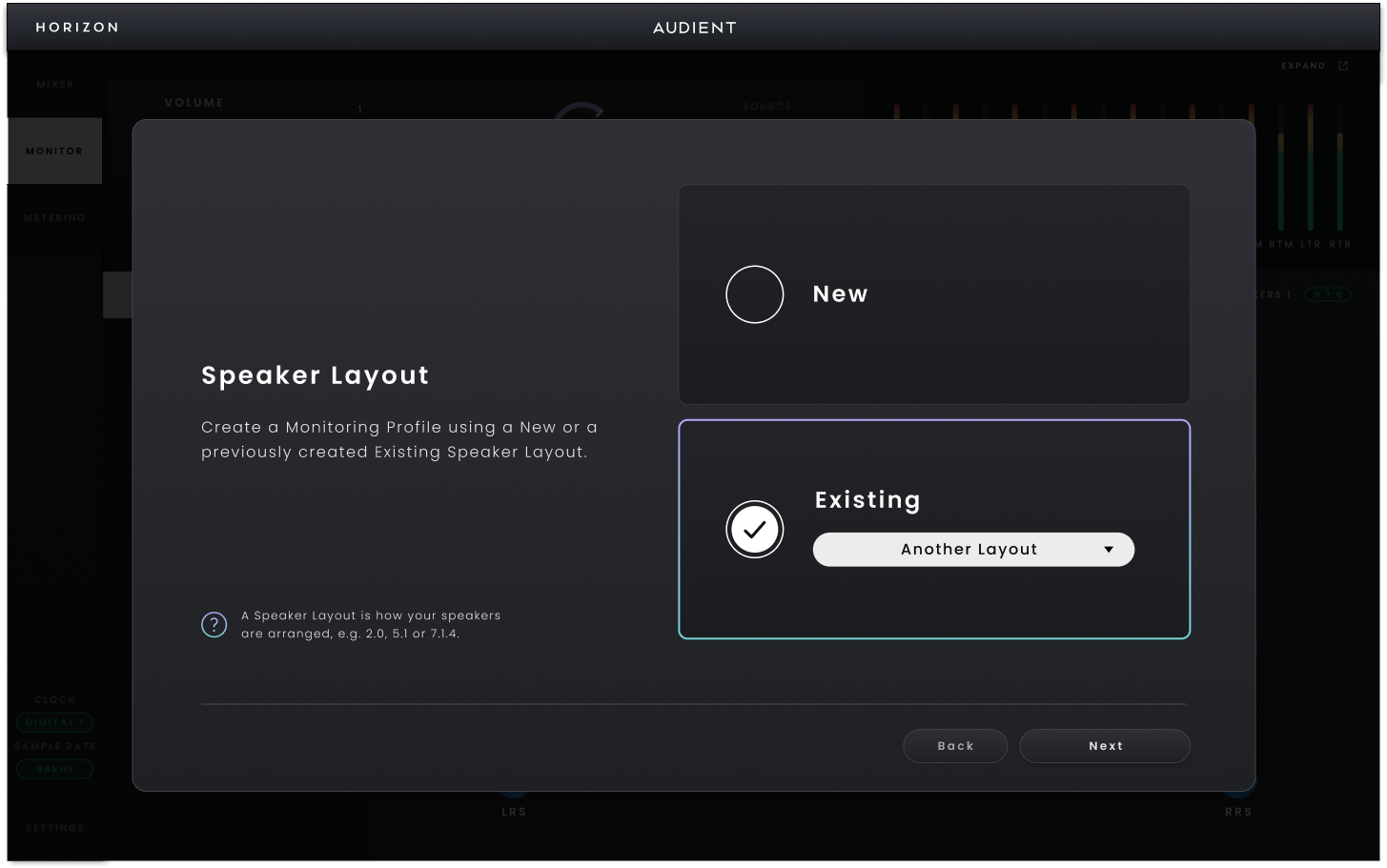
- Select a new or existing Speaker Layout.
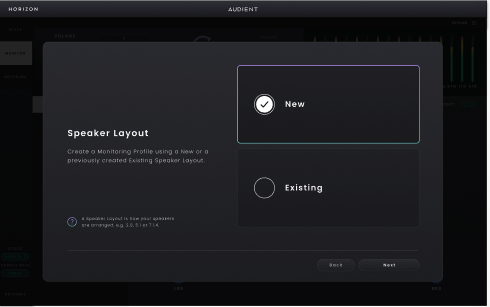
- If creating a new Speaker Layout, name it and select the required channel configuration.
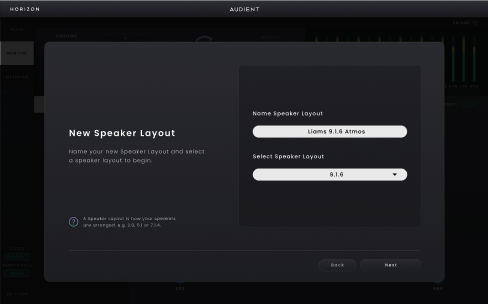
- Select Save on the final step to create the Monitor Profile. Once saved, the profile appears in the Monitor Profiles area.

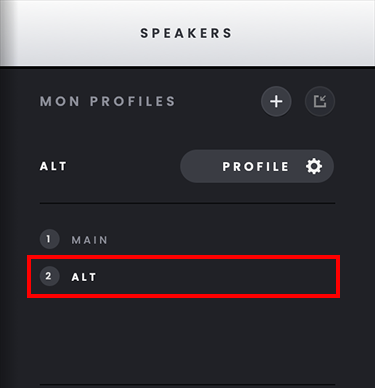
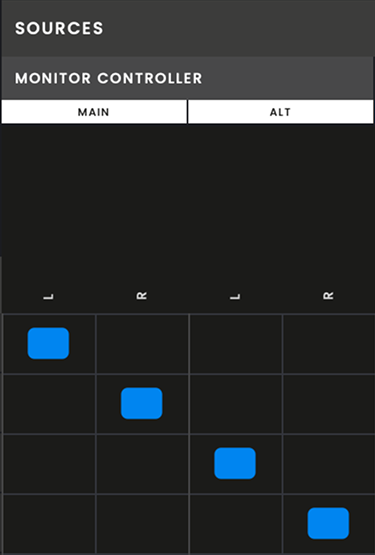
- The Monitor Profile is added to the Primary device's Routing Matrix without any output routing. Use the Routing Matrix to route the monitor channels manually to the required physical Horizon outputs. The available speaker outputs come from the Primary Horizon device.
Reusing and adjusting profiles
To add a profile to Favourites, click and hold it, then drag it to one of the four Favourites positions. Drag profiles between positions to change their order.
Use an existing Speaker Layout when several Monitor Profiles share the same channel configuration. The saved layout is reused, while the profile can keep its own monitoring settings. Output routing is configured separately in the Routing Matrix.
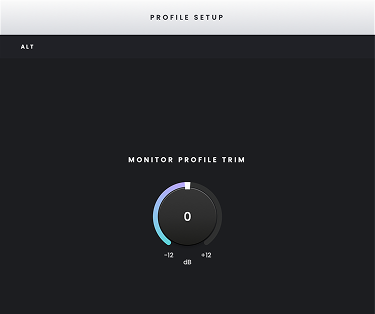
Select a Monitor Profile's settings button to adjust Profile Trim. Profile Trim level-matches profiles so switching between them does not create an unwanted jump in listening level.
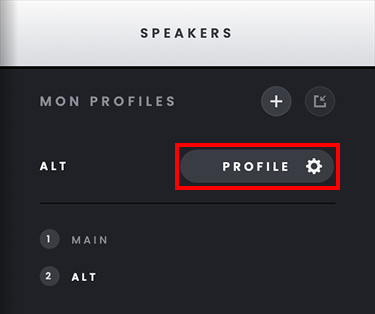
Up to six Speaker Layouts can be stored. If all six slots are in use, delete an unused layout before creating another one.
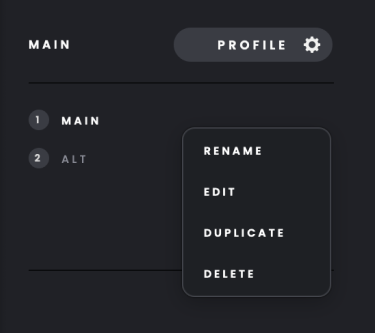
Right-click a Monitor Profile in the sidebar to open its context menu. The following options are available:
- Rename — changes the Monitor Profile name.
- Delete — removes the selected Monitor Profile.
- Duplicate — creates a copy of the selected Monitor Profile.
Managing Speaker Layouts
Saved Speaker Layouts are available from Monitor Settings on the Primary Horizon device. Speaker Layouts define the channel configuration used by Monitor Profiles; physical output routing is configured separately in the Routing Matrix.
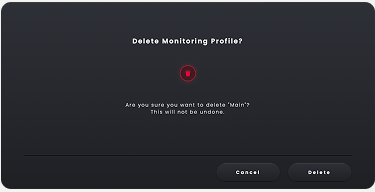
Deleting a Speaker Layout requires confirmation because Monitor Profiles that depend on it can no longer become active until they are assigned to a valid layout.