Hardware Settings & Multiple Devices
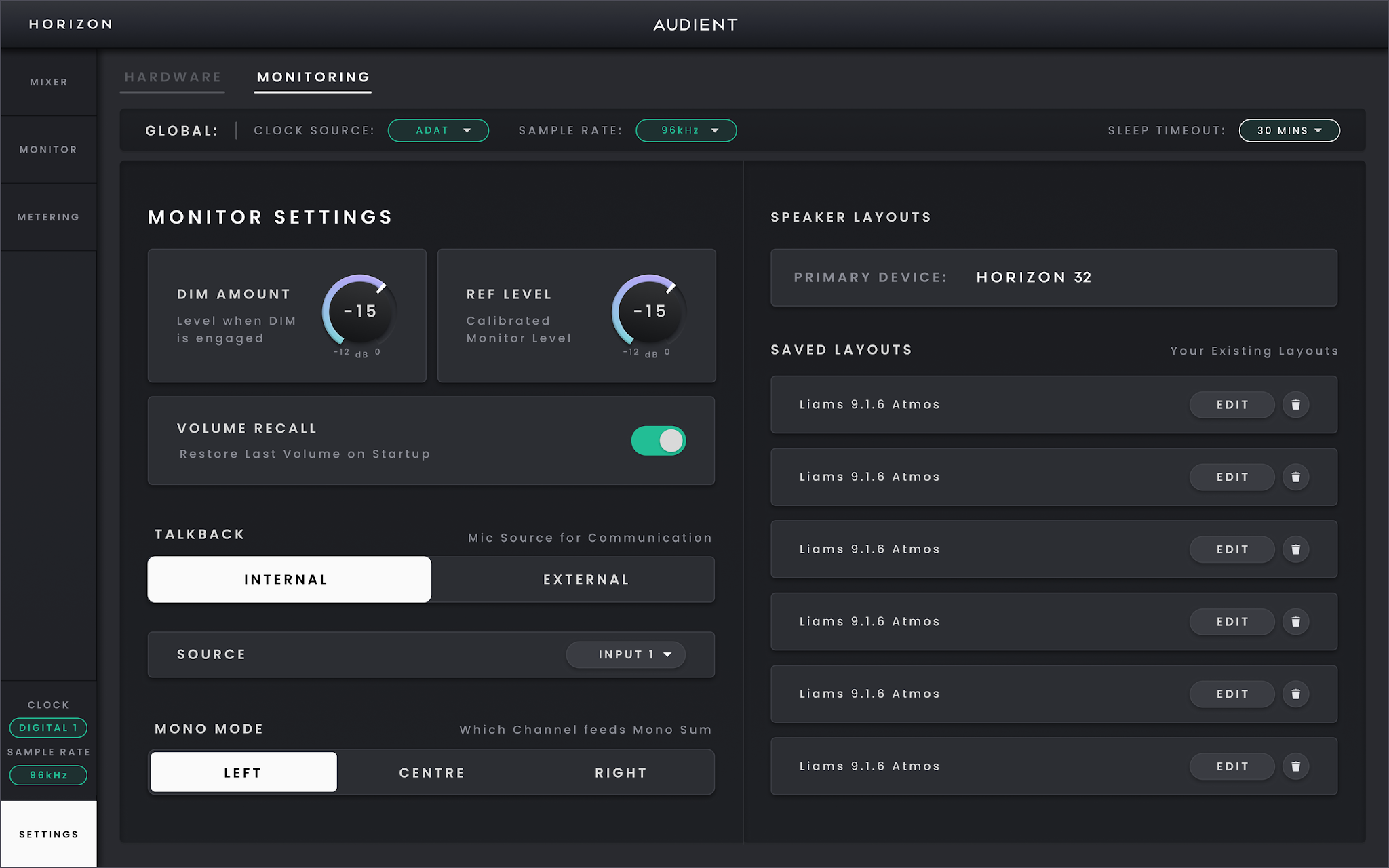
Horizon 32 Monitor Settings.
Use Hardware Settings when you need to configure the Horizon system itself — connected devices, clocking, sample rate, analogue operating levels, digital mode and routing. Monitor Settings sits alongside it for controls that affect the active monitoring path.
Using more than one Horizon
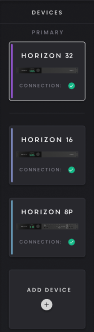
Horizon Control can manage up to four connected Horizon devices. Connect the first unit to the host computer over Thunderbolt, then continue the chain from its second Thunderbolt port to the next Horizon as required. A system of four Horizon 32 units provides up to 200 × 200 I/O channels.
The Thunderbolt chain carries host audio, data and control, but it does not replace the clock connection between Horizon units. A multi-Horizon system also needs BNC word clock: the Primary Horizon provides the timing reference and the secondary units receive word clock from it. Keep the complete digital system to a single clock master.
A separate BNC word clock cable is required when daisy chaining multiple Horizon devices.
Once the Thunderbolt and word-clock connections are in place, use Add Device in Hardware Settings to add the connected units to the Horizon system. If several identical Horizon devices are connected, use Identify to confirm which physical unit you are adding. You can keep the default product names or give each unit a custom name to make a larger system easier to navigate. Removing a device from Horizon Control does not erase its previous configuration. If the same Horizon is connected and added again later, the host system recalls that configuration.
Choosing the Primary Horizon
One connected Horizon is always the Primary device. The Primary controls the active monitoring system, supplies the Monitor Controller view and makes its Monitor Controller Speaker Layout sources available in the Routing Matrix. Only one connected Horizon can provide the active monitoring system at a time.
In Horizon Control, open Hardware Settings > Add Device. Add the Horizon you want to use for monitoring first; this becomes the Primary device. Then add any additional Horizon devices. To change the Primary device, remove the devices from Horizon Control and add them again, starting with the new Primary.
The host system retains the previous monitoring configuration associated with each Horizon, so making a device Primary again recalls that configuration.
When using multiple Horizon devices, connect the Primary device's BNC word-clock output to the next device's word-clock input. Continue the BNC chain in the same order shown in Horizon Control. If the device order changes, update the BNC connections to match. If a device shows a yellow clock status, check its word-clock connections and clock settings.
The configured device order is also used by the Mixer Fast Scroll Bar. Giving each Horizon a useful name makes larger systems easier to navigate.
System and device settings
Global settings
- Clock Source — choose Internal when Horizon is the timing master, Digital 1 or Digital 2 when Horizon follows the incoming digital signal on that optical bank, or External (Word Clock) when the system follows a separate BNC word-clock source. Secondary Horizon devices still require BNC word clock from the Primary device.

- Sample Rate — 44.1, 48, 88.2, 96, 176.4 or 192 kHz. Keep the DAW and other connected digital equipment at the same sample rate.

- Sleep Timeout: Never, 5 minutes, 15 minutes, 30 minutes, 1 hour or 2 hours. This setting applies across the connected Horizon system.

Horizon 32 analogue reference levels
Horizon 32 groups its analogue reference-level controls into the same physical channel banks used by the hardware. Input reference levels can be set to +18 dB or +24 dB separately for channels 1–8, 9–16, 17–24, 25–32 and the TRS inputs 33–34.
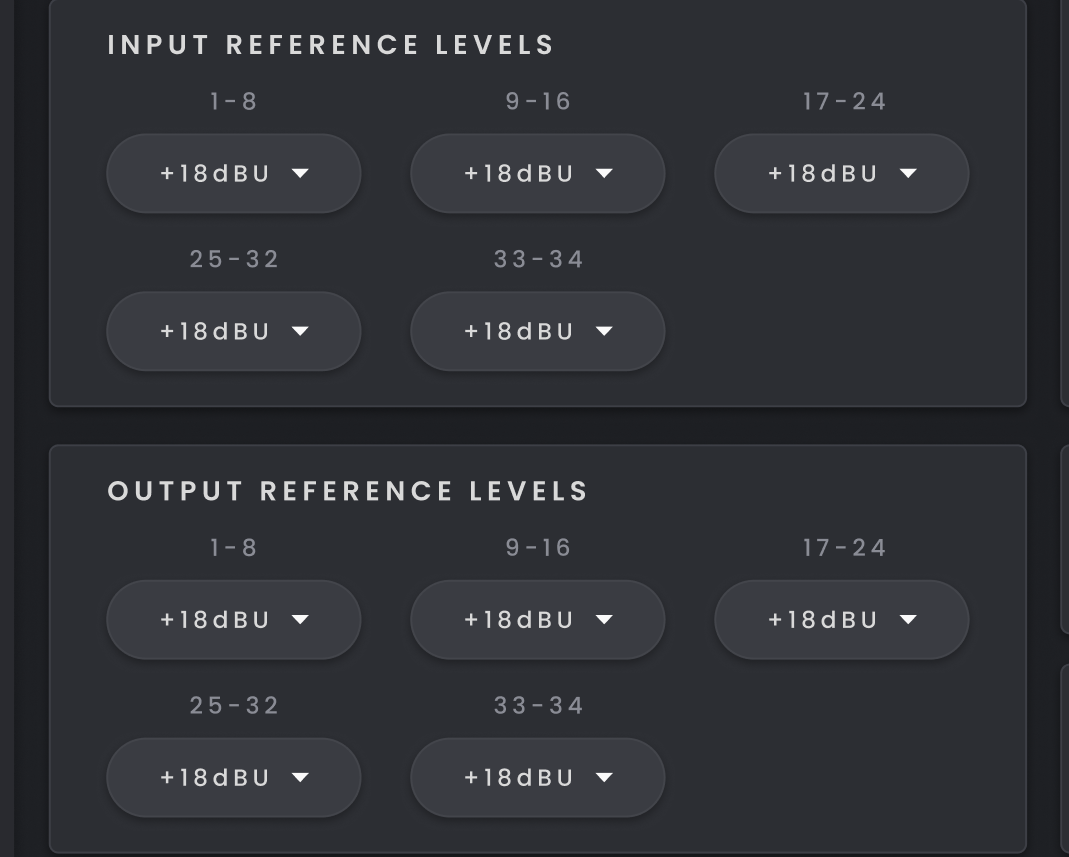
The output reference controls use the corresponding output banks and provide the same +18 dB and +24 dB choices.
Use these settings to match Horizon 32 to the operating level of the analogue equipment connected to each group. They affect the physical analogue I/O and are separate from the calibrated monitor Reference Level in Monitor Settings.
Digital mode
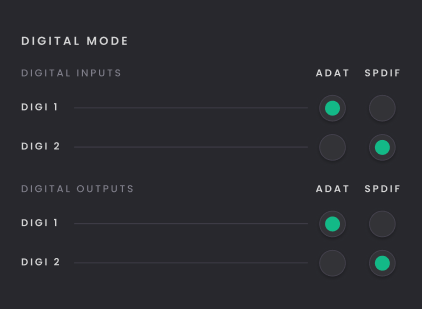
The Digital Mode area controls whether the optical Digital 1 and Digital 2 paths operate as ADAT or S/PDIF. Horizon Control updates the available digital channels and the Routing Matrix to follow the selected modes and current sample rate.
Word-clock termination
Enable 75 Ω Word Clock Termination when Horizon 32 is the final or only device receiving BNC word clock in a chain. Leave termination disabled when the clock connection continues to another receiving device.

Monitor Settings
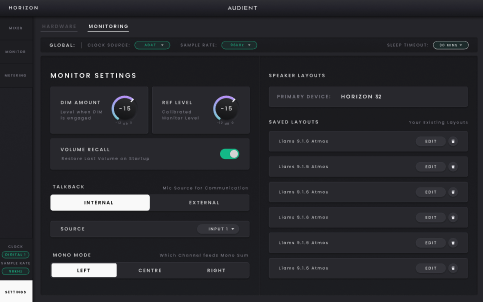
Monitor Settings applies to the Primary Horizon device and controls the behaviour of the active monitor path.
- Dim Amount — sets the Dim reduction from −12 dB to 0 dB. The default is −10 dB.

- Reference Level — sets the calibrated monitor listening level.

- Volume Recall — when enabled, restores the previous monitor volume after power-up.

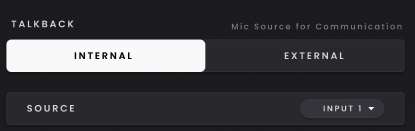
- Talkback — uses Horizon's built-in talkback microphone.
- Mono Mode — choose Left, Centre or Right for mono monitoring.

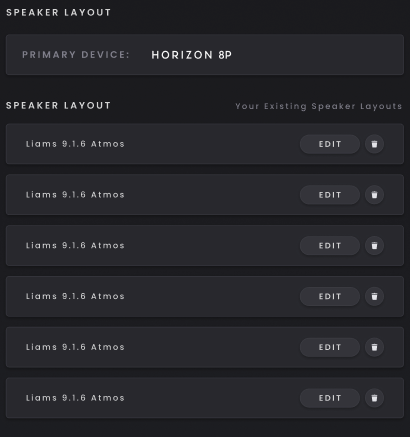
- Speaker Layouts — view, edit, rename or delete the layouts associated with the Primary Horizon device. Horizon Control can save up to six layouts.