Front Panel & Motion UI

Horizon 32 front panel.
The Horizon 32 front panel contains the Motion UI display and a single Control Wheel. Horizon 32 has no microphone preamps, so there is no preamp Input Summary or separate front-panel input-control mode.
Metering is the normal idle view. Temporary parameter and status screens appear when monitoring states or output level are changed, then Motion UI returns to the metering view after a period of inactivity.
First power-up
-
When mains power is applied, Horizon 32 powers on automatically.
-
The startup animation appears, followed by the Horizon logo and Welcome screen.

- Rotate the Control Wheel to set the Motion UI brightness.

-
Press the Control Wheel to continue.
-
Horizon 32 opens to the default speaker-output metering view.

Adjusting monitor level
Rotate the Control Wheel to adjust the level of the designated monitor outputs. Turning clockwise increases the output level; turning counterclockwise decreases it.
Adjusting the level opens the Output Summary on Motion UI. The summary shows the current output level and meters together with the active Speaker Layout and monitoring states supplied by Horizon Control.
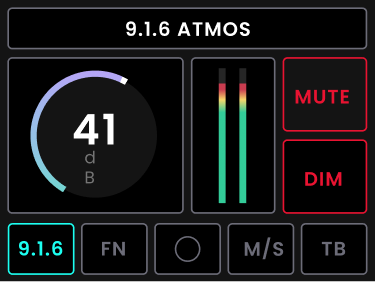
Monitoring states on Motion UI
Motion UI reflects software-controlled monitoring states, including Mute, Dim, Mono, Mid/Side / polarity state and Talkback.
When one of these states changes in Horizon Control, Motion UI briefly displays the corresponding status message before returning to the normal metering view. Horizon 32 does not provide a separate physical Function button.
Motion UI provides the following feedback:
| Monitoring change | Motion UI feedback |
|---|---|
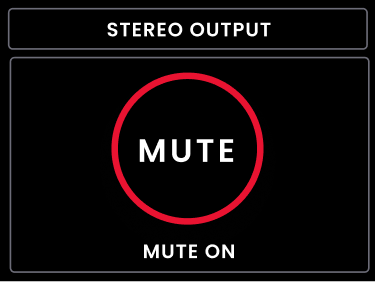
| Mute | Brief MUTE ON or MUTE OFF message, with the resulting state reflected in the Output Summary. |
| Dim | Brief DIM ON or DIM OFF message, followed by the updated Output Summary state. |

| Mono | Brief MONO ON or MONO OFF message, with Mono shown as active or inactive in the Output Summary. |
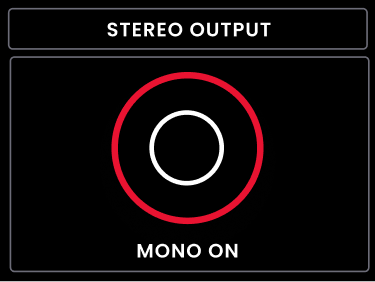
| Mid/Side | Polarity state is shown briefly. Mid/Side monitoring also engages Mono as part of the centre-removal monitoring function. |

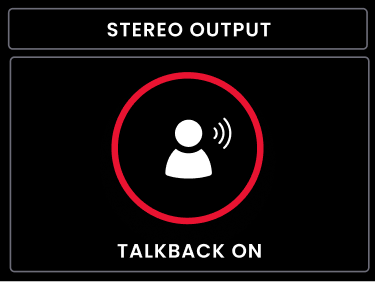
| Talkback | Brief TB ON or TB OFF message. Talkback operates as a latch in Horizon Control. |
Metering pages
Press the Control Wheel repeatedly to cycle through the available input and output metering views. Horizon 32 supports metering for:
- main monitor outputs 33–34;

- D-sub line inputs 1–16;
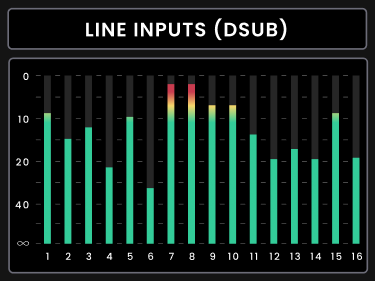
- D-sub line inputs 17–32;
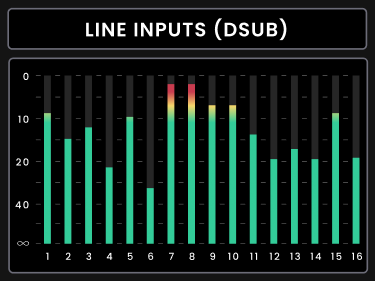
- TRS line inputs 33–34;

- Digital Inputs 1;
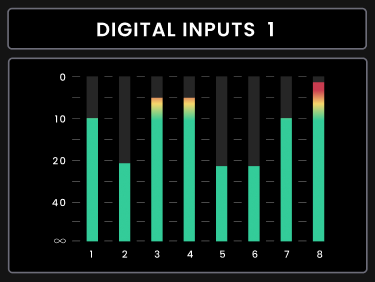
- Digital Inputs 2;
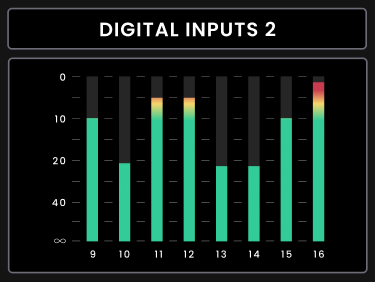
Motion UI displays a maximum of eight meters on each page. Larger meter groups are therefore paginated across the available metering views.
Front-panel settings
Press and hold the Control Wheel for three seconds to open Settings. Use the Control Wheel to highlight an option and press it to select.
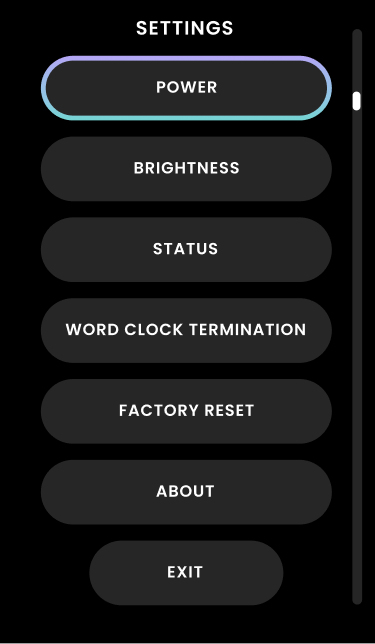
| Option | Description |
|---|---|
| Power | Powers down Horizon 32. If the unit has been powered down from Settings, briefly press and release the Control Wheel once to power it on again. |
| Brightness | Adjusts the brightness of the Motion UI display and front-panel LEDs. |
| Status | Displays the current sample rate, digital input format and digital input clock status. |
| Word clock termination | Enables or disables 75 Ω word clock termination. |
| Factory reset | Opens a confirmation before restoring Horizon 32 to its factory settings. |
| About | Displays product name, serial number, FPGA version, Horizon firmware, front-panel firmware and copyright information. |
Power

Select Power from front-panel Settings to power down Horizon 32. The Control Wheel is used to confirm the power-down action. Once powered down, briefly press and release the Control Wheel to power the unit back on.
Brightness

Open Brightness to change the Motion UI and front-panel LED brightness with the Control Wheel. Use the on-screen controls to Save the new setting or Cancel the change.
Status

The Status view is useful when checking digital connections. It shows the current sample rate, the selected digital-input format and whether the digital inputs are successfully clocked.
Word Clock Termination

Use Word Clock Termination to enable or disable the Horizon 32 75 Ω BNC termination. When Horizon 32 is the final or only receiving device in a BNC word-clock chain, termination should be enabled.
Factory Reset

Factory Reset restores the Horizon 32 hardware settings to the factory state. Use this only when you intend to discard the current hardware configuration.
About
The About page identifies the unit and its installed firmware information. It displays the product name, serial number, FPGA version, Horizon firmware, front-panel firmware and copyright information.
