Monitoring and Controls
iD14 MKII uses its main encoder and encoder-mode buttons to control monitoring functions from the hardware.
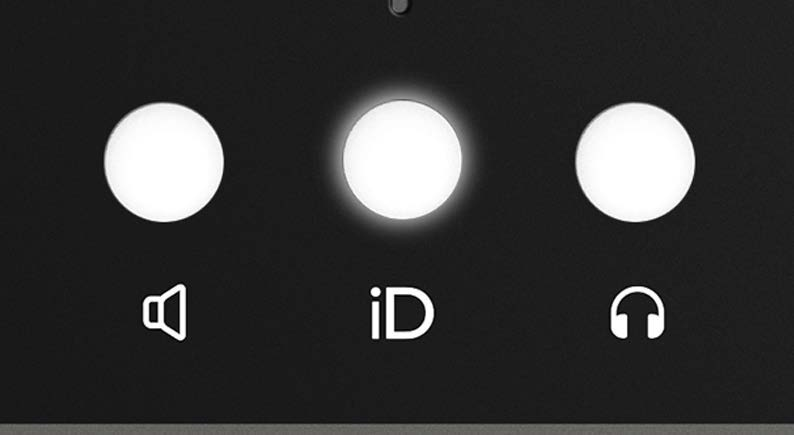
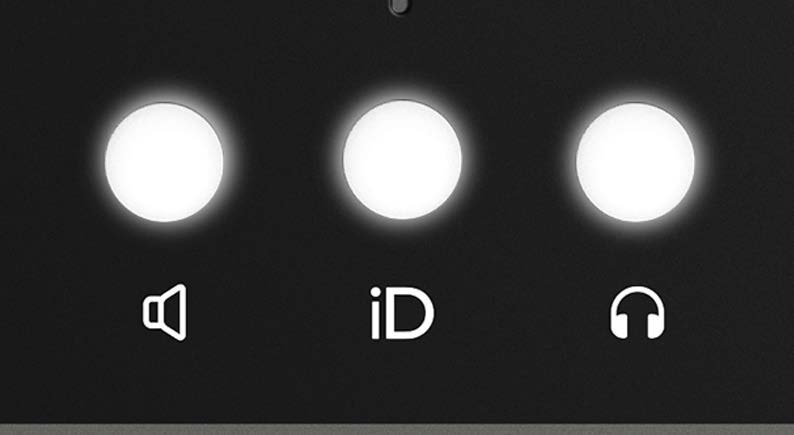
Select an output
Press the speaker or headphone button to select which output the main encoder controls.
The selected button illuminates. Rotate the encoder to adjust the level of the selected output.
Mute an output
Press the main encoder to mute the currently selected speaker or headphone output.
When the selected output is muted, its speaker or headphone button flashes. Press the encoder again to unmute the output.
Output-level display
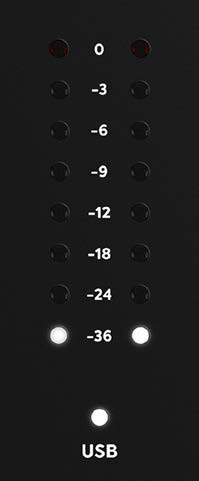
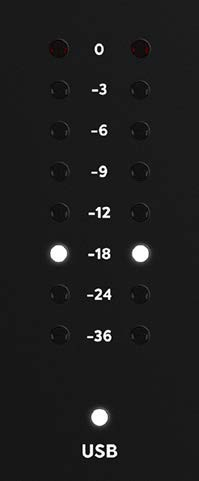
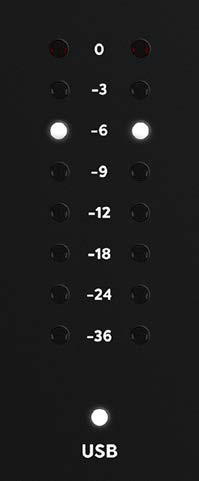
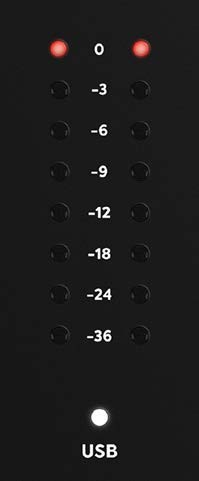
When you adjust the selected output level, the hardware meter LEDs temporarily display the volume setting before returning to normal playback metering.
With current firmware, output-volume changes made from the connected computer are also shown on the hardware meters.
Hardware metering
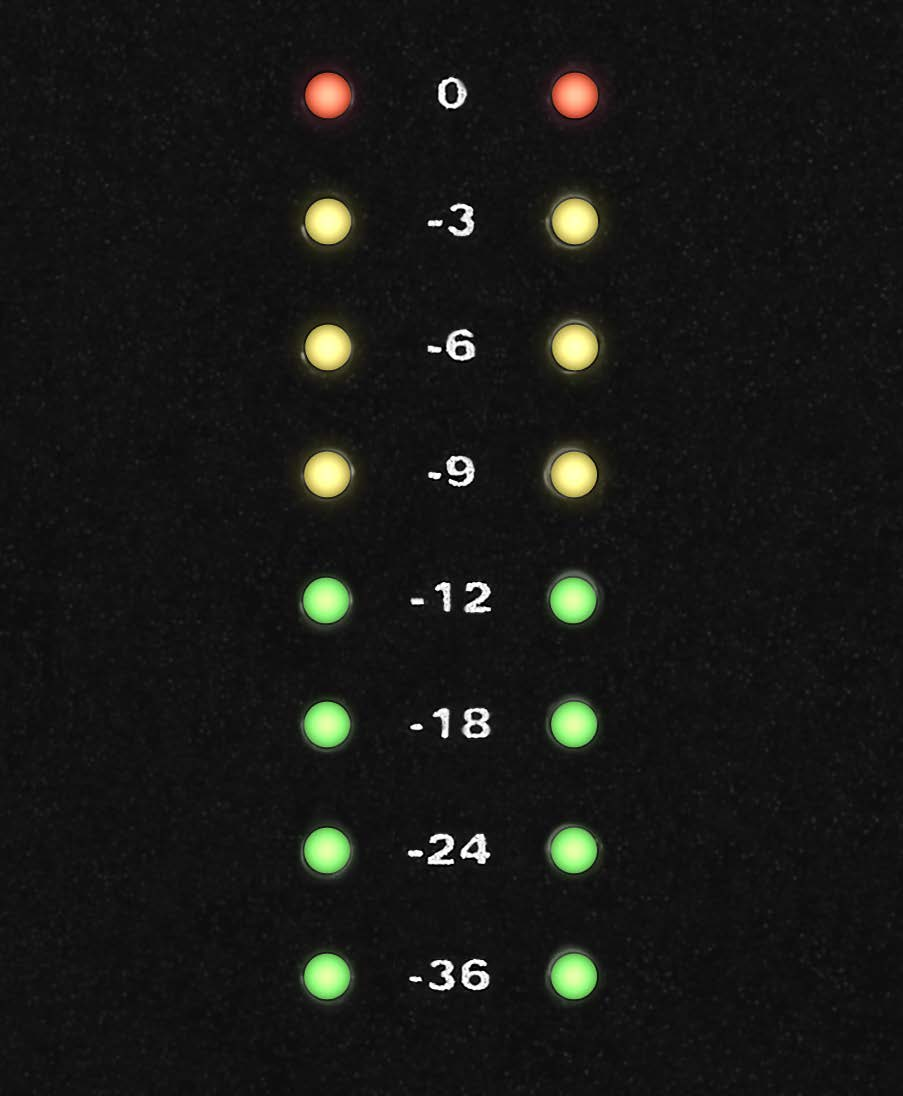
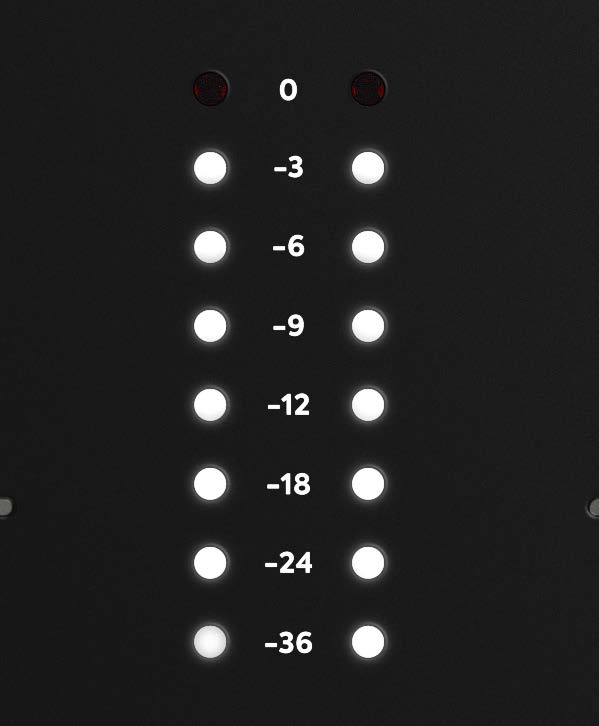
During normal operation, the 8-segment hardware meters show playback level from the iD Mixer.
Use the input meters in your DAW or recording software when setting and monitoring recording levels.
iD button
The iD button can be configured in the iD Mixer as either:
- ScrollControl
- an assignable monitor-control function
When the iD button is assigned to a monitor-control function, the main encoder continues to control the speaker or headphone output that was previously selected.
See System Panel and Routing for iD-button assignments.
ScrollControl
ScrollControl allows the main encoder to operate like a computer scroll wheel.
To use it:
- Assign ScrollControl to the iD button in the iD Mixer.
- Press the iD button.
- Hover the mouse pointer over a software control that responds to mouse-wheel scrolling.
- Rotate the main encoder.
ScrollControl behaviour depends on how the DAW, plugin, or application handles mouse-wheel input.