Audio Loopback
iD14 MKII can route audio from your computer or the iD Mixer back into recording and streaming applications using its loopback channels.
Select a loopback source
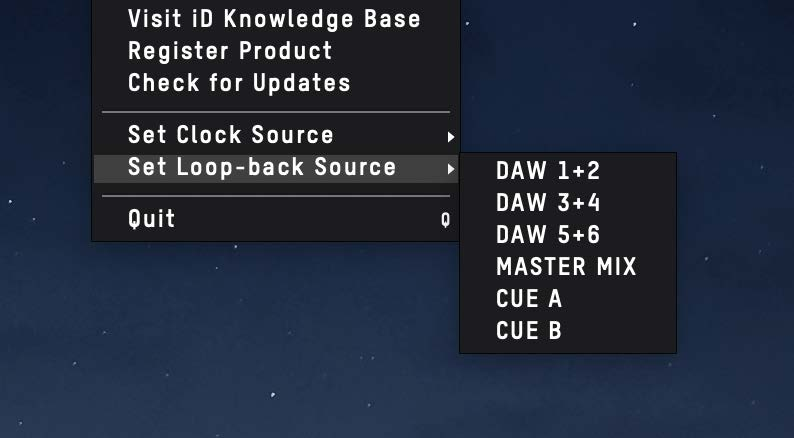
Open the iD menu and choose Set Loopback Source.
| Source | Audio sent to loopback |
|---|---|
| DAW 1+2 | Host playback sent to outputs 1+2 |
| DAW 3+4 | Host playback sent to outputs 3+4 |
| DAW 5+6 | Host playback sent to outputs 5+6 |
| Master Mix | The main iD Mixer monitoring mix |
| Cue A | Cue A mix |
| Cue B | Cue B mix |
Record or stream loopback audio
In your recording, streaming, or DAW software, select Input 11+12 or Loopback 1+2 as the input source. The name depends on the application.
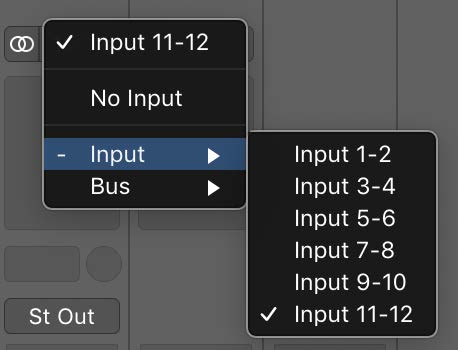
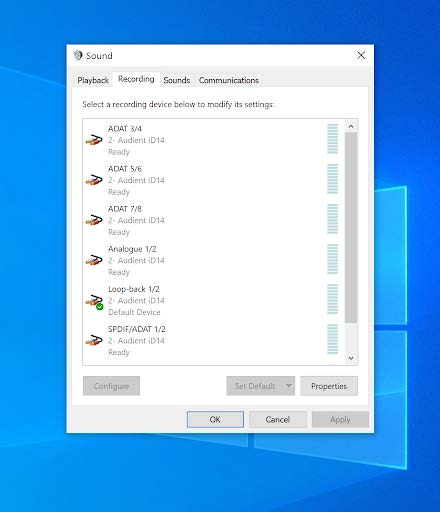
Inputs 3–10 are reserved for the optical digital input channels.
Capture normal computer playback
If the audio you want to capture is already being sent to the main iD14 playback outputs, select DAW 1+2 as the loopback source.
Create a separate computer-audio feed
To route an application to loopback separately from the main playback pair, send that application to playback channels 3+4 or 5+6, then select the matching DAW 3+4 or DAW 5+6 loopback source.
Many DAWs and audio applications allow you to select their output channels directly.
macOS
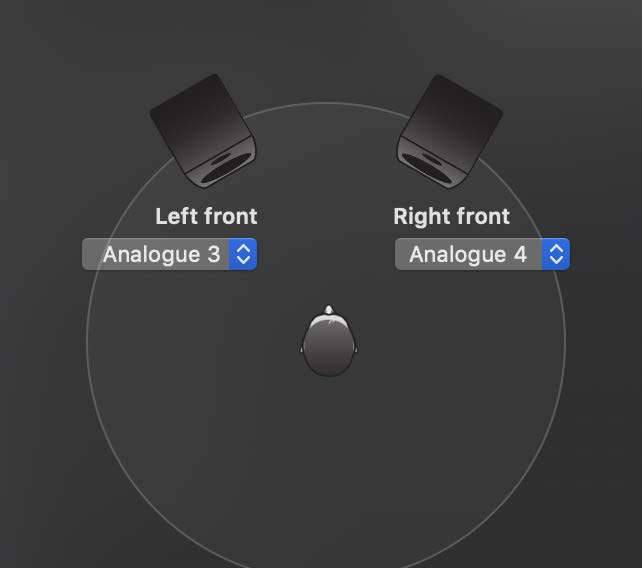
If the application does not provide its own output selection, use Audio MIDI Setup to assign system playback to channels 3+4 or 5+6, then select the matching DAW source in the iD loopback menu.
Windows
In Windows Sound settings, select Output 3+4 or Output 5+6 as the playback device, then select the matching loopback source in the iD menu.
Loop back an iD Mixer mix
To combine multiple sources before sending them to a recording or streaming application, build the required mix in Master Mix, Cue A, or Cue B, then select that mix as the loopback source.