iD Mixer
The iD Mixer controls monitoring and routing for iD14 MKII.
Mixer faders, pan, solo, mute, and Cue routing affect the monitoring mixes rather than the recorded input gain. The +10 dB Boost on the analogue input channels is an input-stage control and also affects the signal sent to the DAW.
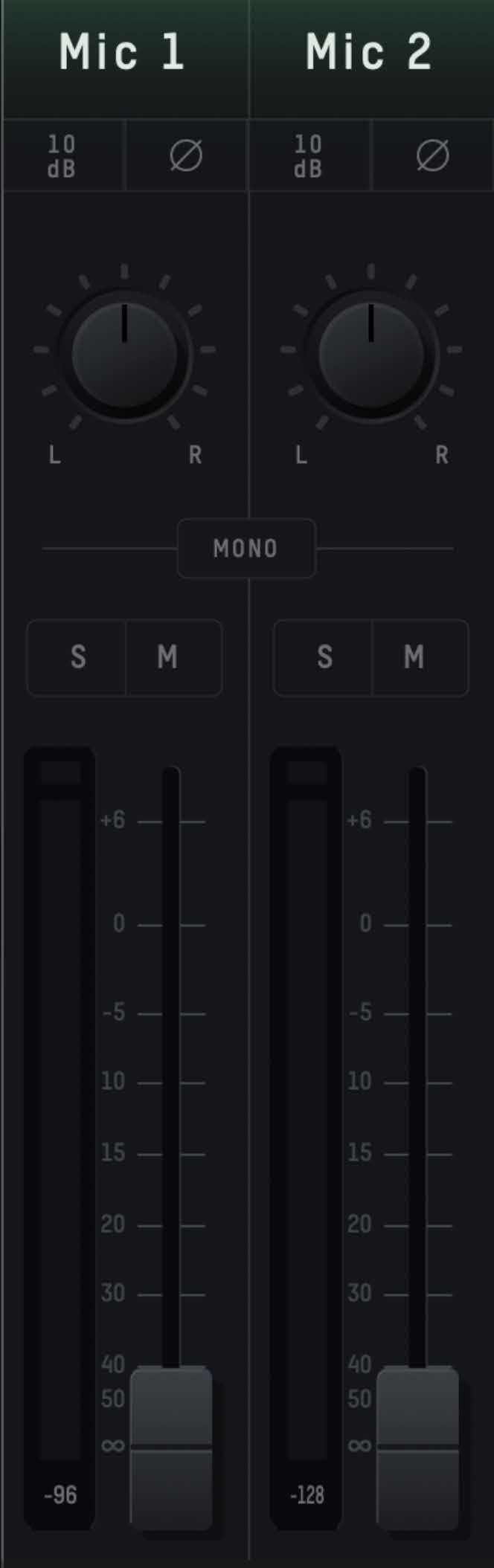
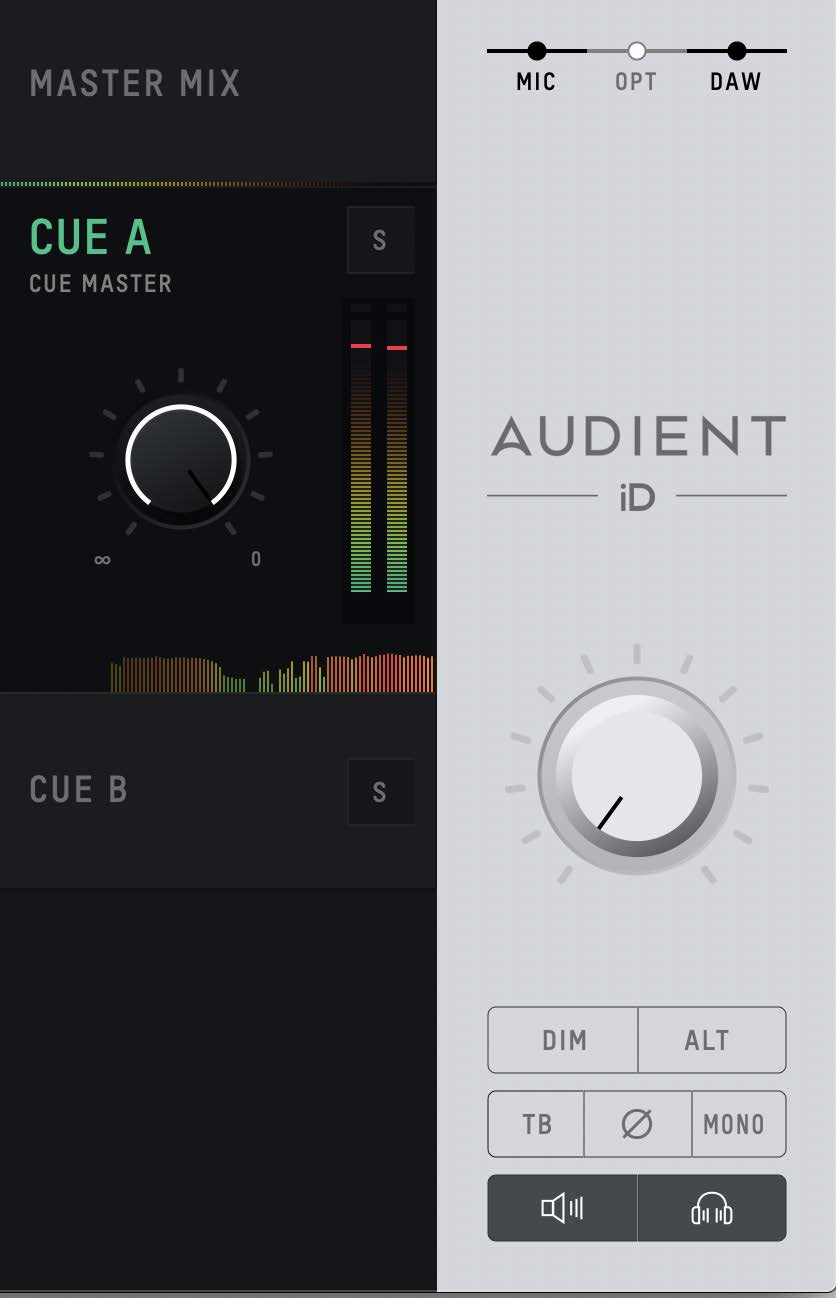

Channel types
Mic inputs
The two analogue-input channels show signals from iD14 MKII inputs 1 and 2.
Digital inputs
Digital-input channels show audio received through the optical input. The number of channels depends on the selected ADAT/S/PDIF format and sample rate.
DAW returns
iD14 MKII provides six DAW return channels for host playback and monitoring.
These sources can be used to build the main monitor mix and up to two additional Cue mixes.
Channel controls
Channel name
Double-click a channel name to rename it.
Polarity reverse
Polarity reverse inverts the polarity of the selected analogue input.
Pan
Pan places the channel left, right, or between the two sides of the selected mix.
Stereo grouping
Stereo grouping links adjacent channels as a stereo pair with a single fader. The paired channels are panned left and right.
+10 dB Boost
The +10 dB Boost raises the analogue input signal by 10 dB and also affects the signal sent to the DAW.
Solo and mute
Solo lets you audition one or more channels. Mute removes the channel from the selected monitoring mix.
Fader
The fader controls the channel level sent to the selected mix and ranges from −∞ to +6 dB.
Meter
The channel meter shows signal level in dBFS. The peak indicator illuminates when clipping is detected. Click the peak indicator to clear it. Use Alt + Click to clear all peak indicators.
Master Mix and Cue mixes
The mixer provides the main monitoring mix plus Cue A and Cue B.
Select a mix
Select the required mix to edit its channel levels and controls.
Cue mix name
Double-click a Cue mix name to rename it.
Cue solo
Use Cue solo to audition a Cue mix through the monitor path.
Cue level
The Cue level controls the overall level of that Cue mix before it is routed to an output.
Mix meters and chronometer
The mix meters show the level of the selected mix. The chronometer shows the current level and recent signal-level history.
Channel views
Use the channel-view controls to show or hide analogue inputs, optical digital inputs, and DAW returns.
Monitor controls
The iD Mixer provides software controls for monitor and headphone mute plus the following monitor functions:
- Talkback
- Polarity/side inversion for monitor checking
- Mono
- Alt speakers
- Dim
The exact routing, levels, Talkback source, and iD-button assignment are configured in System Panel and Routing.
Save and load mixer configurations
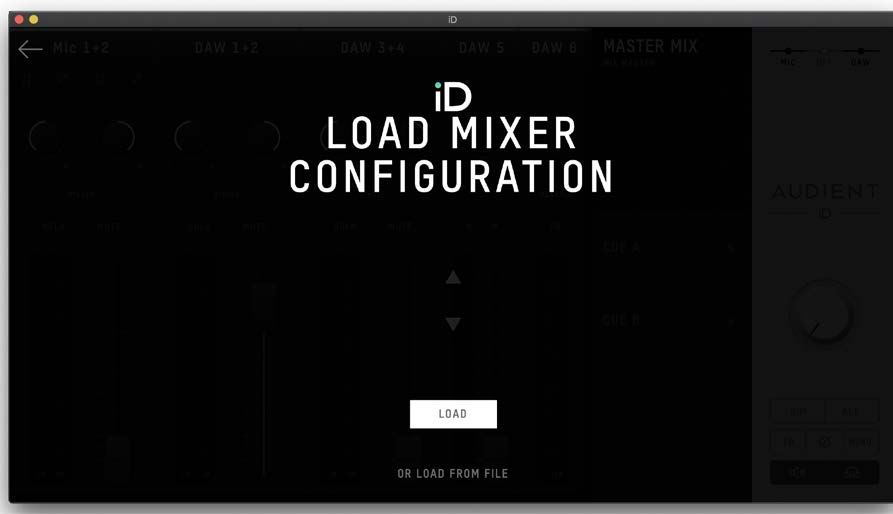
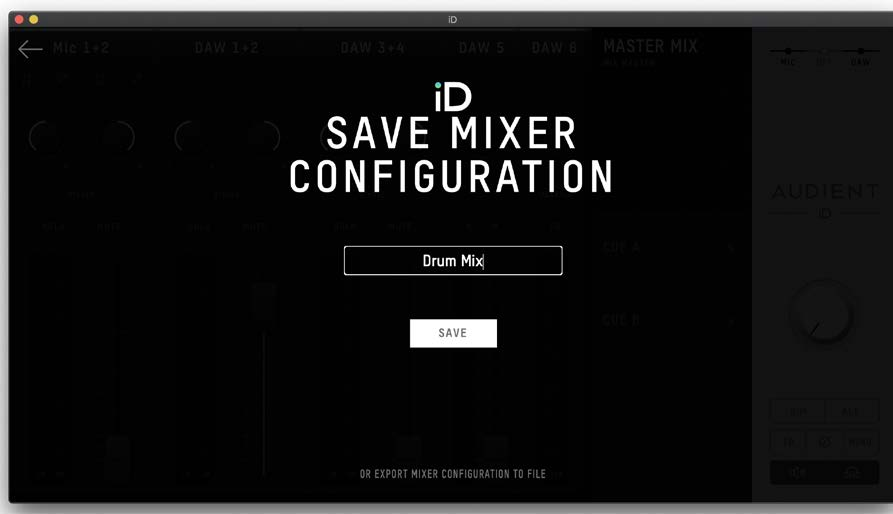
Mixer configurations can be saved and reopened for repeated setups.
| Action | macOS | Windows |
|---|---|---|
| Save configuration | Cmd + S | Ctrl + S |
| Open configuration | Cmd + O | Ctrl + O |
Use the File menu to save, open, export, or open a mixer configuration from a file.
Keyboard shortcuts
| Location | macOS | Windows | Action |
|---|---|---|---|
| Faders | Alt + Click | Alt + Click | Reset fader to 0 dB |
| Pan | Alt + Click | Alt + Click | Reset pan to centre |
| Solo | Cmd + Click | Ctrl + Click | Modify/clear solo state |
| Meters | Alt + Click | Alt + Click | Clear peak indicators |
| Mixer | Cmd + S | Ctrl + S | Save mixer configuration |
| Mixer | Cmd + O | Ctrl + O | Open mixer configuration |
| View | Cmd + 1 | Ctrl + 1 | Analogue-input view |
| View | Cmd + 2 | Ctrl + 2 | Optical-input view |
| View | Cmd + 3 | Ctrl + 3 | DAW-return view |
| View | Cmd + 4 | Ctrl + 4 | System Panel |
Menu-bar and system-tray access
On macOS, the iD icon appears in the menu bar. On Windows, it appears in the system tray. Use it to open the mixer and access device settings.
On Windows, sample rate and ASIO buffer size are also available from the iD system-tray controls.
For firmware updating, see Getting Started.