Master Section
The Master Section controls which monitor mix is being edited and provides the main monitoring functions.
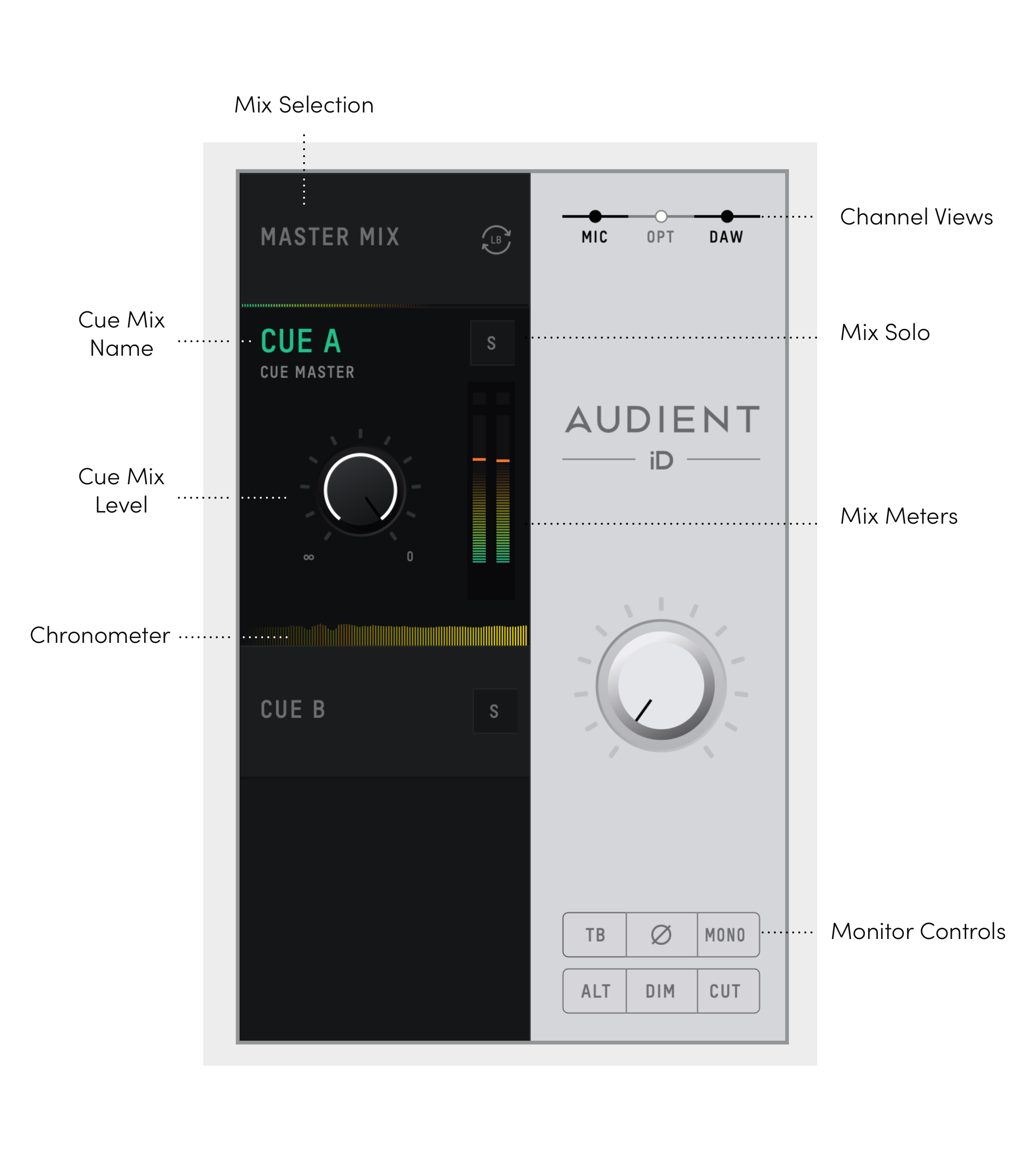
Main Mix, Cue A and Cue B
Use the mix tabs to choose:
- Main Mix - the normal control-room monitoring mix.
- Cue A - an independent cue mix.
- Cue B - a second independent cue mix.
Each cue mix can be named and adjusted independently. Use the channel faders while the required mix is selected to create that mix.
Cue level
Cue masters provide their own level controls. Cue routing is independent of the hardware Main Mix monitor level unless deliberately routed through a monitor-controlled destination.
Mix Solo
Use Mix Solo to audition the selected Cue Mix through the monitor path. This is useful for checking Cue A or Cue B from the control room without changing the cue mix itself.
Metering and chronometer
The master area includes level metering and a Chronometer level-history display. It shows the current level together with the level from the preceding few seconds, which helps locate sudden transients while adjusting a mix.
Channel-view filters
Use the view controls to show the required group of channels, such as analogue inputs, optical inputs or DAW returns. Hiding channels changes the mixer view only; it does not remove the underlying audio paths.
Main Mix volume
The Main Mix volume follows the hardware monitor encoder for the monitor-controlled output path.
Monitor controls
The Master Section exposes monitor functions including:
- TB (Talkback)
- Polarity invert (ø) - inverts one side of the stereo field; combined with Mono, this can be used to cancel centred content and audition the remaining side information.
- Mono
- ALT speaker switching
- DIM
- CUT
The System Panel determines supporting values such as Dim level and Alt speaker level.
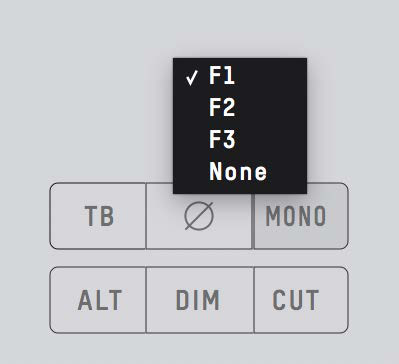
Assigning F1-F3
Right-click a supported monitor function and assign it to F1, F2 or F3. This maps the selected software function to the corresponding front-panel button.
Continue to System Panel, Routing and Talkback.