Pro Tools
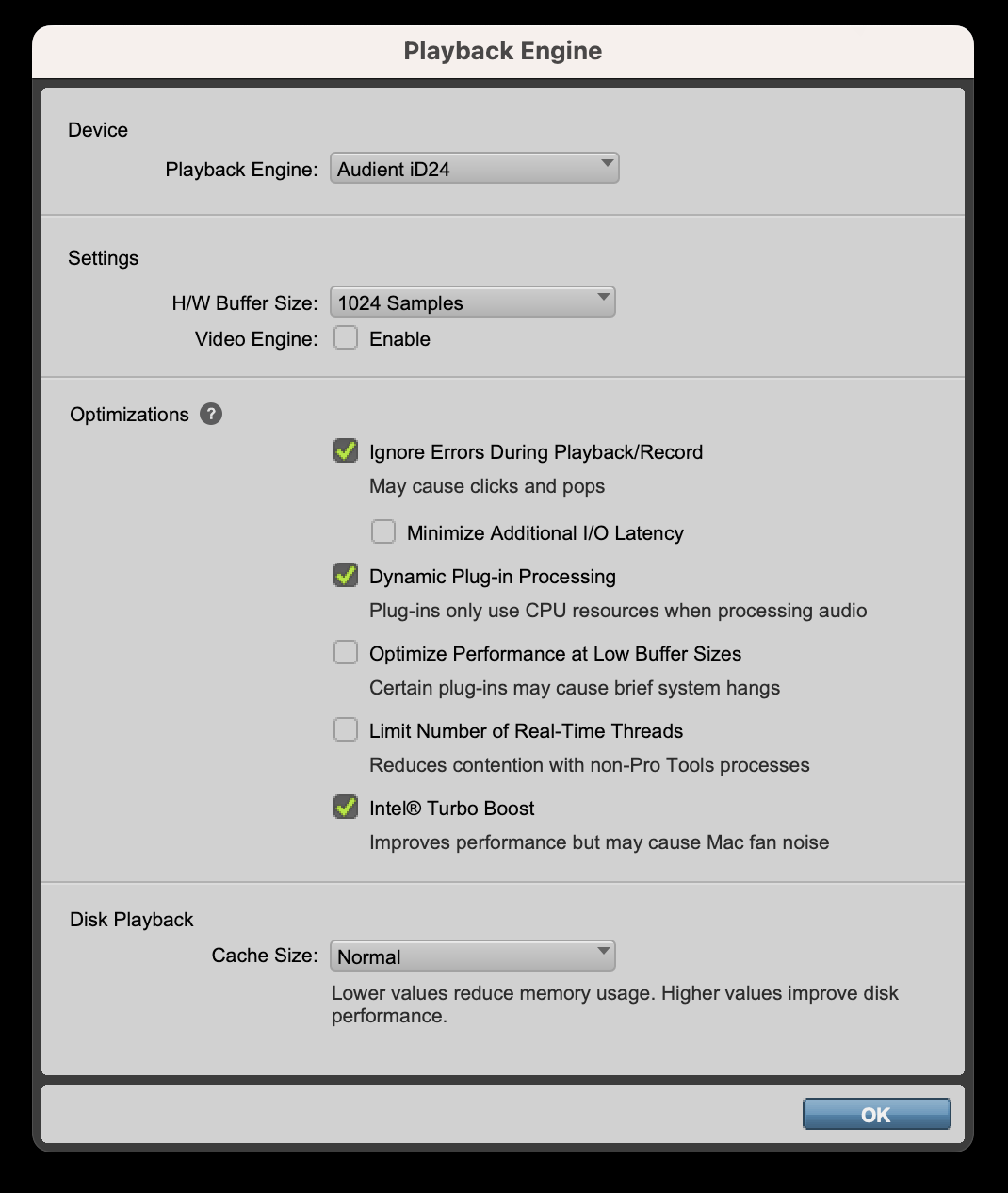
After iD24 and the current driver/software are installed, configure Pro Tools to use iD24 as its playback engine.
Select iD24
- Open Setup > Playback Engine.
- Choose Audient iD24 as the Playback Engine.
- Confirm the change if Pro Tools asks to reinitialise the audio device.
Configure I/O
Open Setup > I/O and confirm the required input and output paths. At its full 44.1/48 kHz ADAT configuration, iD24 is a 10-input, 14-output USB audio device. Use the Pro Tools I/O window to label paths and confirm all required ports are available.
Monitoring
On Windows, set the required driver latency/buffer before opening the Pro Tools session where practical; changing core driver settings mid-session can force Pro Tools to reinitialise/restart its audio engine. If you monitor live inputs through the iD Software Mixer, avoid monitoring the same input through Pro Tools at the same time unless you intentionally want both paths; otherwise the result can sound doubled or comb-filtered.
For external optical clocking, configure iD24 in the iD app and keep the Pro Tools session sample rate matched to the digital source.
Continue to Logic Pro.