Logic Pro
Select iD24 as the audio device
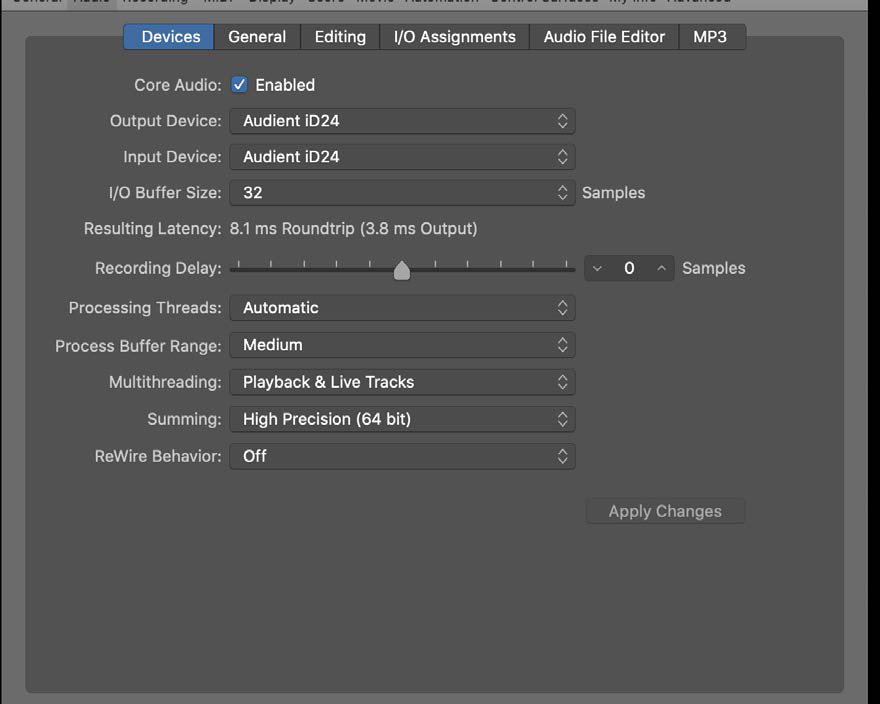
- Open Logic Pro > Settings > Audio.
- Open the Devices section.
- Choose Audient iD24 for the input and output device as required.
- Set an appropriate I/O buffer size for the session.
I/O labels
Use Mix > I/O Labels to give the iD24 inputs and outputs meaningful names for the current studio setup.
Monitoring
When using the iD Software Mixer for low-latency input monitoring, disable or avoid Logic software monitoring for the same live input path so you do not hear both the direct DSP signal and the delayed DAW return.
Sample rate and external clock
Set the Logic project sample rate from File > Project Settings > Audio.
When iD24 is locked to an external optical clock, set the Logic project sample rate to match the external digital device. Confirm the external clock indicator is green in the iD app before recording digital inputs. When iD24 uses its Internal clock, changing the Logic project sample rate causes iD24 to follow the session; a brief pause while the system re-clocks is normal and can be checked in Audio MIDI Setup.
Continue to Cubase and Nuendo.