Cubase and Nuendo
Select the ASIO driver
- Open Studio > Studio Setup.
- Select Audio System.
- Choose the Audient iD24 / Audient USB Audio ASIO driver presented by the current Audient driver package.
- Confirm the switch if Cubase/Nuendo asks to change driver.
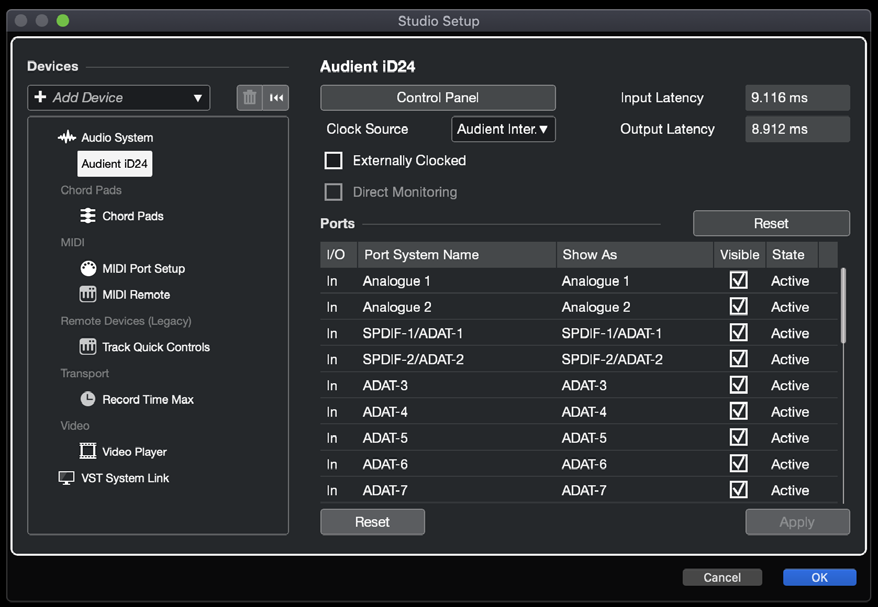
Configure inputs and outputs
Open Studio > Audio Connections (F4) and create the input/output buses required for the session. Buses can be mono or stereo, and Cubase/Nuendo Control Room can be used where appropriate. Port/bus names can be edited to reflect connected devices such as Main Monitors or Headphones.
At 44.1/48 kHz with ADAT enabled, iD24 provides two analogue inputs plus eight optical inputs. The available optical channel count reduces at higher sample rates as described in Digital I/O and Clocking.
Buffer size and monitoring
Choose the ASIO buffer size from the Audient driver/iD controls. Use a lower stable buffer for software monitoring and a higher buffer when CPU load is more important. If monitoring live inputs through the iD Software Mixer, avoid also monitoring those inputs through Cubase/Nuendo unless both paths are deliberately required.
External clock
Set the clock source in the iD application. Match the project sample rate to the external source and confirm valid lock in the iD System Panel.
Continue to Ableton Live.