Installation and Updates
Register iD24 in Audient ARC to access the current iD software, Windows driver and bundled resources. Always use the current iD24 download/ARC resources rather than relying on a version number printed in an older screenshot.
Current system support
Current Audient guidance lists iD24 compatibility with macOS 10.13.6 through macOS 15.x (Sequoia) and macOS 26 Tahoe on compatible Intel and Apple silicon Macs, and with Windows 10 and Windows 11. The published baseline is 1 GB RAM minimum and an Intel Core 2 @ 1.6 GHz or AMD-equivalent minimum on Windows.
Check Audient's current compatibility information before a major operating-system update, as support for future OS releases should not be assumed.
USB connection requirements
- Connect iD24 to a USB-C port using the included USB-C to USB-C cable, or to a USB-A 3.0 port using a suitable USB-C to USB-A cable.
- When using USB-A, the port must be capable of supplying 900 mA, as specified for USB 3.0.
- If the available USB-A ports cannot provide the required current, use a suitable powered USB hub.
macOS
- Register iD24 in Audient ARC and download the current iD software.
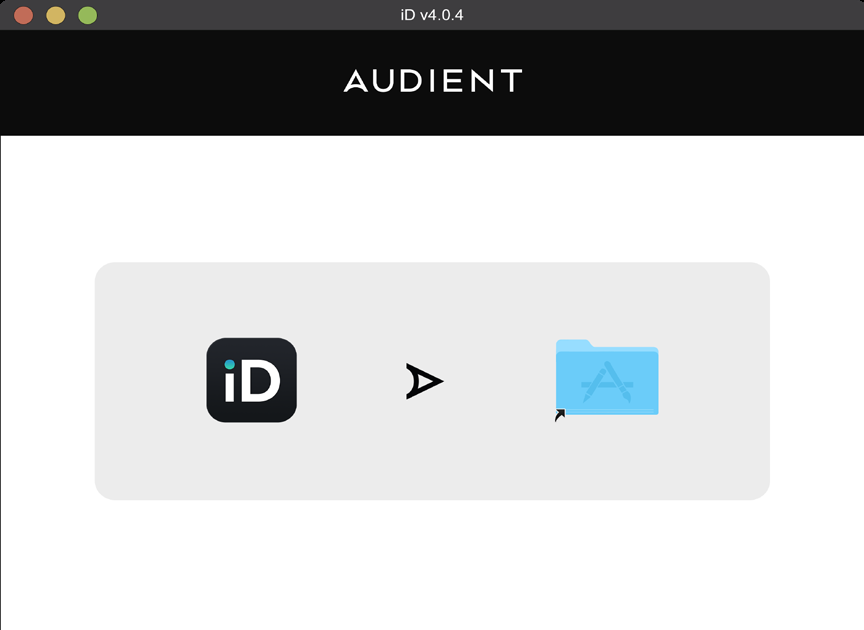
- Open the downloaded disk image and drag the iD application into Applications.
- Connect iD24 directly to the Mac using USB-C where possible.
- Confirm that the white USB status LED is lit.
- In macOS Sound settings, select iD24 as the required input/output device. Disabling system sounds is recommended for a production system.
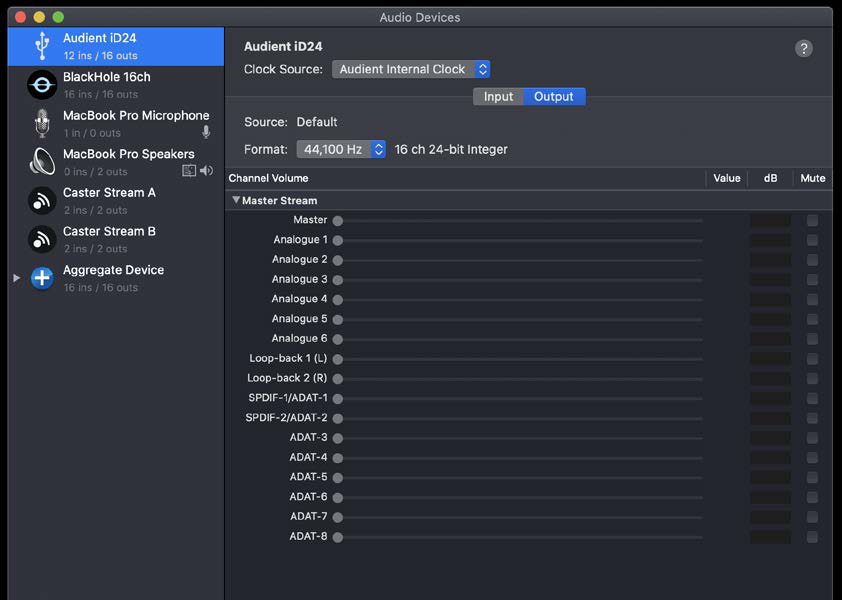
- Open Audio MIDI Setup if you need to inspect the Core Audio device. At 44.1/48 kHz with ADAT selected, iD24 reports the full 10-input, 14-output USB I/O complement.
- Open the iD application from Applications. The iD icon is available from the macOS menu bar while the application is running.
Windows
- Register iD24 in Audient ARC and download the current Windows iD installer.
- Close audio applications. If the current installer prompts you to disconnect the interface while installation begins, follow the installer prompt.
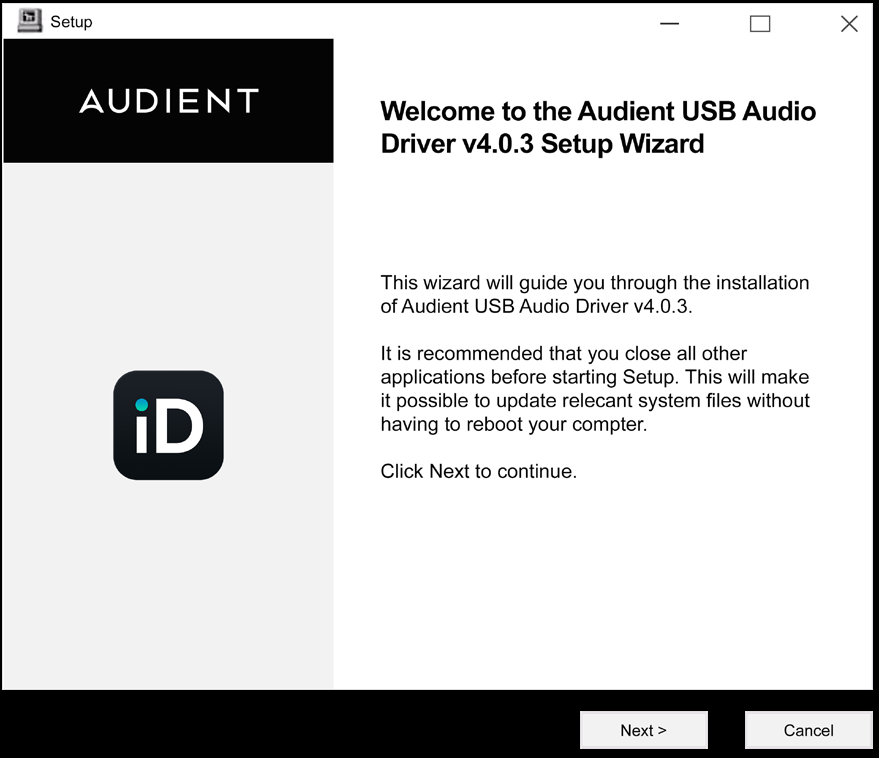
- Run the installer and follow the on-screen instructions.
- Connect iD24 when prompted/after the driver is installed.
- Restart Windows when the installer requests it.
- Confirm that the white USB status LED remains solidly lit.
- In Settings > System > Sound, select the required iD24 playback and recording devices.
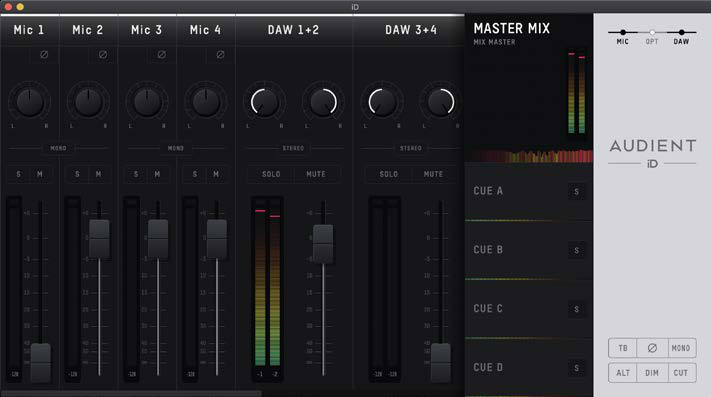
The iD icon appears in the Windows system tray. Double-click it to open the mixer. Right-clicking gives quick access to supported device settings such as sample rate and ASIO buffer size. On macOS, you can keep the application readily available by using the normal Keep in Dock option if desired.
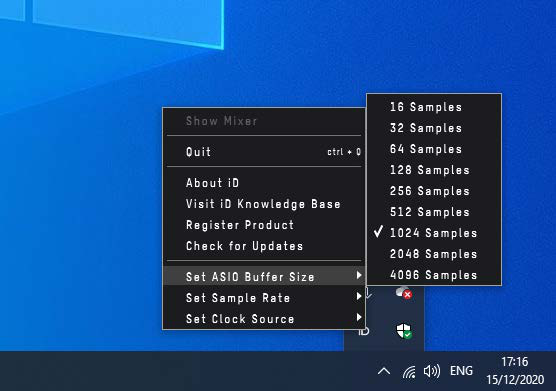
Buffer size
Use a lower buffer while recording when low latency is important, and a higher buffer while mixing when project load is more important than monitoring latency. The lowest stable value depends on the computer, driver, project and plug-in load.
Firmware updates
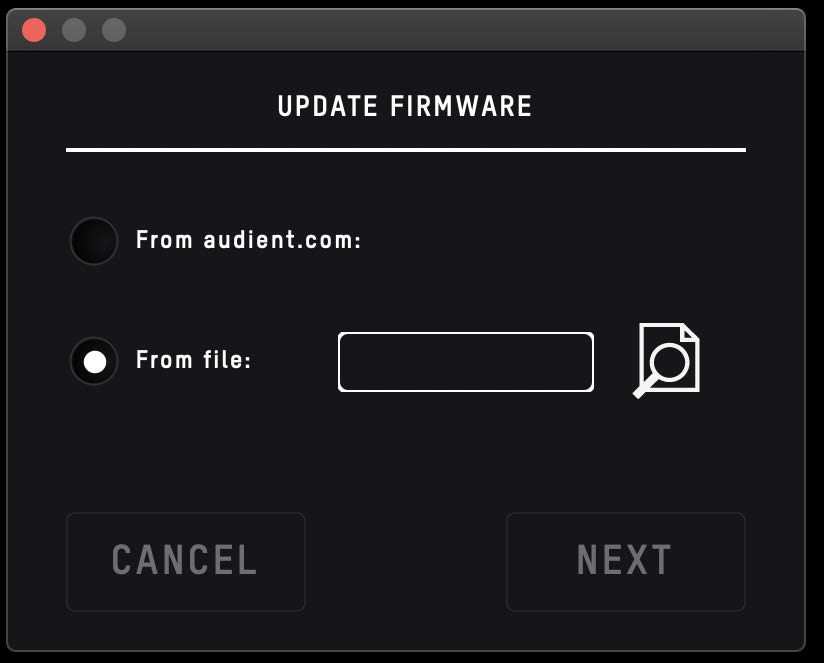
The iD application checks for iD24 firmware updates. When an update is offered:
- Save your work and close other audio applications.
- Keep iD24 connected directly and do not disconnect USB during the update.
- Follow the iD application's update instructions.
- The unit may restart during the process.
- After completion, allow iD24 to reconnect before opening audio applications again.
Product registration
ARC registration is used for current downloads and bundled software/resources. Use the serial number and product information supplied with the unit when registering. If the initial registration prompt is dismissed, registration can be completed later from the iD application/ARC workflow.
Continue to Analogue Inputs and Inserts.