Audio Loopback
iD24's loopback system sends one selected stereo source back to the computer on dedicated USB input channels 11+12.
Choose the loopback source
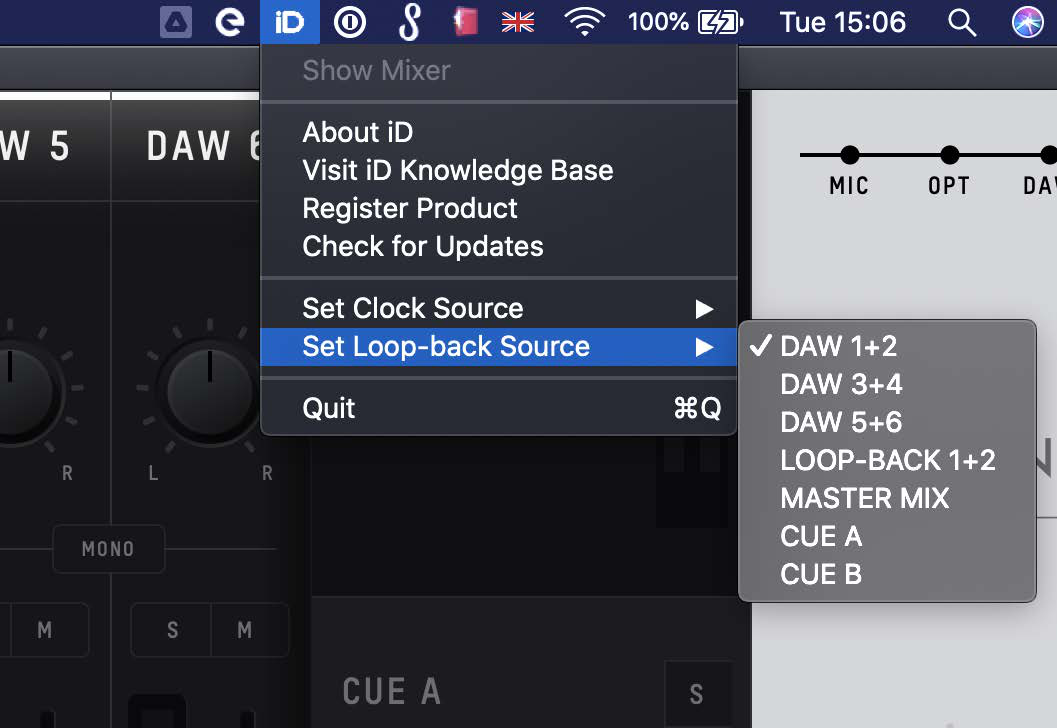
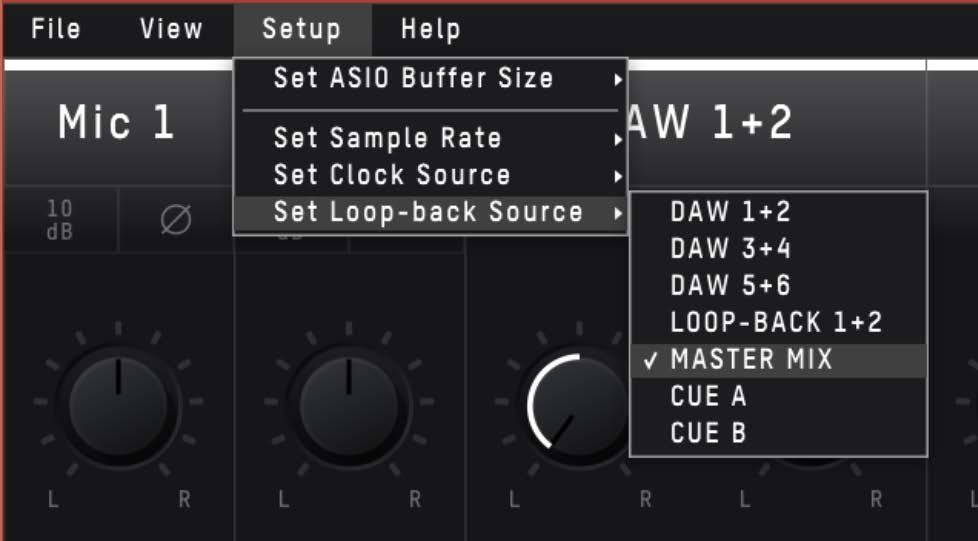
Open Setup > Input Routing in the iD Software Mixer and choose the source for Loopback 1+2.
| Source | Content sent to loopback |
|---|---|
| DAW 1+2 | Computer audio sent to iD24 outputs 1+2 |
| DAW 3+4 | Computer audio sent to iD24 outputs 3+4 |
| DAW 5+6 | Computer audio sent to iD24 outputs 5+6 |
| Master Mix | The audio mix created on the Main Mix panel in the iD Software Mixer |
| Cue A | The Cue A mix |
| Cue B | The Cue B mix |
Record or stream the loopback signal
- Choose the required source in Input Routing.
- In the recording/streaming application, select Loopback 1+2 or Input 11+12 as the input.
- Check the input meter before recording/streaming.
For computer audio only, select the DAW pair carrying that audio.
For computer audio plus microphones/instruments, build the required combined signal in Main Mix, Cue A or Cue B, then select that mix as the loopback source.
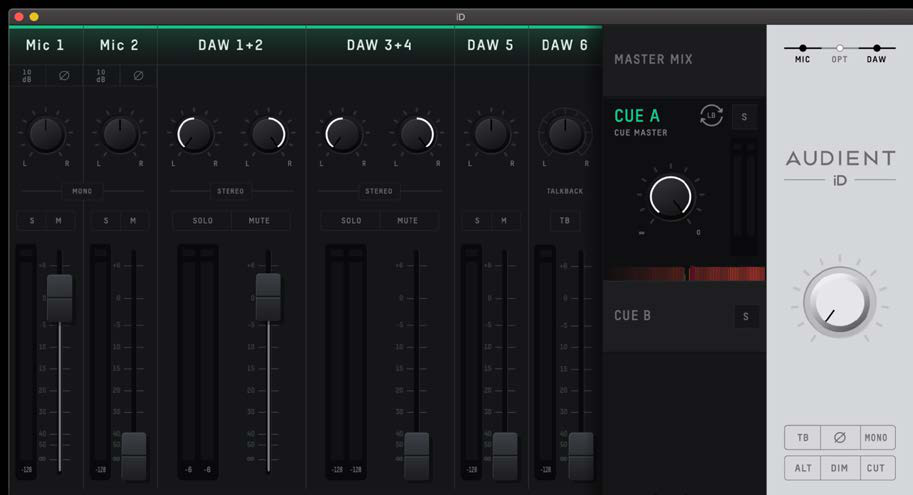
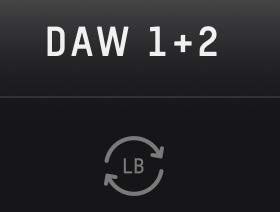
A loopback icon identifies the source currently feeding loopback.
Keep loopback playback separate from your main monitor return
Instead of sending the source application's playback to DAW 1+2, use DAW 3+4 or DAW 5+6 where the application/OS supports it. This lets normal monitor playback stay on 1+2 while a separate return feeds loopback.
macOS
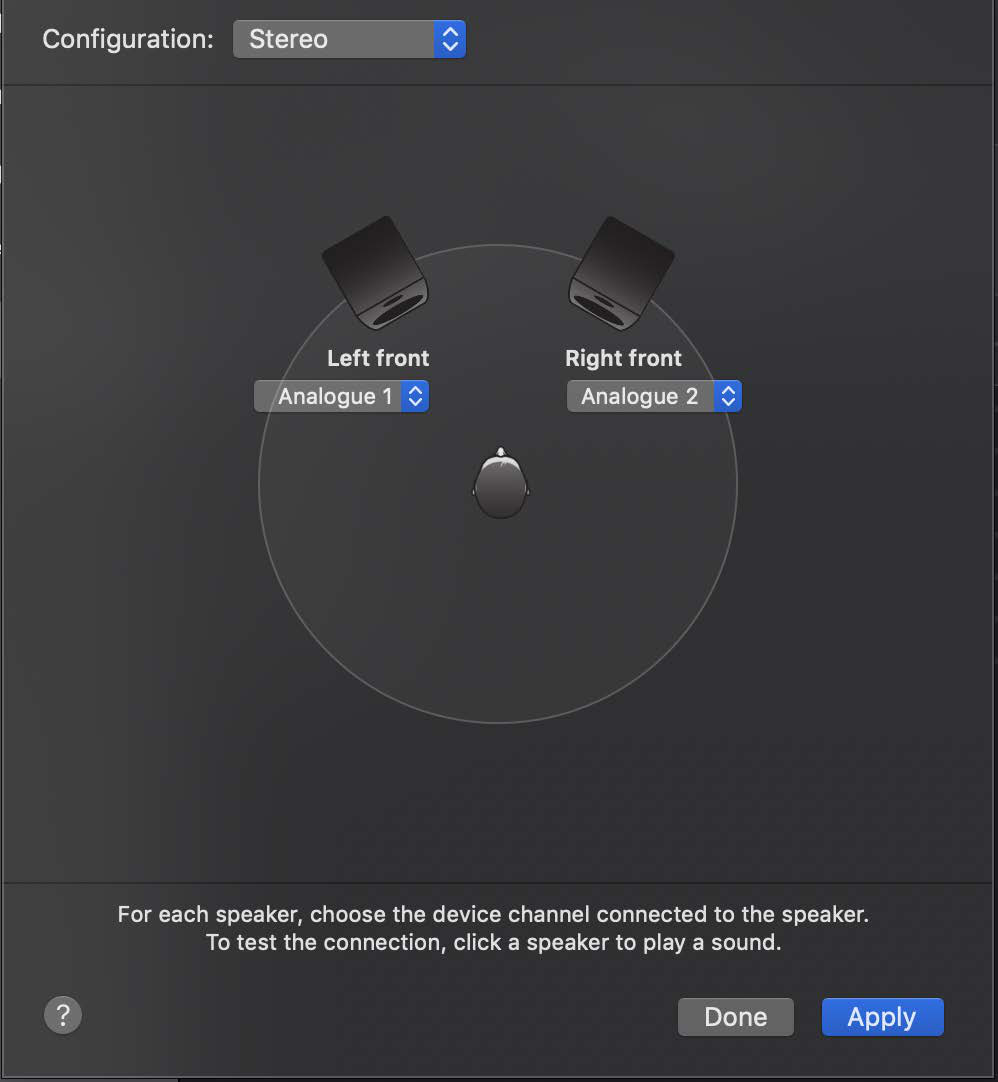
In Audio MIDI Setup, select iD24 and use Configure Speakers to choose the required output channels for system audio when appropriate.
Windows
Select the appropriate iD24 output device in Settings > System > Sound. Output channels 3+4 correspond to DAW 3+4, and output channels 5+6 correspond to DAW 5+6 in the iD Software Mixer.
If an application relies on the Windows default recording device, you may also need to select Loopback 1+2 as the input device.
Applications that can access only the first stereo input pair cannot select iD24's loopback channels 11+12. Use an application/device mode that exposes the full input set.
Continue to Pro Tools.