Headphone monitoring
ORIA provides two independent headphone outputs for monitoring while recording or mixing.
Each output has its own volume, mute state and selectable monitoring source.
Selecting a headphone output
Press the Headphone 1 or Headphone 2 button to select the corresponding output.
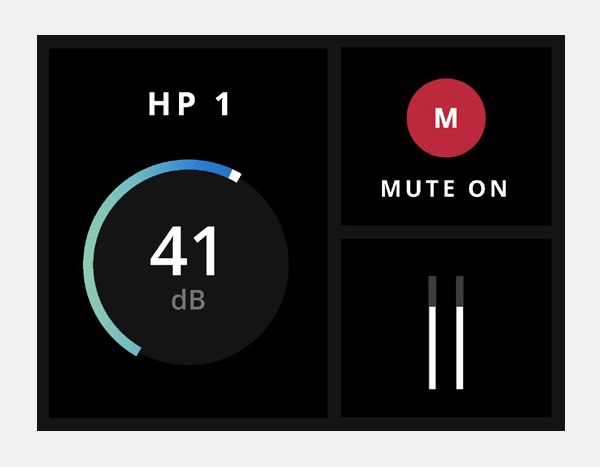
Turn the Control Wheel to adjust the volume of the selected headphone output.
Muting a headphone output
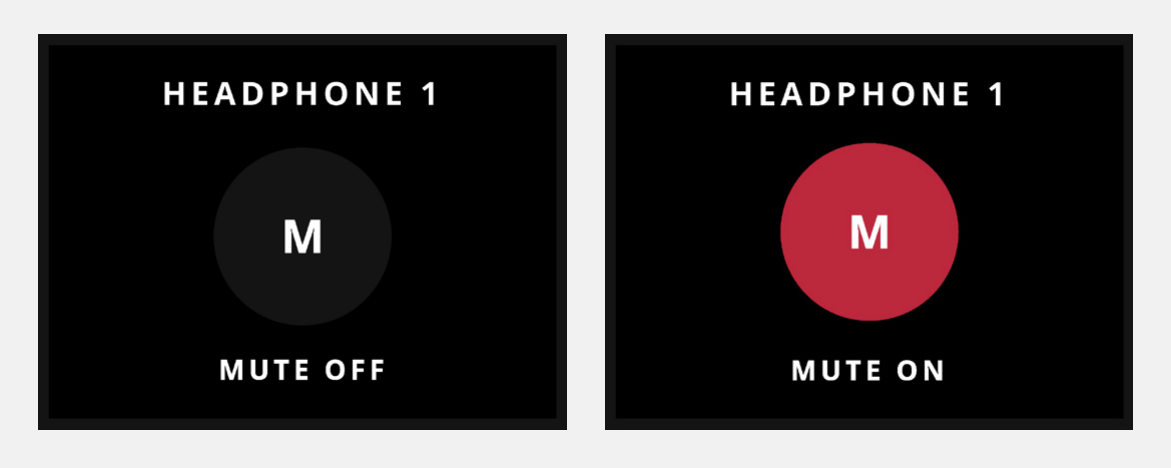
Press and hold the corresponding Headphone 1 or Headphone 2 button to mute or unmute that output.
The button LED flashes white while the headphone output is muted.
Selecting a monitoring source
Each headphone output can receive a different source.
Select the source for each output through the System Panel in ORIA Control.
Available sources include:
- USB L + R
- USB 17 + 18
- USB 19 + 20
- Software Mixer — Master Mix
- Software Mixer — Cue A
- Software Mixer — Cue B
- ADAT and Dante, when available and configured
Use USB 17 + 18 or USB 19 + 20 when a connected renderer provides a separate binaural headphone mix.
ORIA’s low-latency software mixer can create separate Cue A and Cue B mixes for performers while recording.
Next steps
Continue to Front-Panel Metering to view ORIA’s speaker, headphone and input signal levels.