ORIA Manual
ORIA is an immersive audio interface and monitor controller designed for stereo, surround and immersive monitoring systems.
This page explains how to unpack ORIA, connect it to your computer and complete the initial setup using the front-panel Motion UI.


What’s in the box
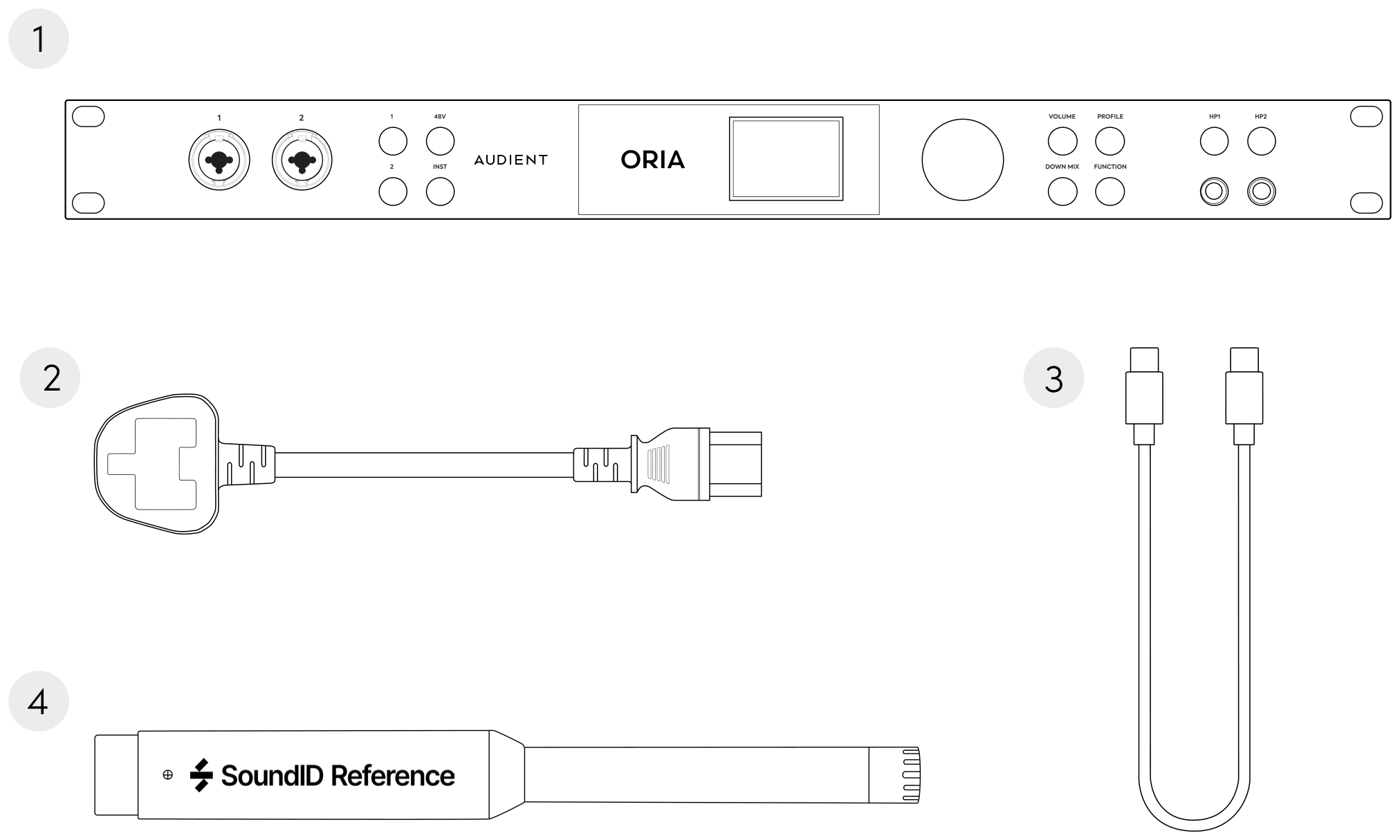
The ORIA package contains:
- ORIA
- Mains power cable
- USB-C to USB-C cable
- Sonarworks SoundID Reference measurement microphone
Connecting ORIA
- Connect the included mains power cable to ORIA.
- Connect ORIA to a USB port on your computer using the included USB-C to USB-C cable.
- Allow ORIA to start and display the initial setup options.
When your computer does not have a suitable USB-C port, use a compatible data-capable USB cable.
Using the control wheel
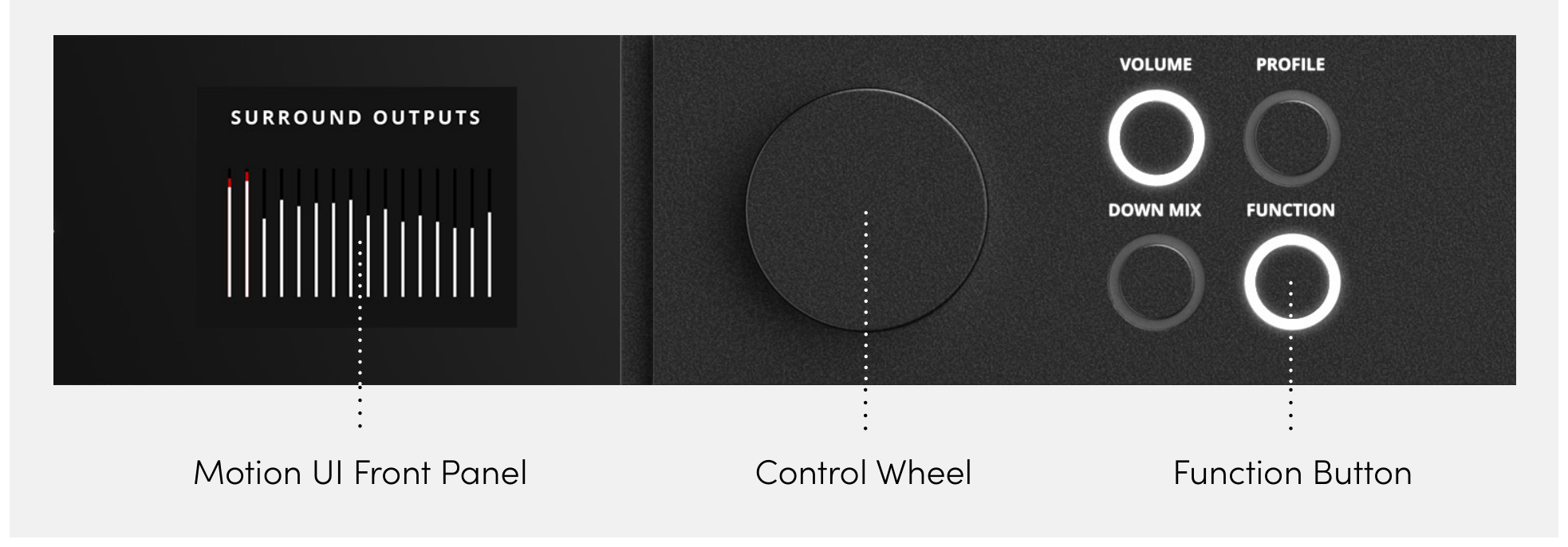
Use the front-panel Control Wheel to navigate ORIA’s Motion UI.
- Turn the Control Wheel to move through available options or adjust a value.
- Press the Control Wheel to confirm a selection.
- Press the Control Wheel to cycle through options provided by certain front-panel controls.
Completing the initial setup
When ORIA starts for the first time:
- Turn the Control Wheel to set the screen brightness.
- Press the Control Wheel to confirm the brightness.
- Select the function assigned to the front-panel Function Button:
- DIM
- Return to Reference
- Polarity Reverse
- Press the Control Wheel to confirm the selected function.
- Scroll to Finish.
- Press the Control Wheel to complete the initial setup.
You can change the display brightness and Function Button assignment later through ORIA Settings.
Next steps
Install the required software and register ORIA before configuring your audio and monitoring system.