Speaker monitoring
ORIA provides front-panel controls for adjusting the speaker level, recalling Profiles, controlling a connected Dolby Atmos Renderer and accessing monitoring functions.
Speaker volume
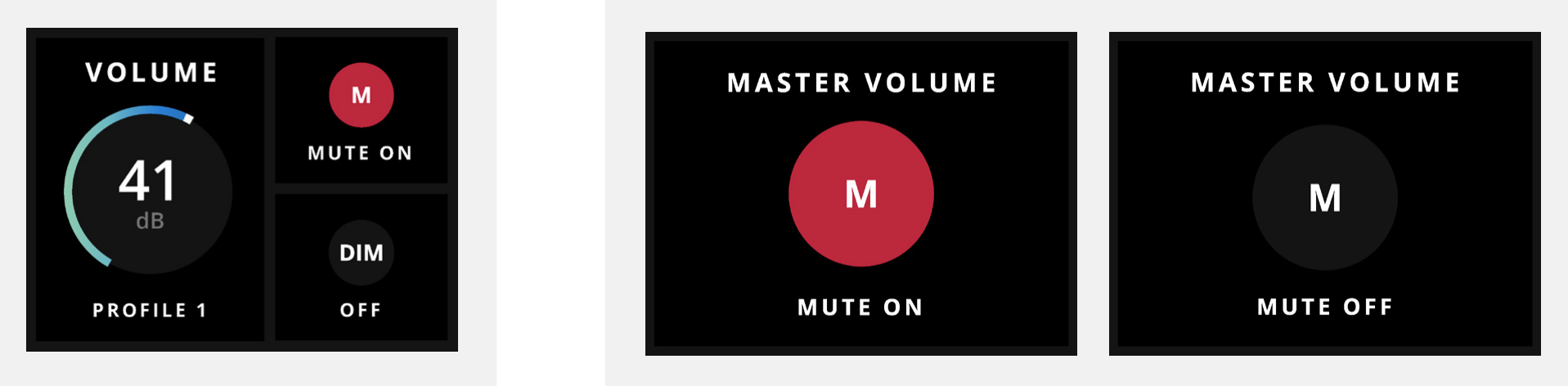
Press the Volume button to select the main speaker outputs, then turn the Control Wheel to adjust the listening level for the active speaker configuration.
To mute or unmute the main speaker outputs:
- Select the main speaker outputs.
- Press and hold the Control Wheel.
The Volume button LED flashes white while the main speaker outputs are muted.
Selecting a profile
Tap the Profile button to cycle through the four Profiles assigned as favourites.
To select another Profile stored on ORIA:
- Press and hold the Profile button.
- Turn the Control Wheel to move through the complete Profile list.
- Press the Control Wheel to select the highlighted Profile.
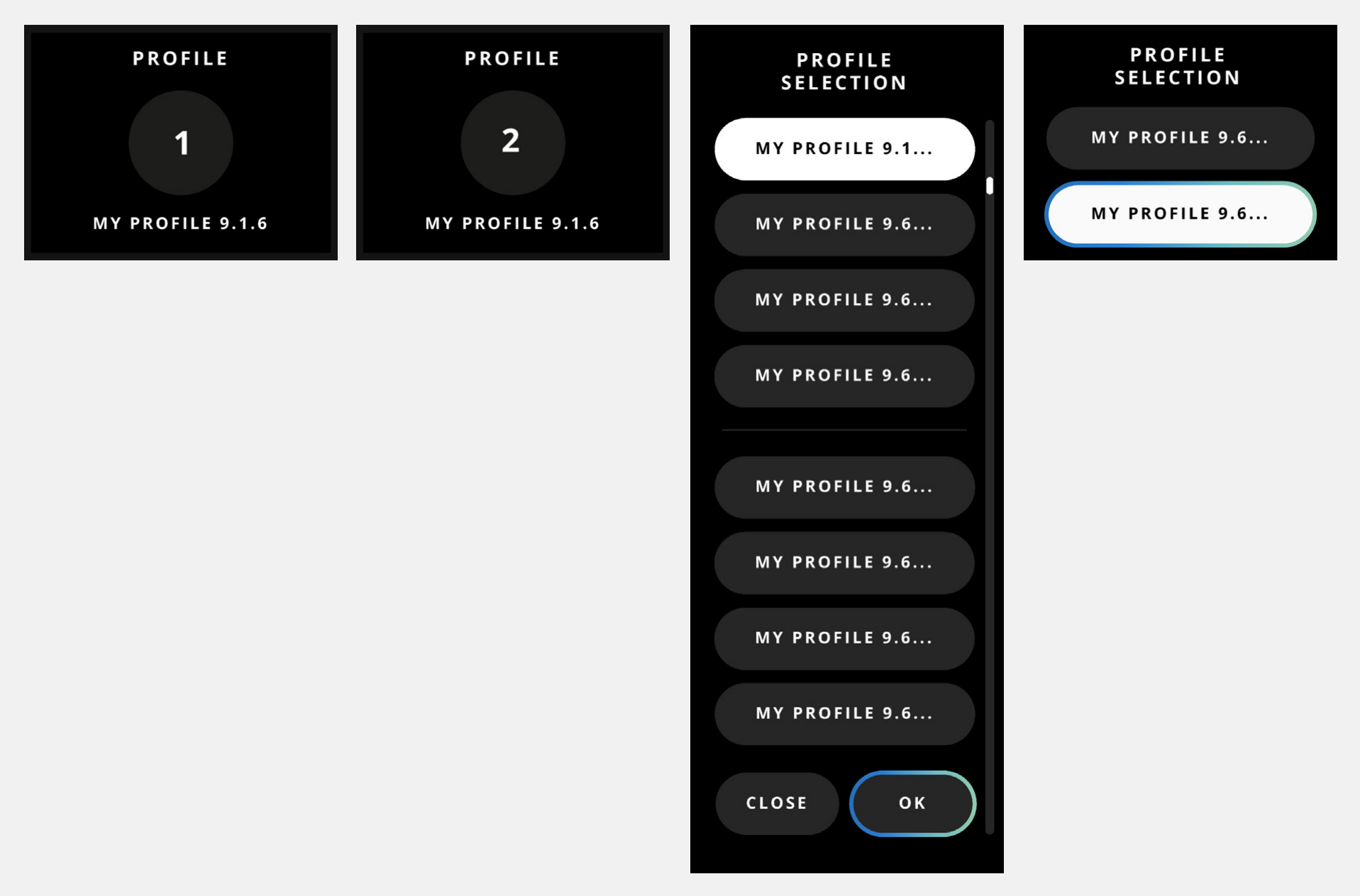
The active Profile determines the speaker configuration, calibration and reference listening level currently in use.
Dolby Renderer downmix control
ORIA’s Down Mix button can control the downmix format used by a connected Dolby Atmos Renderer.
Before using this control, select the required Renderer Target in ORIA Control.
Cycling through downmix formats
Press the Down Mix button to cycle through the downmix formats configured in the connected Renderer.
These can include:
- Mono
- Stereo
- 5.1
- 7.1
- 7.1.4
- 9.1.6
Press and hold the Down Mix button to open a list of the available formats. Turn the Control Wheel to highlight a format, then press it to make the selection.
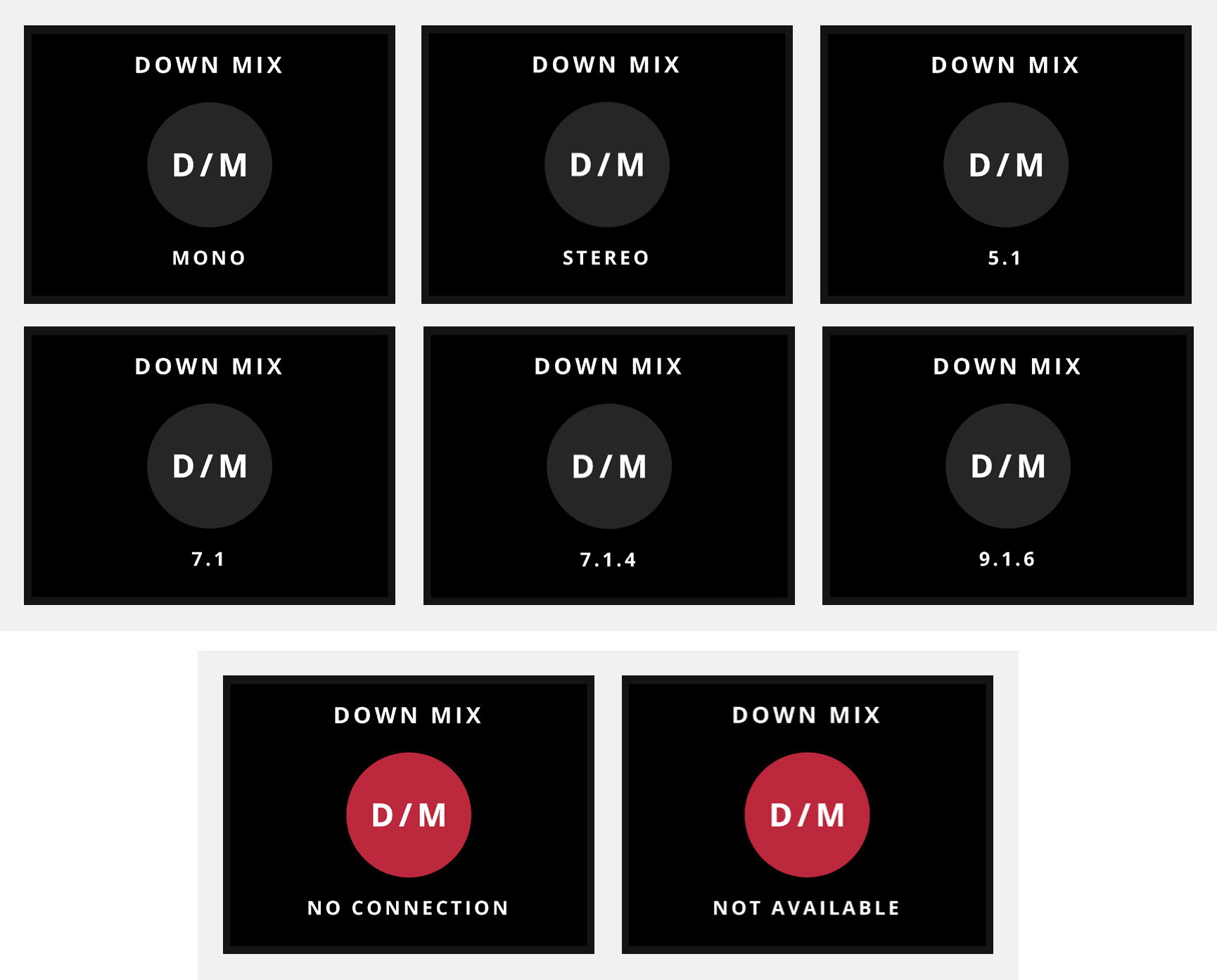
When ORIA cannot communicate with the selected Renderer, the Motion UI displays a No Connection or Not Available message.
For setup instructions, see How to link the Downmix button to a Renderer.
Function button
Press the front-panel Function Button to operate the function currently assigned to it.
The assignment can be changed through ORIA Settings or ORIA Control.
Function Button assignments are system-wide and are not stored as part of an individual Profile.
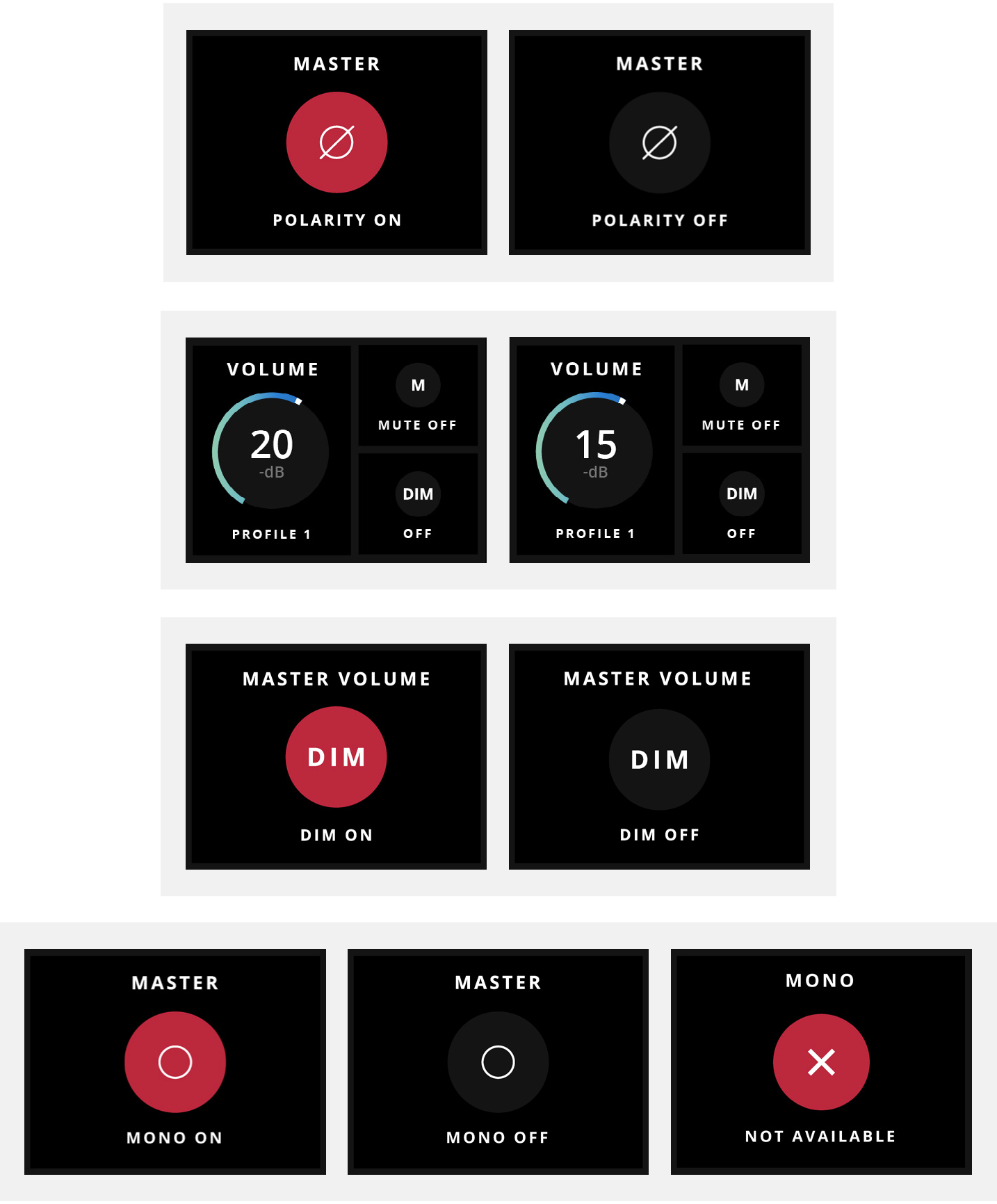
DIM
DIM temporarily reduces the main speaker level.
The amount of level reduction is configured in the System Panel of ORIA Control.
Mute
Mute silences all active speaker outputs.
Talkback
Talkback switches the assigned Talkback function on or off.
Mono
Mono sums the Left and Right channels for mono-compatibility checking.
It does not sum every channel in a surround or immersive speaker configuration.
Polarity
Polarity reverses the polarity of the Left channel and sums it with the Right channel.
This suppresses centrally panned content and allows the stereo difference information to be auditioned.
Return to Reference
Return to Reference sets ORIA’s main speaker volume to the reference level stored in the active Profile.
For example, when the active Profile has a reference level of -20 dB but ORIA is currently set to -15 dB, pressing the Function Button returns the speaker level to -20 dB.
The Function Button remains illuminated while ORIA is operating at the stored reference level.
Input source
Input Source changes the monitoring source currently selected by ORIA.
Available sources can include USB, ADAT, Dante and ORIA’s software-mixer outputs.
Input Source assignment requires ORIA firmware 1.1.0 or later.
Next steps
Continue to Headphone Monitoring to control ORIA’s two independent headphone outputs.