ORIA settings
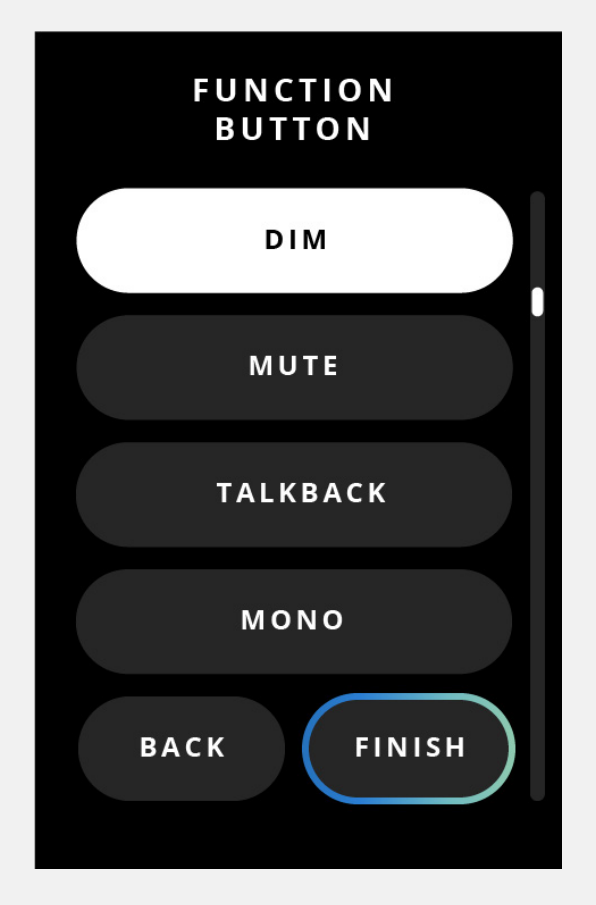
Press and hold the Control Wheel to open ORIA’s global settings.
Turn the Control Wheel to move through the available settings, then press it to confirm a selection.
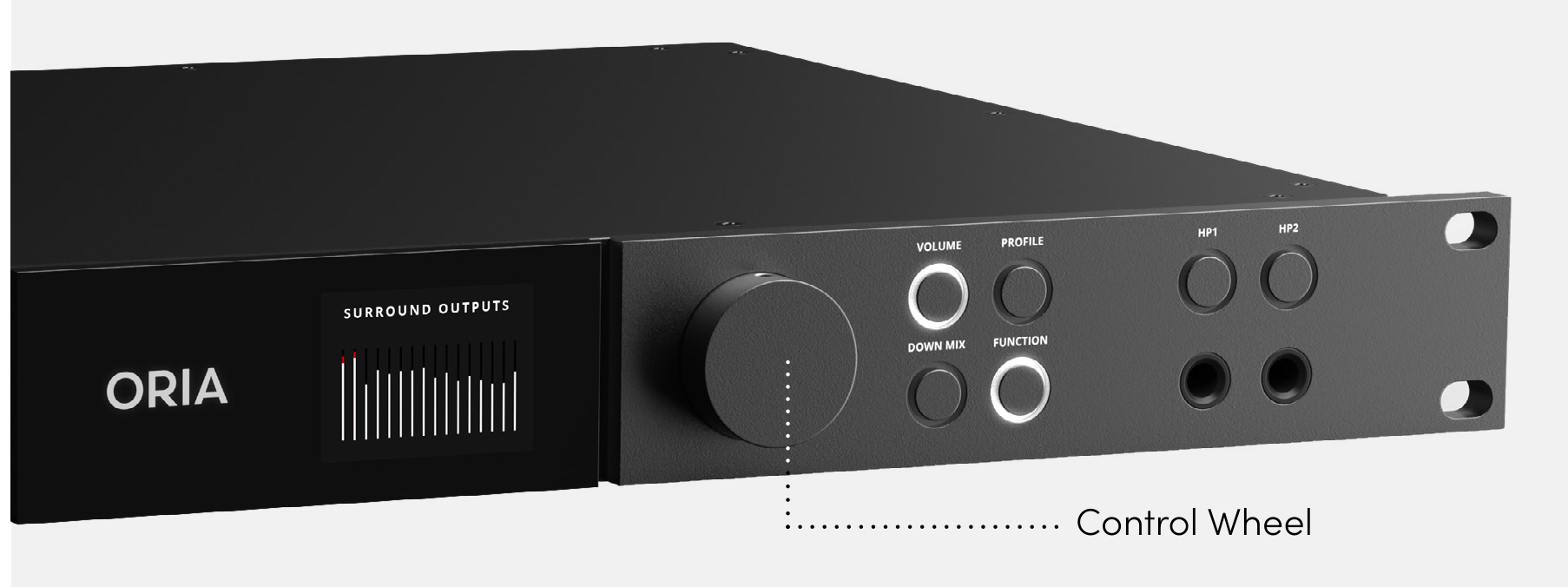
Power
Select Power to switch ORIA off.
- Select Power.
- Select Yes to confirm.
- Wait while ORIA powers down.
Press the Control Wheel to switch ORIA on again.
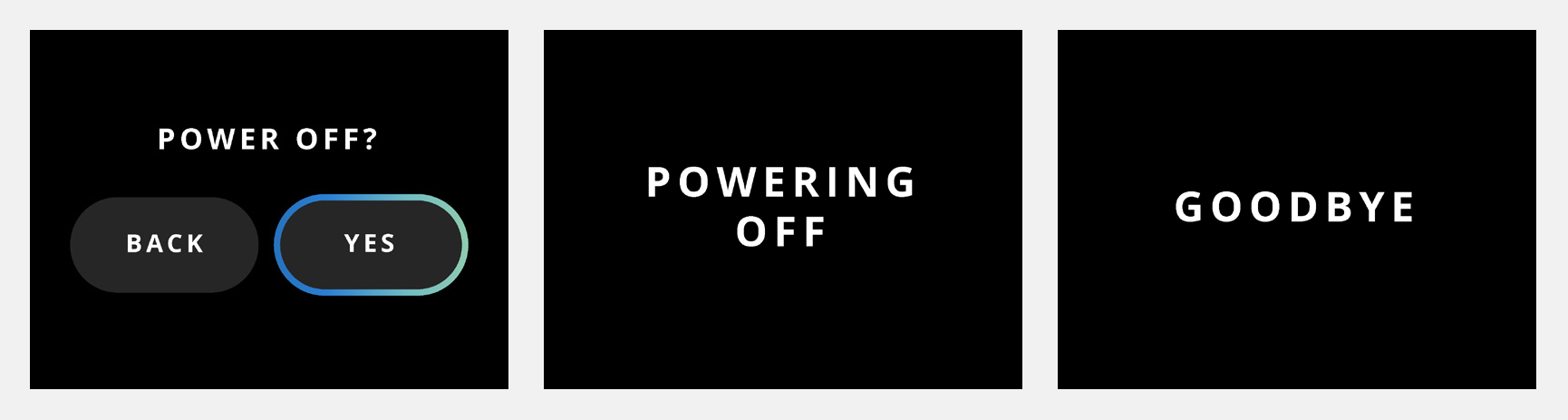
Brightness
Select Brightness to adjust the overall brightness of:
- The Motion UI display
- ORIA’s front-panel LEDs
- Turn the Control Wheel to set the brightness.
- Press the Control Wheel to confirm the setting.
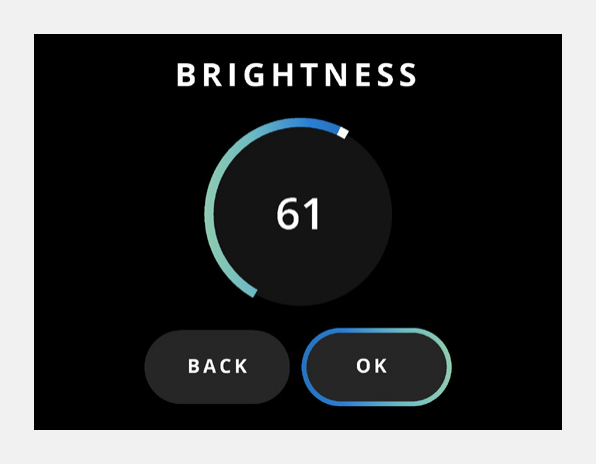
Function button
Select Function to change the feature assigned to the front-panel Function Button.
Available assignments include:
- DIM
- Mute
- Talkback
- Mono
- Polarity
- Return to Reference
- Input Source
The available options shown on ORIA may depend on the installed firmware version. Input Source requires ORIA firmware 1.1.0 or later.
For an explanation of the monitoring functions, see Speaker Monitoring.
Status
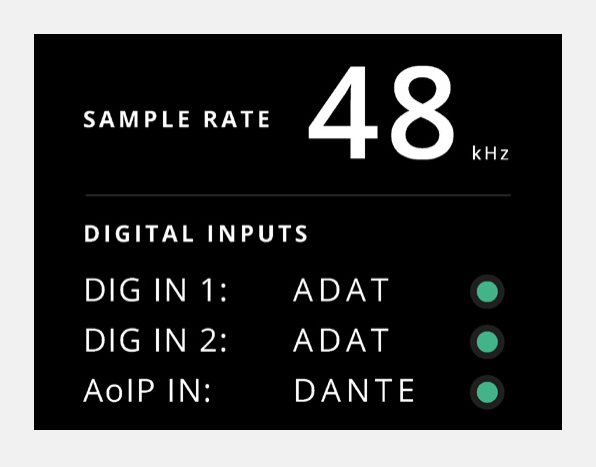
Select Status to view ORIA’s current sample rate and clocking sources.
Each clock-source status indicator uses the following colours:
- Green — ORIA has successfully clocked to the source.
- Amber — A clock signal has been detected at the wrong sample rate.
- Red — No clock signal has been detected.
For information about selecting and connecting clock sources, see Digital I/O and Clocking.
AoIP status
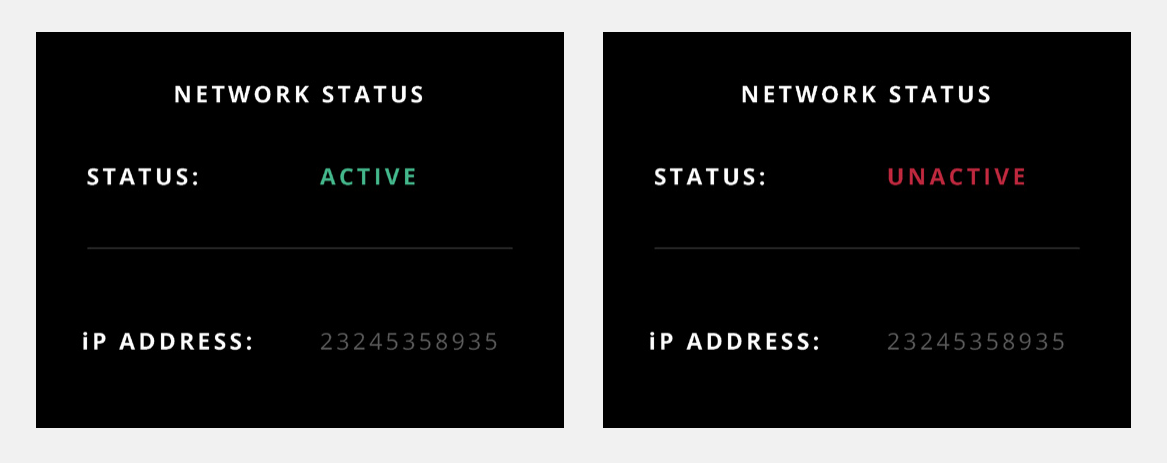
When the optional Dante card is fitted, select AoIP to view:
- Whether the network-audio connection is active or inactive
- ORIA’s IP address
For network-audio setup information, see USB and Network Audio.
Factory reset
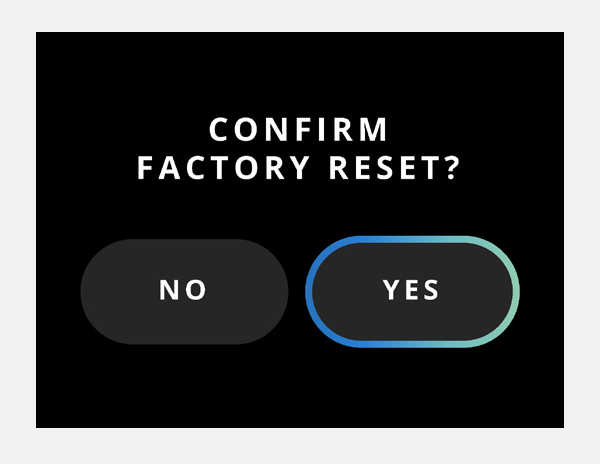
Select Factory Reset, then select Yes to restore ORIA to its factory settings.
A factory reset removes all settings and Profiles currently stored on ORIA.
Export any Profiles you need to keep before performing the reset.
Profile import and export require ORIA Control 1.2 or later.
Next steps
Continue to Mic Preamps to configure ORIA’s microphone, line and instrument inputs.