Standalone monitor controller
ORIA can operate either as:
- An audio interface and monitor controller connected directly to the computer
- A standalone monitor controller receiving audio from an existing audio interface
In standalone operation, ORIA continues to provide speaker calibration, Profile recall and immersive monitoring control.
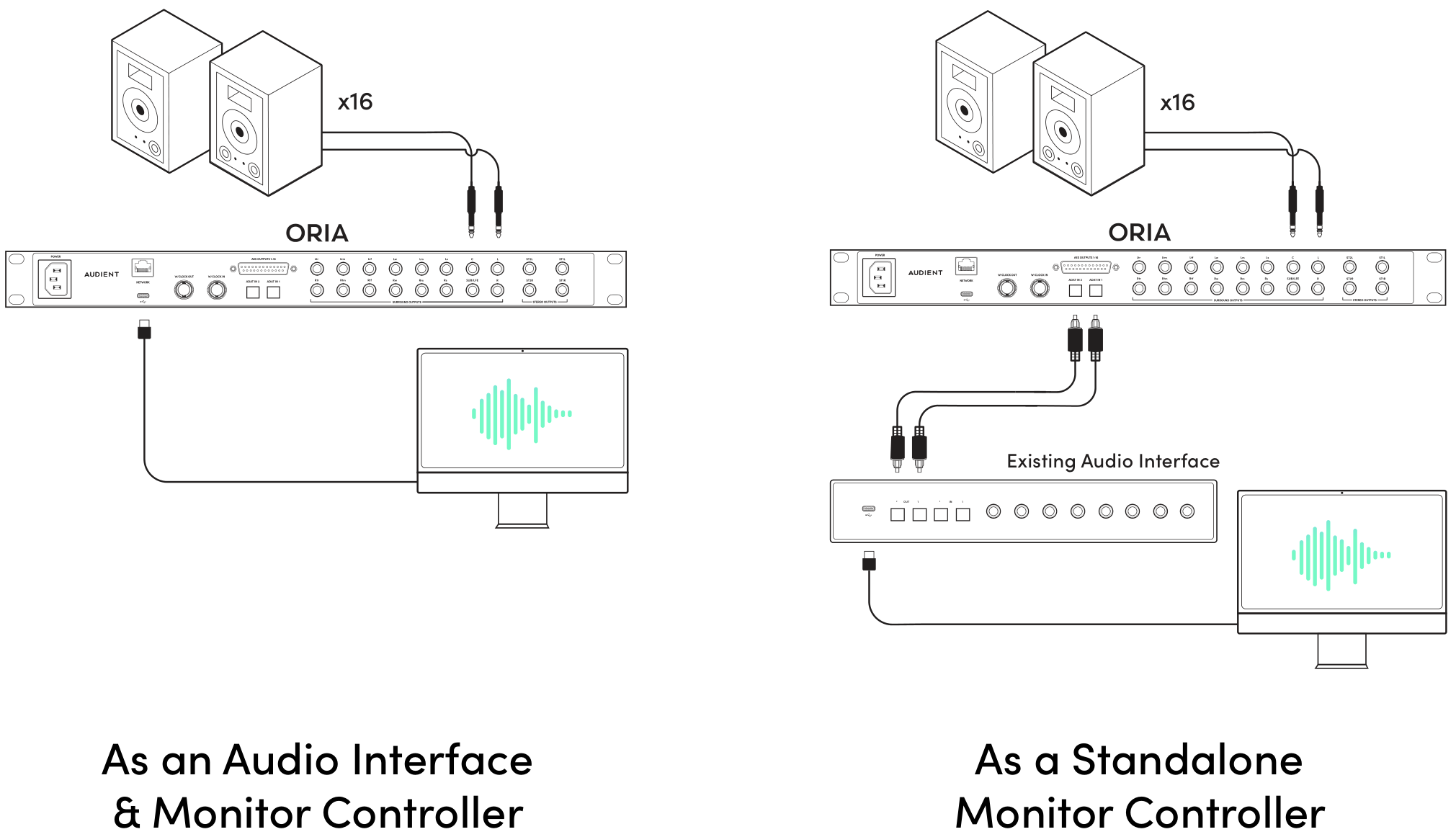
Connecting an existing audio interface
Connect the external audio interface to ORIA using either:
- ORIA’s two ADAT optical inputs
- The optional Dante network-audio card
ORIA’s two analogue inputs cannot receive a multichannel monitor feed from the external interface.
For detailed connection and clocking instructions, see:
Configuring ORIA
ORIA must initially be connected to the computer through USB so that it can be configured using ORIA Control.
- Connect ORIA to the computer through USB.
- Open ORIA Control.
- Configure the required speaker outputs and calibration.
- Create and store the required Profiles on ORIA.
- Select ADAT or Dante as the monitoring input source.
- Confirm that ORIA and the external audio interface are operating from the same digital clock.
Correct digital clocking is required when using ADAT or Dante.
A clocking error can cause clicks, pops or other digital-audio problems.
Keeping USB connected
We recommend leaving ORIA connected to the computer through USB after setup.
This allows you to continue using:
- ORIA Control
- ORIA Remote on an iPad
- Supported Stream Deck and EUCON controls
- Dolby Atmos Renderer downmix control
- Profile and calibration editing
Keep ORIA Control running while using ORIA Remote, Stream Deck, EUCON or Dolby Renderer control.
ORIA Remote connects to ORIA Control on the host computer rather than connecting directly to ORIA.
Using ORIA without USB
After the Profiles and monitoring source have been configured, ORIA can operate without its USB connection.
Use ORIA’s front-panel controls to:
- Adjust the speaker volume
- Recall the four favourite Profiles
- Open the complete Profile list
- Use the monitoring function assigned to the Function Button
ORIA Control, ORIA Remote and other host-based integrations are unavailable while ORIA is disconnected from the computer.
Next steps
Continue to Firmware Updates to keep ORIA’s features and compatibility up to date.