USB and network audio
ORIA can receive multichannel audio directly from a computer through USB or from a Dante network through the optional Dante card.
USB connection
Connect ORIA to your computer using the included USB-C to USB-C cable.
If your computer does not have a USB-C port, use a data-capable USB-C to USB-A cable.
The USB connection carries audio and control data between ORIA and your computer. It allows ORIA to operate as your computer’s audio interface and enables control through ORIA Control.
Select ORIA as the audio device in your operating system and DAW. The required output channels can then be assigned from your DAW according to the speaker configuration in use.
The USB-C connector describes the physical connector type. A compatible data cable must be used; a charge-only USB cable will not carry audio or control data.
Dante network audio
ORIA can be fitted with an optional Dante expansion card providing 16 channels of incoming network audio at sample rates from 44.1 to 96 kHz.
This allows ORIA to operate as a standalone immersive monitor controller within an existing Dante network.
The Dante card receives audio from other Dante-enabled equipment. It does not provide Dante output channels.
Install the optional Dante card by following the official ORIA Dante Card Installation Guide.
Before fitting the card, update ORIA to firmware 1.1.0 or later and disconnect ORIA from mains power and all other equipment.
Configuring ORIA in Dante Controller
Dante routing is configured using Audinate’s Dante Controller application.
- Connect ORIA’s Dante port to the Dante network.
- Connect the computer running Dante Controller to the same network.
- Open Dante Controller.
- Locate ORIA in the list of receiving devices.
- Locate the device providing the audio in the list of transmitting devices.
- Create subscriptions between the transmitter channels and the required ORIA receiver channels.
- Check that each subscription shows as successfully connected.
Dante Controller and its supporting documentation are available from the Audinate website.
Dante channel assignment
ORIA’s 16 Dante receiver channels correspond to the following speaker positions:
| ORIA receiver channel | 9.1.6 speaker | Used in 7.1.4 |
|---|---|---|
| 1 | Left | Left |
| 2 | Right | Right |
| 3 | Centre | Centre |
| 4 | LFE | LFE |
| 5 | Left Surround | Left Surround |
| 6 | Right Surround | Right Surround |
| 7 | Left Rear Surround | Left Rear Surround |
| 8 | Right Rear Surround | Right Rear Surround |
| 9 | Left Wide | Not used |
| 10 | Right Wide | Not used |
| 11 | Left Top Front | Left Top Front |
| 12 | Right Top Front | Right Top Front |
| 13 | Left Top Middle | Not used |
| 14 | Right Top Middle | Not used |
| 15 | Left Top Rear | Left Top Rear |
| 16 | Right Top Rear | Right Top Rear |
A 9.1.6 configuration uses all 16 receiver channels.
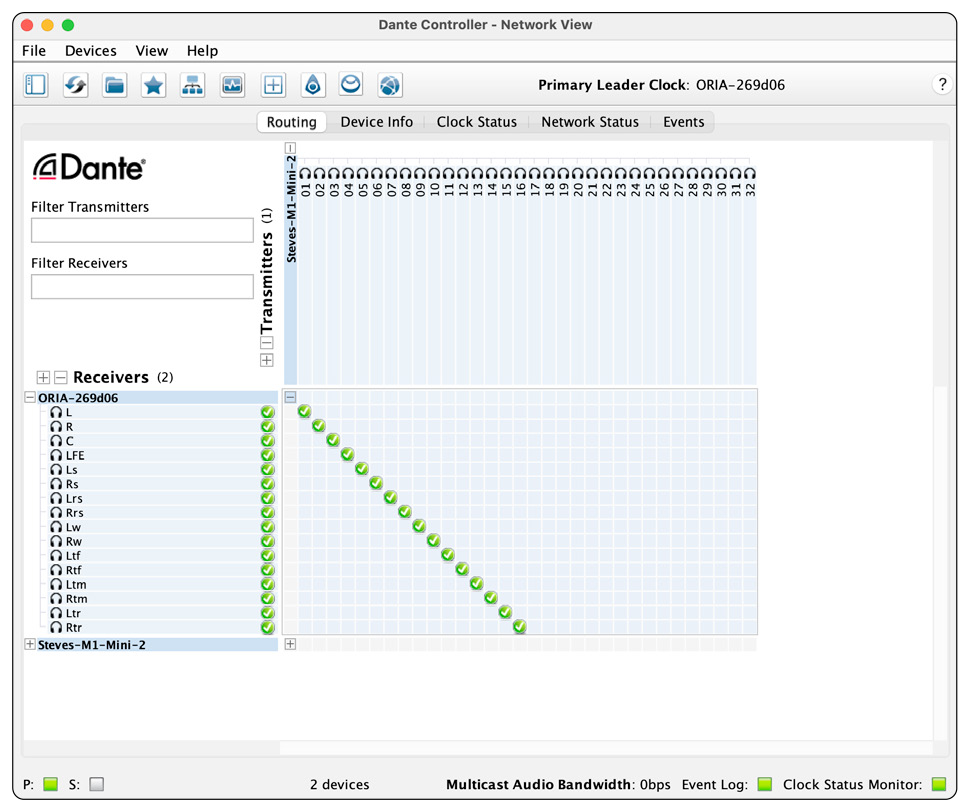
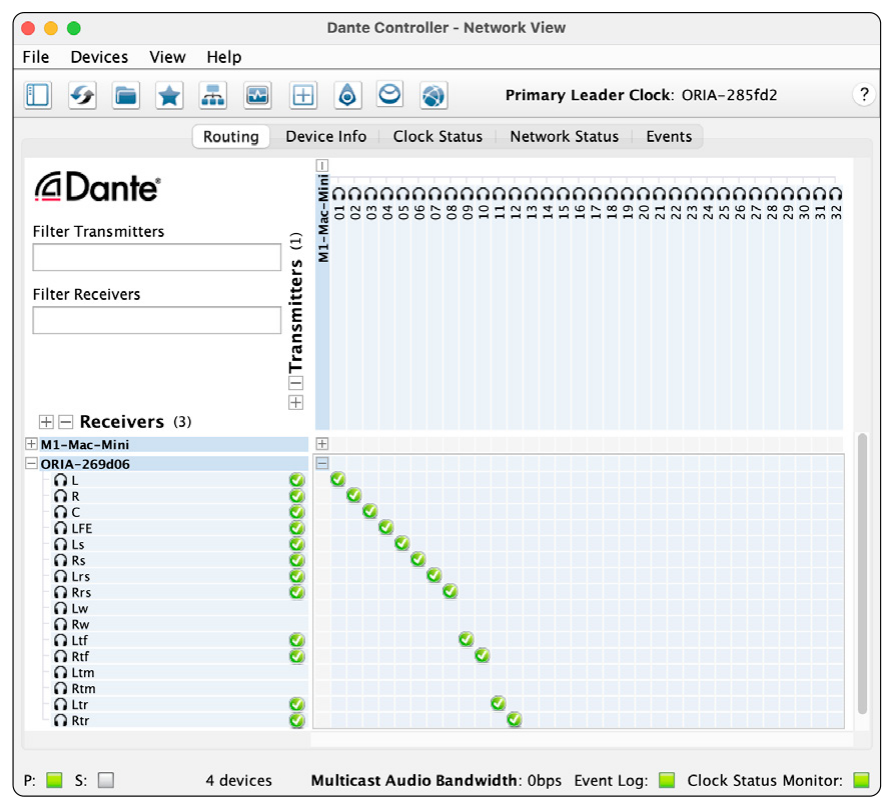
When configuring a 7.1.4 system, leave channels 9, 10, 13 and 14 unsubscribed. These correspond to the Left Wide, Right Wide, Left Top Middle and Right Top Middle speakers, which are not used in a 7.1.4 configuration.
Matching the Dante sample rate
ORIA and the transmitting Dante device must operate at the same sample rate.
A sample-rate mismatch may prevent subscriptions from being created or stop audio from passing between the devices.
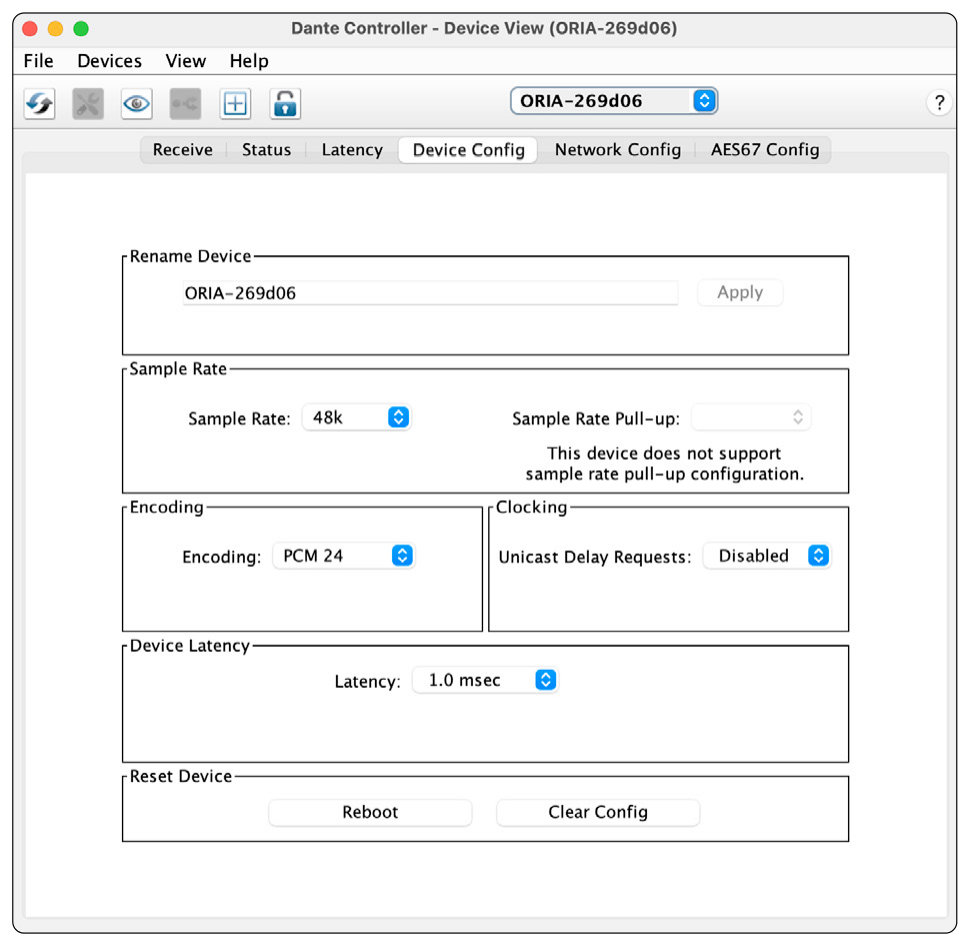
To check or change ORIA’s Dante sample rate:
- Open Dante Controller.
- Double-click ORIA to open its Device View.
- Open the Device Config tab.
- Select the required sample rate.
- Confirm that the transmitting device is set to the same sample rate.
Selecting Dante in ORIA Control
Once the Dante subscriptions have been configured:
- Open ORIA Control.
- Open the System Panel.
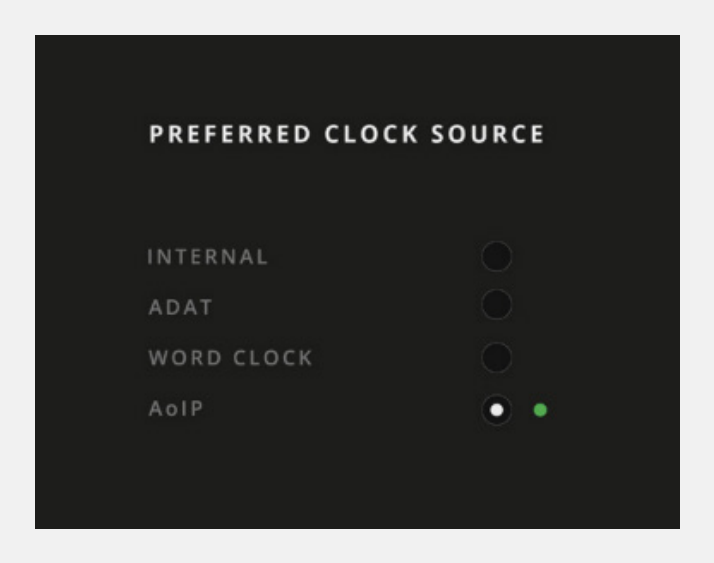
- Set Preferred Clock Source to AoIP.
- Check that the AoIP clock-source indicator is green.
- Return to the Monitoring section.
- Set Input Source to Dante.
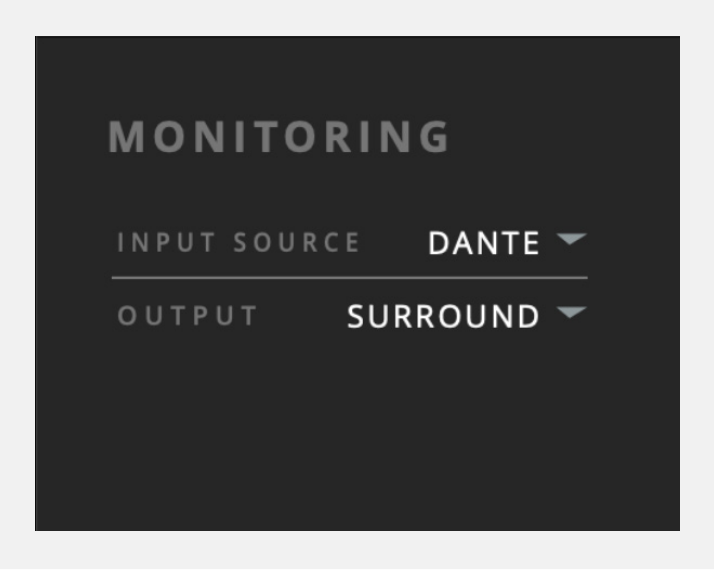
ORIA will now reproduce the audio received through its Dante subscriptions.
Changing ORIA’s preferred clock source from ORIA Control requires ORIA Control 1.3.4 or later and ORIA firmware 1.1.4 or later.
Clocking other equipment from Dante
When AoIP is selected as ORIA’s preferred clock source, ORIA synchronises to the Dante network.
ORIA can then distribute this clock to another device through its BNC Word Clock Output.
This can be used to synchronise an ADAT device connected to ORIA:
- Connect ORIA’s Word Clock Output to the ADAT device’s Word Clock Input using a 75 Ω BNC cable.
- Configure the ADAT device to receive clock through its Word Clock Input.
- Enable 75 Ω termination on the ADAT device if it is the final or only device in the BNC chain.
When Dante is selected as ORIA’s input source, an attached ADAT device must be synchronised through BNC word clock.
The incoming ADAT signal cannot be selected as ORIA’s preferred clock source at the same time.
ORIA can also receive an external clock through its BNC Word Clock Input and distribute that clock across the Dante network.
Configuring Dante clock distribution is outside the scope of this manual. Refer to the Dante Controller documentation for detailed network-clock configuration.
For more information about BNC connections and termination, see Digital I/O and Clocking.
If you cannot hear Dante audio
Check that:
- ORIA and the transmitting device are visible in Dante Controller.
- The required transmitter and receiver channels are subscribed.
- Each subscription shows as successfully connected.
- ORIA and the transmitting device use the same sample rate.
- AoIP is selected as ORIA’s preferred clock source.
- The AoIP clock-source indicator is green.
- Dante is selected as the input source in ORIA Control.
- The network cables are connected securely.
Next steps
Continue to ORIA Remote iPad App to control ORIA wirelessly from an iPad.