EUCON integration
ORIA supports Avid’s EUCON protocol, allowing its monitoring and software-mixer functions to be controlled from compatible Avid control surfaces and the Avid Control app.
ORIA includes a preconfigured EUCON layout. Individual ORIA actions can also be added to other Soft Key layouts using EuControl Settings.
Requirements
To control ORIA through EUCON, you need:
- ORIA Control 1.2 or later
- A compatible version of EuControl
- A compatible Avid EUCON control surface or the Avid Control app
- ORIA connected to the host computer through USB
- ORIA Control running on the host computer
Install the latest compatible versions of ORIA Control and EuControl before starting.
When using the Avid Control app, its version should match the version of EuControl installed on the host computer.
Installing EuControl
- Download and install EuControl from Avid.
- Launch EuControl.
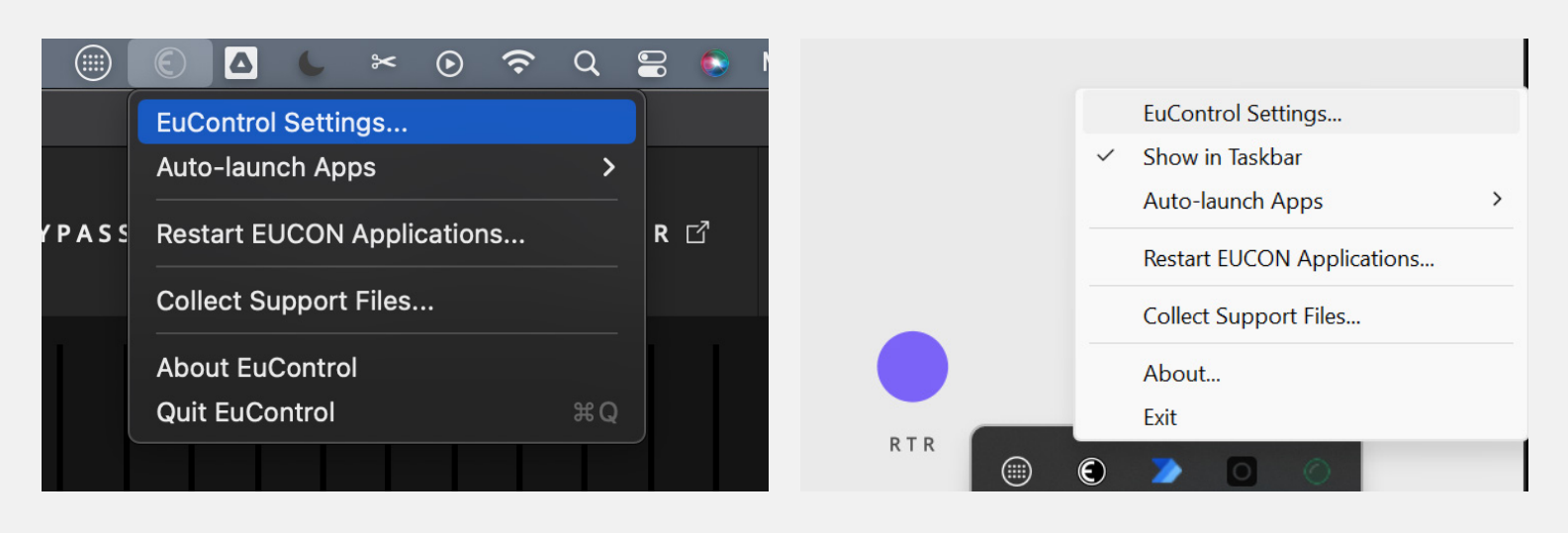
- Open the EuControl Settings panel:
- On macOS, select the EuControl icon in the status menu.
- On Windows, select the EuControl icon in the system tray.
- Open the Surfaces tab.
- Add the Avid surfaces that you want to use.
Refer to the documentation supplied with the Avid surface for detailed connection and network instructions.
Adding ORIA to EuControl
- Open ORIA Control.
- Open the Applications tab in EuControl Settings.
- Bring ORIA Control into focus.
- Return to EuControl Settings.
ORIA should appear above the application list as the Last Focused Application.
- Select the + button to add ORIA to the application list.
- Select ORIA in the list.
- Under Lock to Application, enable Monitor and Control Room.
Enabling Monitor and Control Room allows the Monitor Control dial on an Avid Dock, S4 or S6 to control ORIA’s monitoring level even when ORIA Control is not the focused application.
Audient preconfigured layout
Bring ORIA Control into focus to load Audient’s preconfigured EUCON layout.
The layout provides access to:
- ORIA’s monitor controls
- Favourite Profiles
- Input-source selection
- Speaker-group mute and solo controls
- Individual-speaker mute and solo controls
- ORIA’s software mixer
- Shortcuts for opening ORIA Control and its Mixer window
The supplied layout can be customised by adding, removing or rearranging Soft Keys and actions in EuControl Settings.
Audient’s preconfigured layout is only available while ORIA Control is the focused application.
When a EUCON-compatible DAW is brought into focus, the DAW’s layout takes priority.
The locked Monitor Control dial remains available on supported surfaces. ORIA actions can also be added to another application’s Soft Key layout when further ORIA control is required.
Soft key layout
The supplied layout is split into two regions:
- Control Centre
- Control Lower
Control centre
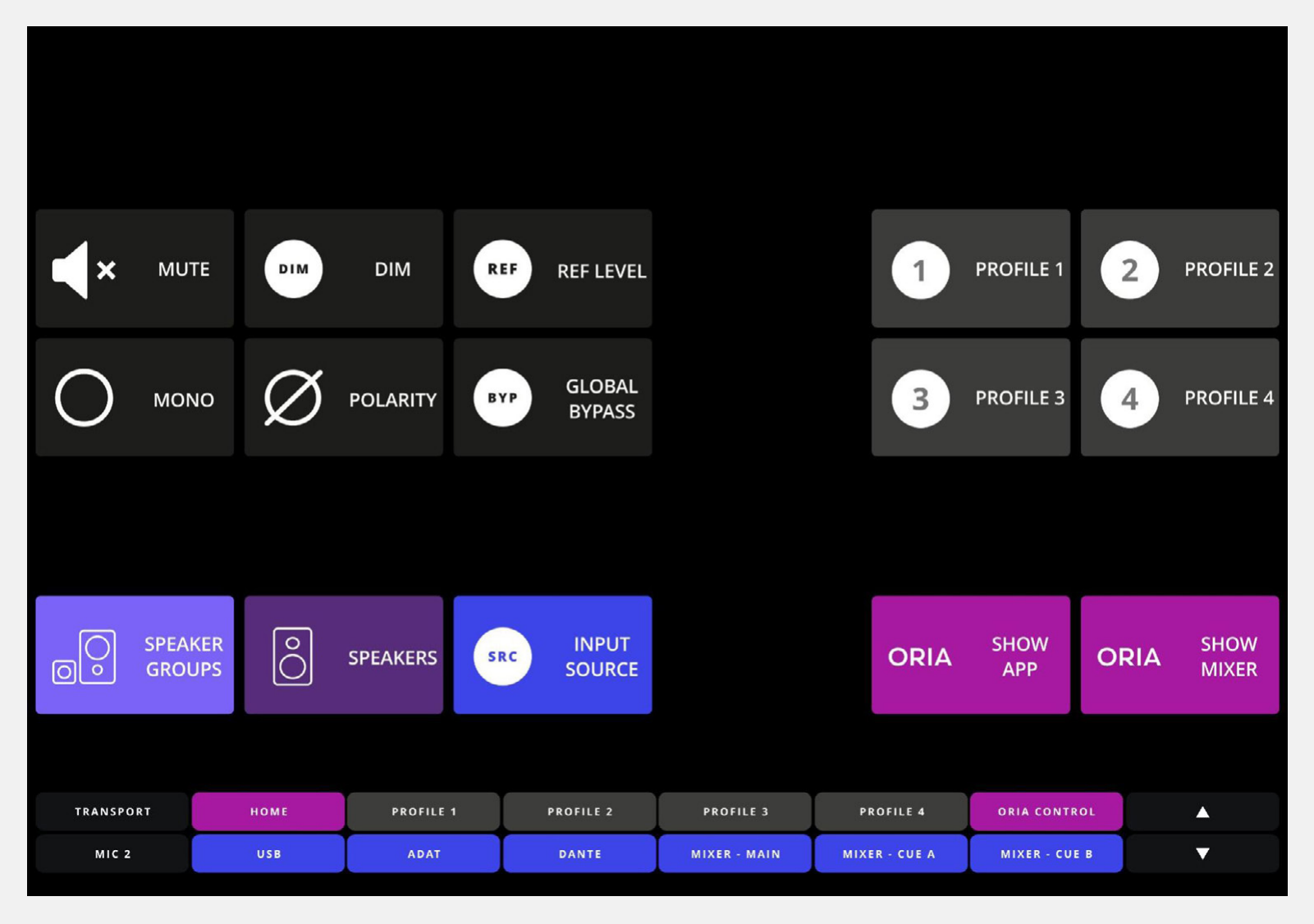
Home page
The Home page provides the main monitor controls:
- Mute
- DIM
- Reference Level
- Mono
- Polarity
The supplied layout also includes a Global Bypass key.
The Home page also provides:
- Selection of ORIA’s four favourite Profiles
- Links to the Speaker Groups, Speakers and Input Sources pages
- A shortcut for bringing ORIA Control into focus
- A shortcut for opening the ORIA Control Mixer
Speaker groups page
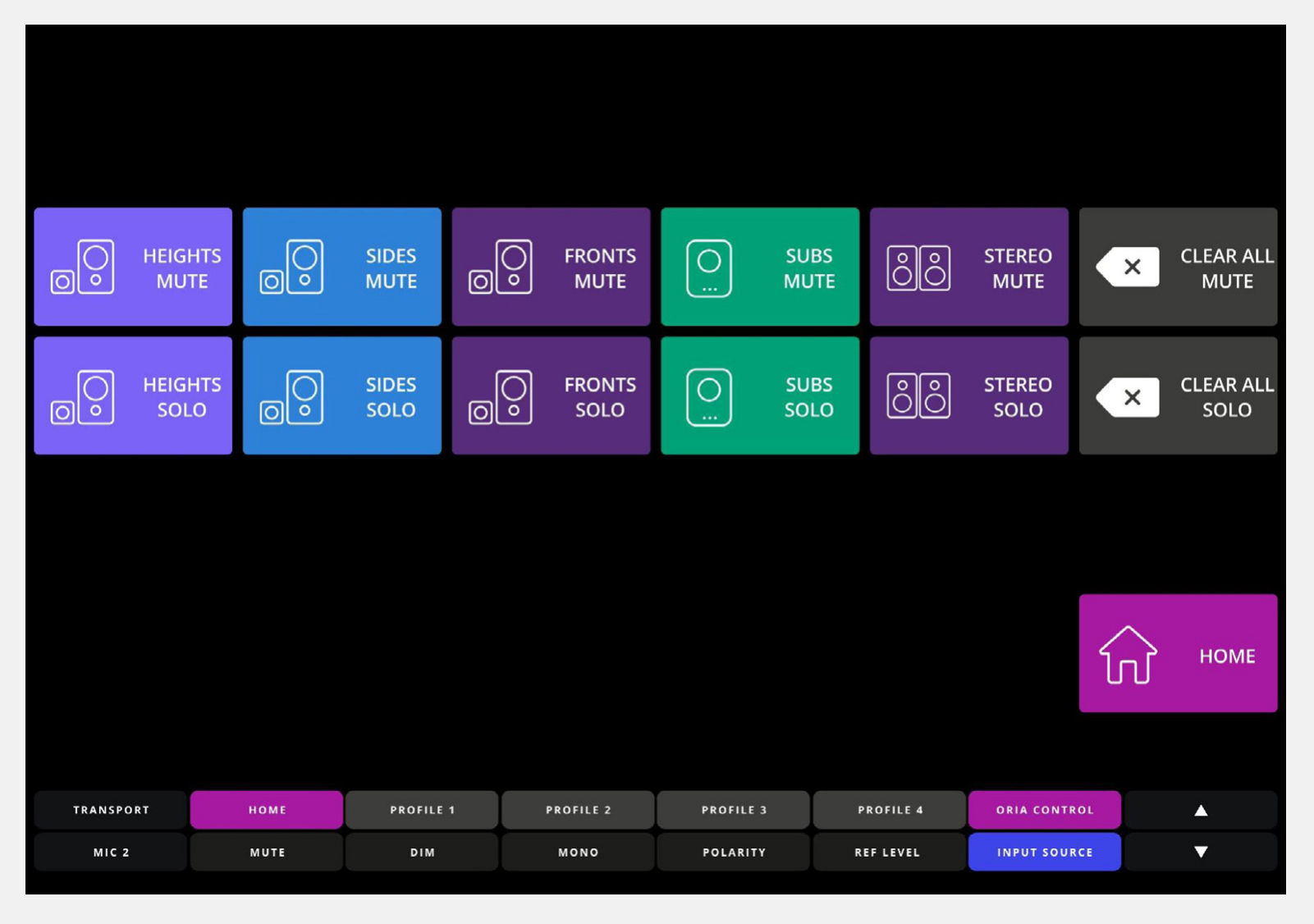
The Speaker Groups page provides mute and solo controls for ORIA’s five speaker groups:
- Heights
- Sides
- Fronts
- Subs
- Stereo
The page also provides controls for clearing all active mutes or solos.
Select Home to return to the Home page.
Speakers page
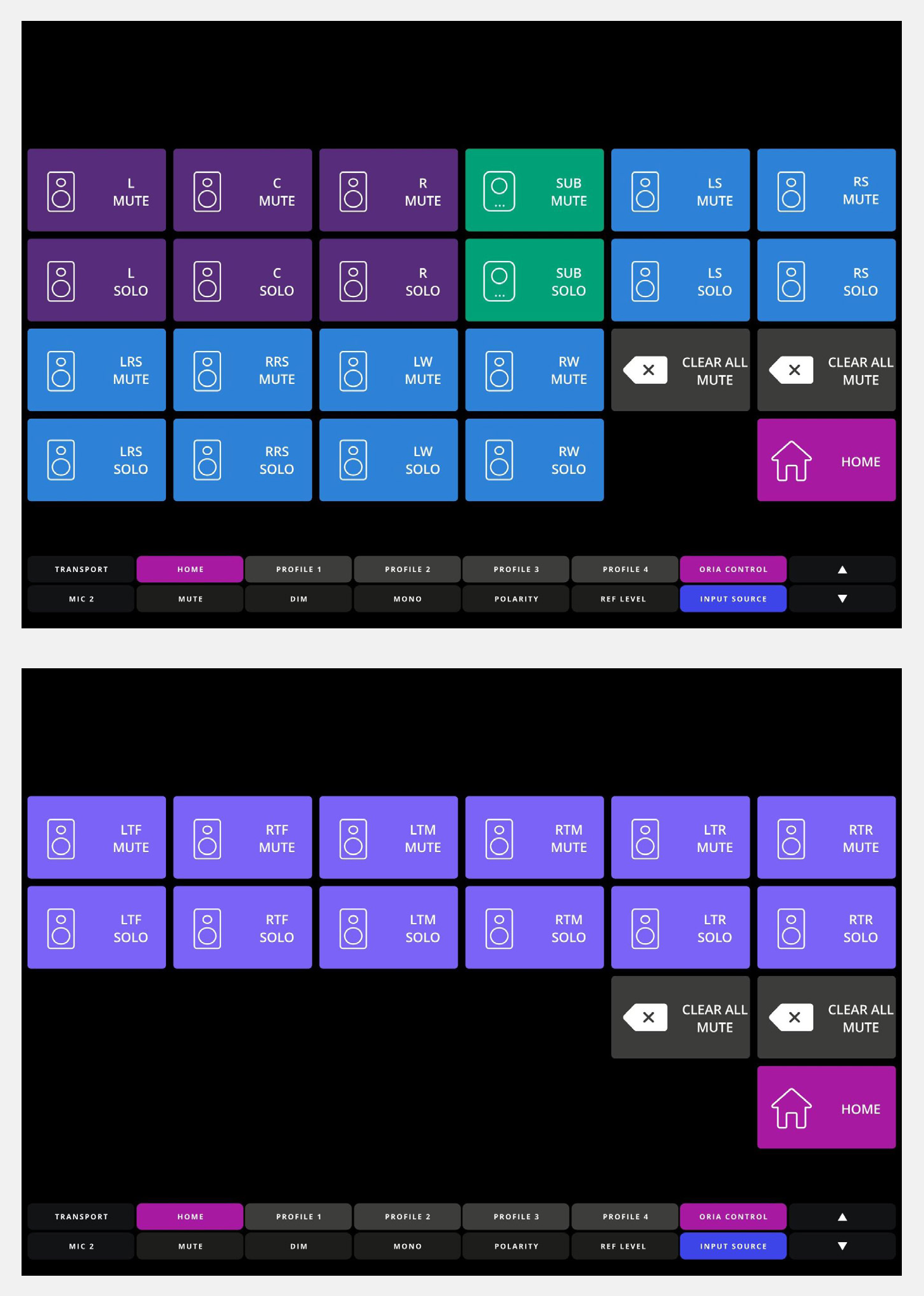
The Speakers page provides mute and solo controls for each of ORIA’s 16 surround speaker outputs.
The speaker controls are split across two pages. Swipe across the screen to move between them.
Both pages provide:
- Individual-speaker mute controls
- Individual-speaker solo controls
- Clear All Mute
- Clear All Solo
- A Home key
Input sources page
The Input Sources page allows you to select one of ORIA’s six monitoring sources:
- USB
- ADAT
- Software Mixer — Master Mix
- Software Mixer — Cue A
- Software Mixer — Cue B
- Dante
Select Home to return to the Home page.
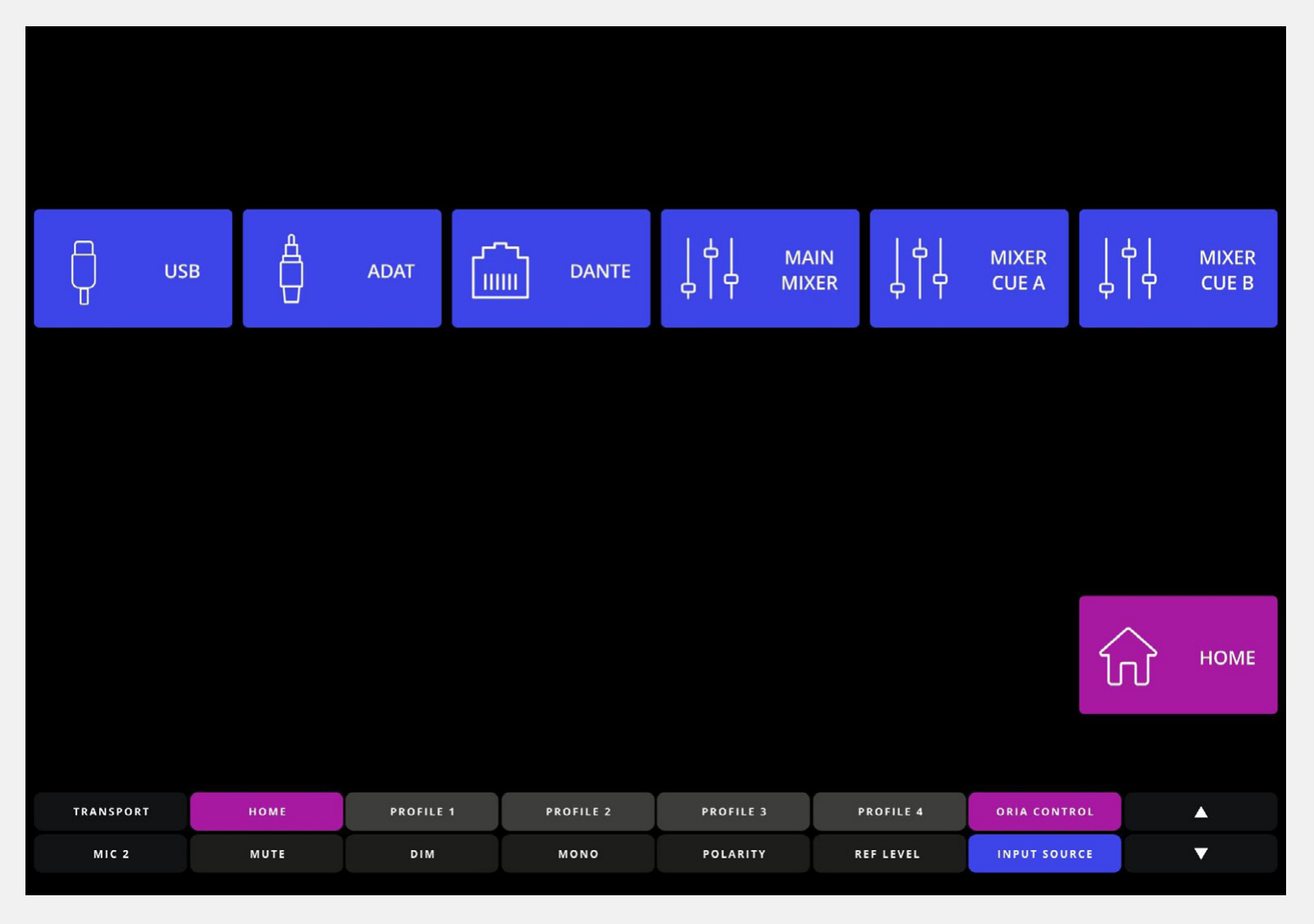
Dante is only available when the optional Dante card is fitted and configured.
Control lower
The Control Lower region provides supplementary controls that can also be accessed using the control buttons on an Avid Dock.
It contains two pages. Use the arrow keys on the right-hand side to move between them.
Input source control
The upper row provides:
- A Home key
- Favourite Profiles 1–4
- A shortcut for opening ORIA Control
The lower row provides direct selection of ORIA’s six monitoring input sources.

Monitor control
The Monitor Control page retains the same upper-row controls.
The lower row provides ORIA’s main monitoring functions and an Input Source key that opens the Input Sources page in the Control Centre region.

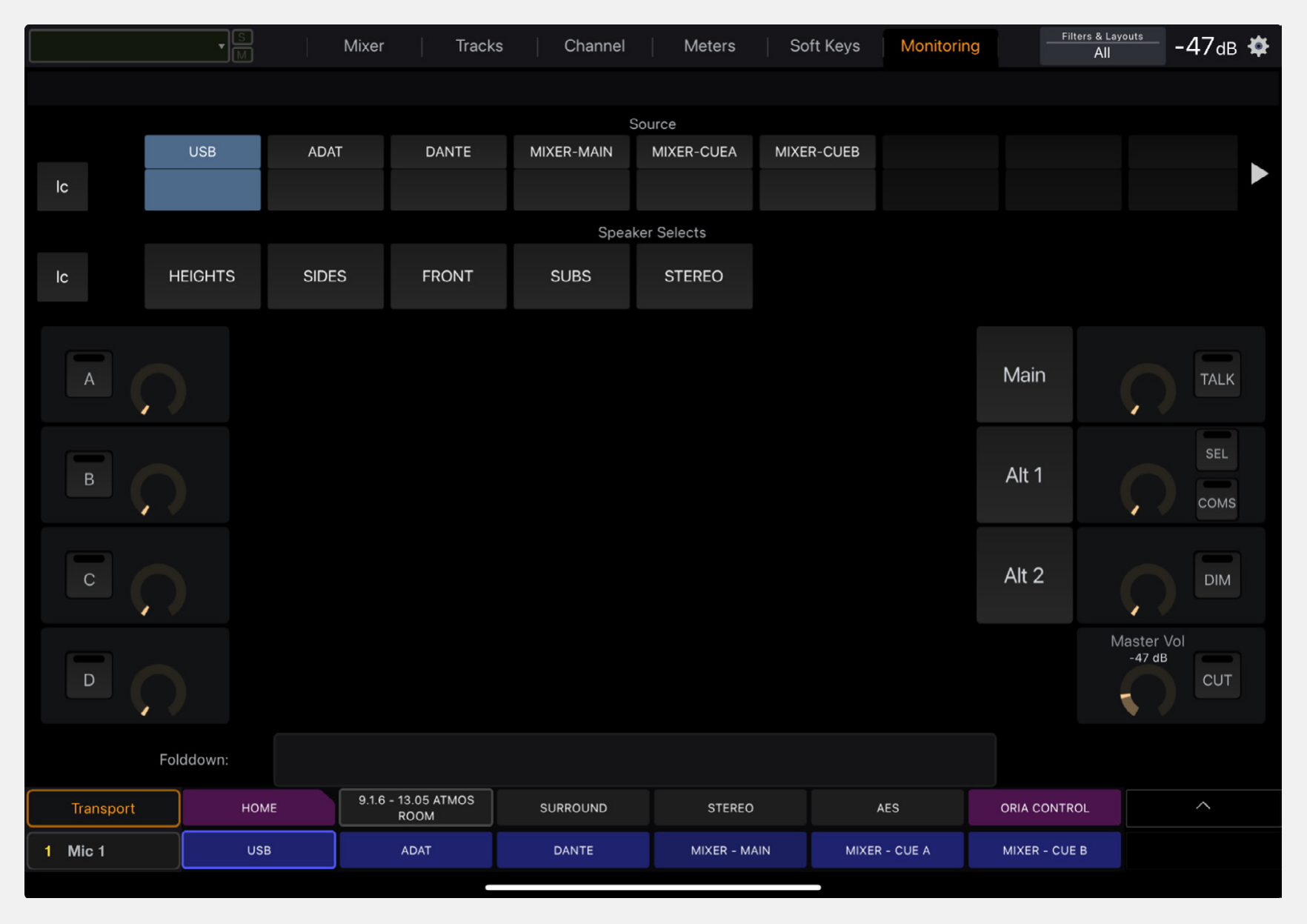
Monitoring screen
The EUCON Monitoring screen provides:
- Keys for selecting ORIA’s six monitoring input sources
- Mute controls for ORIA’s five speaker groups
The other controls shown on this screen are not mapped to ORIA.
Mixer screen
The EUCON Mixer screen controls the faders and pan controls in ORIA’s low-latency software mixer.
When ORIA Control is focused, a EUCON surface with physical faders, such as an Avid S1, maps ORIA’s mixer channels to the hardware faders.
Use the surface to:
- Adjust channel fader levels
- Adjust channel panning
- Navigate through the available mixer channels
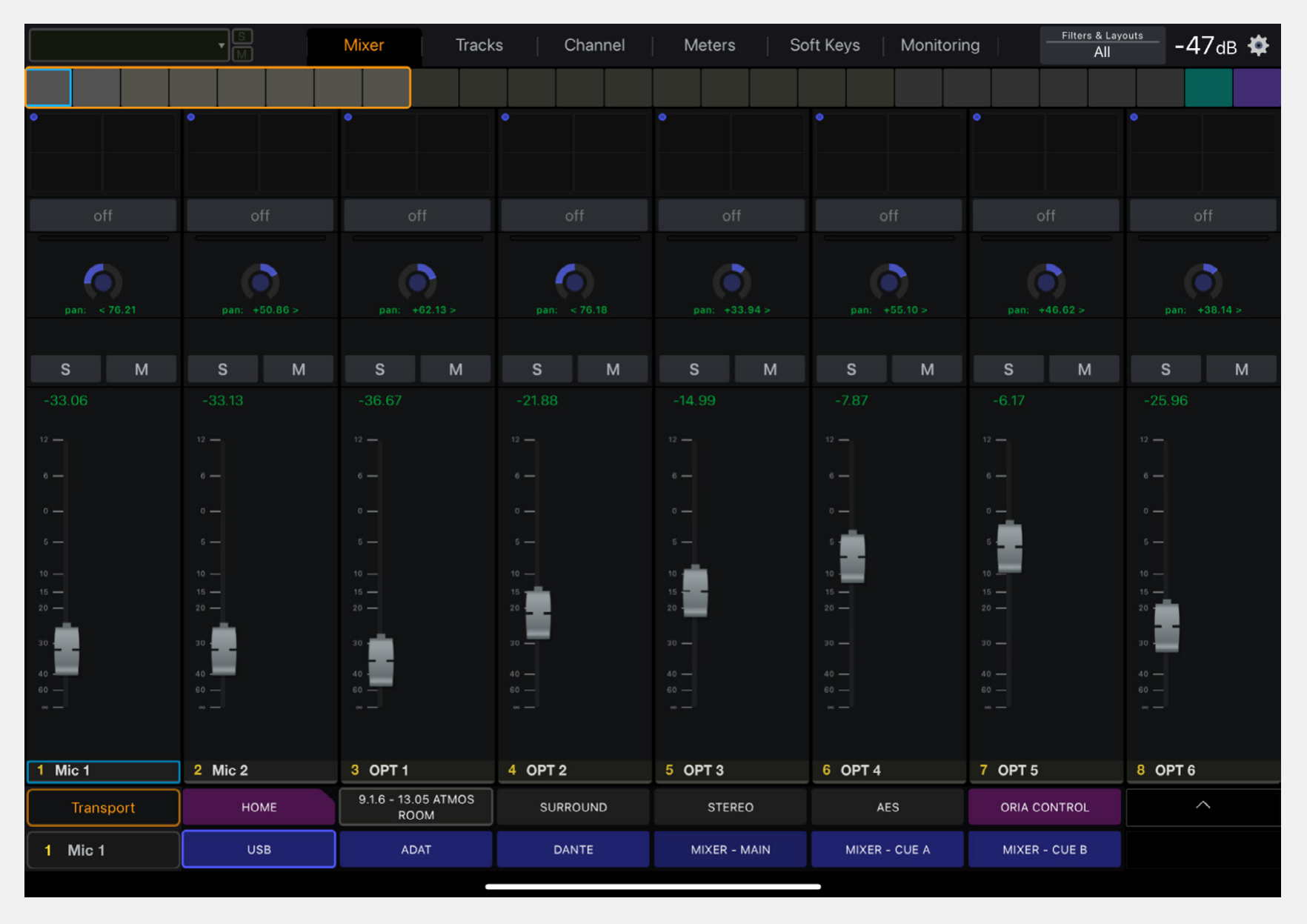
The Master Mix, Cue A and Cue B are created in ORIA Control’s low-latency software mixer.
The EUCON Channel and Meters pages are not currently implemented in Audient’s preconfigured ORIA layout.
Available ORIA actions
The preconfigured layout can be customised by adding the following ORIA actions in EuControl Settings.
Home
Returns the Control Centre region to ORIA’s Home page.
Master mute
Toggles ORIA’s Master Mute function on or off.
Master DIM
Toggles DIM on or off.
The amount by which DIM reduces the listening level is configured in ORIA Control.
Master mono
Toggles Mono on or off.
Mono sums the Left and Right channels for mono-compatibility checking.
Master polarity
Toggles Polarity on or off.
Polarity reverses the polarity of the Left channel and sums the Left and Right channels to mono.
Reference volume
Returns ORIA to the reference listening level stored in the active Profile.
Profile selection
Recalls one of ORIA’s four favourite Profiles.
Only one Profile can be active at a time. Selecting another Profile deselects the previously active Profile.
Speaker group mute
Toggles mute on or off for the selected speaker group.
Speaker group solo
Toggles solo on or off for the selected speaker group.
Input source
Opens ORIA’s Input Sources page.
Clear all mute
Clears all active speaker-group and individual-speaker mutes.
Clear all solo
Clears all active speaker-group and individual-speaker solos.
Speaker mute
Toggles mute on or off for the selected speaker output.
Speaker solo
Toggles solo on or off for the selected speaker output.
Show ORIA Control app
Brings the main ORIA Control window into focus.
Show ORIA Control mixer
Brings the ORIA Control Mixer window into focus.
Troubleshooting
The ORIA preconfigured layout is not available while using a DAW
ORIA Control must be the focused application for the complete Audient preconfigured layout to be shown.
When a DAW is focused, the DAW’s layout is shown instead.
Add the required ORIA actions to the DAW’s Soft Key layout using EuControl Settings when you need to control ORIA while working in the DAW.
ORIA actions do not appear in EuControl settings
This can indicate that EuControl has lost its connection to ORIA Control.
- Quit EuControl.
- Reopen EuControl.
- Open EuControl Settings and check for the ORIA actions again.
Next steps
Continue to Keyboard Shortcuts for the keyboard and mouse shortcuts available in ORIA Control.