Multichannel computer setup
Configure your computer’s system audio output when you want compatible media players, streaming applications or web browsers to play multichannel audio through ORIA.
These operating-system settings do not control the output routing used by your DAW:
- On macOS, compatible DAWs communicate with ORIA through Core Audio.
- On Windows, compatible DAWs communicate with ORIA through the Audient ASIO driver.
Configure speaker and output routing separately within your DAW.
macOS multichannel setup
Use Audio MIDI Setup to configure ORIA for system-level stereo, surround or immersive playback.
- Connect ORIA to the Mac through USB.
- Open Audio MIDI Setup.
- Open the Audio Devices window if it is not already visible.
- Select ORIA’s multichannel output device.
- Select Configure Speakers.
- Choose the required speaker configuration.
- Check that each speaker position is assigned to the correct ORIA output channel.
- Select Apply.
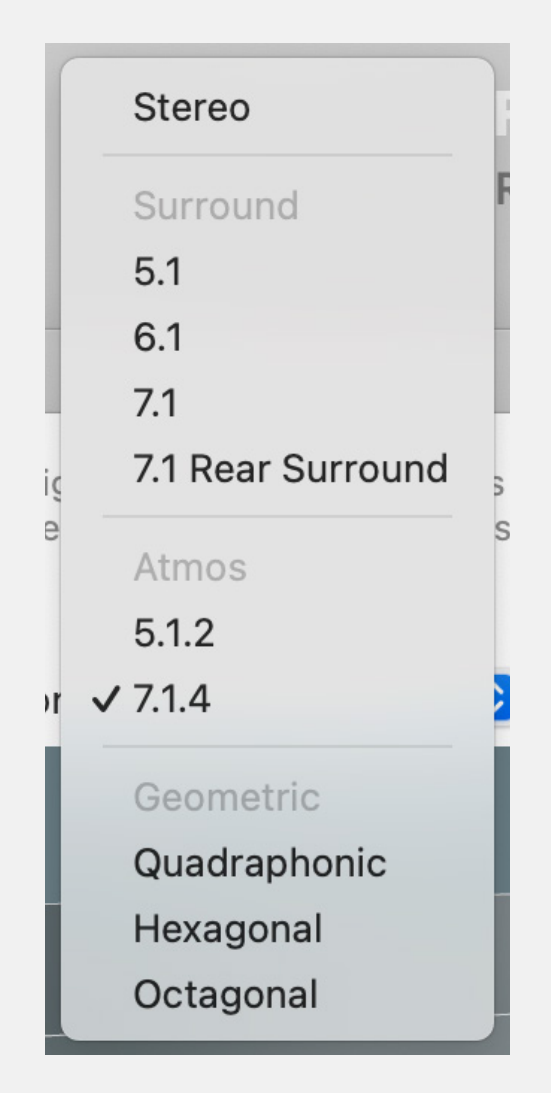
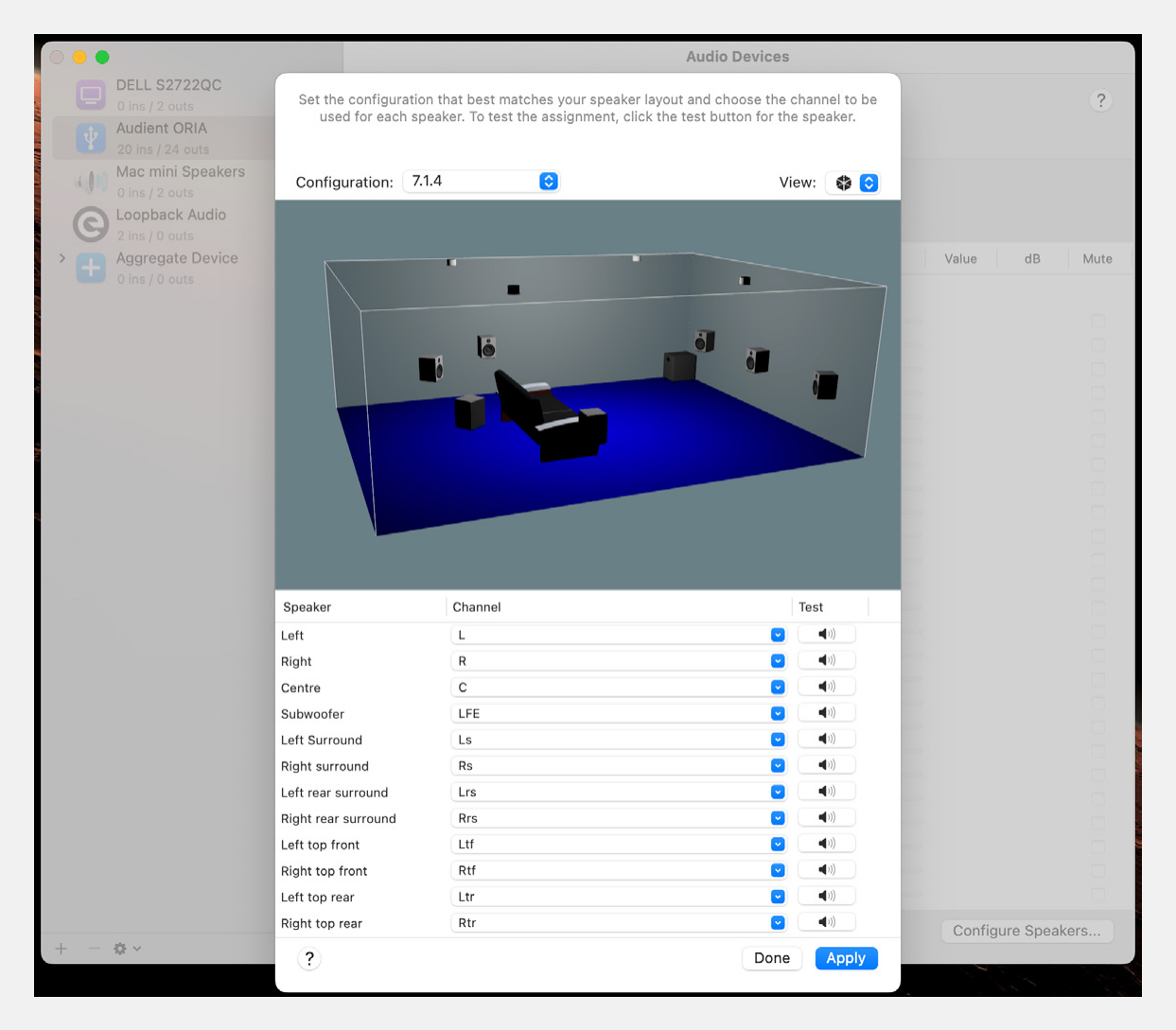
Apple’s speaker-configuration window can also be used to test individual output assignments before applying the configuration.
The appearance and available configurations in Audio MIDI Setup may vary between macOS versions.
Windows multichannel setup
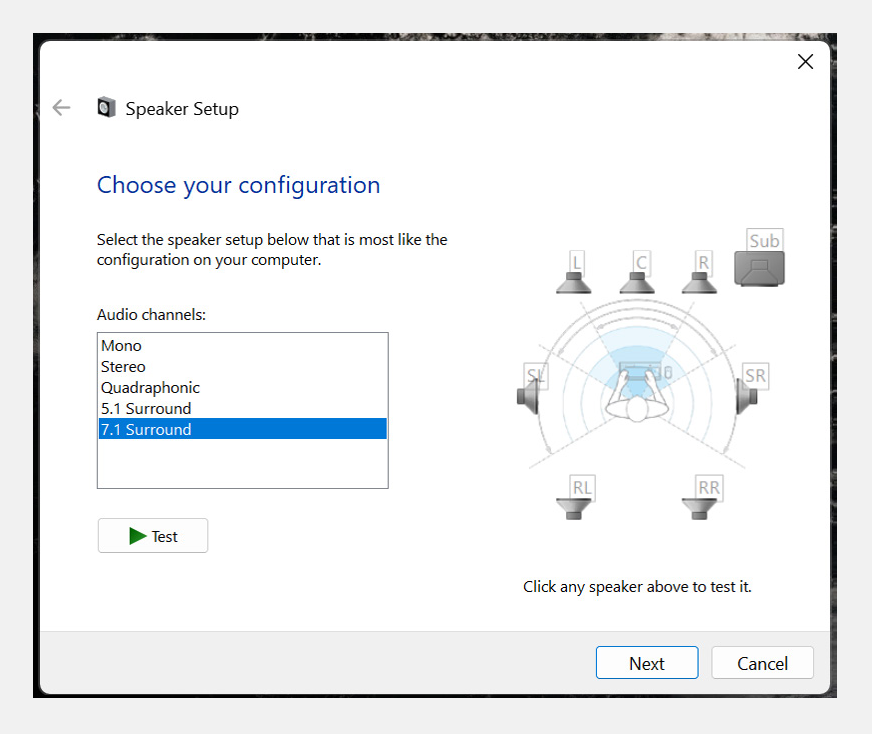
Windows can configure ORIA’s system-level output for:
- Mono
- Stereo
- Quadraphonic
- 5.1 surround
- 7.1 surround
- Connect ORIA to the computer through USB.
- Open Control Panel.
- Select Sound.
- Open the playback-device list.
- Locate the ORIA output named Speakers.
- Right-click Speakers and select Configure Speakers.
- Choose the required speaker configuration.
- Follow the remaining Windows prompts to complete the setup.
On Windows 11, you can also open this panel through Settings > System > Sound > More sound settings.
Menu names and appearance may vary between Windows versions.
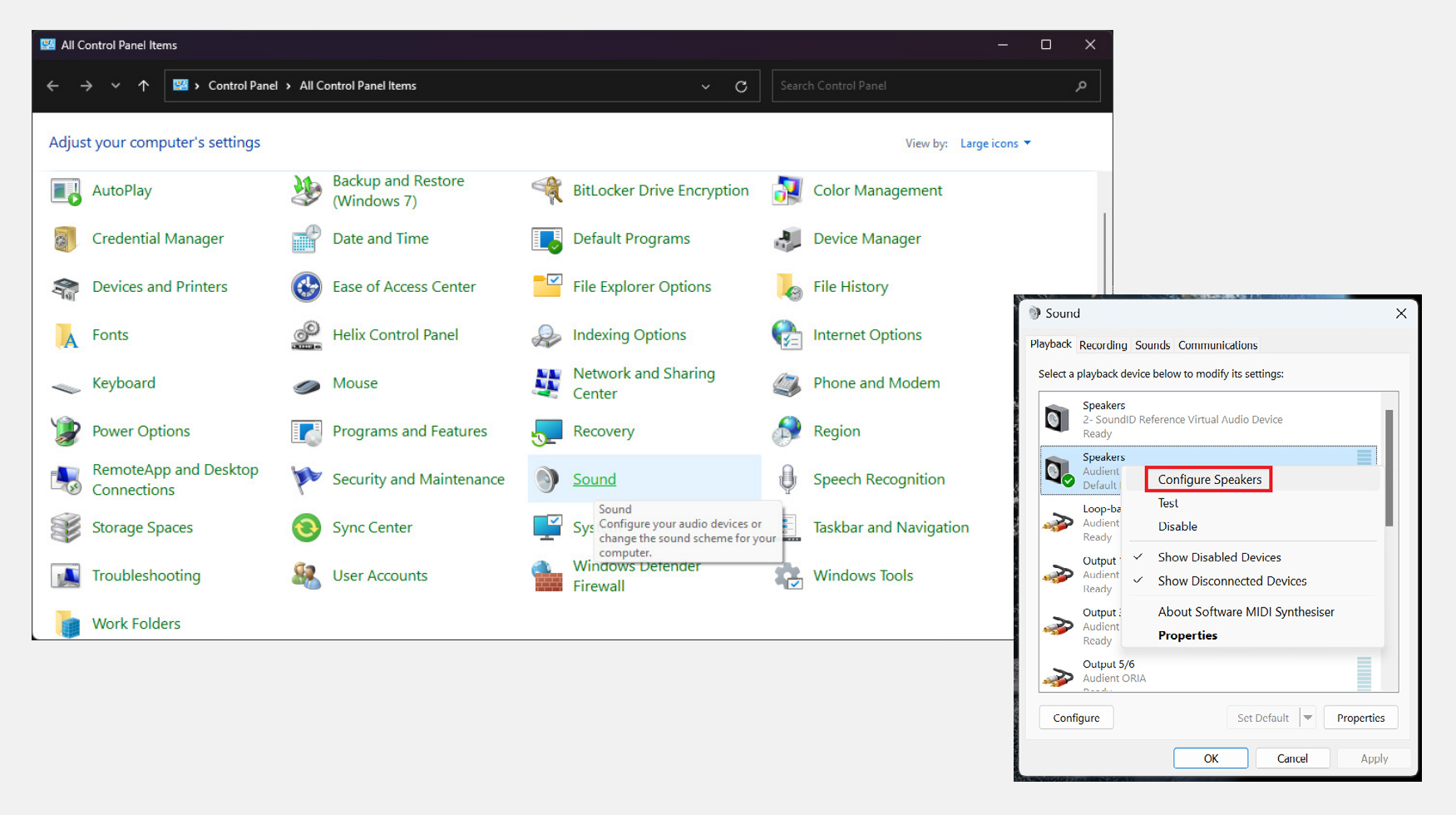
Select the ORIA output named Speakers.
This is ORIA’s dedicated Windows multichannel output. The other ORIA output pairs do not provide the same speaker-configuration options.
Media playback compatibility
Multichannel playback depends on the application, media format and operating-system support.
Not every media player, streaming application or web browser supports Dolby Atmos or other immersive formats. When content does not play using the expected speaker configuration, check the documentation for the application or service being used.
Next steps
Continue to Standalone Monitor Controller to use ORIA with another audio interface or digital audio source.