Stream Deck integration
The ORIA Control Stream Deck plug-in provides remote access to ORIA’s monitoring functions from a compatible Elgato Stream Deck device.
This allows ORIA to remain installed in a rack while its monitoring controls remain accessible from the listening position.
Requirements
To use ORIA with Stream Deck, you need:
- ORIA Control 1.2 or later
- Elgato Stream Deck software 6.4 or later
- A compatible Stream Deck device or Stream Deck Mobile
- ORIA connected to the host computer through USB
- ORIA Control running on the host computer
ORIA Control must remain open while using the Stream Deck integration.
Installing the ORIA Control plug-in
When Stream Deck software is already installed, the ORIA Control installer detects it and prompts you to install the ORIA Control plug-in.
Alternatively, install the plug-in directly from the Elgato Marketplace:
Log in to your Elgato account and select Get. The plug-in is then added to the Stream Deck software.
Included profiles
The ORIA Control plug-in includes preconfigured profiles for common Stream Deck devices.
These profiles load the required ORIA controls onto the selected Stream Deck so that you can begin using the integration without creating a profile manually.
Profiles are available for:
- Stream Deck MKII
- Stream Deck +
- Stream Deck XL
- Stream Deck Mini
- Stream Deck Neo
- Stream Deck Mobile
When the ORIA Control plug-in is installed, Stream Deck only installs the profile for the device that is currently open in the Stream Deck software.
Install the separate ORIA Control Profiles pack from the Elgato Marketplace to use another model or multiple Stream Deck devices.
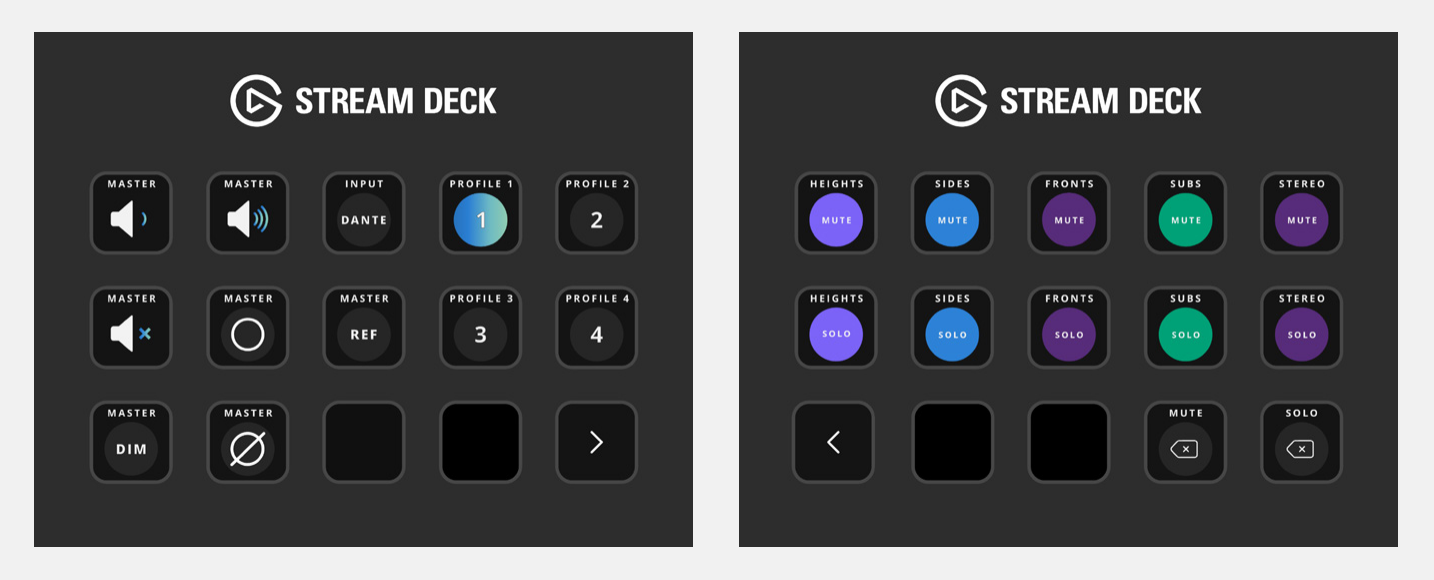
Stream Deck MKII
The Stream Deck MKII profile uses two pages:
- Page 1 — Volume controls, monitor controls, input selection and profile selection
- Page 2 — Speaker-group mute and solo controls
Stream Deck +
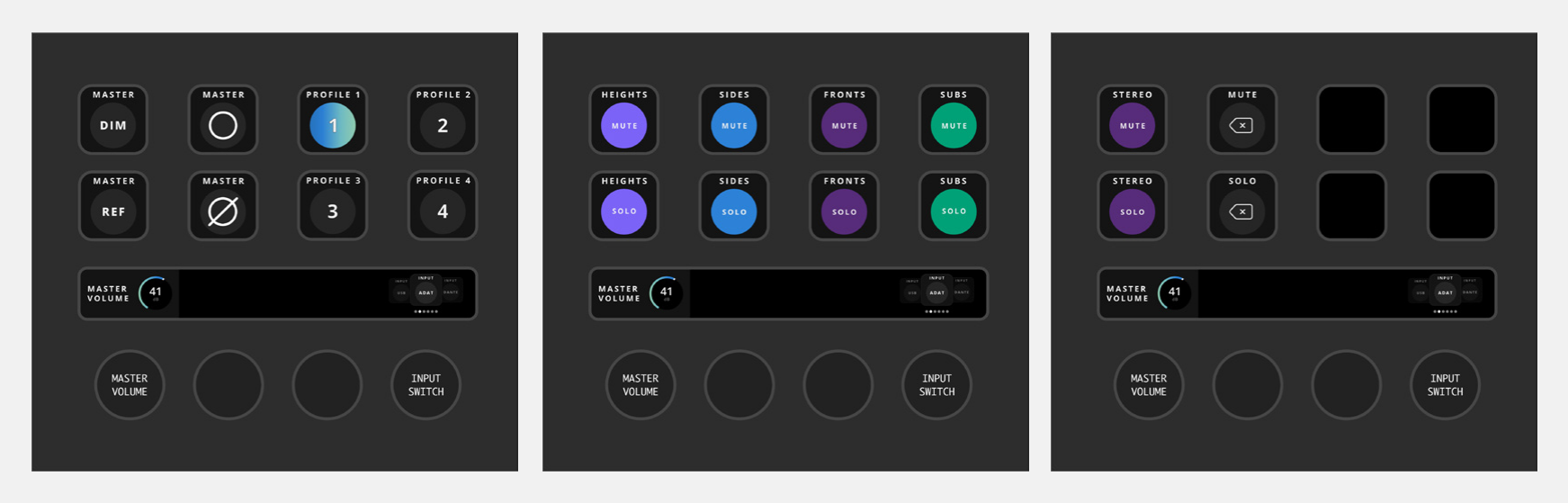
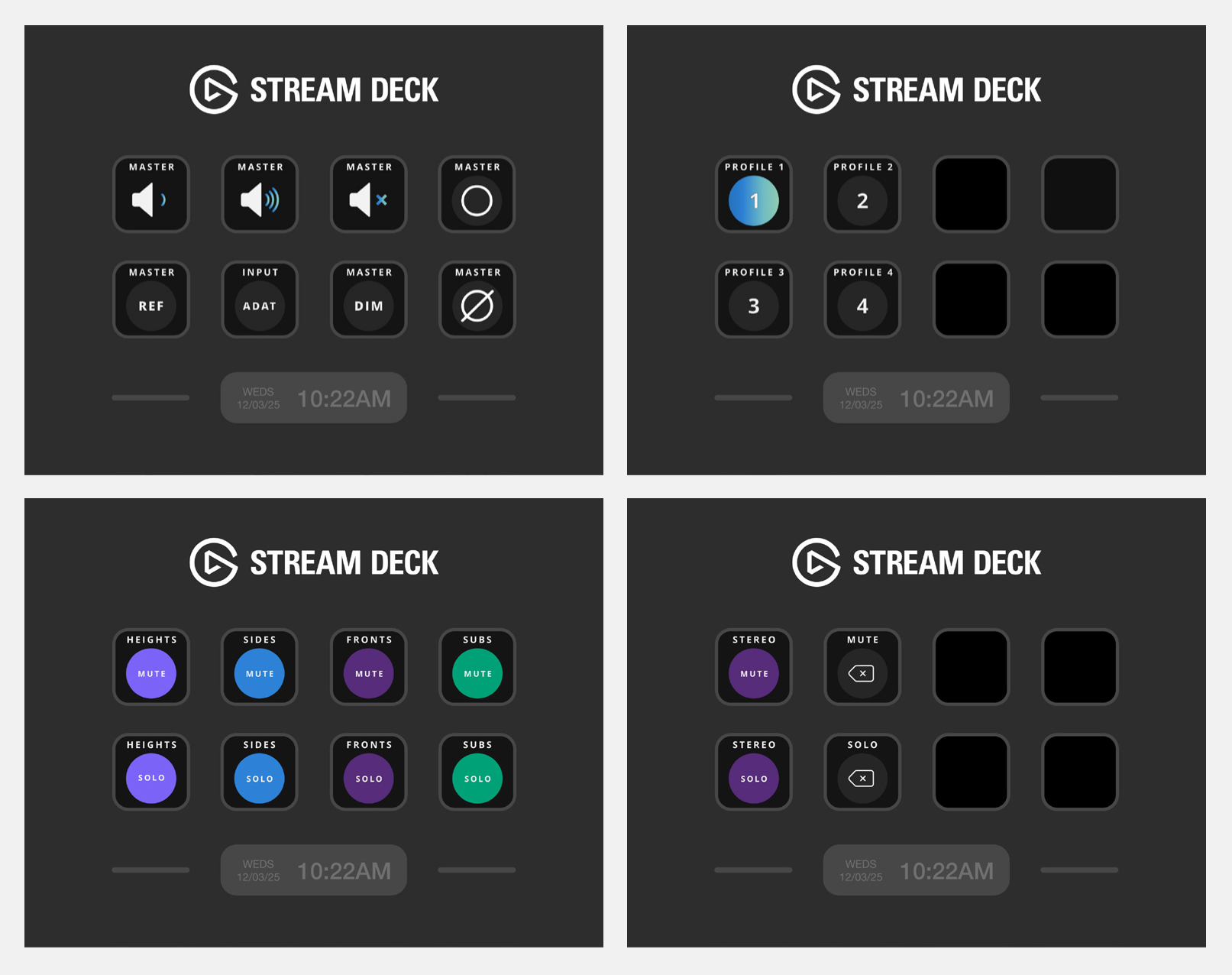
The Stream Deck + profile uses three pages:
- Page 1 — Monitor controls and Profile selection
- Page 2 — Mute and solo controls for the Heights, Sides, Fronts and Subs groups
- Page 3 — Stereo mute and solo controls, plus the mute and solo clear controls
Swipe across the Stream Deck + screen to move between pages.
The leftmost dial controls the Master Volume. Press the dial to mute or unmute ORIA’s Main Outputs.
The rightmost dial selects the input source:
- Turn the dial to move through the available sources.
- Press the dial to select the highlighted source.
The input selector uses the Action Wheel from Stream Deck’s default actions.
Stream Deck XL
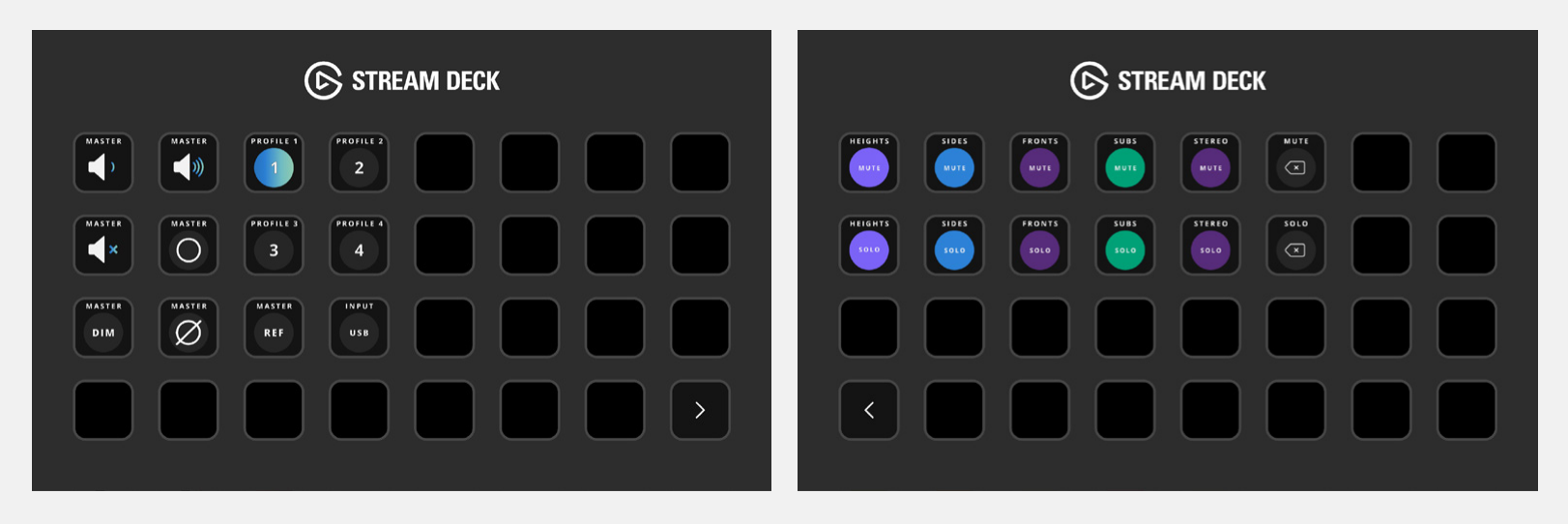
The Stream Deck XL profile uses two pages:
- Page 1 — Volume controls, monitor controls, input selection and profile selection
- Page 2 — Speaker-group mute and solo controls
Stream Deck Mini
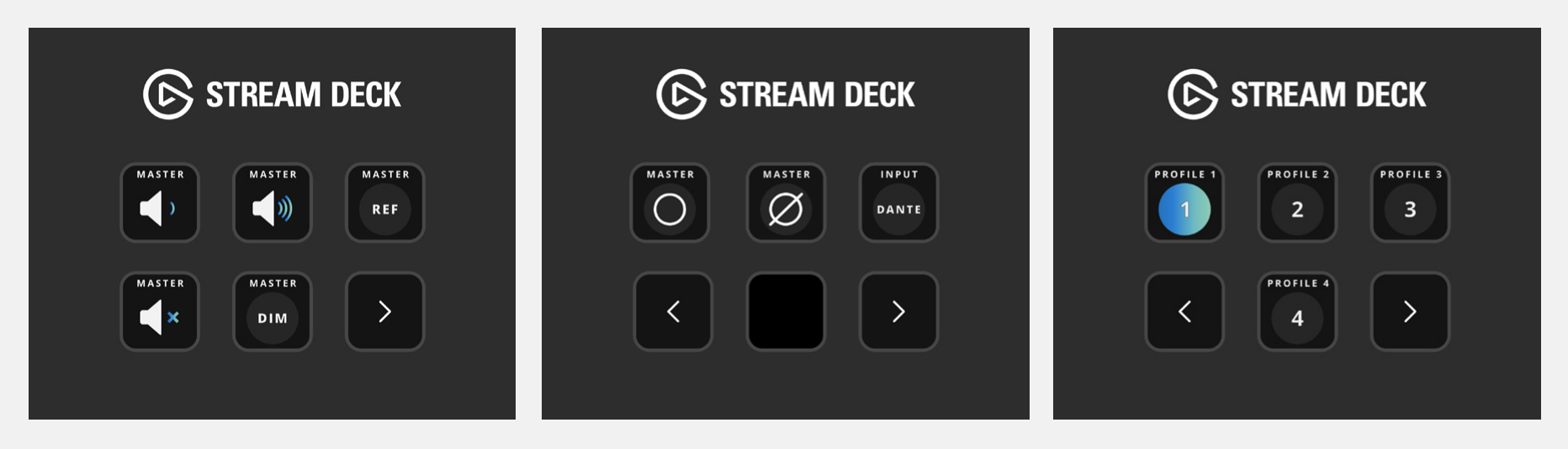
The Stream Deck Mini profile uses three pages:
- Page 1 — Master Volume, Master Reference and Master DIM
- Page 2 — Master Mono, Master Phase and input selection
- Page 3 — Profile selection
Stream Deck Neo
The Stream Deck Neo profile uses four pages:
- Page 1 — Volume controls, monitor controls and input selection
- Page 2 — Profile selection
- Page 3 — Mute and solo controls for the Heights, Sides, Fronts and Subs groups
- Page 4 — Stereo mute and solo controls, plus the mute and solo clear controls
Stream Deck Mobile
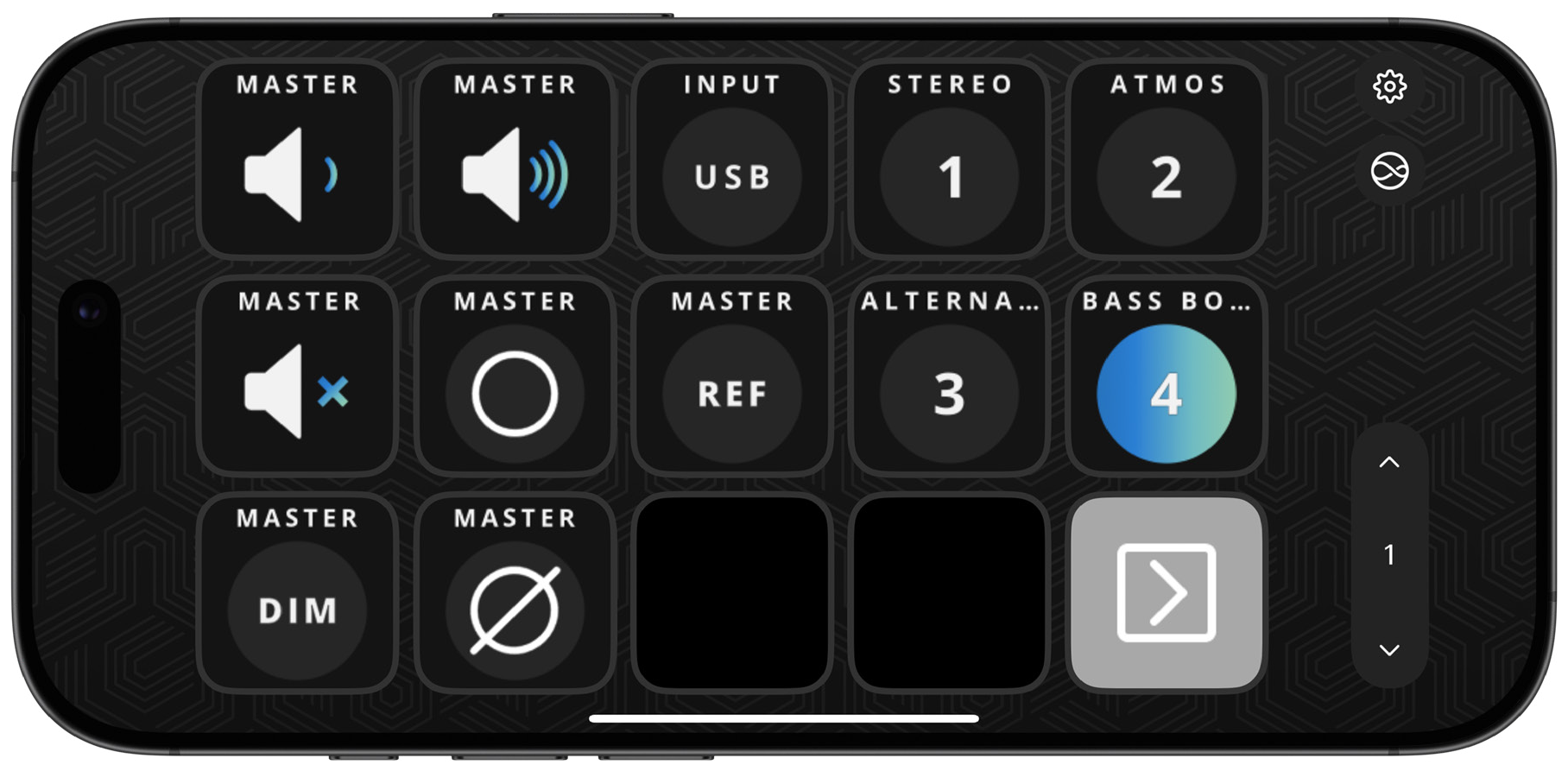
The Stream Deck Mobile app allows you to choose the size of the control grid.
The ORIA Control plug-in provides Profiles for the available grid sizes.
The free version of Stream Deck Mobile provides six keys. Stream Deck Mobile Pro is required for larger or custom layouts.
Creating a custom profile
You can create a custom Stream Deck profile using the individual actions supplied with the ORIA Control plug-in.
The following actions are available.
Volume
The Volume action adjusts ORIA’s output volume.
On Stream Deck devices without dials, use separate controls to increase and decrease the level.
Press a control once to make a small adjustment, or press and hold it to continue adjusting the level.
On Stream Deck +:
- Turn the assigned dial to adjust the level.
- Press the dial to mute or unmute the output.
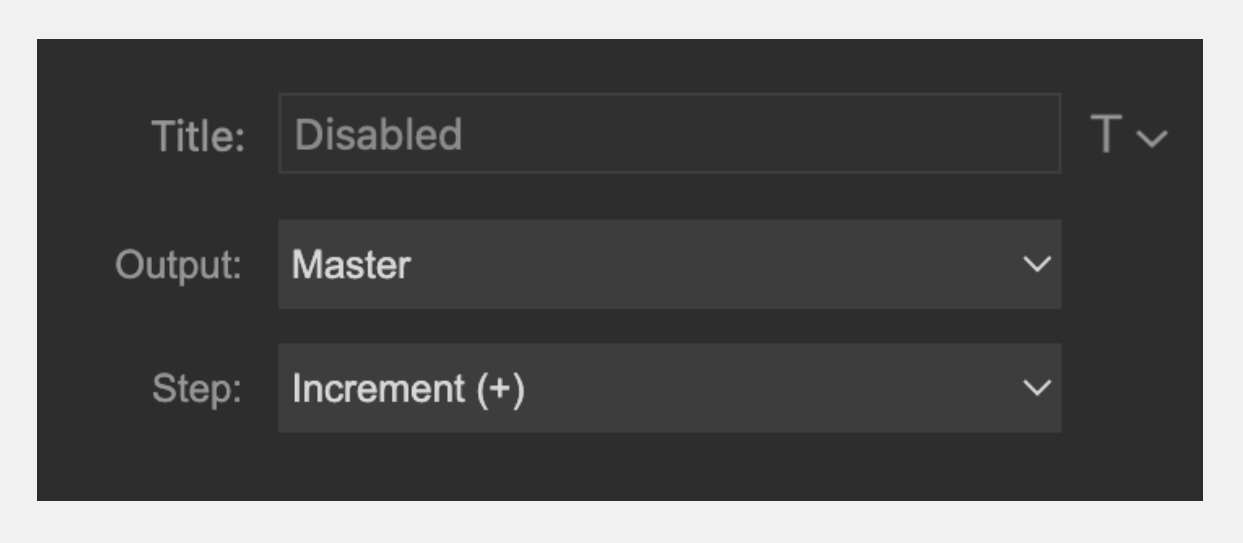
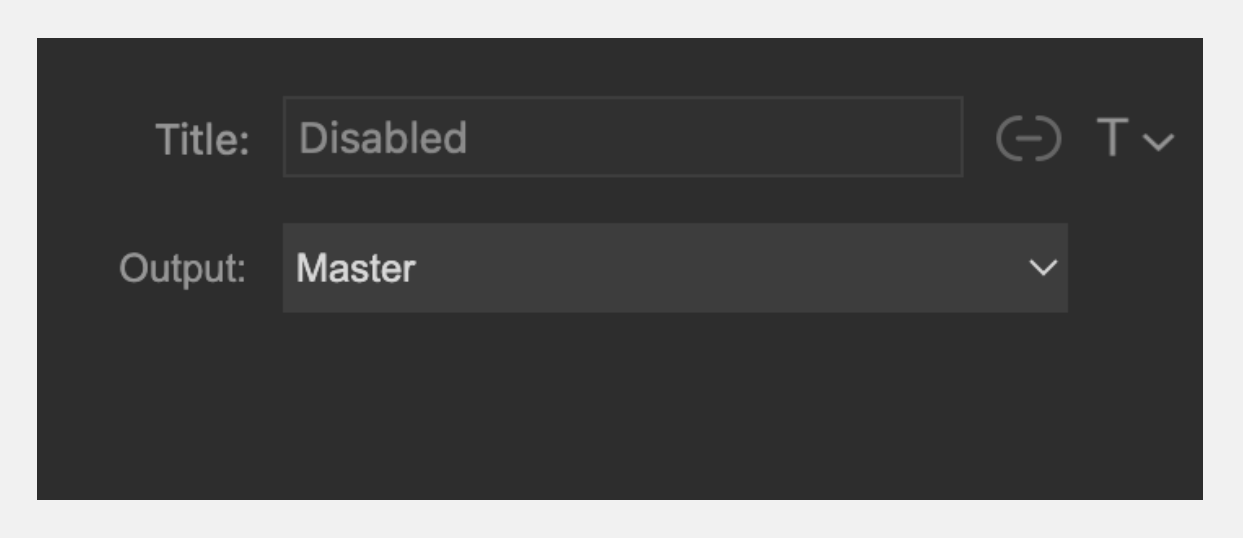
The Volume action provides the following settings:
- Output — Selects the output controlled by the action.
- Step — Selects whether the control increases or decreases the level.
The Step setting is not available when the action is assigned to a Stream Deck + dial.
In ORIA Control 1.2, only the Master output is available in the Output menu.
Mute
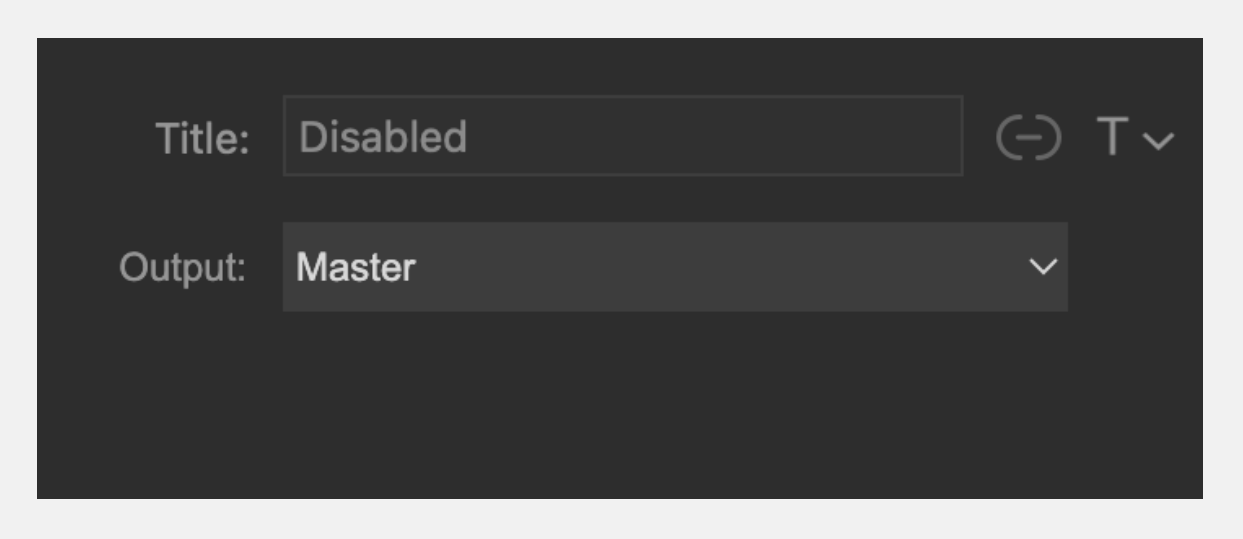
The Mute action mutes or unmutes the selected ORIA output.
Use Output to select the output controlled by the action.
In ORIA Control 1.2, only the Master output is available in the Output menu.
DIM
The DIM action reduces the selected output by the DIM amount configured in ORIA Control.
Use Output to select the output controlled by the action.
In ORIA Control 1.2, only the Master output is available in the Output menu.
Mono
The Mono action sums ORIA’s Left and Right channels to mono, allowing you to check the mono compatibility of a mix.
The Mono action has no additional settings.
Polarity
The Polarity action reverses the polarity of the Left channel and then sums the Left and Right channels.
This cancels centrally panned content and allows you to hear the side information in the stereo signal.
The Polarity action has no additional settings.
Reference level
The Reference Level action returns ORIA to the reference listening level stored in the active Profile.
The Reference Level action has no additional settings.
Input source
The Input Source action selects the source currently being monitored through ORIA.
Available sources can include USB, ADAT, Dante and ORIA’s software-mixer outputs.
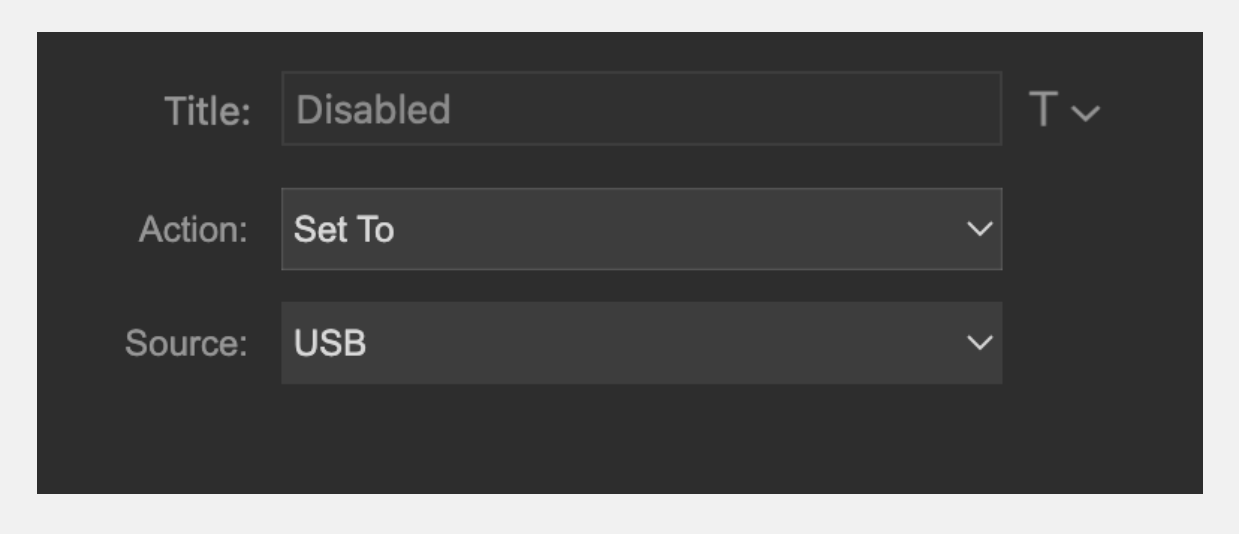
The action provides two modes:
- Step Through — Moves forwards or backwards through the available input sources.
- Set To — Selects a specified input source.
The following settings are available:
- Action — Selects Step Through or Set To.
- Step — Selects the direction when Step Through is used.
- Source — Selects the required source when Set To is used.
Profile
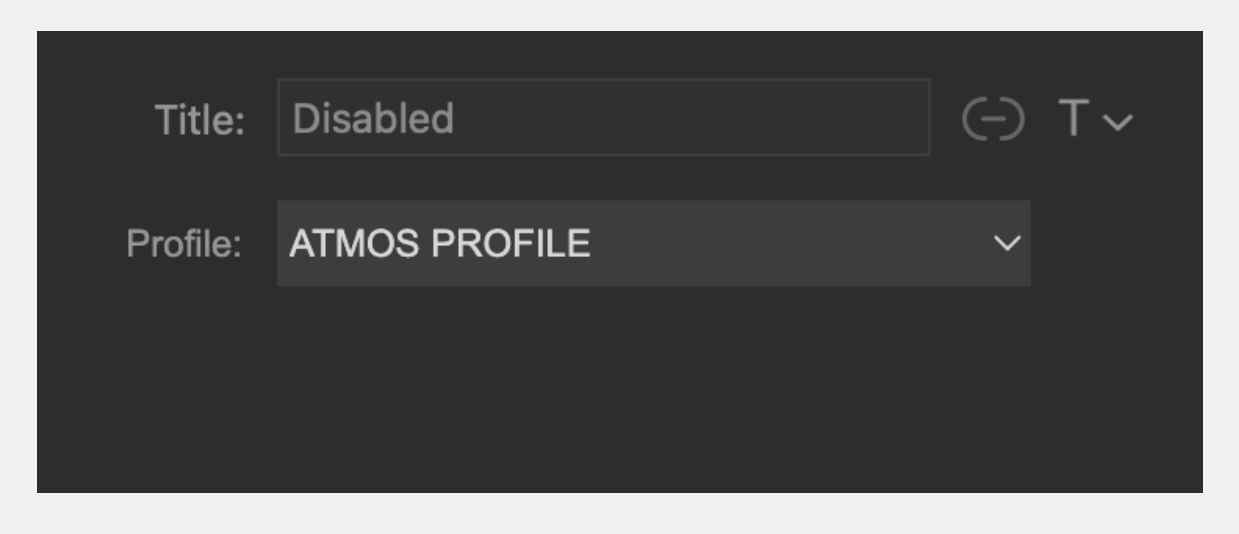
The Profile action recalls one of ORIA’s four favourite profiles.
Use Profile to select the favourite profile assigned to the control.
When the assigned profile is active, the control displays a blue gradient.
Only the four profiles assigned as favourites in ORIA Control are available through the Stream Deck plug-in.
Speaker
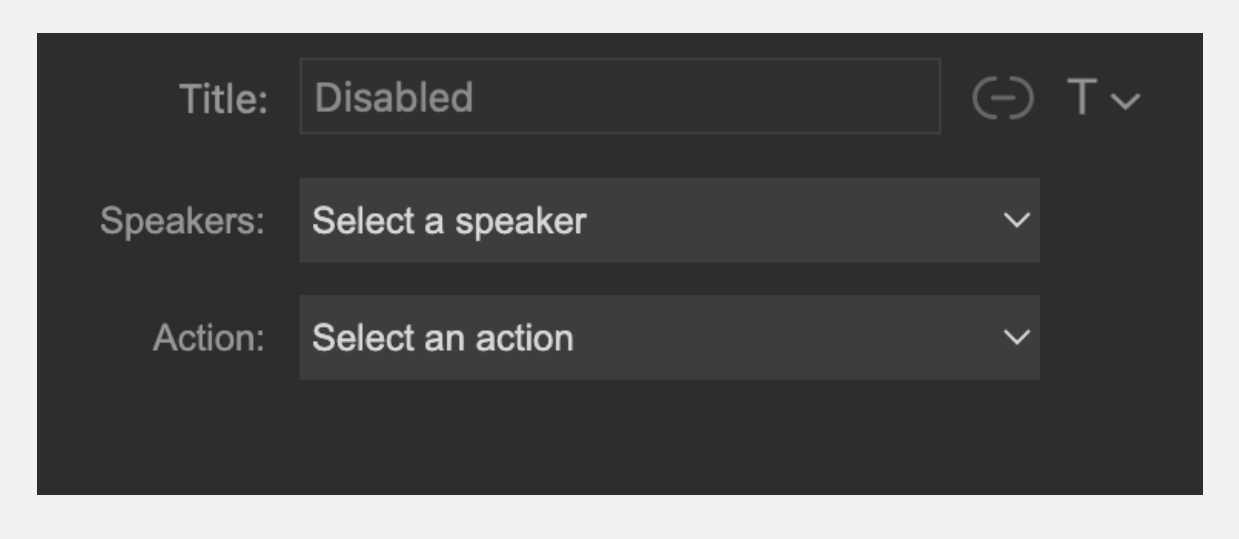
The Speaker action mutes or solos an individual ORIA speaker output.
The following settings are available:
- Speaker — Selects the speaker output controlled by the action.
- Action — Selects either Cut or Solo.
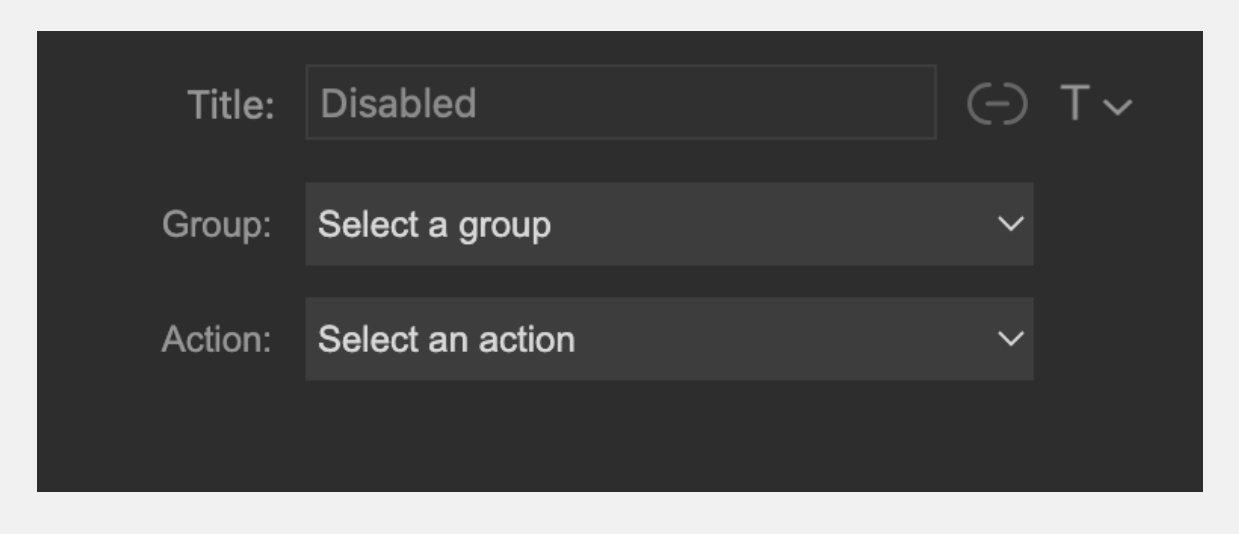
Group
The Group action mutes or solos an ORIA speaker group, such as Fronts or Sides.
The following settings are available:
- Group — Selects the speaker group controlled by the action.
- Action — Selects either Cut or Solo.
Troubleshooting
A yellow warning appears when an action is pressed
A yellow warning symbol indicates that Stream Deck cannot communicate with ORIA Control.
- Check that ORIA Control is open.
- If ORIA Control is not open, launch it from the Applications folder or Start menu.
- If ORIA Control is already open, quit and reopen it.
Reopening ORIA Control allows the Stream Deck software to re-establish communication.
The profile for my Stream Deck was not installed
Stream Deck only installs the profile for the device that is connected and in focus during installation.
For example, if a Stream Deck + is connected and selected when the ORIA Control plug-in is installed, only the Stream Deck + profile is installed.
Install the separate ORIA Control Profiles pack from the Elgato Marketplace to add profiles for another model or multiple Stream Deck devices.
Next steps
Continue to EUCON Integration to control ORIA from compatible Avid control surfaces and the Avid Control app.