Stream Deck 集成
ORIA Control Stream Deck 插件 可通过兼容的 Elgato Stream Deck 设备远程访问 ORIA 的监听功能。
这样 ORIA 可以继续安装在机架中,同时从聆听位置访问其监听控制。
要求
将 ORIA 与 Stream Deck 配合使用需要:
- ORIA Control 1.2 或更高版本
- Elgato Stream Deck 软件 6.4 或更高版本
- 兼容的 Stream Deck 设备或 Stream Deck Mobile
- ORIA 通过 USB 连接到主机电脑
- 主机电脑上运行 ORIA Control
使用 Stream Deck 集成功能时,ORIA Control 必须保持打开。
安装 ORIA Control 插件
如果已安装 Stream Deck 软件,ORIA Control 安装程序会检测到它,并提示安装 ORIA Control 插件。
也可以直接从 Elgato Marketplace 安装插件:
登录 Elgato 账户并选择 Get。随后插件会添加到 Stream Deck 软件。
随附 Profiles
ORIA Control 插件 包含针对常见 Stream Deck 设备预配置的 Profiles。
这些 Profiles 会将所需 ORIA 控制加载到所选 Stream Deck 上,因此无需手动创建 Profile 即可开始使用集成功能。
提供以下设备的 Profiles:
- Stream Deck MKII
- Stream Deck +
- Stream Deck XL
- Stream Deck Mini
- Stream Deck Neo
- Stream Deck Mobile
安装 ORIA Control 插件 时,Stream Deck 只会安装当前在 Stream Deck 软件 中打开的设备所对应的 Profile。
如需使用其他型号或多个 Stream Deck 设备,请从 Elgato Marketplace 安装单独的 ORIA Control Profiles pack。
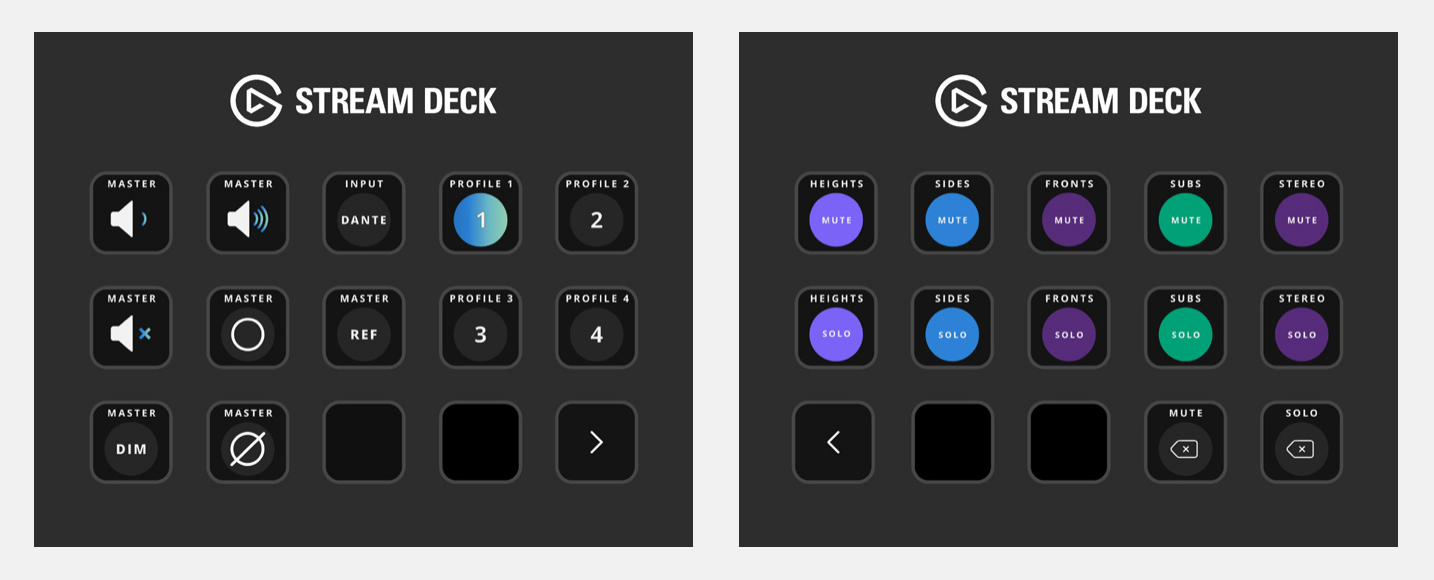
Stream Deck MKII
Stream Deck MKII Profile 使用两个页面:
- Page 1 — 音量控制、监听控制、输入选择和 Profile 选择
- Page 2 — Speaker Group mute 和 solo 控制
Stream Deck +
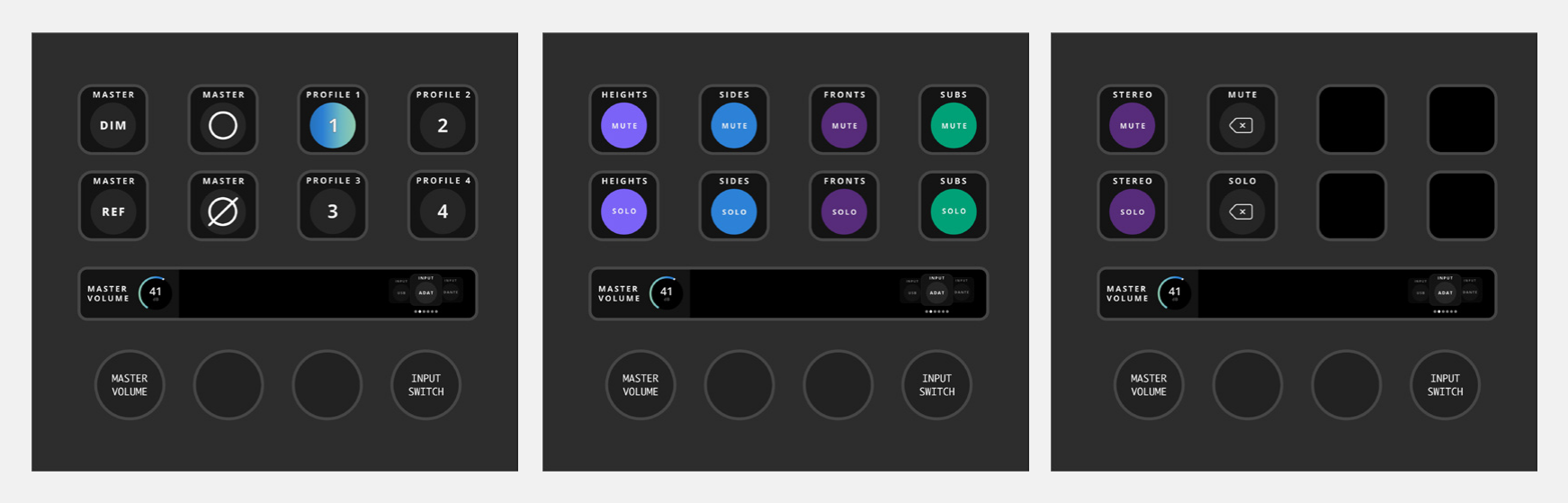
Stream Deck + Profile 使用三个页面:
- Page 1 — 监听控制 和 Profile 选择
- Page 2 — Heights、Sides、Fronts 和 Subs 扬声器组的 Mute 和 Solo 控制
- Page 3 — Stereo mute 和 solo 控制,以及清除 mute 和 solo 的控制
在 Stream Deck + 屏幕上滑动可在页面之间切换。
最左侧旋钮控制 Master Volume。按下旋钮可将 ORIA Main Outputs 静音或取消静音。
最右侧旋钮选择输入源:
- 转动旋钮浏览可用信号源。
- 按下旋钮选择高亮显示的信号源。
输入选择器使用 Stream Deck 默认操作 中的 Action Wheel。
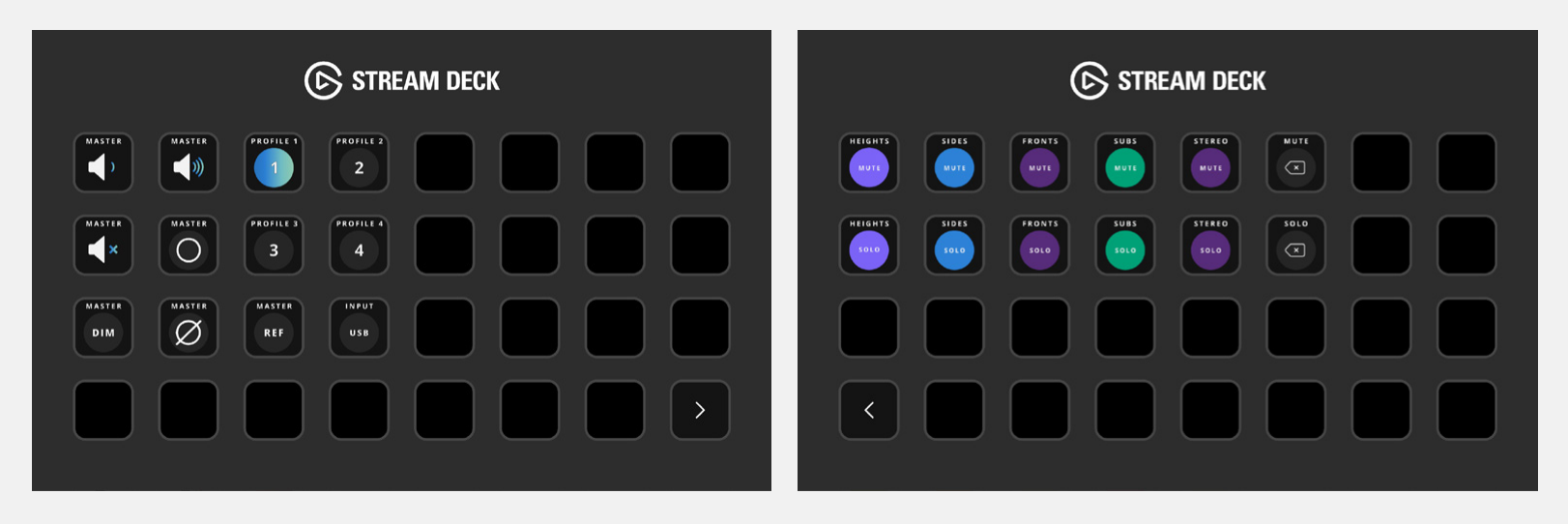
Stream Deck XL
Stream Deck XL Profile 使用两个页面:
- Page 1 — 音量控制、监听控制、输入选择和 Profile 选择
- Page 2 — Speaker Group mute 和 solo 控制
Stream Deck Mini
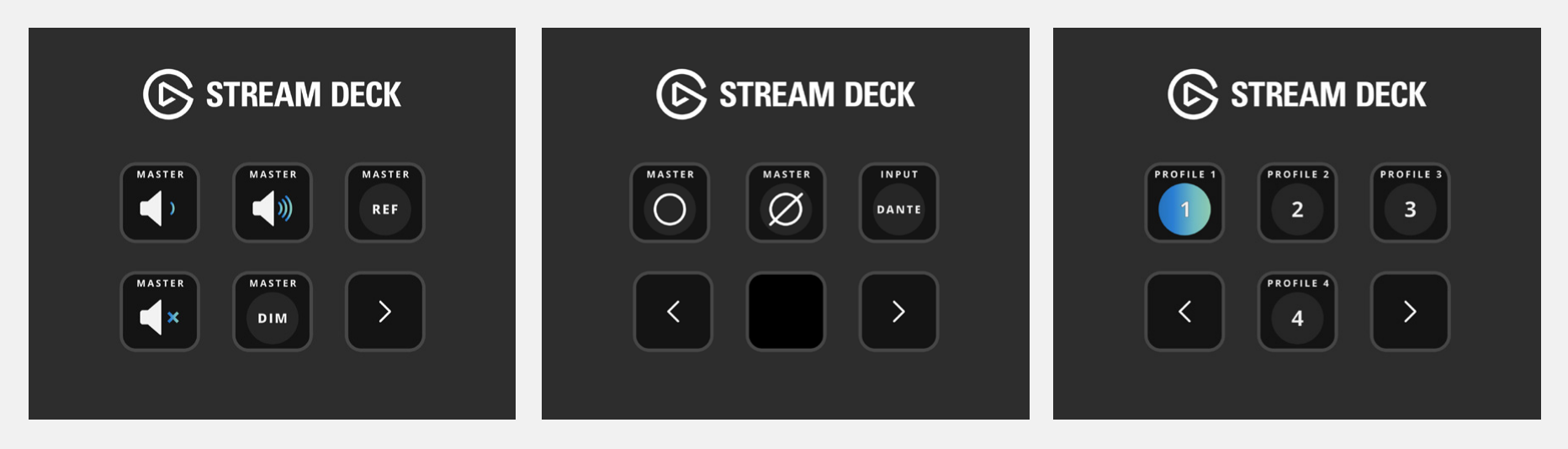
Stream Deck Mini Profile 使用三个页面:
- Page 1 — Master Volume、Master Reference 和 Master DIM
- Page 2 — Master Mono、Master Phase 和输入选择
- Page 3 — Profile 选择
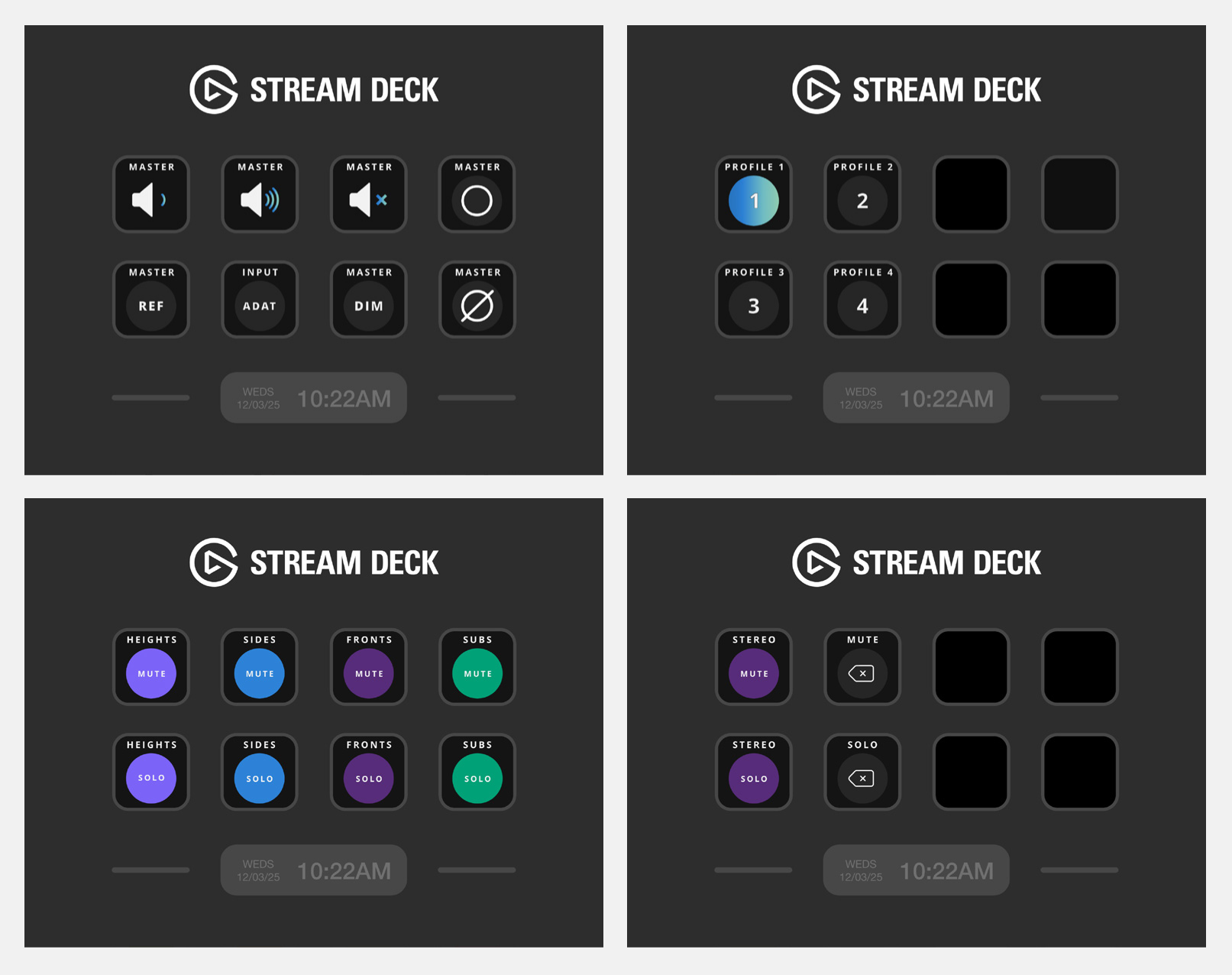
Stream Deck Neo
Stream Deck Neo Profile 使用四个页面:
- Page 1 — 音量控制、监听控制和输入选择
- Page 2 — Profile 选择
- Page 3 — Heights、Sides、Fronts 和 Subs 扬声器组的 Mute 和 Solo 控制
- Page 4 — Stereo mute 和 solo 控制,以及清除 mute 和 solo 的控制
Stream Deck Mobile
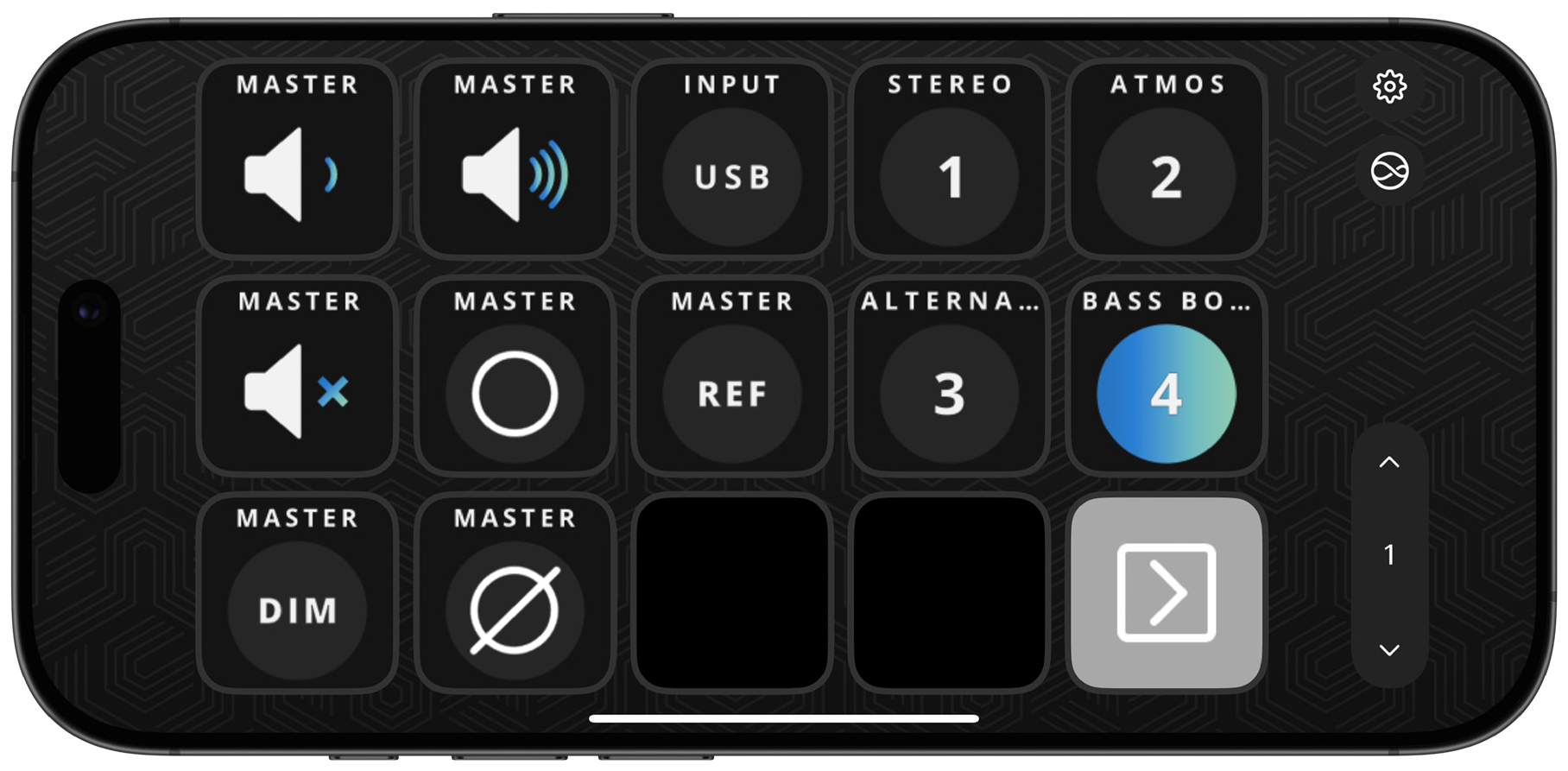
Stream Deck Mobile 应用程序 可选择控制网格的大小。
ORIA Control 插件 为可用网格尺寸提供 Profiles。
免费版 Stream Deck Mobile 提供六个按键。使用更大或自定义布局需要 Stream Deck Mobile Pro。
创建自定义 Profile
可以使用 ORIA Control 插件 提供的各个操作 创建自定义 Stream Deck Profile。
提供以下操作。
Volume
Volume 操作 调整 ORIA 输出音量。
在没有旋钮的 Stream Deck 设备上,使用单独控制提高和降低电平。
轻按控制一次可进行小幅调整,或按住以持续调整电平。
在 Stream Deck + 上:
- 转动已分配旋钮调整电平。
- 按下旋钮将输出静音或取消静音。
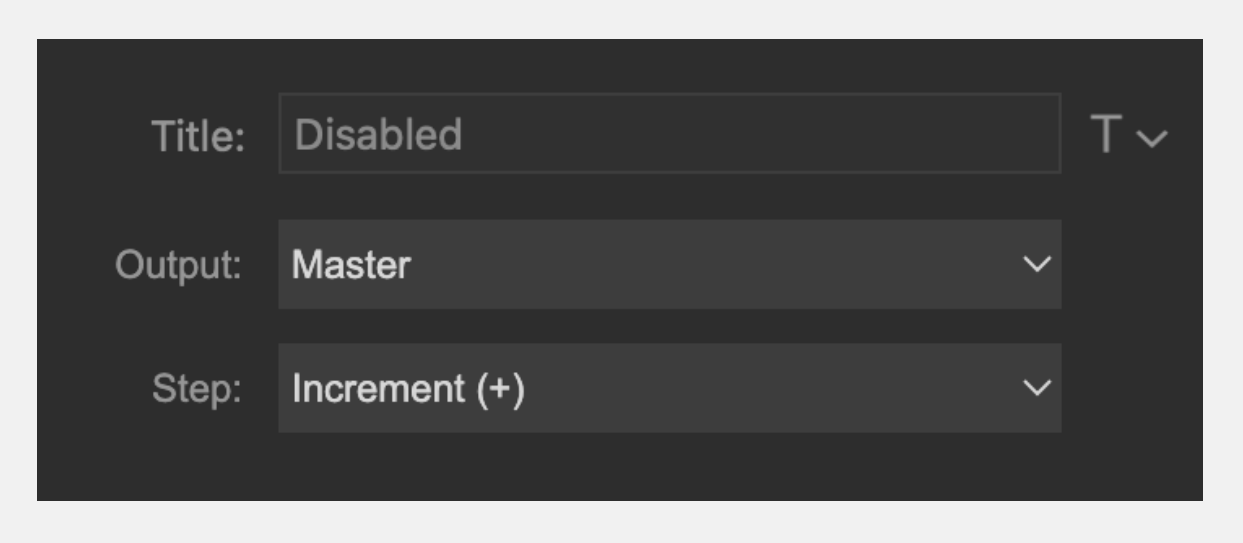
Volume 操作 提供以下设置:
- Output — 选择该操作 控制的输出。
- Step — 选择该控制提高还是降低电平。
当操作分配到 Stream Deck + 旋钮时,Step 设置不可用。
在 ORIA Control 1.2 中,Output 菜单仅提供 Master output。
Mute
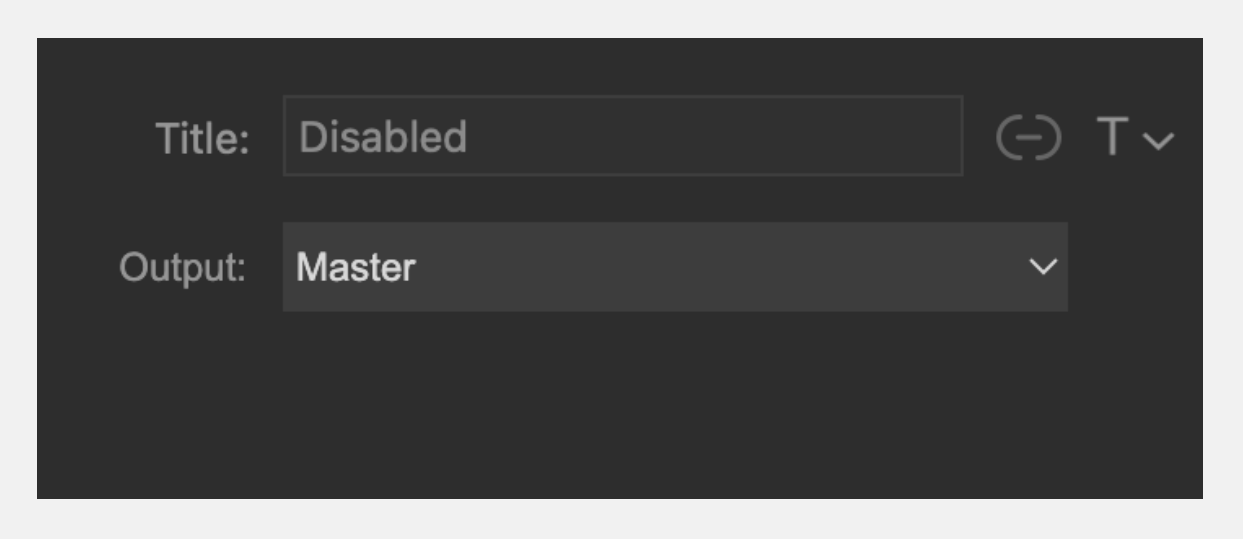
Mute 操作 将所选 ORIA 输出静音或取消静音。
使用 Output 选择该操作 控制的输出。
在 ORIA Control 1.2 中,Output 菜单仅提供 Master output。
DIM
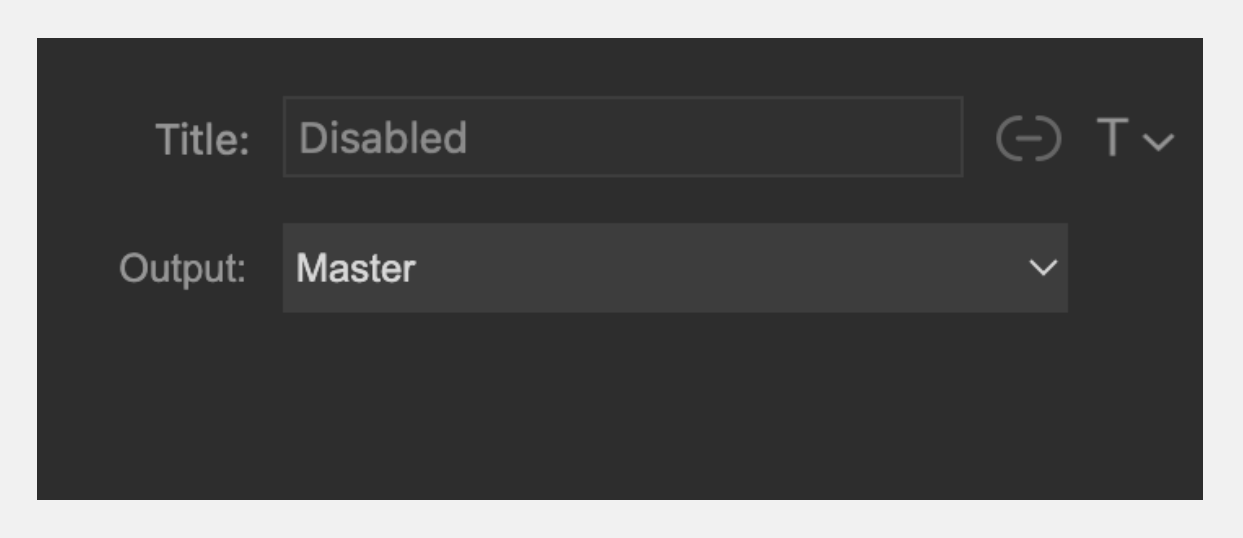
DIM 操作 按 ORIA Control 中配置的 DIM 幅度降低所选输出。
使用 Output 选择该操作 控制的输出。
在 ORIA Control 1.2 中,Output 菜单仅提供 Master output。
Mono
Mono 操作 将 ORIA 的 Left 和 Right 通道合并为 mono,用于检查混音的单声道兼容性。
Mono 操作 没有其他设置。
Polarity
Polarity 操作 会反转 Left 通道极性,然后将 Left 和 Right 通道合并。
这会抵消中央声像内容,让您听到立体声信号中的 side information。
Polarity 操作 没有其他设置。
Reference level
Reference Level 操作 将 ORIA 恢复到当前 Profile 中存储的参考监听电平。
Reference Level 操作 没有其他设置。
Input Source
Input Source 操作 选择 ORIA 当前监听的信号源。
可用源可能包括 USB、ADAT、Dante 和 ORIA 软件混音器输出。
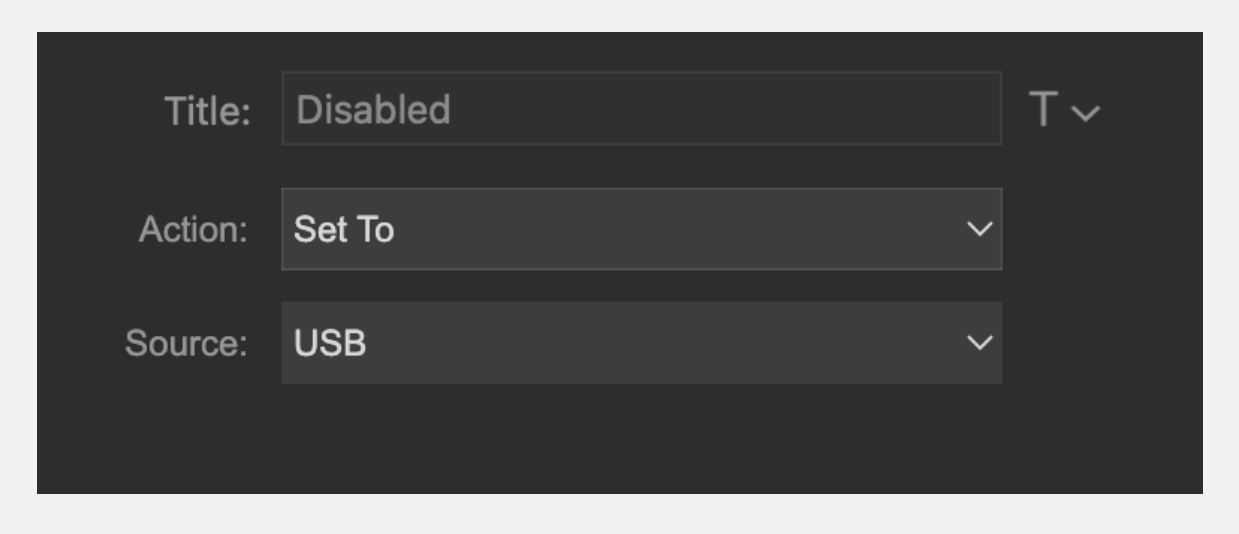
该操作 提供两种模式:
- Step Through — 在可用输入源之间向前或向后移动。
- Set To — 选择指定的输入源。
提供以下设置:
- Action — 选择 Step Through 或 Set To。
- Step — 使用 Step Through 时选择方向。
- Source — 使用 Set To 时选择所需信号源。
Profile
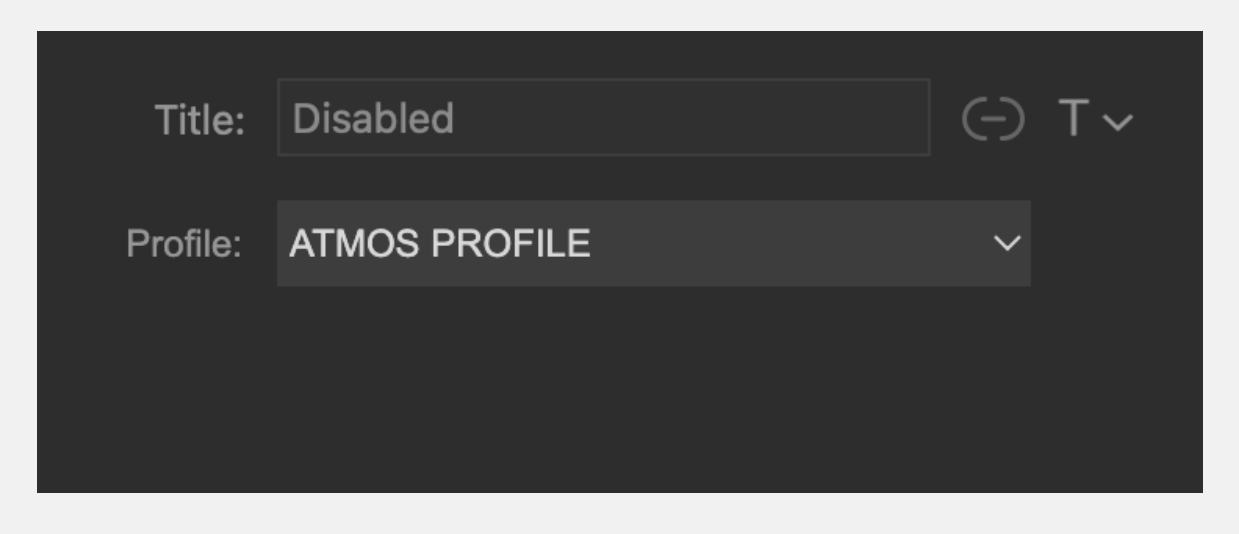
Profile 操作 调用 ORIA 的四个 Favourite Profiles 之一。
使用 Profile 选择分配给该控制的 Favourite Profile。
已分配 Profile 处于激活状态时,该控制会显示蓝色渐变。
Stream Deck 插件 只能访问 ORIA Control 中分配为收藏的四个 Profiles。
Speaker
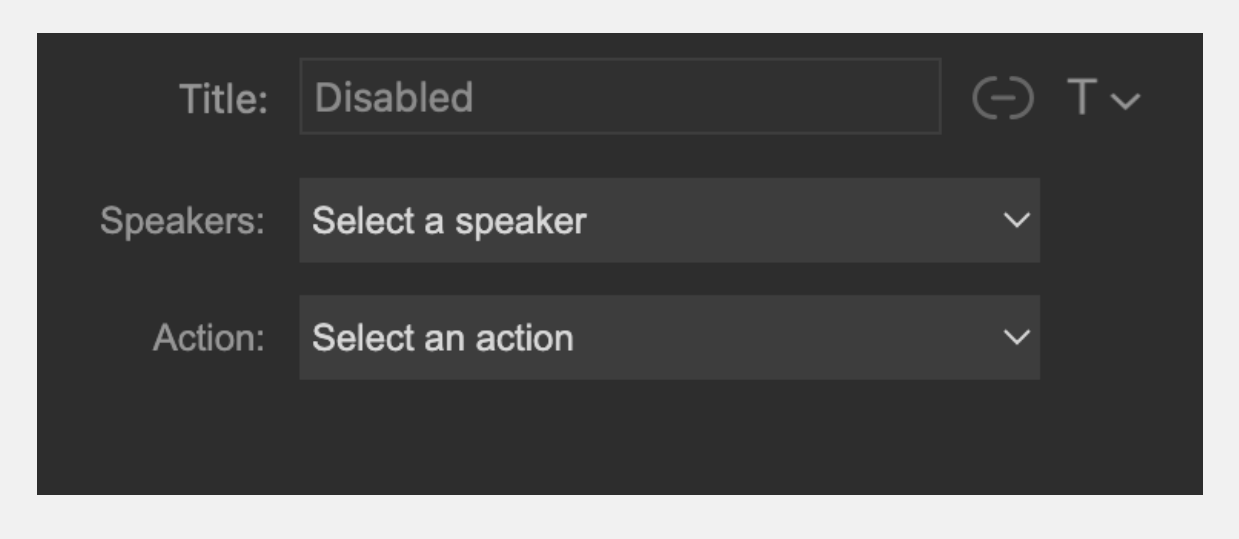
Speaker 操作 对单独 ORIA 扬声器输出执行 mute 或 solo。
提供以下设置:
- Speaker — 选择该操作 控制的扬声器输出。
- Action — 选择 Cut 或 Solo。
Group
Group 操作 对 ORIA Speaker Group(例如 Fronts 或 Sides)执行 mute 或 solo。
提供以下设置:
- Group — 选择该操作 控制的 Speaker Group。
- Action — 选择 Cut 或 Solo。
故障排除
按下操作 时出现黄色警告
黄色警告符号表示 Stream Deck 无法与 ORIA Control 通信。
- 检查 ORIA Control 是否已打开。
- 如果 ORIA Control 未打开,请从 Applications 文件夹或 Start 菜单启动它。
- 如果 ORIA Control 已经打开,请退出后重新打开。
重新打开 ORIA Control 后,Stream Deck 软件 可以重新建立通信。
我的 Stream Deck Profile 未安装
Stream Deck 只会安装在安装过程中已连接且当前处于焦点状态的设备所对应的 Profile。
例如,如果安装 ORIA Control 插件 时连接并选择了 Stream Deck +,则只会安装 Stream Deck + Profile。
从 Elgato Marketplace 安装单独的 ORIA Control Profiles pack,可添加其他型号或多个 Stream Deck 设备的 Profiles。
后续步骤
继续阅读 EUCON 集成,从兼容的 Avid 控制界面和 Avid Control 应用程序 控制 ORIA。