远程控制和集成
ORIA Mini 可以通过以下方式进行远程控制:
- ORIA Remote iPad 应用
- ORIA Control Elgato Stream Deck 插件
连接 ORIA Mini 的电脑上必须运行 ORIA Control Desktop Software。
ORIA Remote iPad 应用
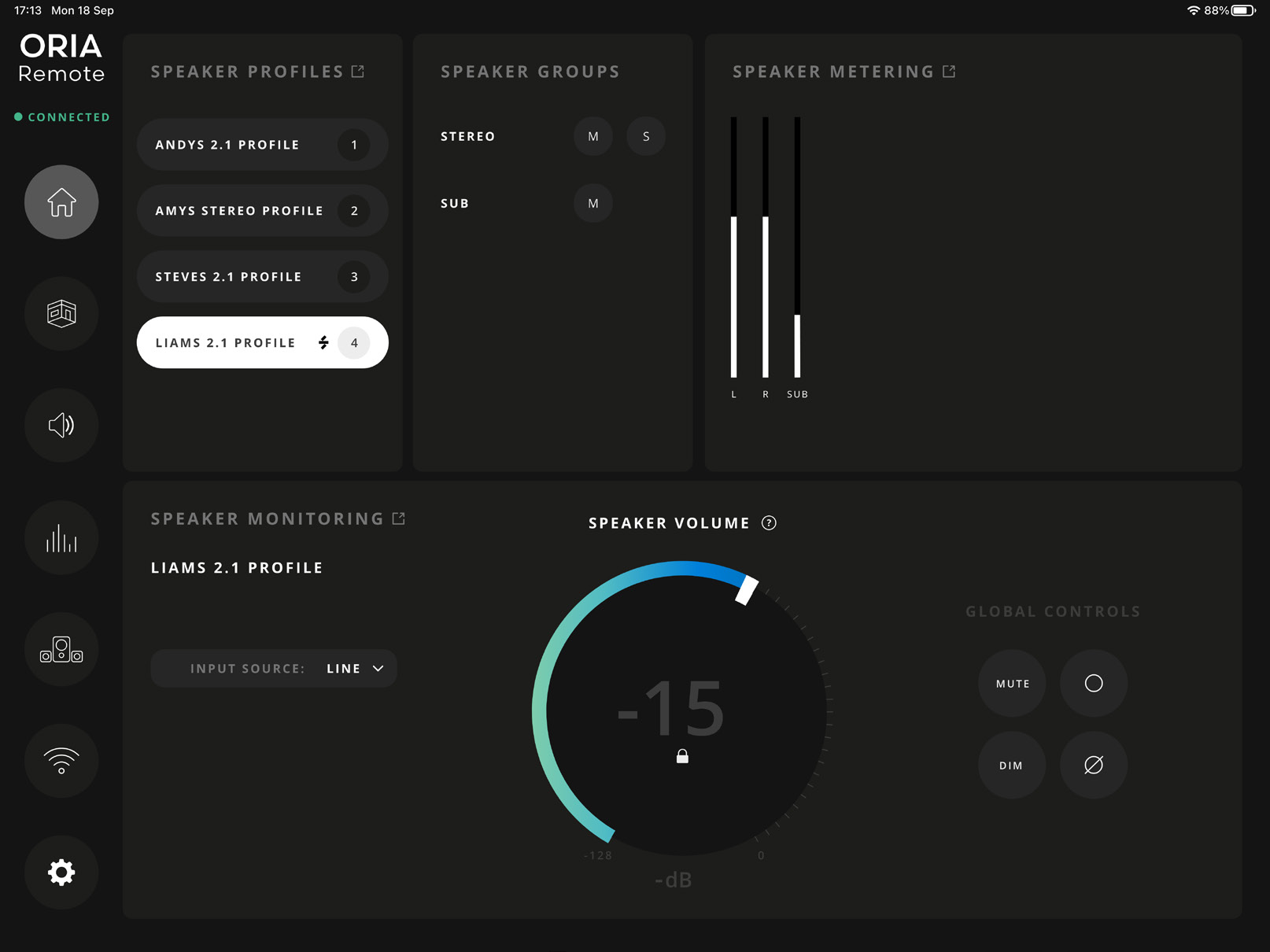
ORIA Remote 为 ORIA Mini 的 Profiles、监听功能、扬声器输出和电平显示提供触控操作。
从 Apple App Store 下载 ORIA Remote:
当前 iPadOS 要求请参阅 App Store 页面。
连接 iPad
连接前:
- 通过 USB 将 ORIA Mini 连接到电脑。
- 打开 ORIA Control Desktop Software。
- 将 iPad 和电脑连接到同一个本地网络。
电脑可以通过 Wi-Fi 或 Ethernet 连接到网络。
连接应用:
-
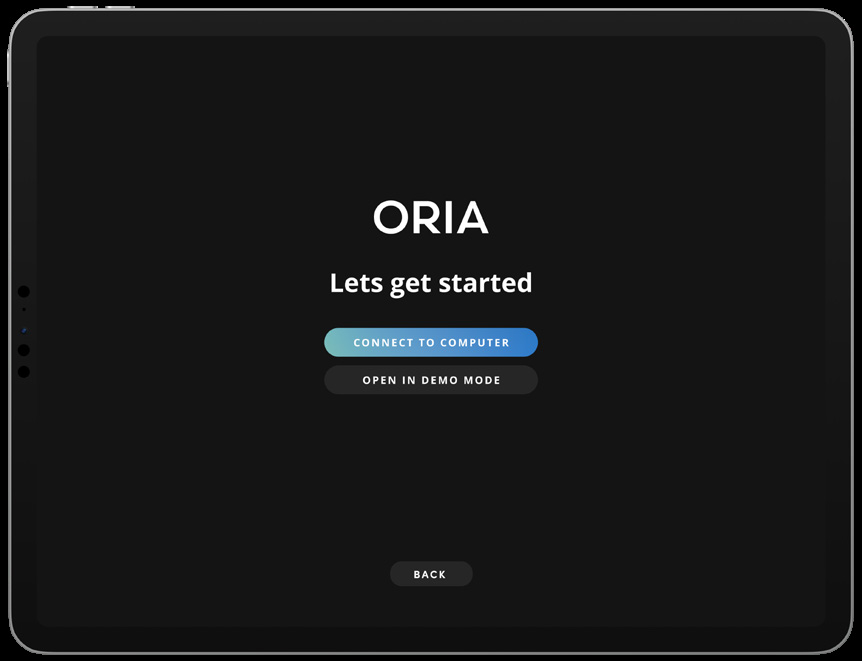
在 iPad 上打开 ORIA Remote。
-
按照入门指南操作。
-
为 iPad 输入一个名称。
该名称用于在 ORIA Control Desktop Software 中识别设备。
-
允许 ORIA Remote 查找并连接本地网络上的设备。
-
选择连接 ORIA Mini 的电脑。
-
在 ORIA Control Desktop Software 中接受连接请求。
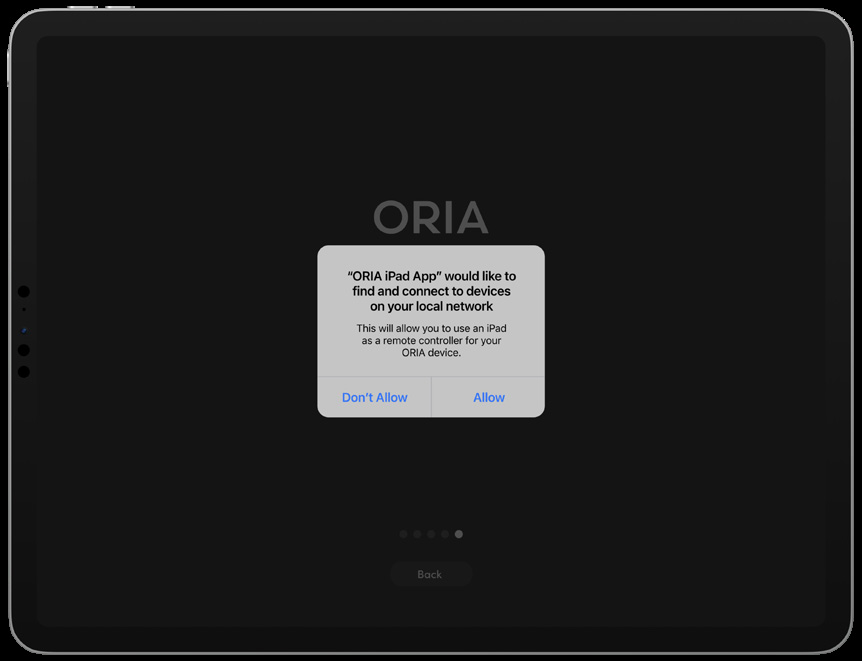
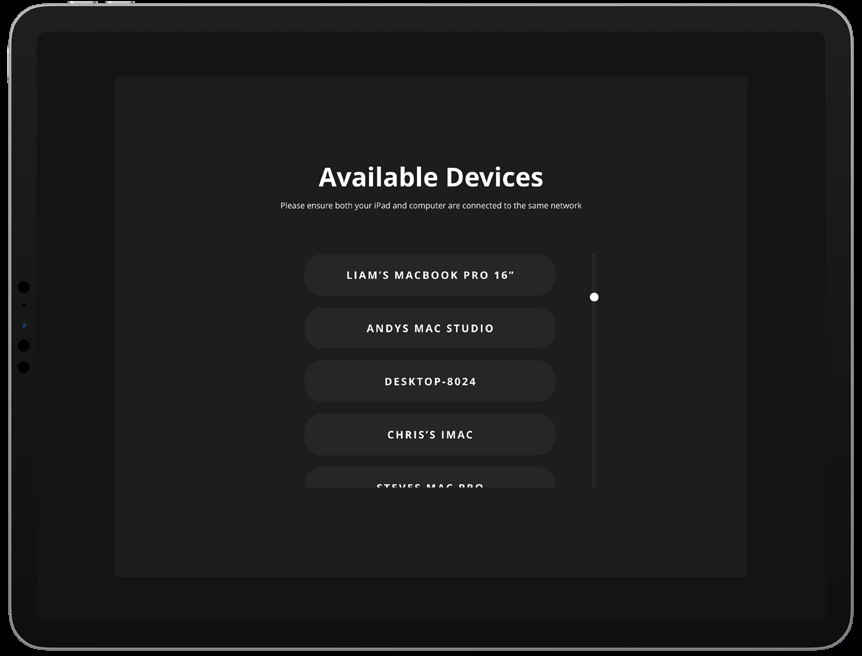
连接获批后,ORIA Remote 中会显示 Successfully Connected 消息。
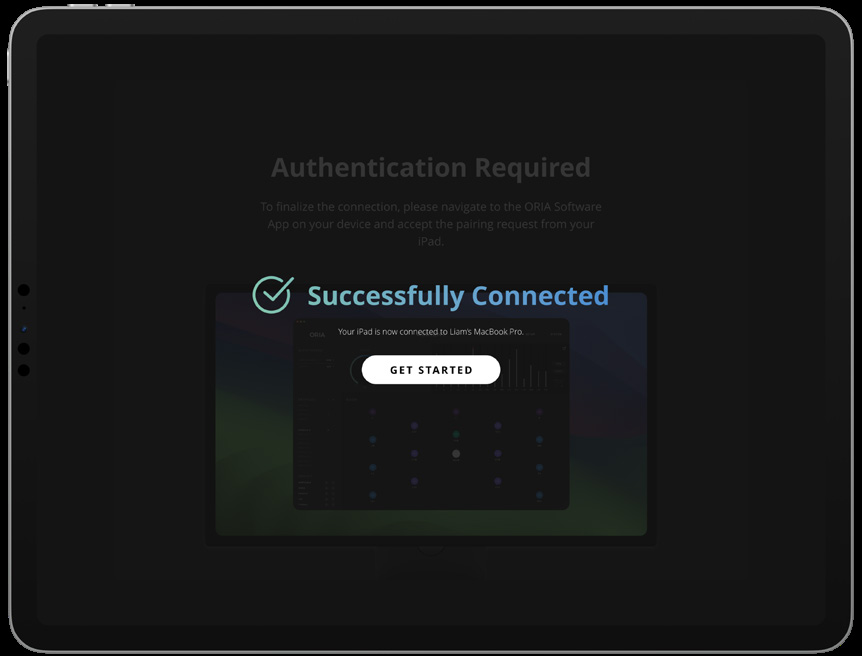
可以从 Remotes 页面批准、阻止或移除远程设备。请参阅系统设置。
ORIA Remote 页面
使用 ORIA Remote 的侧边栏在各页面之间切换。
Home
Home 页面可访问主要 ORIA Mini 控件:
- Profile 选择
- Speaker Group 控件
- 输出电平显示
- 输入源选择
- Main Volume
- Mute
- Dim
- Mono
- Polarity
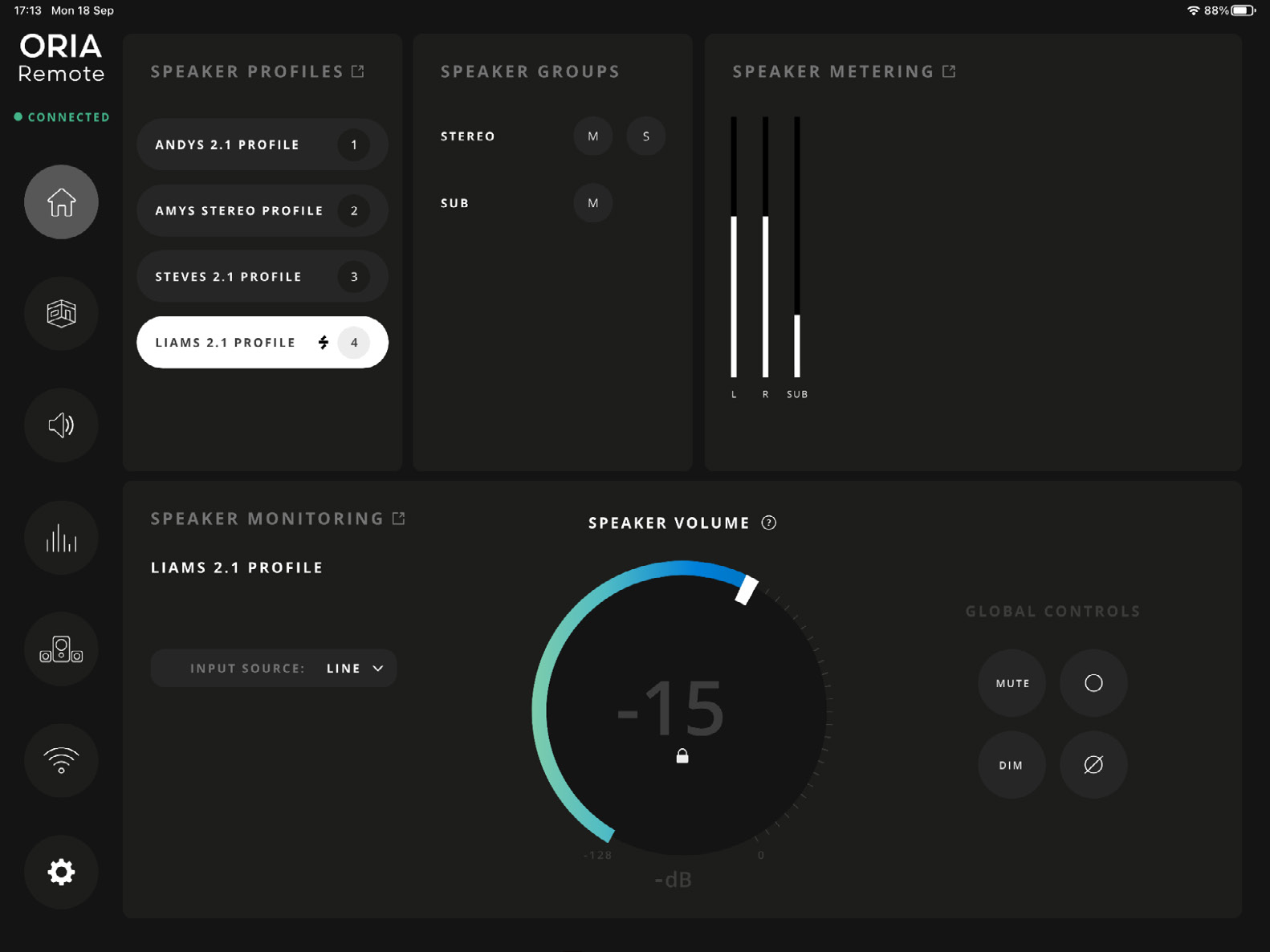
Profile 选择
选择一个 Profile,使其在 ORIA Mini 上成为当前 Profile。
专用 Profile Selection 页面显示四个 Favourite Profiles 以及设备中存储的其他 Profiles。
Main volume
使用 Main Volume 调整整体扬声器输出电平。
音量控件默认锁定,以防意外调整。
轻按控件将其解锁并调整电平。
启用 Volume Control Autolock 后,轻按应用中的其他位置会再次锁定该控件。
扬声器组
使用 Speaker Group 控件:
- 静音 Stereo 组
- Solo Stereo 组
- 静音 Sub 组
输出电平显示
Home 页面显示当前 ORIA Mini 输出电平。
选择电平表旁的展开图标可打开更大、分辨率更高的电平表视图。
Room 页面
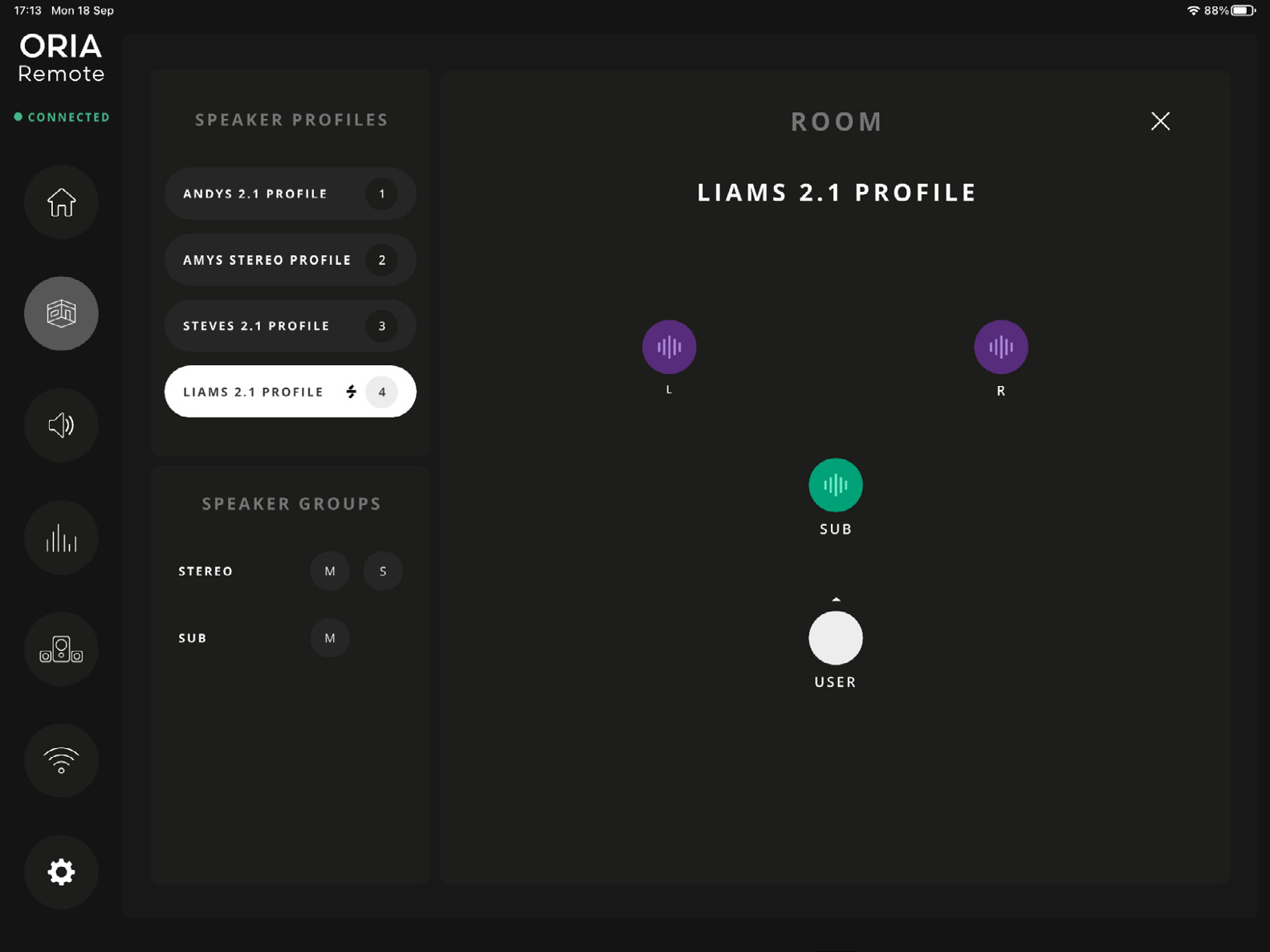
Room 页面以图形方式显示左、右和 Subwoofer 输出。
控制单个扬声器:
- 轻按扬声器可静音或取消静音。
- 长按扬声器可 Solo。
- 轻按已 Solo 的扬声器可取消其 Solo 状态。
当扬声器处于 Mute 或 Solo 状态时,选择 Clear All Mute 或 Clear All Solo 可清除当前状态。
Room 页面也可以访问 Profile 选择和 Speaker Group 控件。
Monitoring 页面
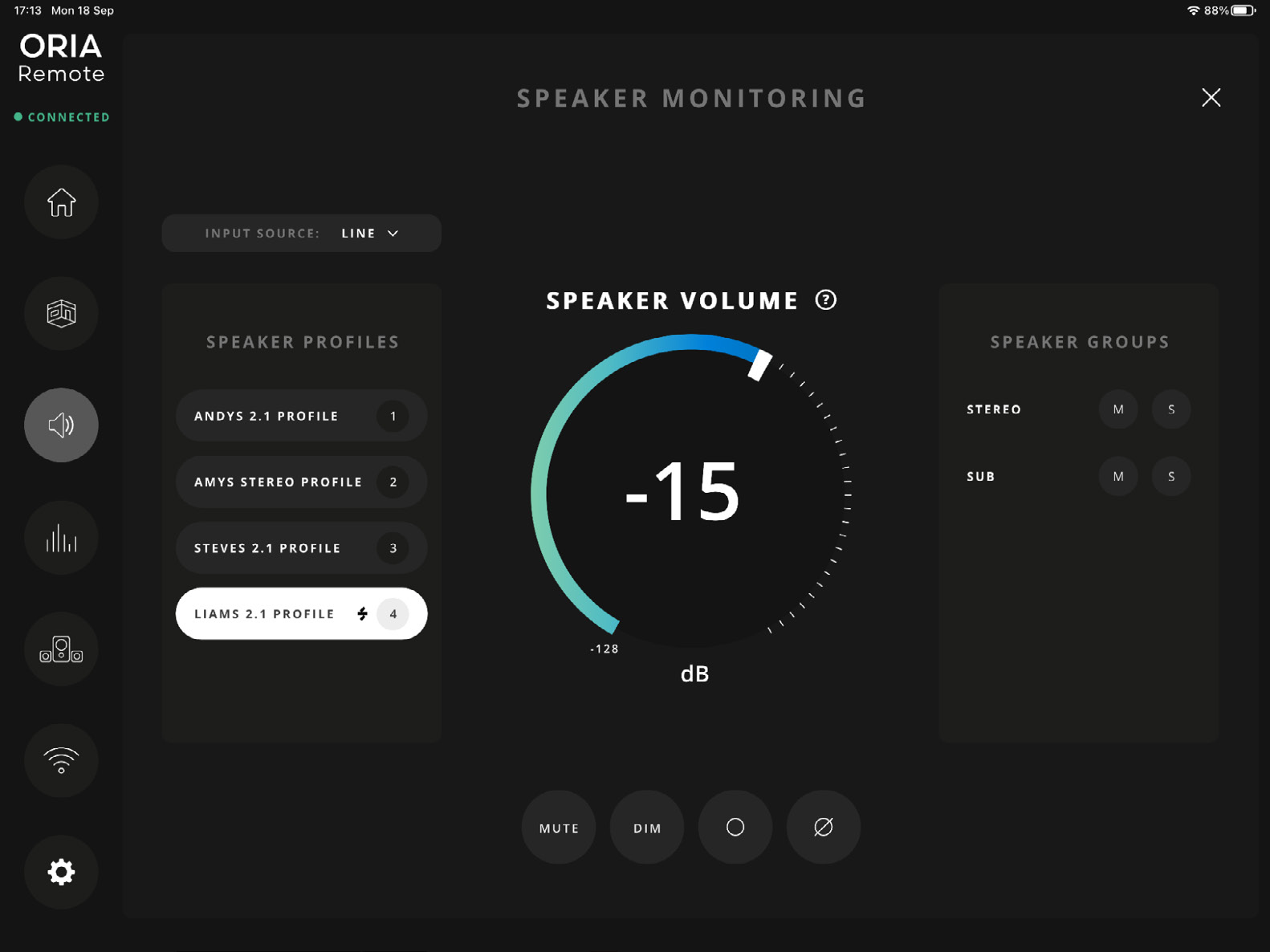
Monitoring 页面提供 Home 页面所示监听控件的扩展版本。
可用于控制:
- 输入源
- Main Volume
- Mute
- Dim
- Mono
- Polarity
- Speaker Groups
有关这些功能的更多信息,请参阅监听控制。
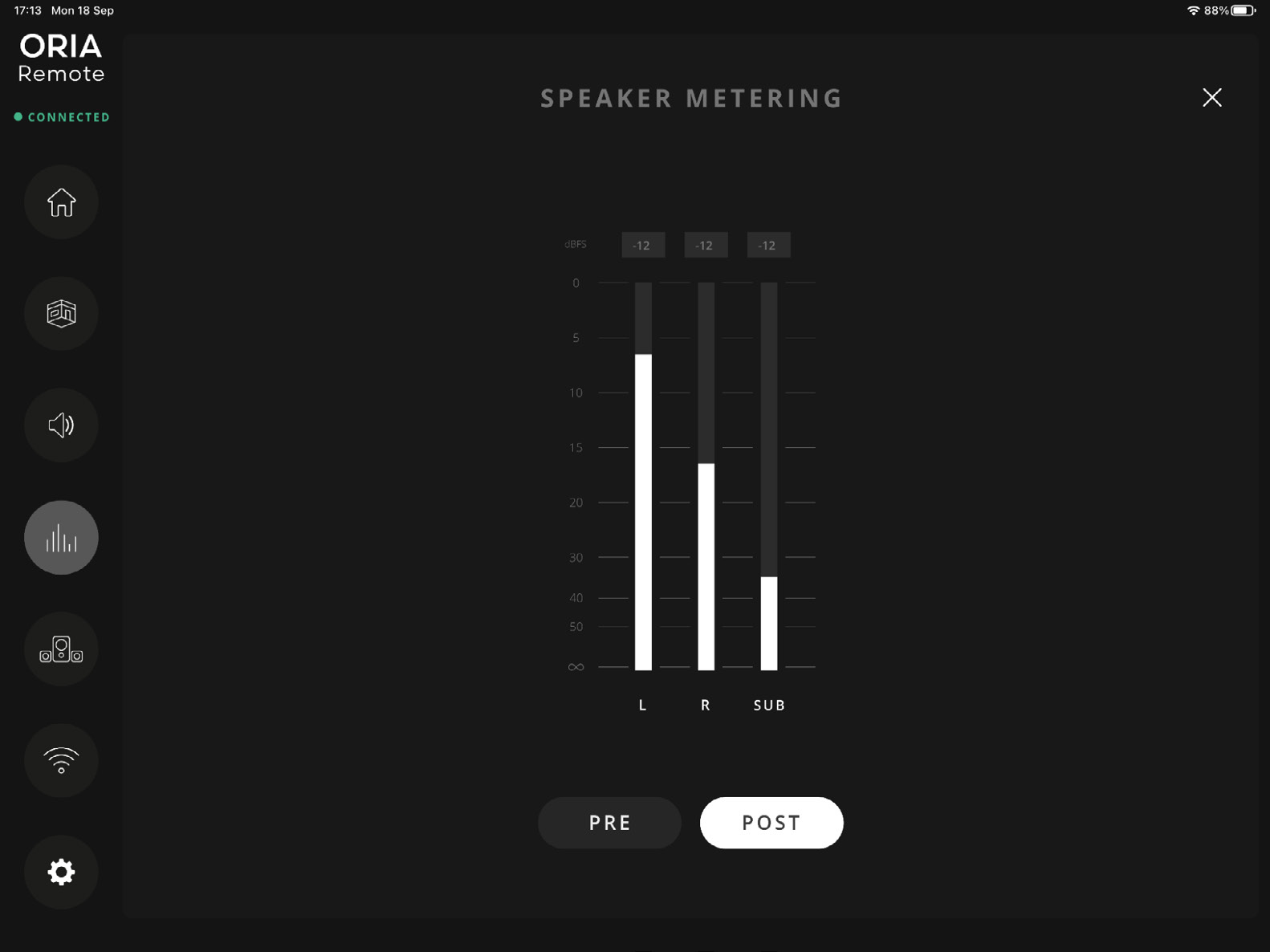
Metering 页面
Metering 页面提供 ORIA Mini 输出电平表的高分辨率视图。
选择:
- PRE 查看从当前输入源进入 ORIA Mini 的信号。
- POST 查看经过扬声器校准处理后离开 ORIA Mini 的信号。
POST 电平显示也会考虑 Main Volume 控件的影响。
默认选择 PRE。
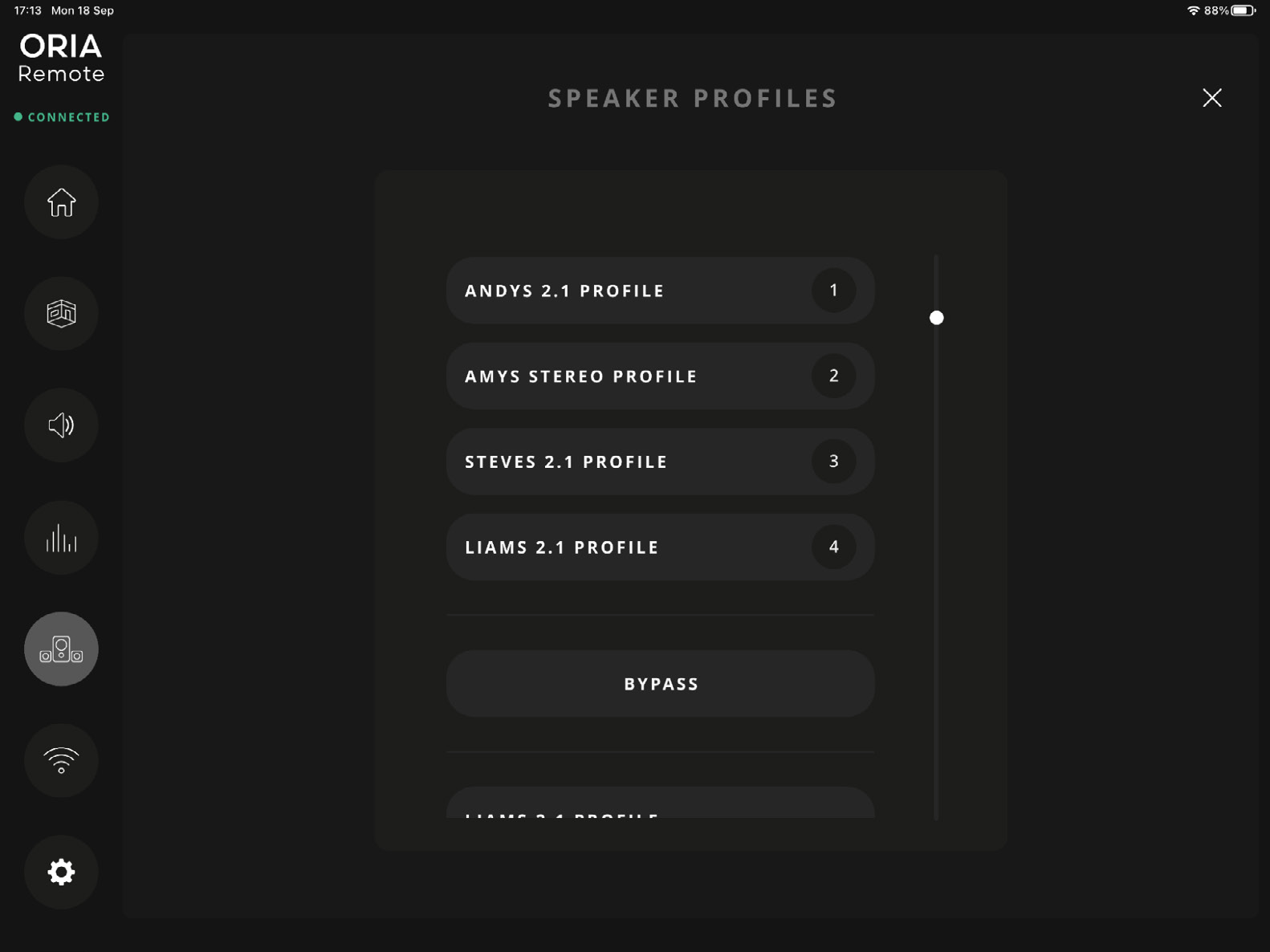
Profile Selection 页面
Profile Selection 页面提供 ORIA Mini 中存储 Profiles 的扩展列表。
选择一个 Profile 使其成为当前 Profile。
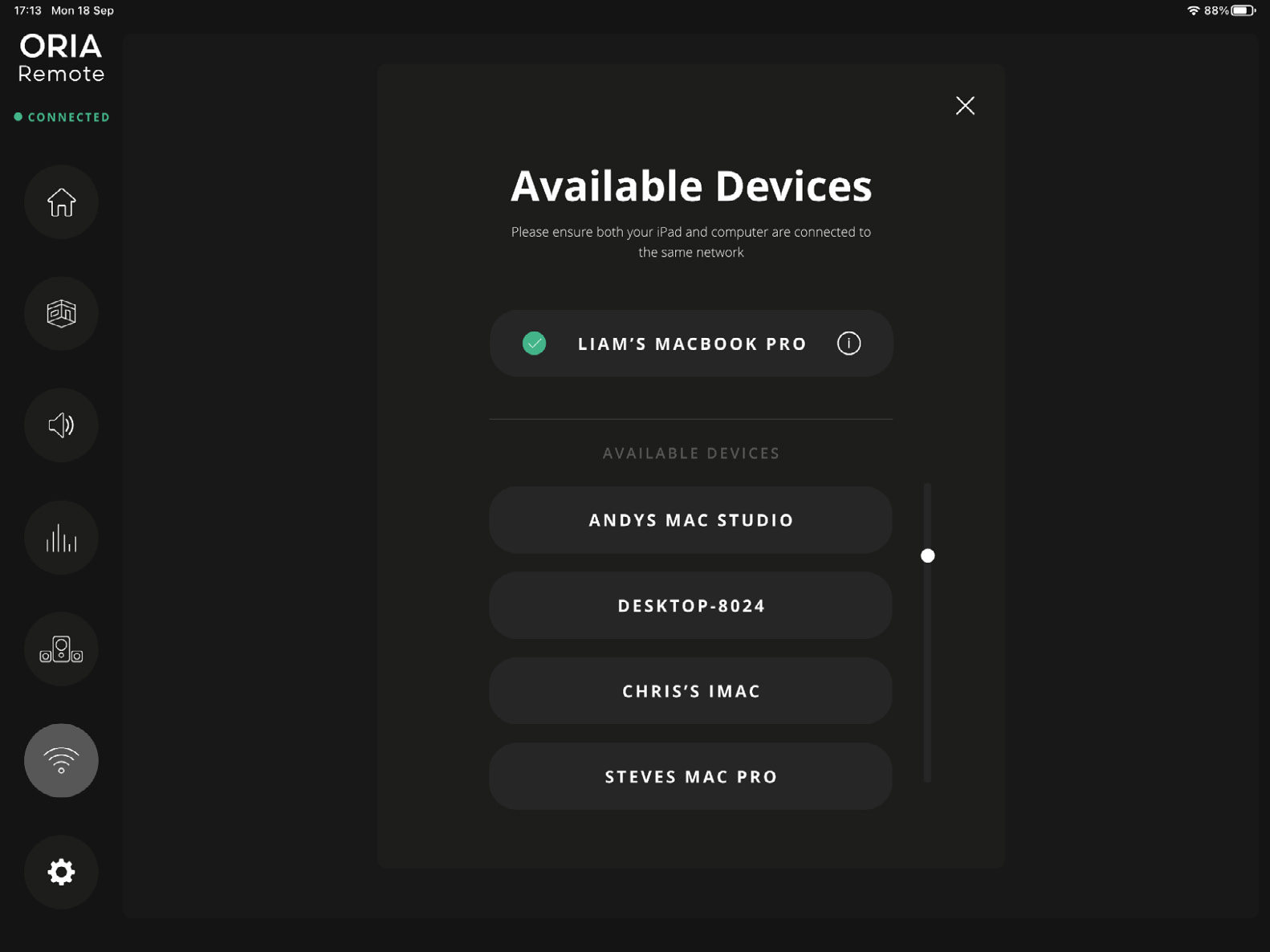
Connection 页面
使用 Connection 页面:
- 将 ORIA Remote 重新连接到 ORIA Mini
- 更改当前连接的 ORIA Mini 设备
应用设置
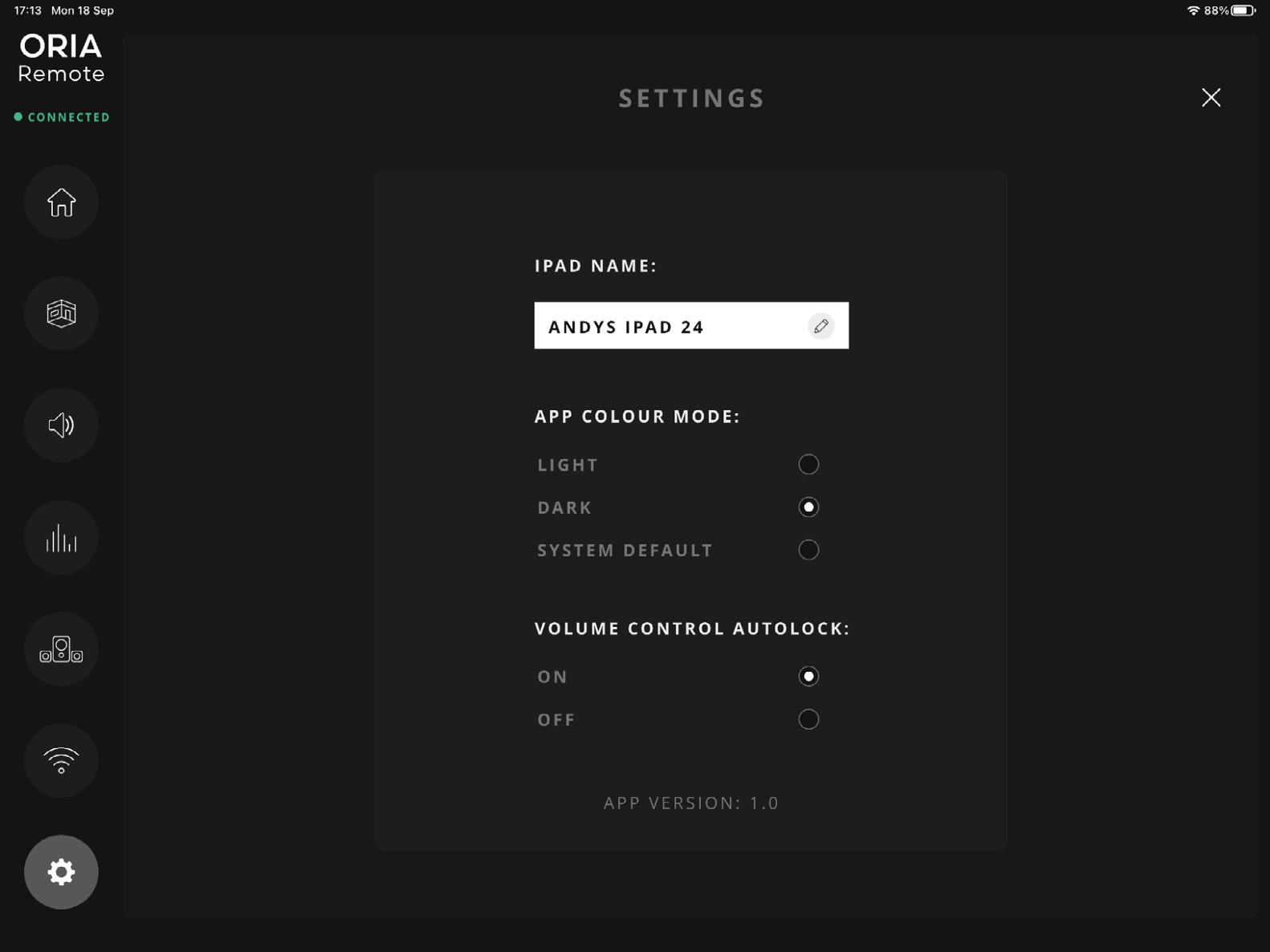
iPad name
使用 iPad Name 更改 ORIA Control Desktop Software 中显示的名称。
应用颜色模式
选择:
- Dark
- Light
- System Default
System Default 会跟随 iPad 的全局外观设置。
Volume control autolock
启用 Autolock 后,调整完成后轻按 Main Volume 控件之外的区域会自动将其锁定。
禁用 Autolock 后,控件会保持解锁,直到再次轻按它。
Elgato Stream Deck
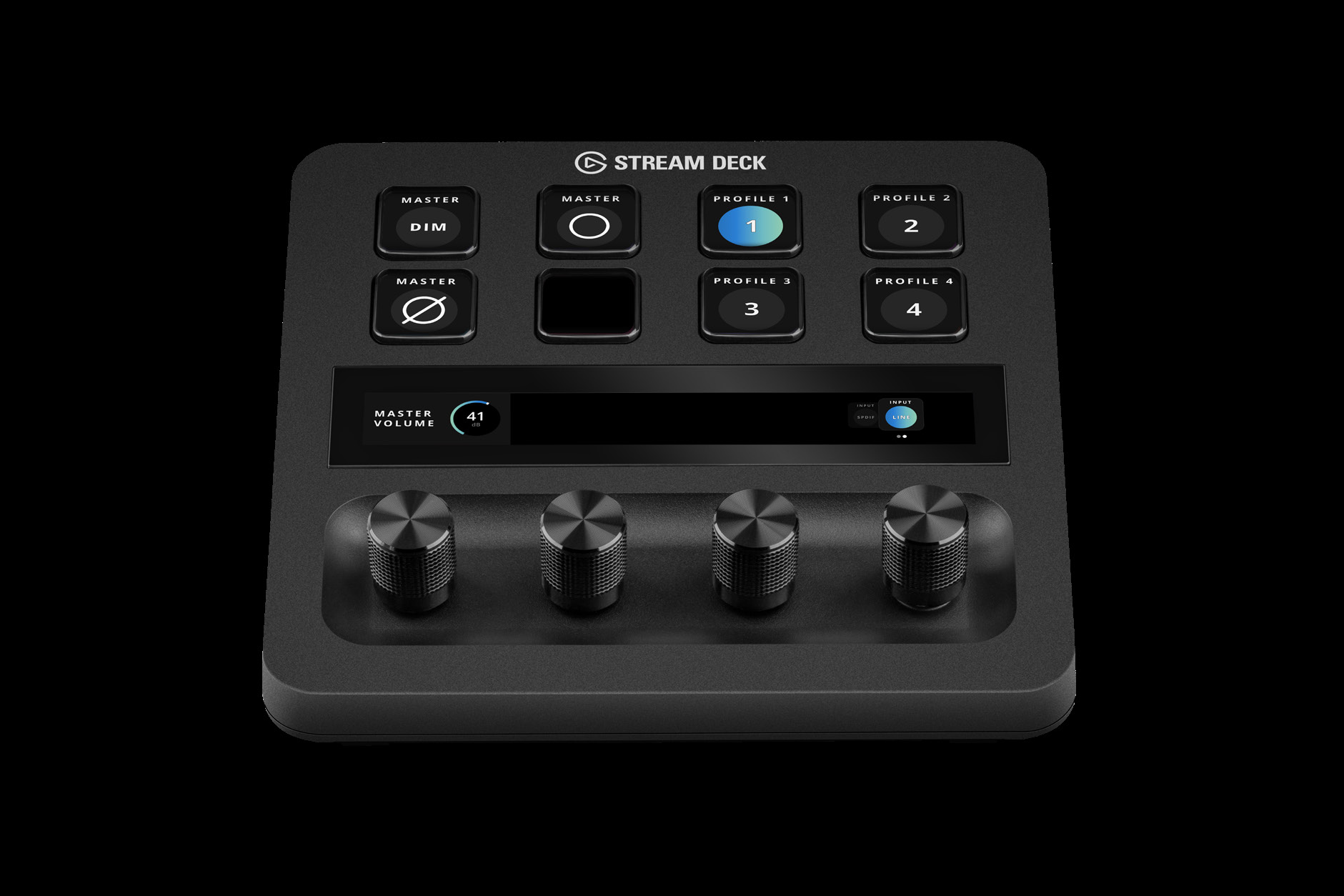
ORIA Control Stream Deck 插件可通过 Stream Deck 系列设备远程访问 ORIA Mini 的监听功能。

安装 Stream Deck 插件
ORIA Control Desktop Software 1.3 或更高版本包含 Stream Deck 插件。
要随 ORIA Control 安装:
- 安装并打开 Elgato Stream Deck 软件。
- 运行 ORIA Control 安装程序。
- 接受安装 ORIA Control Stream Deck 插件的提示。
也可以从 Elgato Marketplace 安装插件:
当前 Stream Deck 软件要求请参阅 Elgato Marketplace 页面。
Stream Deck Profiles
以下设备提供预配置的 ORIA Mini Profiles:
- Stream Deck MKII
- Stream Deck +
- Stream Deck XL
- Stream Deck Mini
- Stream Deck Neo
- Stream Deck Mobile
安装插件时,只会自动安装当前已选择且处于焦点状态的 Stream Deck 设备对应的 Profile。
其他设备的 Profiles 可以从 Elgato Marketplace 下载:
ORIA Mini Stream Deck Profiles
也可以使用 ORIA Control 插件提供的操作 创建自定义 Stream Deck Profile。
可用 Stream Deck 操作
| Action | 功能 |
|---|---|
| Volume | 调整 ORIA Mini 输出电平 |
| Mute | 静音或取消静音所选输出 |
| Dim | 按照 ORIA Control 中配置的幅度降低所选输出 |
| Mono | 将左、右输出合并为单声道 |
| Polarity | 反转左声道极性并将输出合并为单声道 |
| Input Source | 选择 Line 或 S/PDIF 输入 |
| Profile | 选择四个 Favourite Profiles 中的一个 |
| Speaker | 静音或 Solo 左、右或 Subwoofer 输出 |
| Group | 静音或 Solo Stereo 或 Subs Speaker Group |
Volume
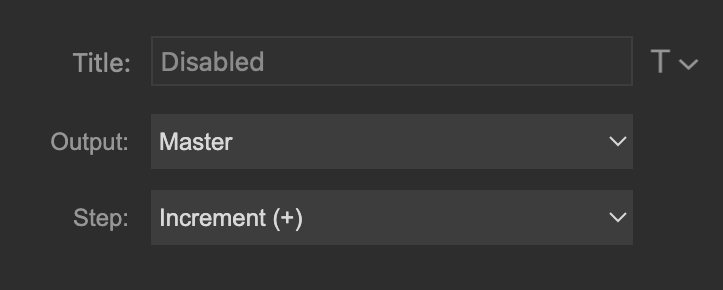
Volume 操作 可以分配给 Stream Deck 按钮或 Stream Deck + 旋钮。
旋转旋钮调整输出电平。按下旋钮可静音或取消静音 ORIA Mini 输出。
Mute and Dim
使用 Mute 和 Dim 操作 控制所选输出。

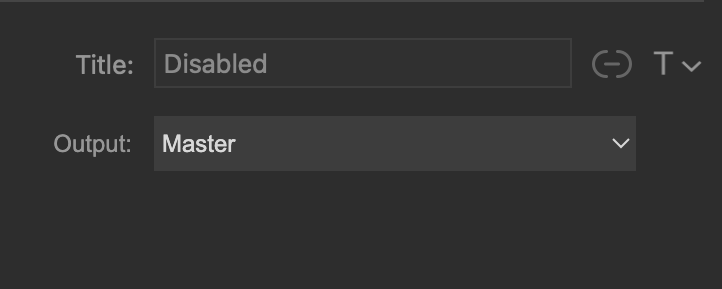
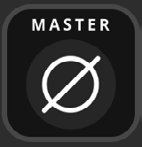
Mono and Polarity
Mono 会将左、右输出合并。Polarity 会反转左声道并将结果合并为单声道。

Input source
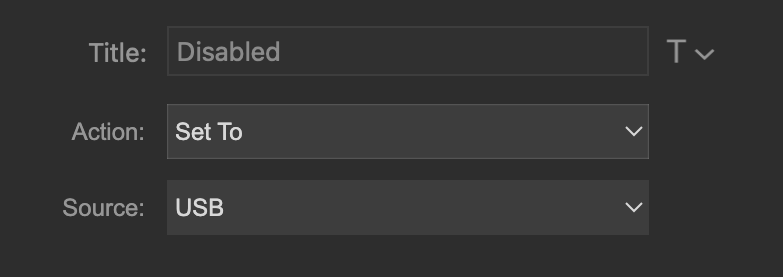
Input Source 操作 可以配置为:
- 向前或向后逐项切换可用输入,或
- 选择指定输入
可用音源为:
- Line
- S/PDIF

Profile
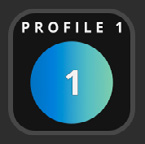
Stream Deck 插件只能访问四个 Favourite Profiles。
将所需 Favourite Profile 分配给按钮。该 Profile 启用时,按钮会显示蓝色渐变。
要更改哪些 Profiles 分配为 Favourites,请参阅 Profiles。

Speaker and group
Speaker 操作 可以静音或 Solo 左、右或 Subwoofer 输出。Group 操作 可以静音或 Solo Stereo 或 Subs Speaker Group。


