Remote control and integrations
ORIA Mini can be controlled remotely using:
- The ORIA Remote iPad app
- The ORIA Control Elgato Stream Deck plug-in
The ORIA Control Desktop Software must be running on the computer connected to ORIA Mini.
ORIA Remote iPad app
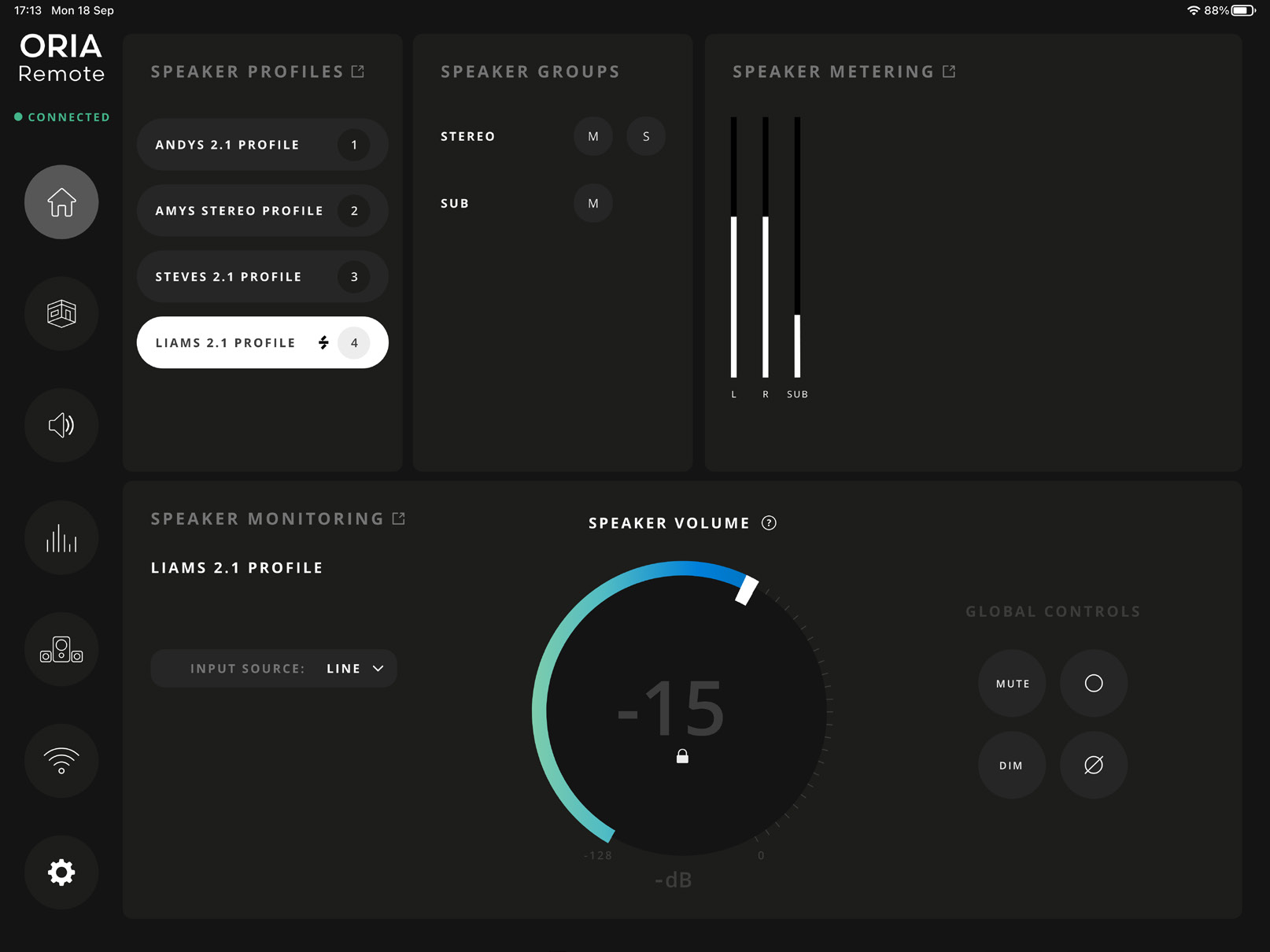
ORIA Remote provides touch control of ORIA Mini’s Profiles, monitoring functions, speaker outputs and metering.
Download ORIA Remote from the Apple App Store:
Refer to the App Store listing for the current iPadOS requirements.
Connecting an iPad
Before connecting:
- Connect ORIA Mini to the computer through USB.
- Open the ORIA Control Desktop Software.
- Connect the iPad and computer to the same local network.
The computer can connect to the network through Wi-Fi or Ethernet.
To connect the app:
-
Open ORIA Remote on the iPad.
-
Follow the introductory guide.
-
Enter a name for the iPad.
This name identifies the device in the ORIA Control Desktop Software.
-
Allow ORIA Remote to find and connect to devices on the local network.
-
Select the computer connected to ORIA Mini.
-
Accept the connection request in the ORIA Control Desktop Software.
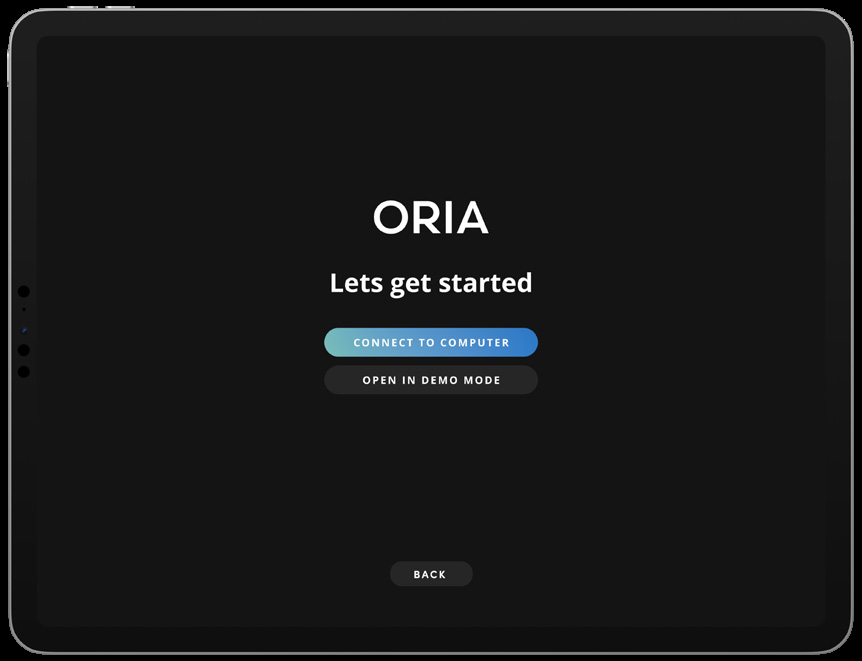
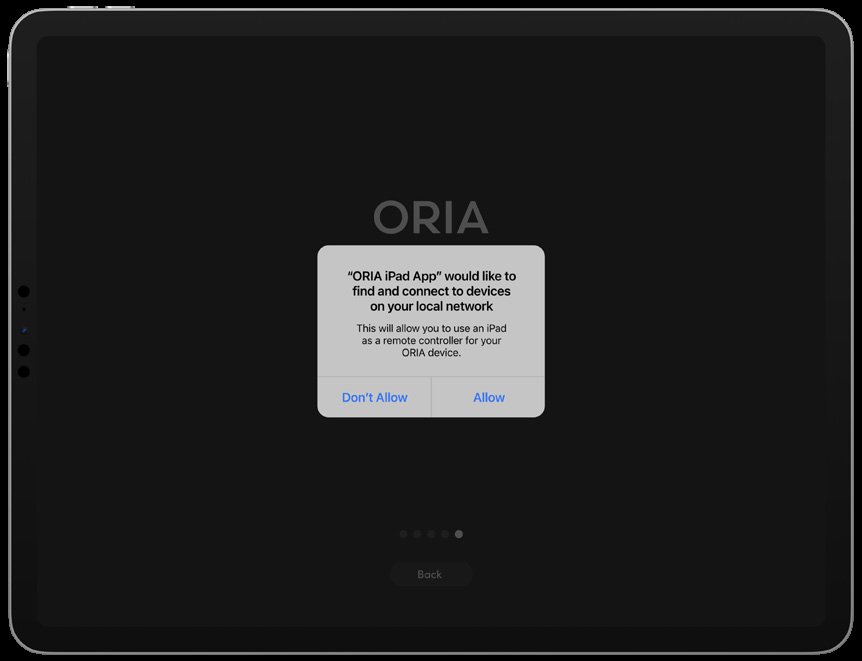
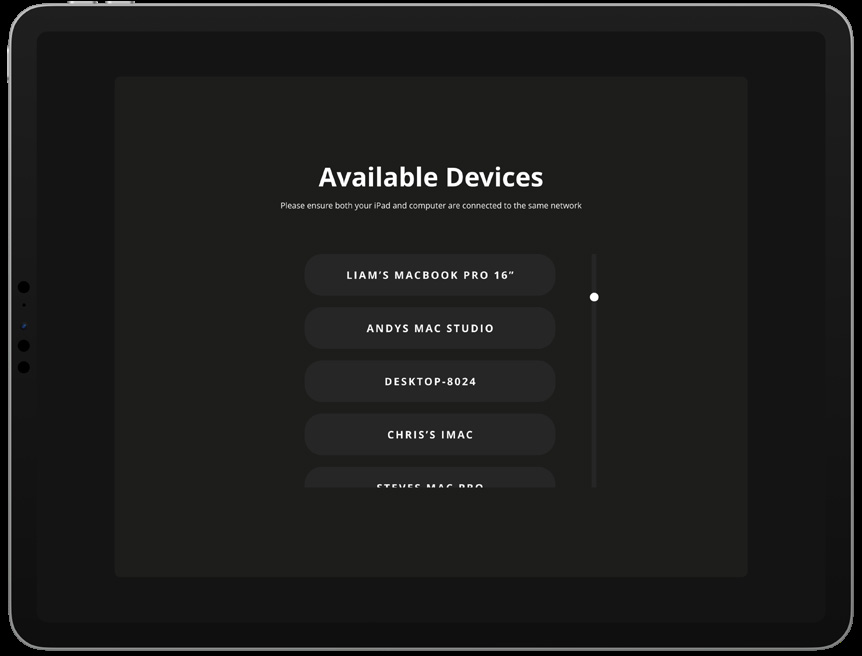
A Successfully Connected message appears in ORIA Remote when the connection has been approved.
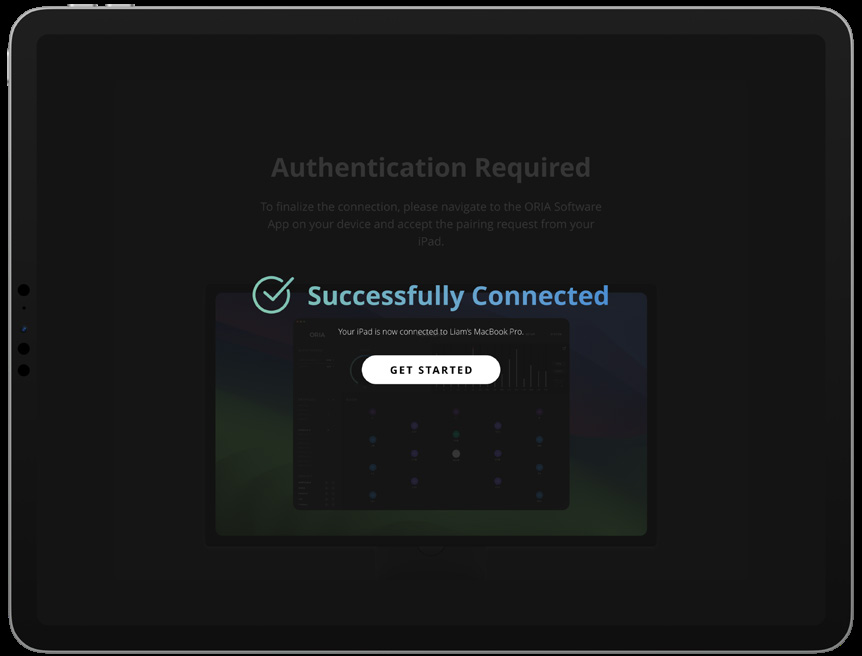
Remote devices can be approved, blocked or removed from the Remotes page. See System Settings.
ORIA Remote pages
Use the sidebar in ORIA Remote to move between its pages.
Home
The Home page provides access to the main ORIA Mini controls:
- Profile selection
- Speaker Group controls
- Output metering
- Input source selection
- Main Volume
- Mute
- Dim
- Mono
- Polarity
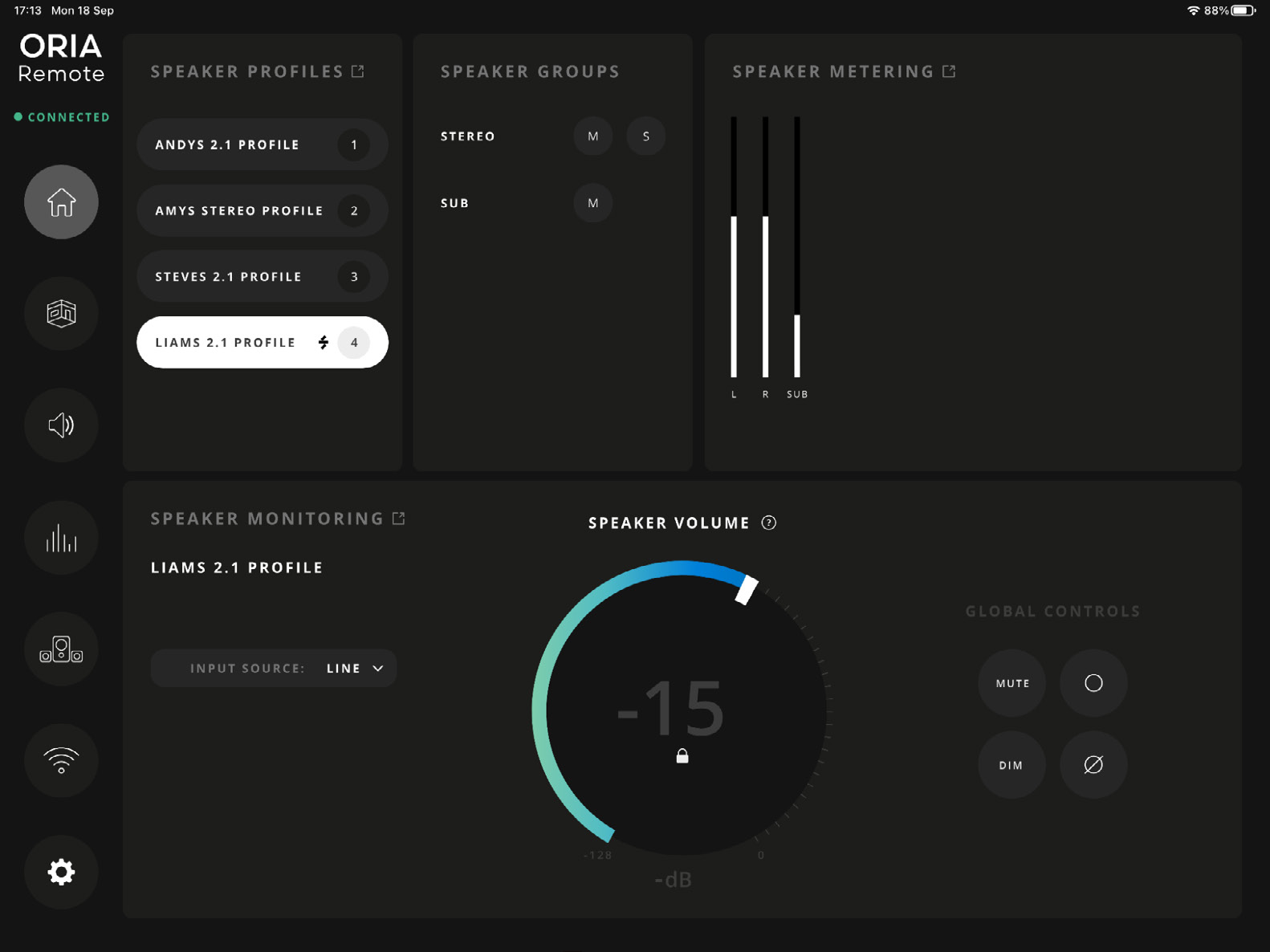
Profile selection
Select a Profile to make it active on ORIA Mini.
The dedicated Profile Selection page displays the four Favourite Profiles and any additional Profiles stored on the unit.
Main volume
Use Main Volume to adjust the overall speaker output level.
The volume control is locked by default to prevent accidental adjustment.
Tap the control to unlock it and adjust the level.
When Volume Control Autolock is enabled, tapping elsewhere in the app locks the control again.
Speaker groups
Use the Speaker Group controls to:
- Mute the Stereo group
- Solo the Stereo group
- Mute the Sub group
Output metering
The Home page displays the current ORIA Mini output levels.
Select the expand icon beside the meters to open a larger, higher-resolution meter view.
Room page
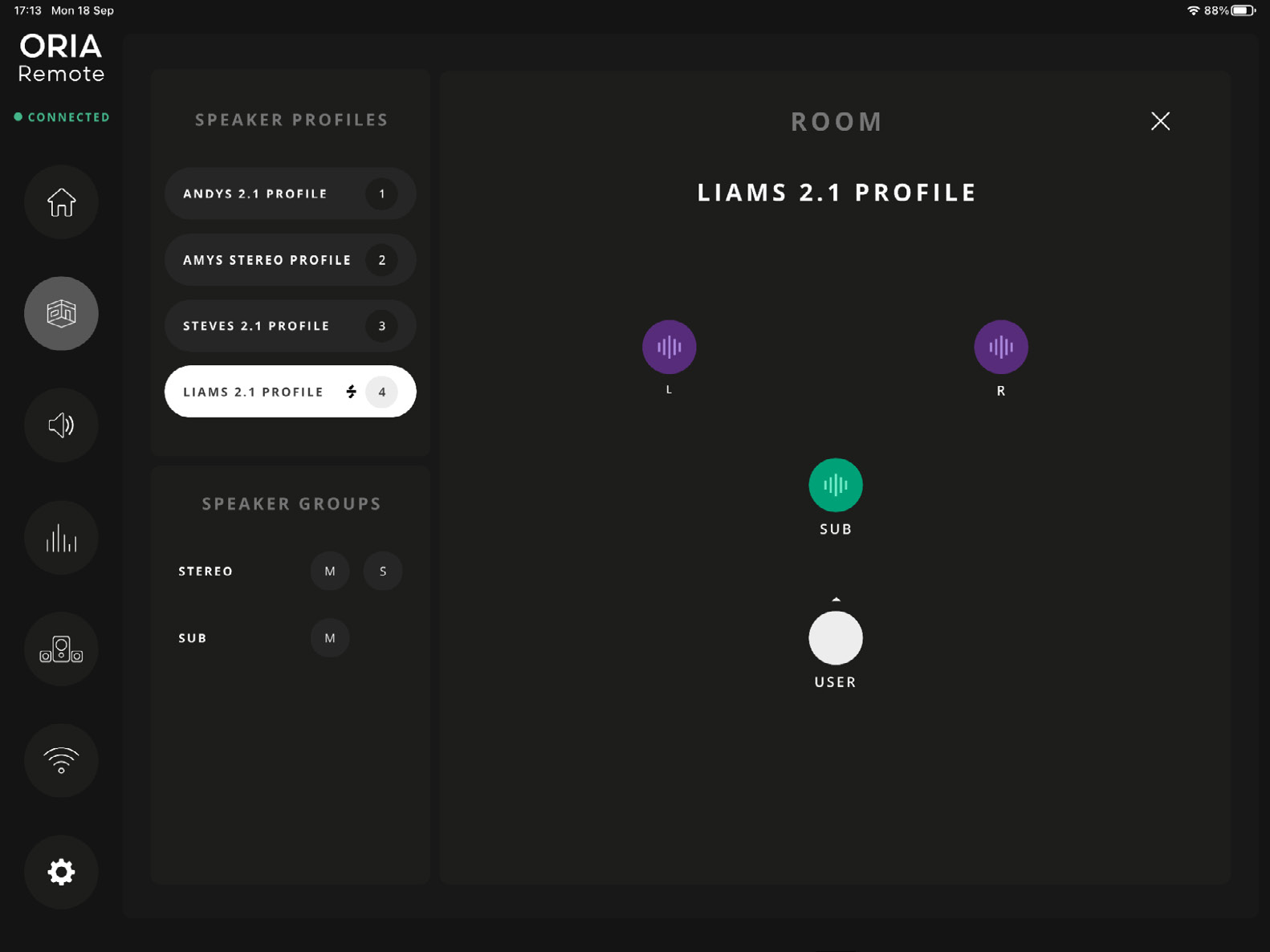
The Room page provides a visual representation of the left, right and Subwoofer outputs.
To control an individual speaker:
- Tap a speaker to mute or unmute it.
- Long-press a speaker to solo it.
- Tap a soloed speaker to remove its Solo state.
When speakers are muted or soloed, select Clear All Mute or Clear All Solo to clear the active states.
The Room page also provides access to Profile selection and Speaker Group controls.
Monitoring page
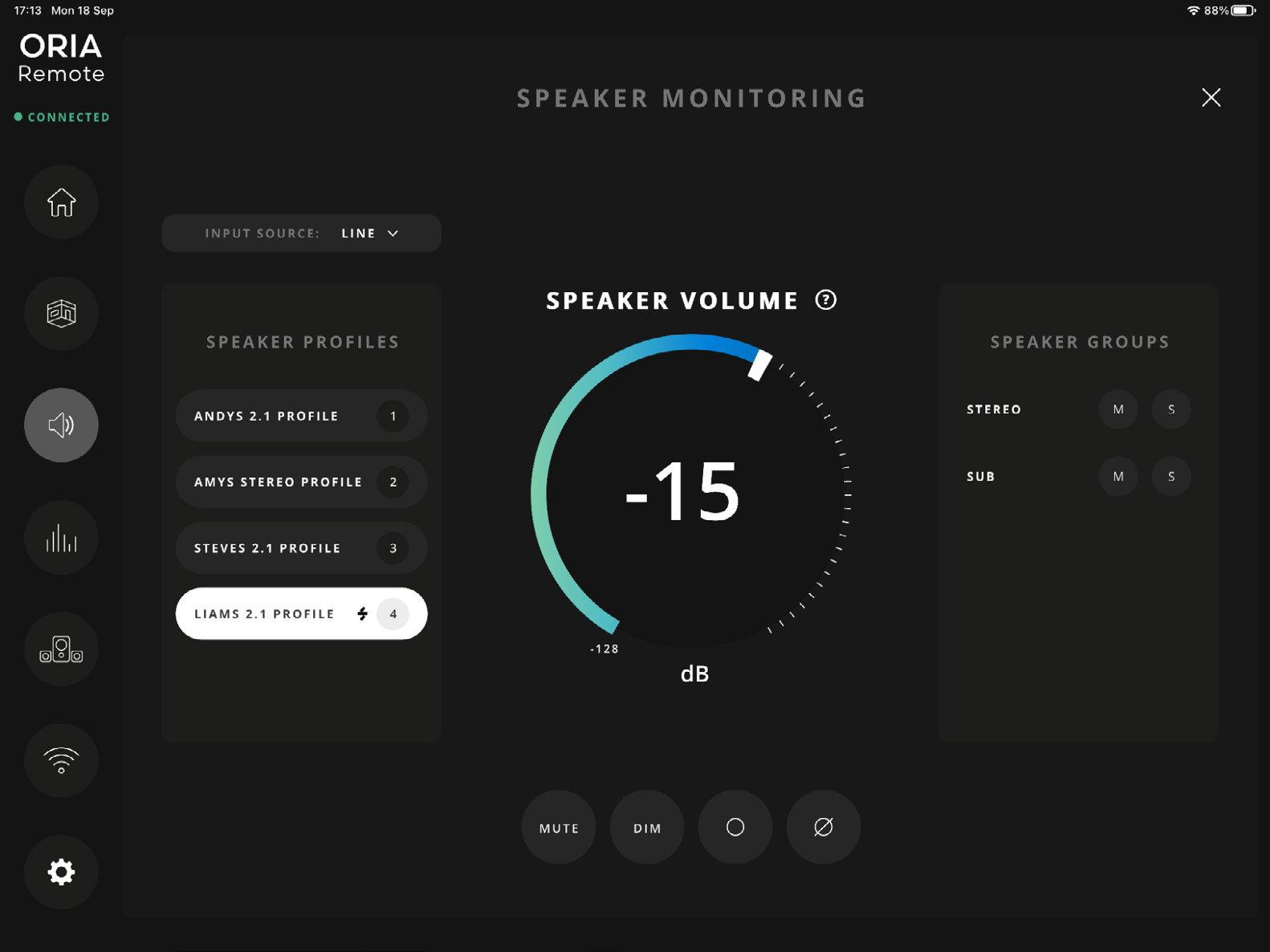
The Monitoring page provides an expanded version of the monitoring controls shown on the Home page.
Use it to control:
- Input source
- Main Volume
- Mute
- Dim
- Mono
- Polarity
- Speaker Groups
For more information about these functions, see Monitoring Controls.
Metering page
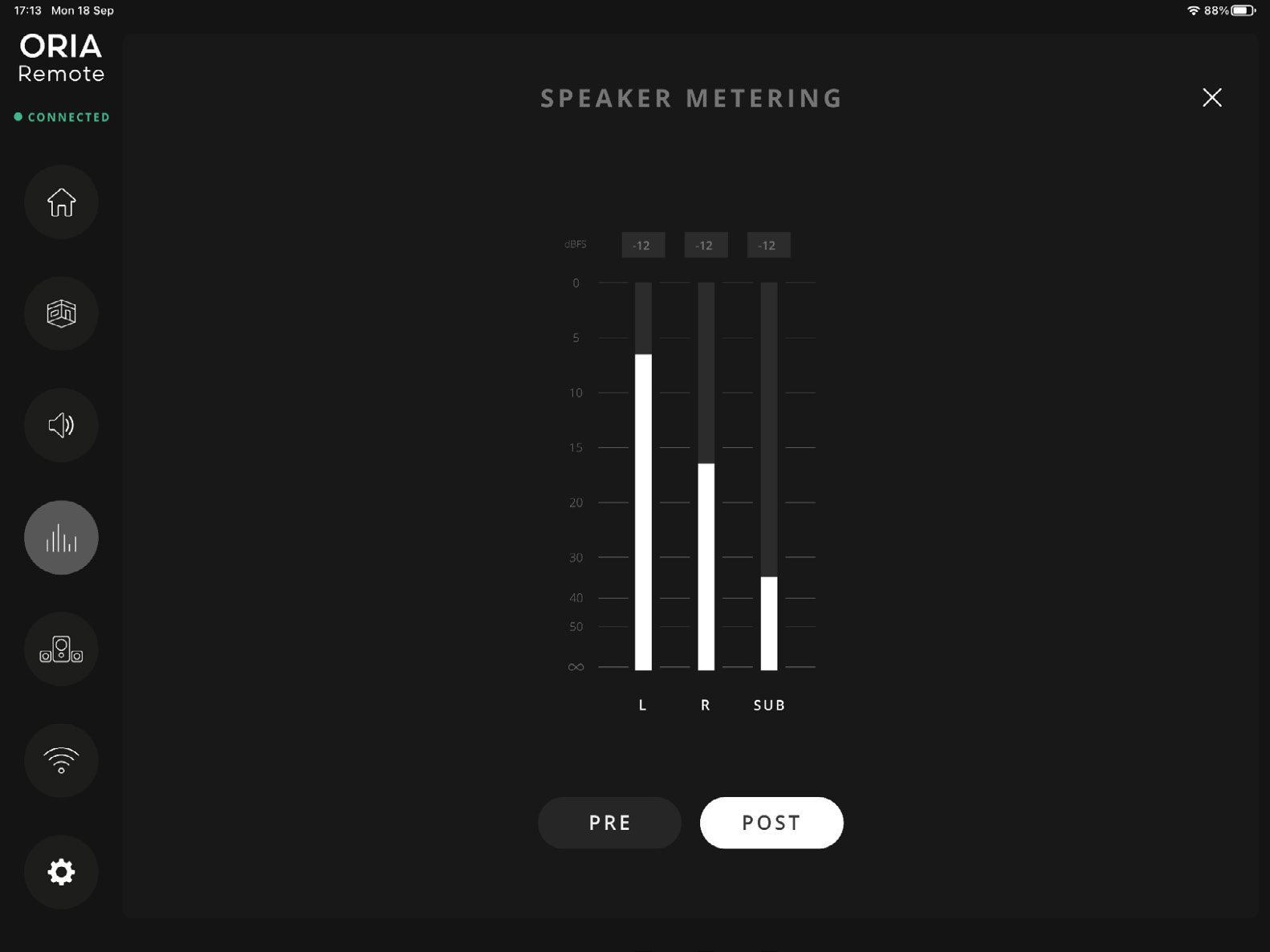
The Metering page provides a high-resolution view of the ORIA Mini output meters.
Select:
- PRE to view signals entering ORIA Mini from the selected input source.
- POST to view signals leaving ORIA Mini after speaker-calibration processing.
POST metering also takes the Main Volume control into account.
PRE is selected by default.
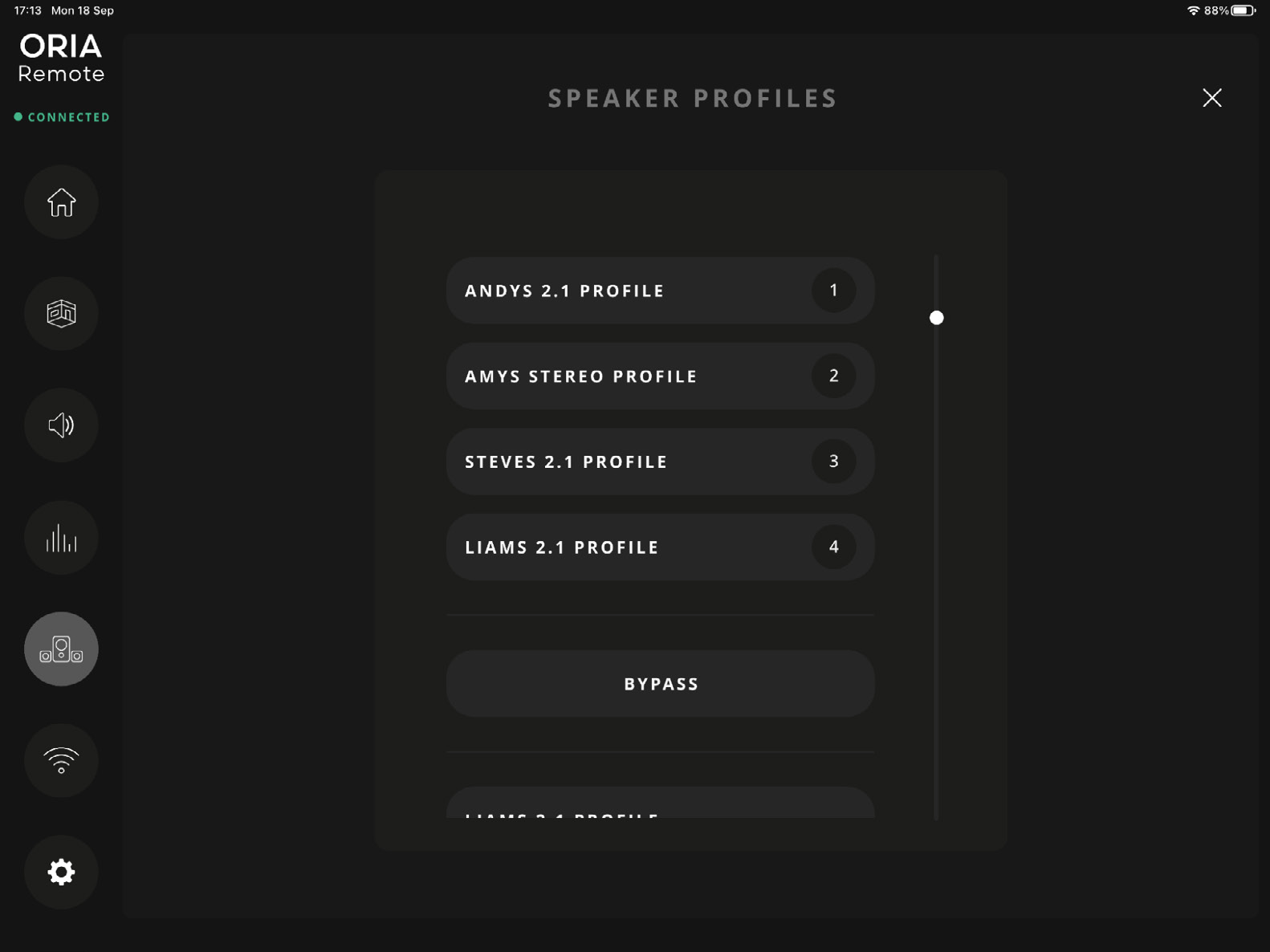
Profile selection page
The Profile Selection page provides an expanded list of the Profiles stored on ORIA Mini.
Select a Profile to make it active.
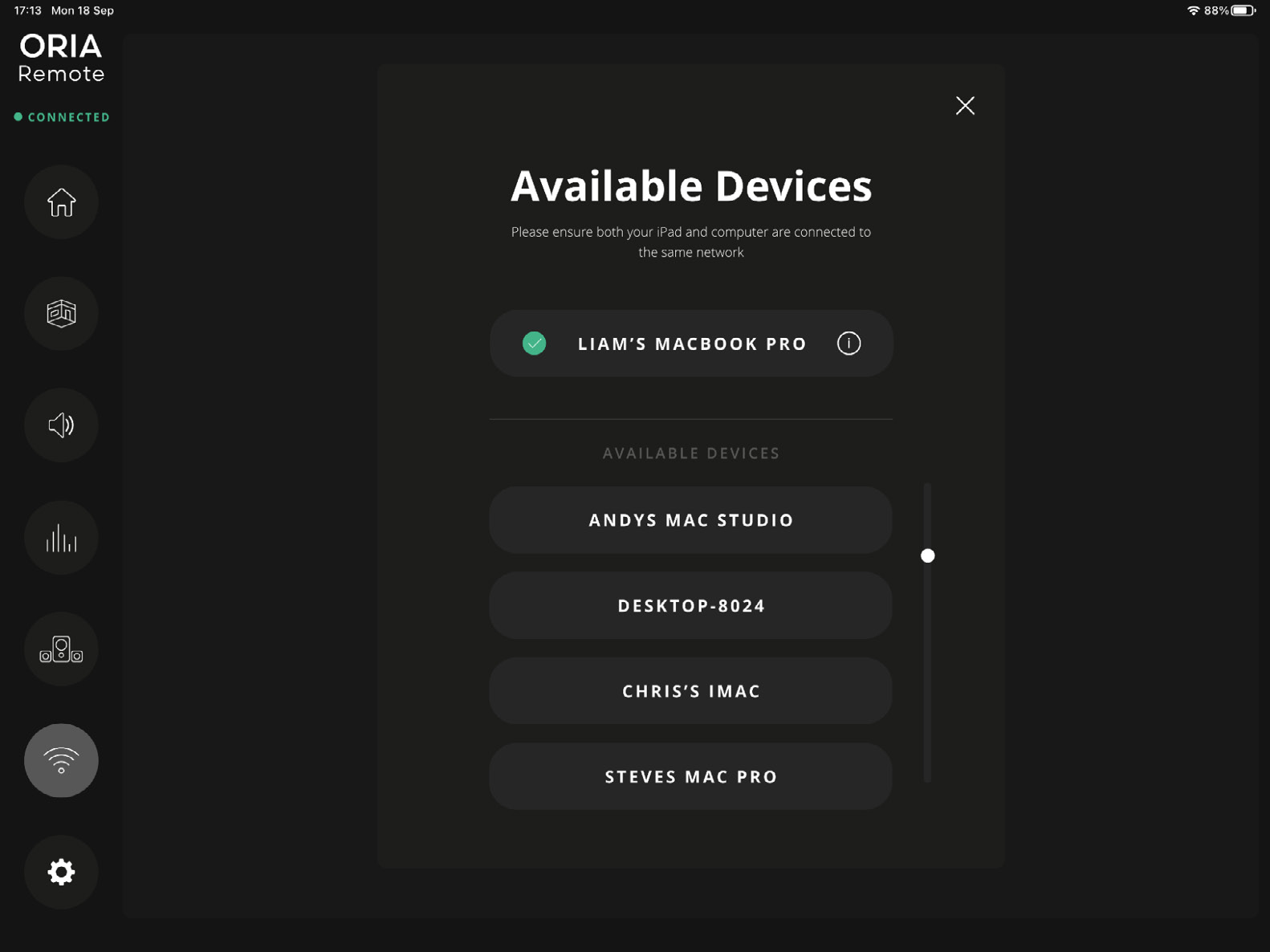
Connection page
Use the Connection page to:
- Reconnect ORIA Remote to ORIA Mini
- Change the currently connected ORIA Mini device
App settings
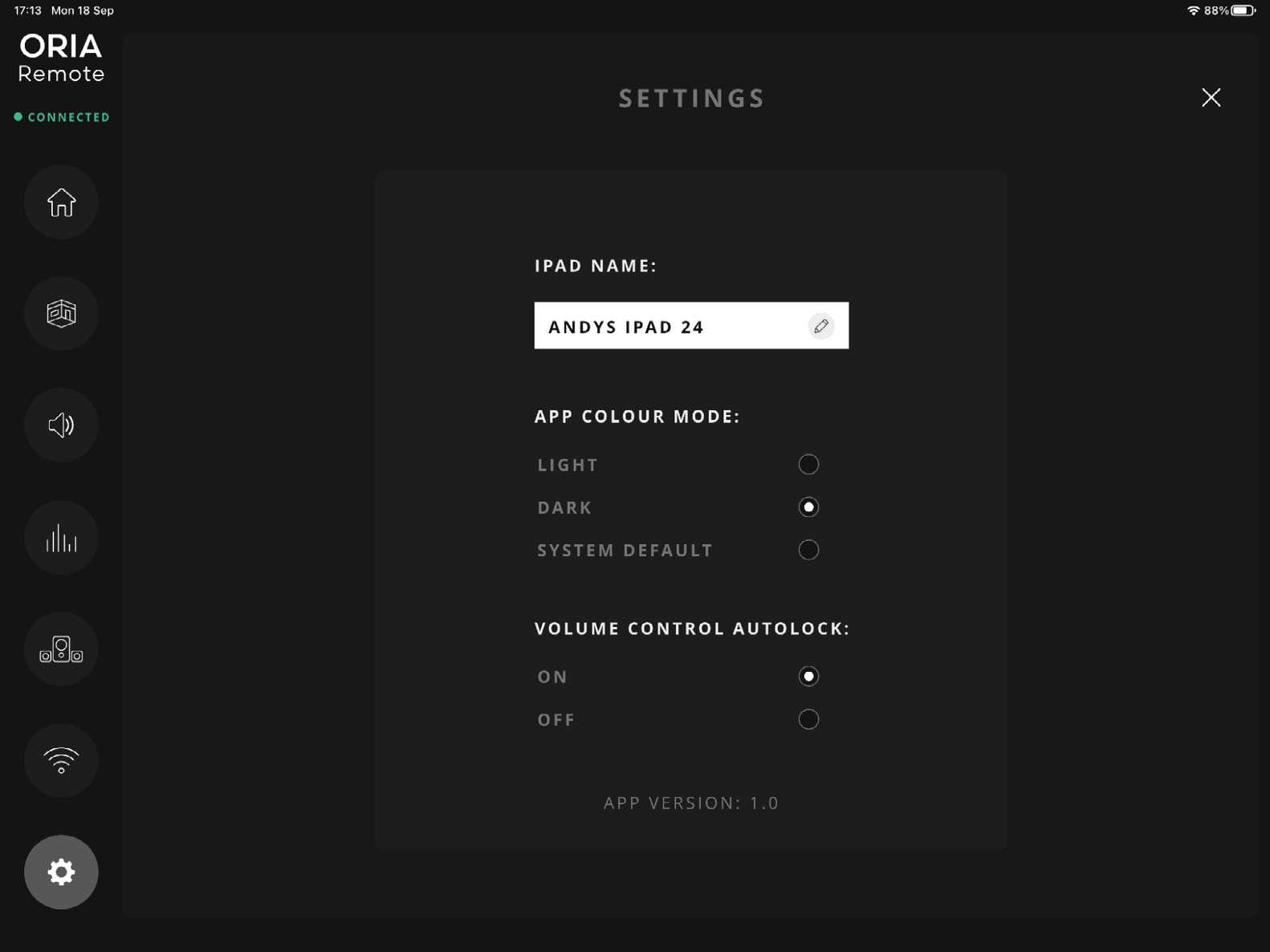
iPad name
Use iPad Name to change the name shown in the ORIA Control Desktop Software.
App colour mode
Select:
- Dark
- Light
- System Default
System Default follows the global appearance setting of the iPad.
Volume control autolock
When Autolock is enabled, tapping outside the Main Volume control automatically locks it after adjustment.
When Autolock is disabled, the control remains unlocked until it is tapped again.
Elgato Stream Deck
The ORIA Control Stream Deck plug-in provides remote access to ORIA Mini’s monitoring functions from devices in the Stream Deck family.
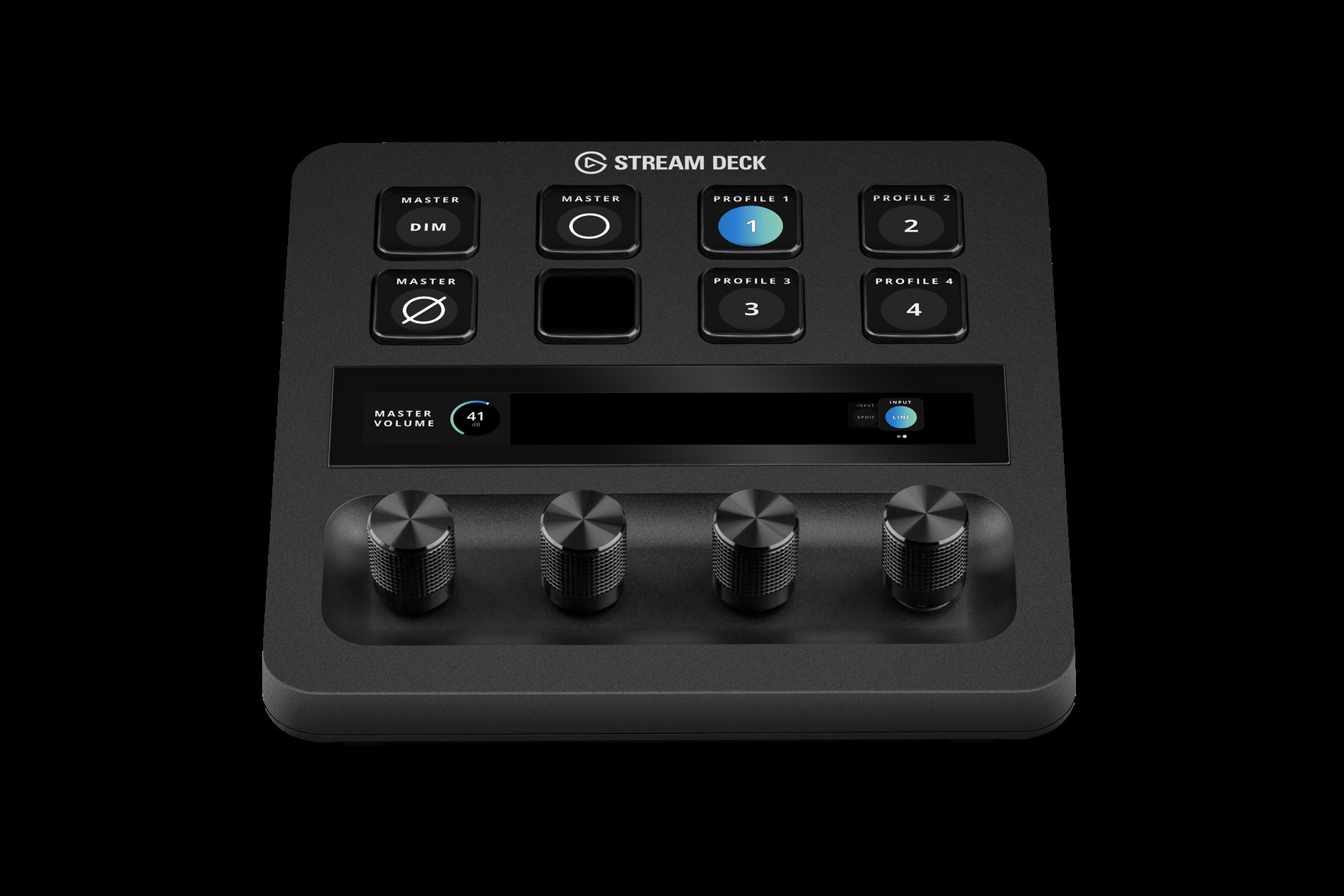

Installing the Stream Deck Plug-in
ORIA Control Desktop Software version 1.3 or later includes the Stream Deck plug-in.
To install it with ORIA Control:
- Install and open the Elgato Stream Deck software.
- Run the ORIA Control installer.
- Accept the prompt to install the ORIA Control Stream Deck plug-in.
The plug-in can also be installed from the Elgato Marketplace:
ORIA Control Stream Deck Plug-in
Refer to the Elgato Marketplace listing for the current Stream Deck software requirements.
Stream Deck profiles
Preconfigured ORIA Mini Profiles are available for:
- Stream Deck MKII
- Stream Deck +
- Stream Deck XL
- Stream Deck Mini
- Stream Deck Neo
- Stream Deck Mobile
When the plug-in is installed, only the Profile for the Stream Deck device currently selected and in focus is installed automatically.
Profiles for additional devices can be downloaded from the Elgato Marketplace:
ORIA Mini Stream Deck Profiles
You can also create a custom Stream Deck Profile using the actions provided by the ORIA Control plug-in.
Available Stream Deck actions
| Action | Function |
|---|---|
| Volume | Adjusts the ORIA Mini output level |
| Mute | Mutes or unmutes the selected output |
| Dim | Reduces the selected output by the amount configured in ORIA Control |
| Mono | Sums the left and right outputs to mono |
| Polarity | Reverses the polarity of the left channel and sums the output to mono |
| Input Source | Selects the Line or S/PDIF input |
| Profile | Selects one of the four Favourite Profiles |
| Speaker | Mutes or solos the left, right or Subwoofer output |
| Group | Mutes or solos the Stereo or Subs Speaker Group |
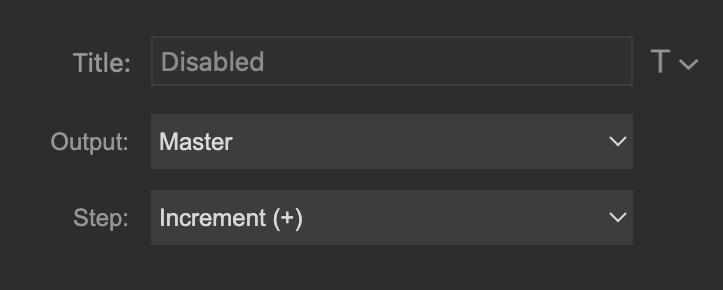
Volume
The Volume action can be assigned to Stream Deck buttons or to a Stream Deck + dial.
Rotate the dial to adjust the output level. Press the dial to mute or unmute the ORIA Mini outputs.
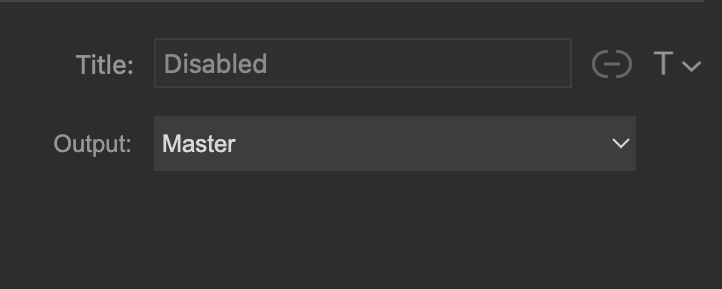
Mute and Dim
Use the Mute and Dim actions to control the selected output.

Mono and Polarity
Mono sums the left and right outputs. Polarity reverses the left channel and sums the result to mono.

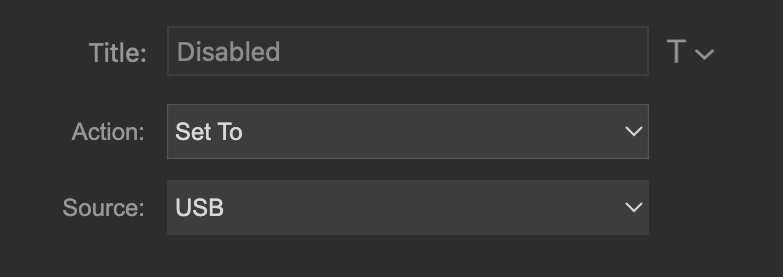
Input source
The Input Source action can be configured to:
- Step forwards or backwards through the available inputs, or
- Select a specific input
The available sources are:
- Line
- S/PDIF

Profile
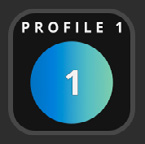
Only the four Favourite Profiles are available through the Stream Deck plug-in.
Assign the required Favourite Profile to a button. The button displays a blue gradient while that Profile is active.
To change which Profiles are assigned as Favourites, see Profiles.

Speaker and group
Speaker actions can mute or solo the left, right or Subwoofer output. Group actions can mute or solo the Stereo or Subs Speaker Group.


