Profiles
Profiles store the EQ, Trim, Delay and crossover settings for all ORIA Mini speaker channels.
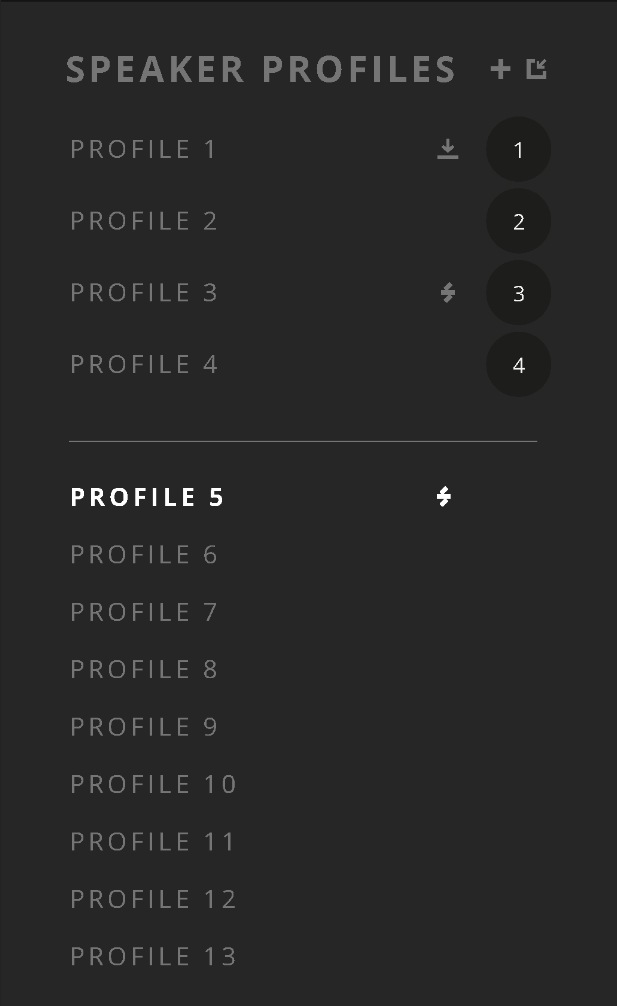
ORIA Mini can store up to 32 Profiles. Four can be assigned as Favourite Profiles and selected using the front-panel Profile button.
Creating a profile
- Select the + button in the Profiles panel.
- Enter a name for the Profile.
- Select Save Profile.
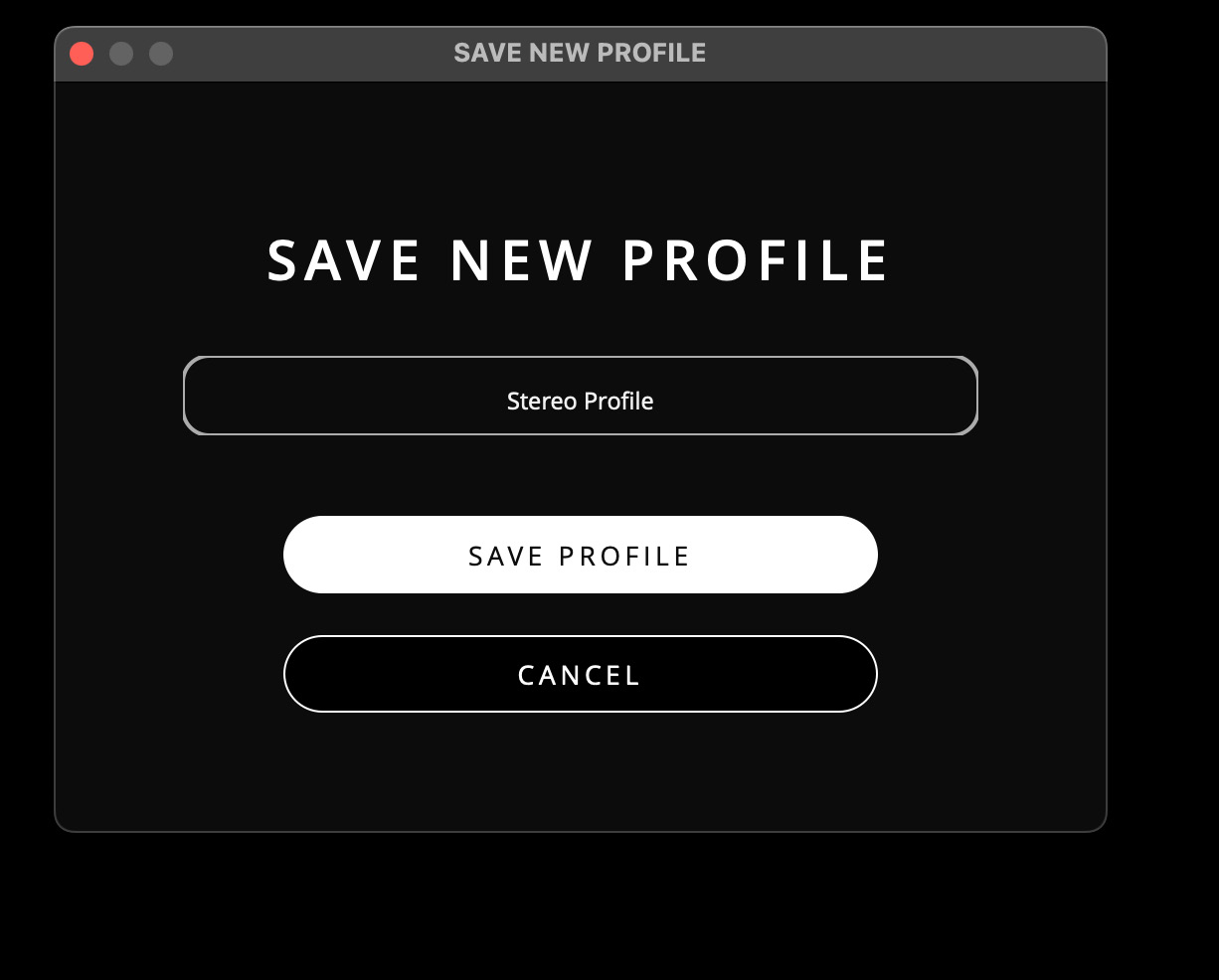
The new Profile appears in the Profiles panel.
Selecting a profile
Select a Profile in the list to make it active.
The active Profile is shown in white text. Inactive Profiles are shown in grey.
The four Favourite Profiles can also be selected by tapping the ORIA Mini front-panel Profile button.
Duplicating a profile
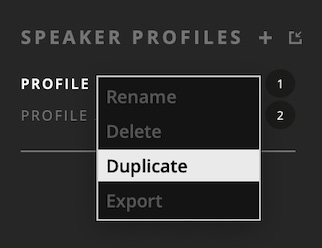
- Right-click the Profile name.
- Select Duplicate.
A copy appears below the original Profile.
Renaming a profile
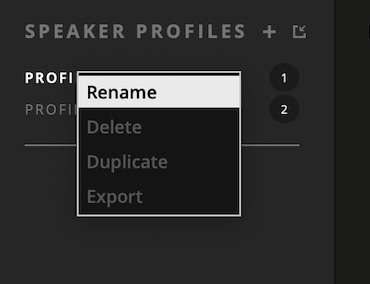
- Right-click the Profile name.
- Select Rename.
- Enter the new name.
- Press Enter.
Deleting a profile
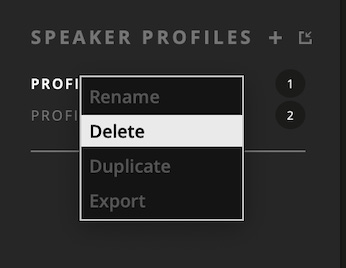
- Right-click the Profile name.
- Select Delete.
- Confirm the deletion.
Organising profiles
The Profiles list contains two sections:
- Favourite Profiles - the four numbered positions above the dividing line
- Non-Favourite Profiles - the remaining Profiles below the dividing line
Drag a Profile to change its position.
When moving Profiles:
- Favourite to Favourite: the two Profiles swap positions.
- Favourite to Non-Favourite: the Favourite moves to the selected Non-Favourite position. The first Non-Favourite moves into the vacant Favourite position.
- Non-Favourite to Non-Favourite: the Profile moves to the selected position and the remaining Profiles reorder around it.
- Non-Favourite to Favourite: the Non-Favourite replaces the selected Favourite. The replaced Favourite moves to the top of the Non-Favourite list.
Saving profile changes
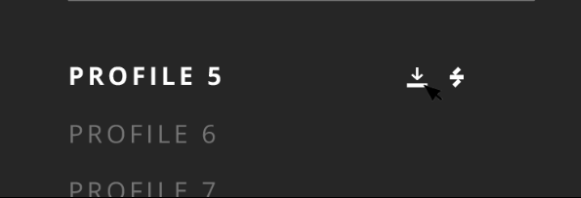
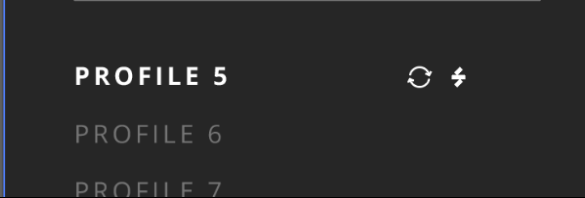
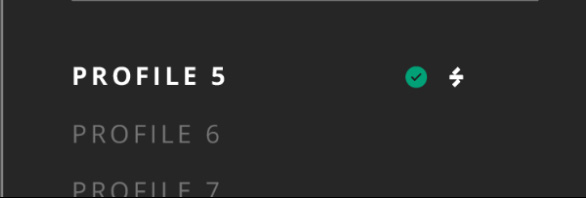
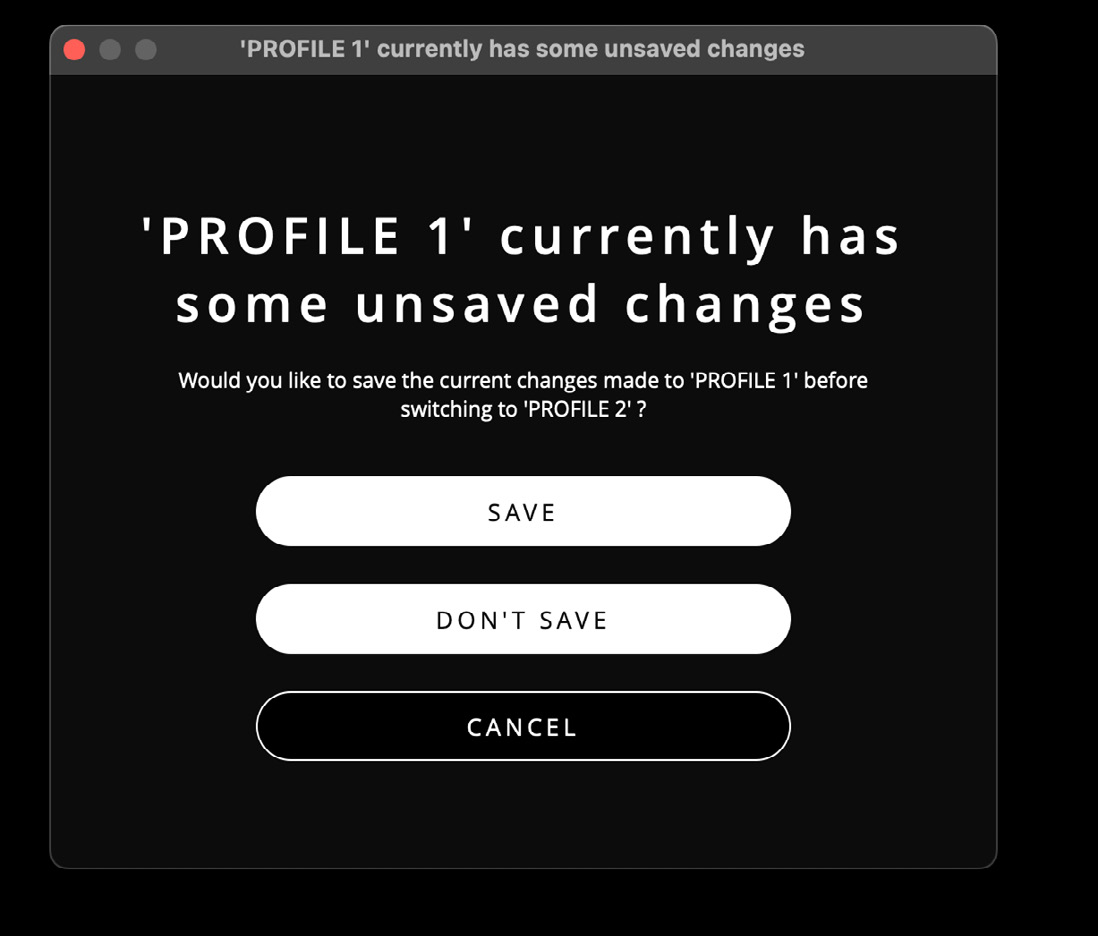
When the active Profile contains unsaved changes, a save icon appears beside its name.

Select the icon to save the Profile. A green tick appears when saving is complete.

When you select another Profile or close ORIA Control with unsaved changes, choose whether to:
- Save the current Profile
- Create a new Profile
- Discard the changes
Exporting a custom profile
To export the active manual Profile:
- Select File > Export Custom Profile.
- Enter a filename and choose a location.
- Select Save.
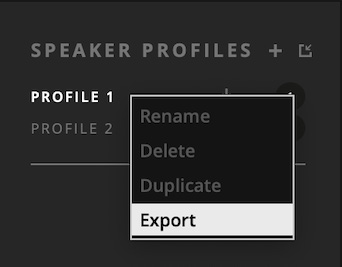
You can also right-click a Profile and select Export.
Importing a custom profile
- Select File > Import Custom Profile.
- Select the saved Profile file.
- Select Open.
- Rename the Profile if required.
- Choose either:
- Create New Profile, or
- Overwrite Existing Profile
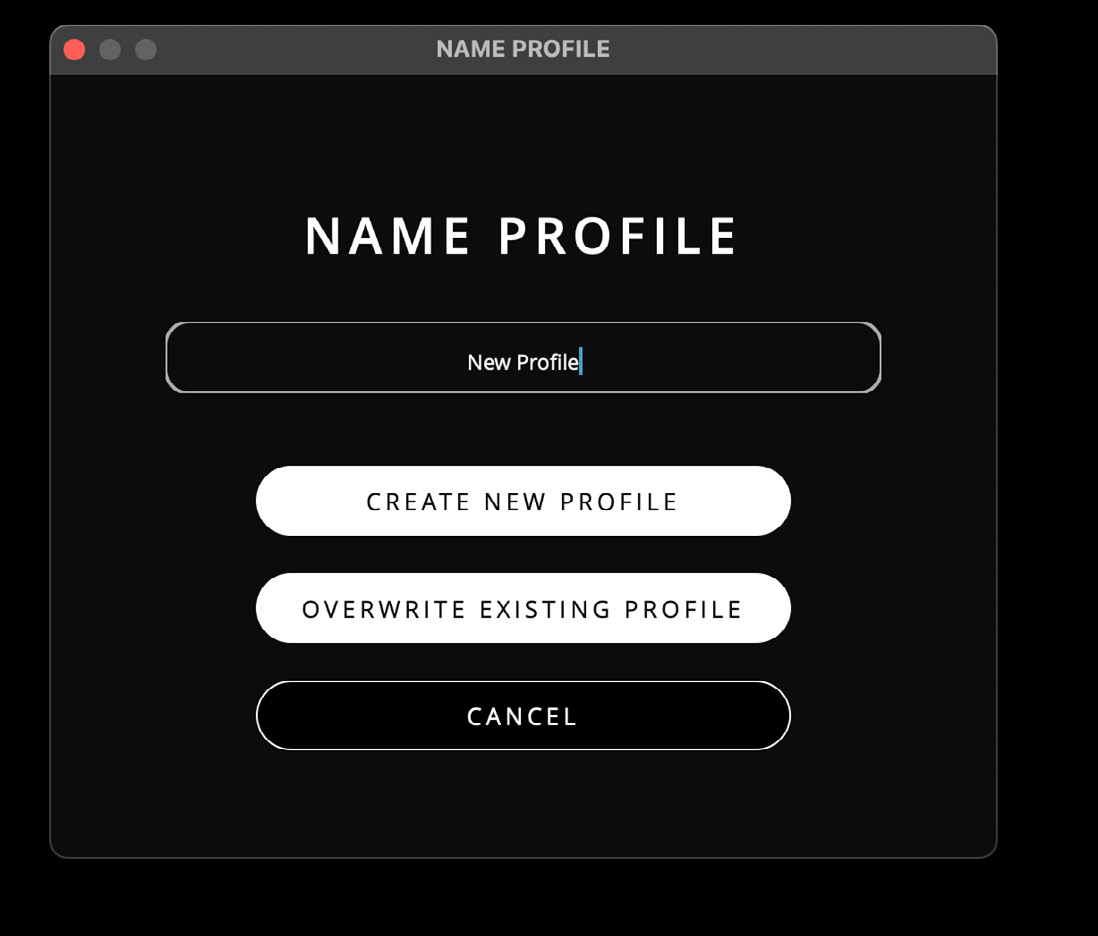
If all 32 Profile positions are occupied, Create New Profile is unavailable. Overwrite an existing Profile or cancel the import.
When overwriting:
- Select the Profile to replace.
- Select OK.
- Confirm the overwrite.
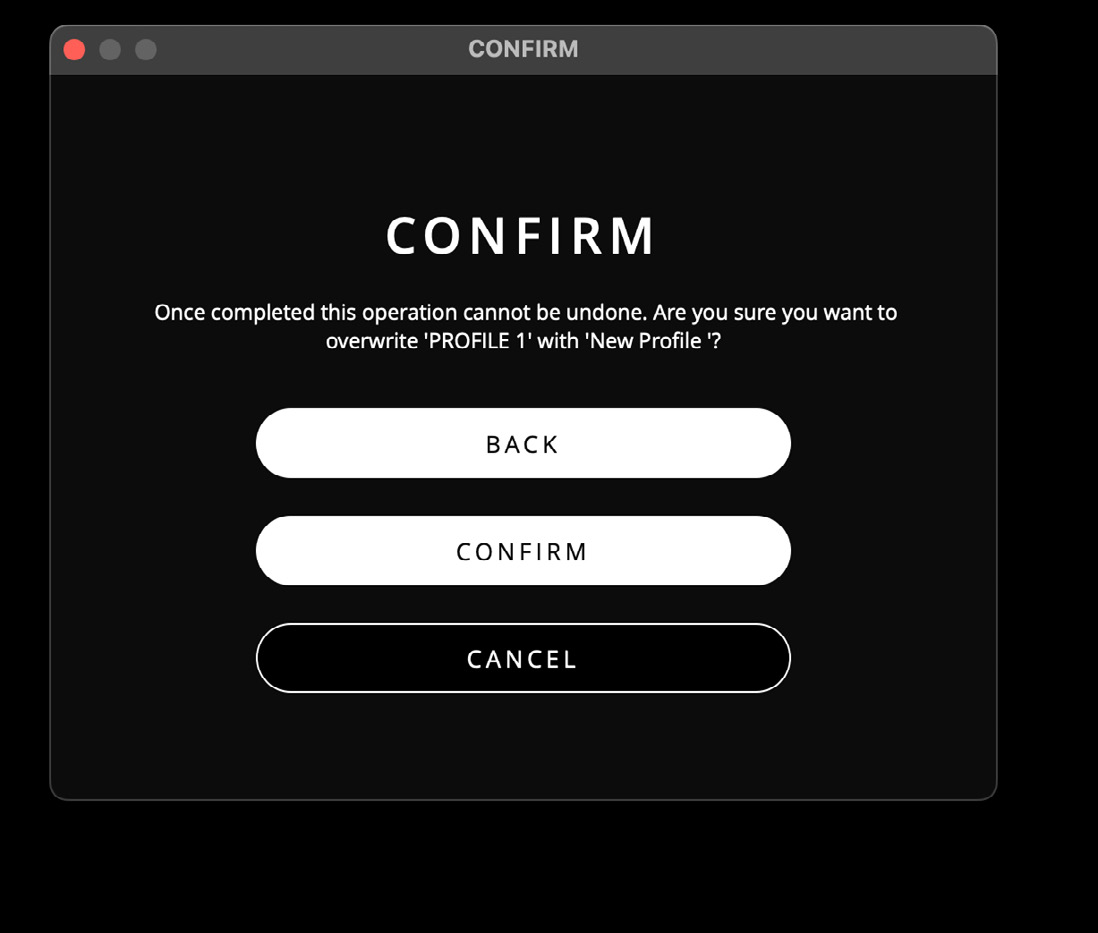
Overwriting a Profile cannot be undone.
SoundID Reference Profile importing is covered separately in SoundID Reference.