Speaker setup and calibration
Use the Setup controls in ORIA Control to adjust the calibration of each ORIA Mini speaker output.
Opening speaker setup
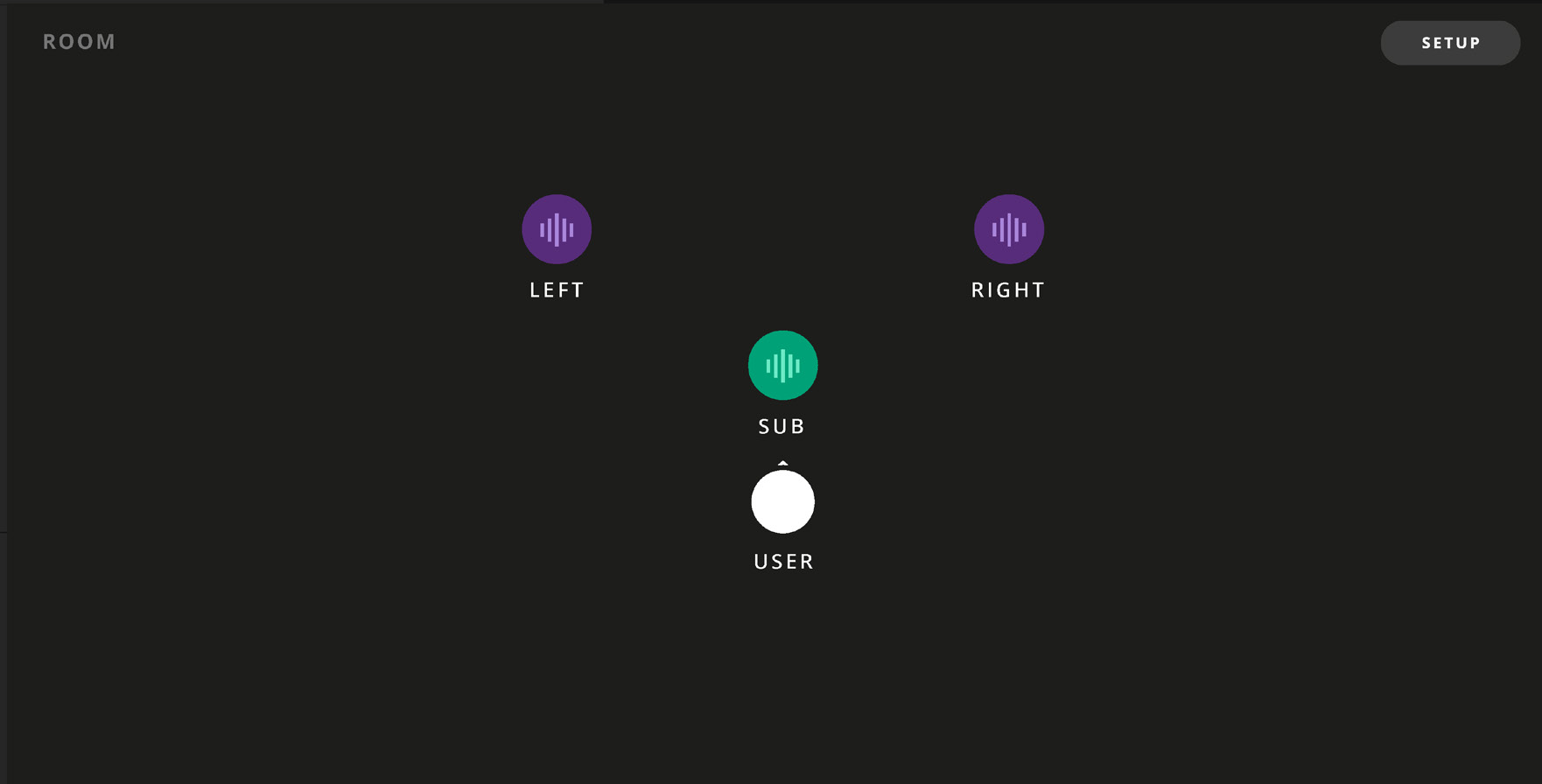
- Select a speaker in the Room view.
- Select Setup.
A highlight appears around the selected speaker to show which output is being edited.
The Speaker Setup panel displays the name of the selected channel.

Speaker mute and solo
While editing a speaker, you can:
- Select Mute to mute the selected output.
- Select Solo to listen only to the selected output.
Keyboard shortcuts are also available while Setup mode is open:
- Press M to mute the selected speaker.
- Press S to solo the selected speaker.
Copying speaker settings
Select Copy to copy the current speaker settings.
Select another speaker and then select Paste to apply the copied settings.
Copied settings can also be pasted to a Speaker Group by right-clicking the group and selecting Paste.
Only EQ and crossover settings are pasted to a Speaker Group.
Trim and Delay must be configured individually for each speaker to maintain the correct level and time alignment.
Resetting a speaker
Select Reset to return the selected speaker settings to their default values.
A confirmation message appears before the settings are reset.
EQ
By default, a manual Profile provides eight EQ bands for each speaker channel:
- Six parametric bands
- One low-shelf band
- One high-shelf band
The parametric bands provide up to +/-12 dB of adjustment across 20 Hz to 20 kHz.
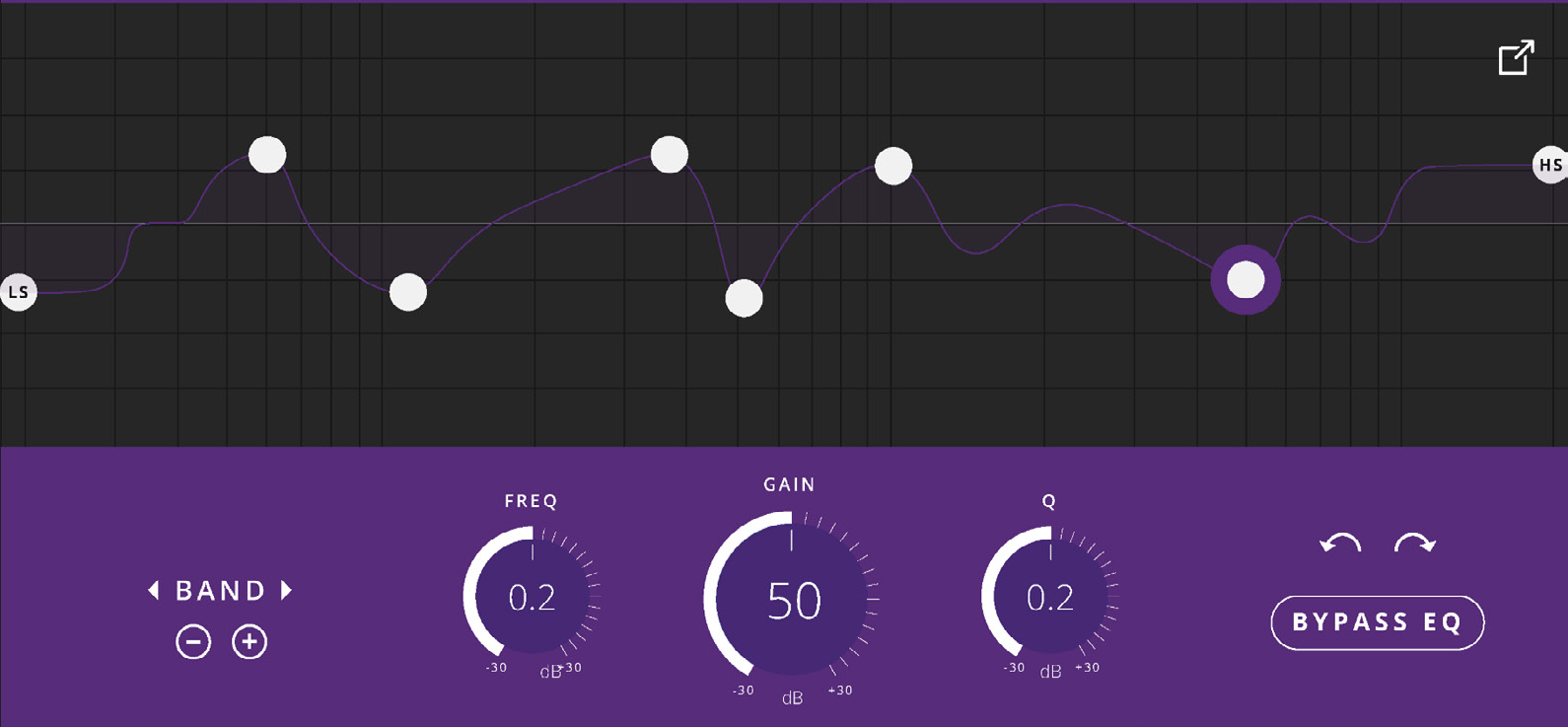
Use the + and - controls to add or remove EQ bands.
When a band is added, it appears at 1 kHz. Adjust it by:
- Entering Frequency, Q and Gain values, or
- Dragging the point on the EQ graph
Use the left and right band controls, or the keyboard arrow keys, to move between EQ bands.
Undo and Redo controls are available.
Select Bypass EQ to disable the EQ for the selected speaker.
Profiles imported from SoundID Reference provide 18 EQ bands and offer higher-resolution calibration. Their EQ controls are locked in ORIA Control.
To change the EQ curve, edit the calibration in SoundID Reference and import it again.
Output controls
The lower part of the Speaker Setup panel contains Trim, Delay and crossover controls.

Trim
Use Trim to raise or lower the level of the selected speaker by up to 6 dB in either direction.
Trim can be adjusted in 0.1 dB increments.
Click and drag the control, or double-click it to enter a value manually.
Trim should be configured separately for each output.
Delay
Use Delay to time-align the speakers so that sound from each output reaches the listening position at the same time.
Delay can be adjusted from 0 ms to 75 ms in increments of 0.01 ms.
Click and drag the control, or double-click it to enter a value manually.
Use the separate Delay switch to enable or disable the delay.
Crossover
Enable Crossover to apply bass management to the selected speaker.
The crossover frequency can be adjusted from 30 Hz to 500 Hz.
Audio below the selected crossover frequency is removed from that speaker channel and redirected to the Subwoofer output.
Crossover controls are not shown for the Subwoofer channel.
Profile setup
The Profile Setup tab contains controls that apply to the complete Profile rather than an individual speaker.
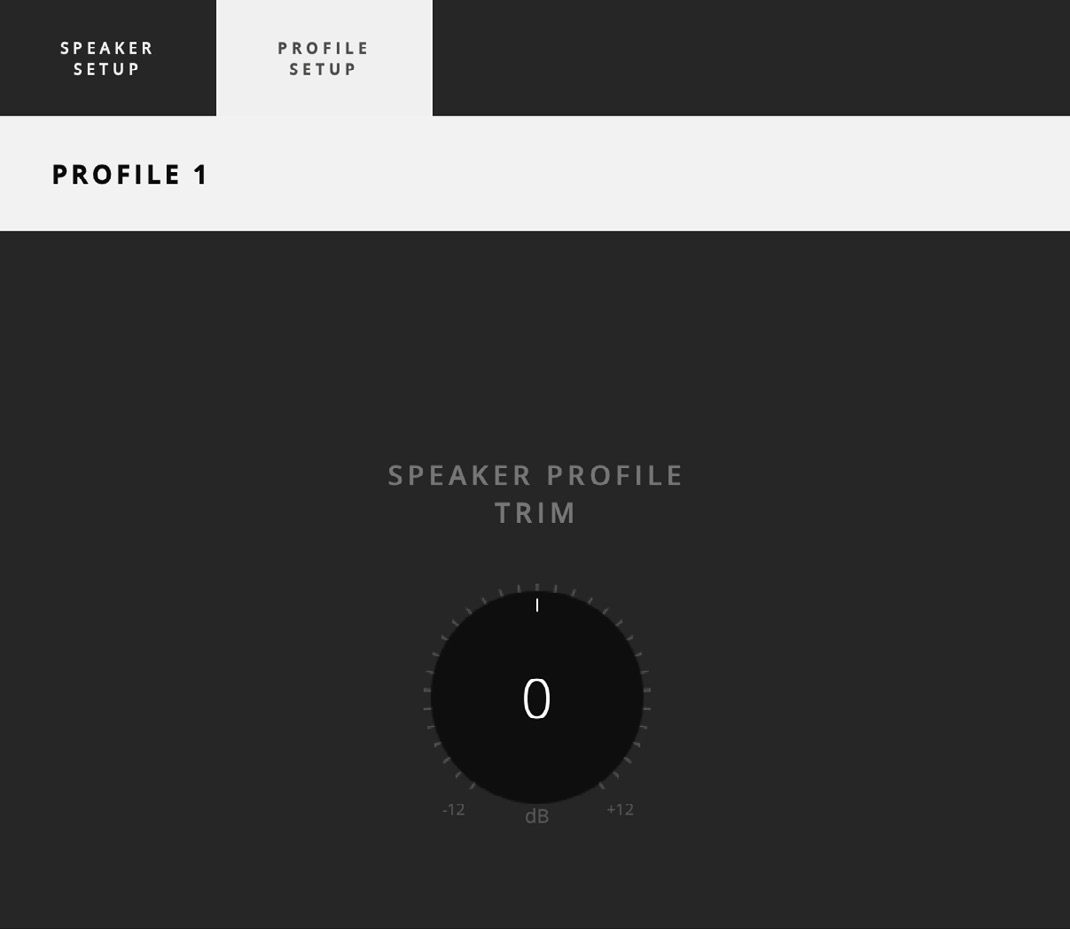
Speaker profile trim
Use Speaker Profile Trim to adjust the overall level of the active Profile by up to 12 dB in either direction.
This can be used to match the levels of different Profiles and reduce sudden volume changes when switching between them.
Room view
The Room view shows the left, right and Subwoofer channels.
The listener position and facing direction are shown by the USER icon.
Speaker colours identify their group:
- Fronts - dark purple
- Subs - green
A waveform icon appears on a speaker when audio is being sent to that output.