ORIA Control overview
The ORIA Control Desktop Software controls ORIA Mini calibration, monitoring, Profiles, metering and input selection.
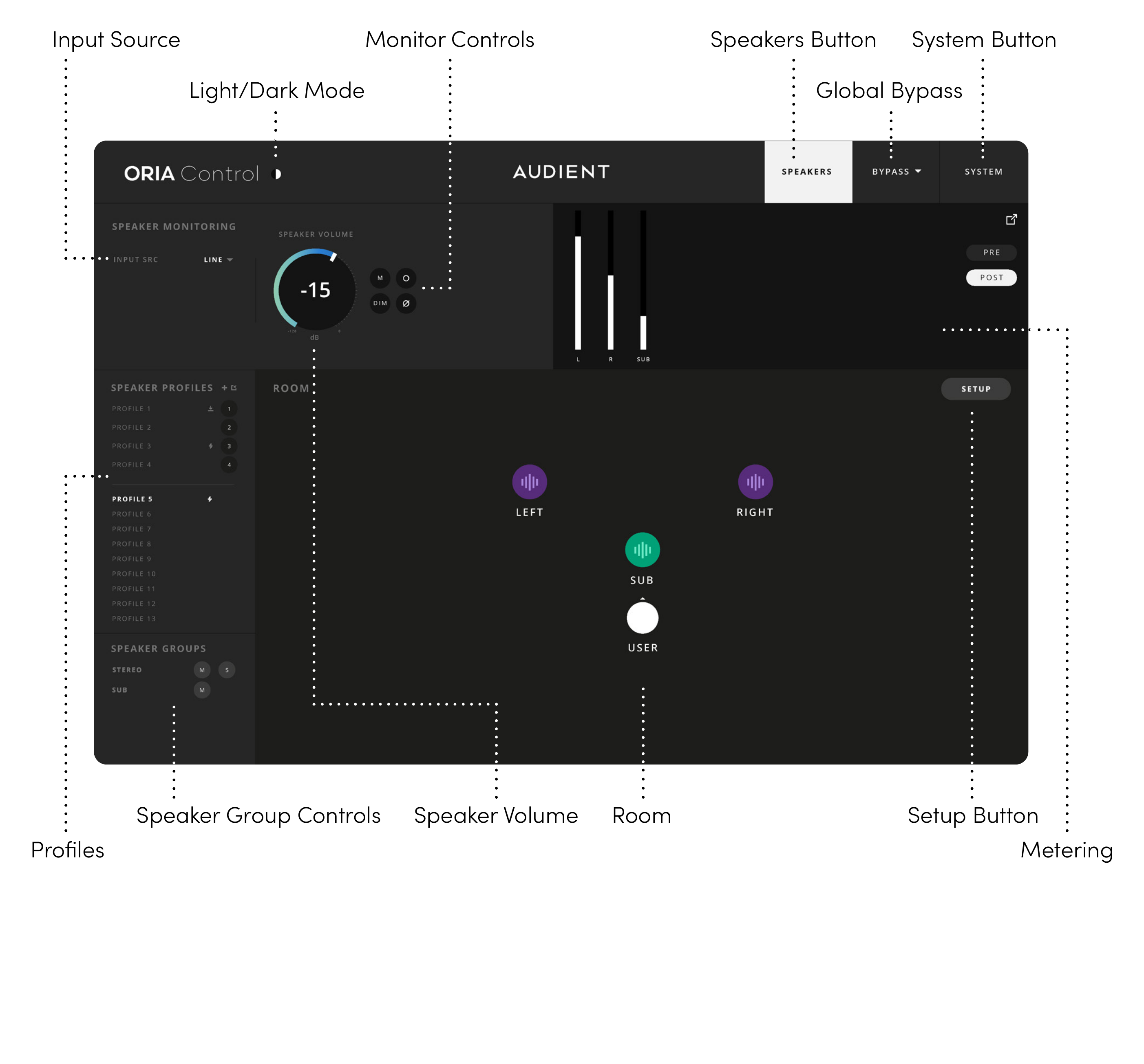
Main controls
| Area | Function |
|---|---|
| Profiles | Selects and manages stored calibration Profiles |
| Input Source | Selects the Line or S/PDIF input |
| Speaker Volume | Adjusts the overall speaker output level |
| Monitor Controls | Provides Mute, Dim, Mono and Polarity controls |
| Metering | Displays PRE or POST signal levels |
| Room | Displays and controls the Left, Right and Subwoofer outputs |
| Speaker Group Controls | Mutes or solos grouped outputs |
| Setup | Opens the calibration controls for the selected speaker |
| Global Bypass | Bypasses EQ, Channel Trim and Delay processing |
| Speakers | Returns to the Room view |
| System | Opens global and remote-control settings |
Profiles
Profiles store the EQ, Trim, Delay and crossover settings for all speaker channels.
ORIA Mini can store up to 32 Profiles. Four can be assigned as Favourite Profiles and selected using the front-panel Profile button.
See Profiles.
Input source
Select Line or S/PDIF to choose the active audio input.
The selected input source is independent of the active Profile.
Speaker volume and monitor controls
Use Speaker Volume to adjust the overall output level.
The monitoring controls provide:
- Mute
- Dim
- Mono
- Polarity
See Monitoring Controls.
Room
The Room view displays the Left, Right and Subwoofer channels.
Select a speaker in the Room view and then select Setup to edit its calibration. A highlight appears around the selected speaker.
A waveform icon appears when audio is being sent to an output.
See Speaker Setup and Calibration.
Light and dark modes
Use the Light/Dark Mode control to change the appearance of ORIA Control.


Speakers button
Select Speakers to return to the Room view when the System Panel is open.

Global bypass
Select Global Bypass to bypass EQ, Channel Trim and Delay processing across the active Profile.

Global Bypass does not disable crossover processing.