Firmware updates
Audient may release firmware updates to add features and maintain compatibility with operating-system updates.
ORIA Control periodically checks for available firmware updates when the computer has an internet connection.
Checking for an update
To check manually:
- Open the ORIA Control Desktop Software.
- Select Help > Check for Firmware Update.
- If an update is available, select OK to begin.
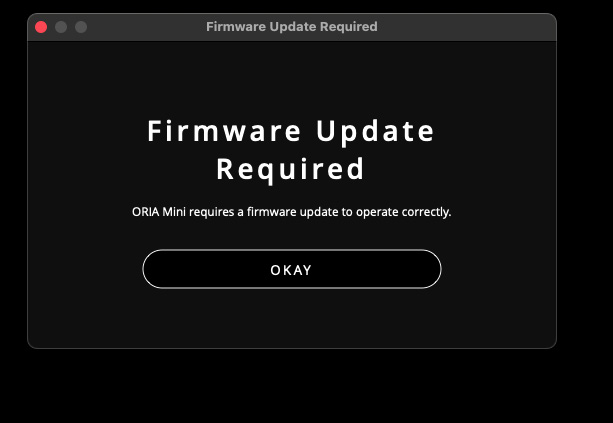
ORIA Control opens the Audient Firmware Upgrade software.
Installing an update
We recommend disconnecting any other Audient hardware from the computer before beginning the update.
To install the firmware:
- Select ORIA Mini from the list of connected Audient devices.
- Select the update source:
- From audient.com
- From local file
- Select Start Upgrade.
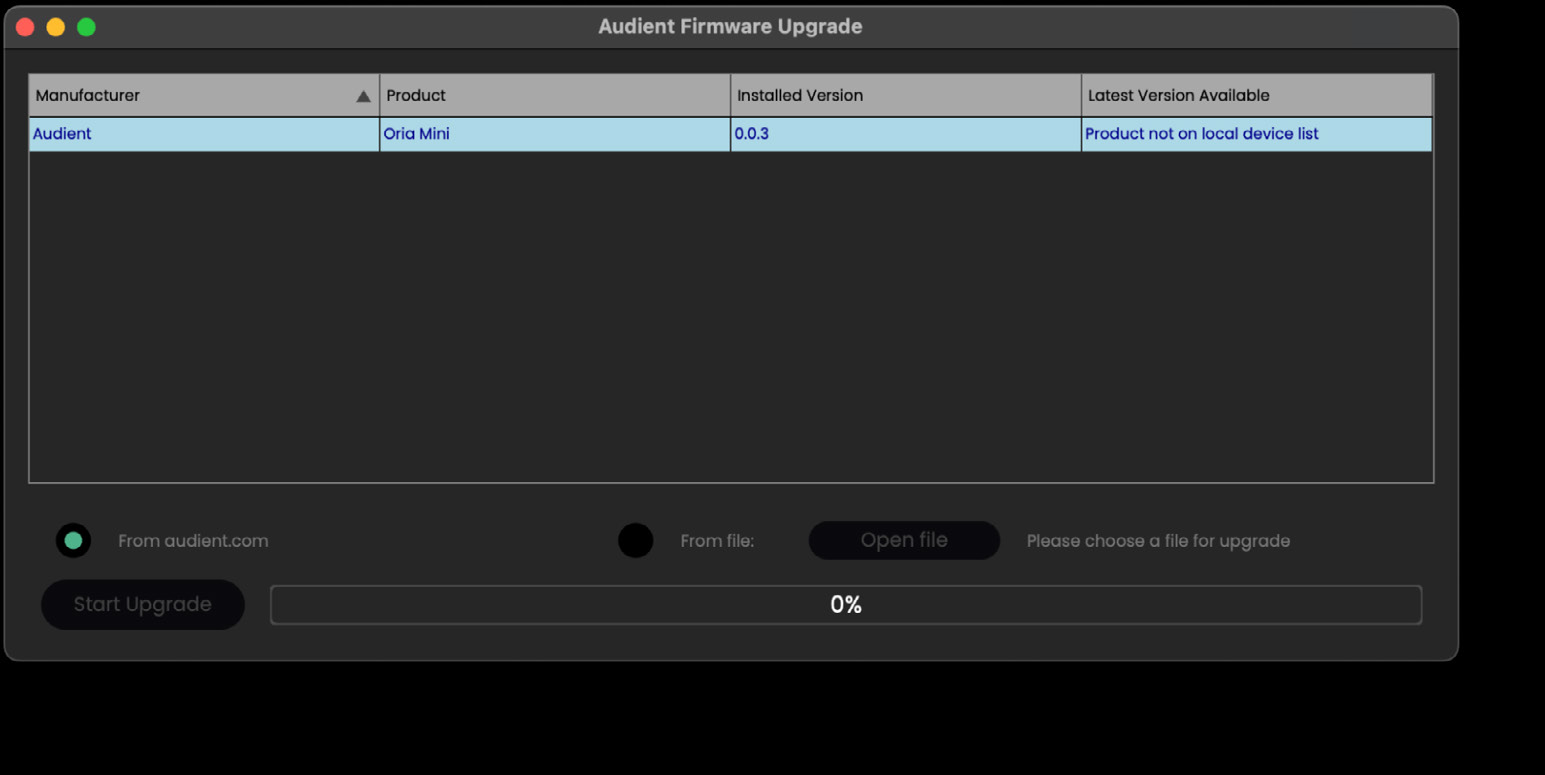
The progress bar shows the status of the update.
ORIA Mini may restart several times during the process.
When the update is complete, a confirmation message appears. Close the Audient Firmware Upgrade software and continue using ORIA Mini.
Updating from audient.com
When the computer has an internet connection, select From audient.com to download and install the latest available firmware.
Updating from a local file
A local firmware file can be used when the computer does not have an internet connection.
Contact Audient Support to request the latest ORIA Mini firmware file.
Once you have received the file:
- Open the Audient Firmware Upgrade software.
- Select ORIA Mini.
- Select From local file.
- Select the supplied firmware file when prompted.
- Select Start Upgrade.
Wait for the completion message before closing the Audient Firmware Upgrade software.