Troubleshooting
This page covers common issues when setting up and using ORIA Mini.
Before continuing:
- Check that all cables are securely connected.
- Disconnect ORIA Mini from USB, wait a few seconds, and reconnect it.
- Open the current version of the ORIA Control Desktop Software.
- Where possible, install any available firmware updates.
ORIA Mini does not power on
ORIA Mini requires a USB connection capable of providing 5 V at 900 mA.
Check the following:
- Connect ORIA Mini to a USB 3.0 or later port.
- Make sure the USB cable is securely connected at both ends.
- Try another USB port.
- Try another USB cable.
- Connect ORIA Mini directly to the computer rather than through a USB hub or adaptor.
When using an external USB power supply, make sure it can provide 5 V at 900 mA.
No audio
ORIA Mini does not send or receive audio through USB. USB is used only for power and control data.
Audio must be connected through either:
- The analogue Line inputs, or
- The optical S/PDIF input
Check the following:
- Confirm that the audio source is connected to the correct ORIA Mini input.
- Select the matching Line or S/PDIF source in ORIA Control.
- Check that the source device is playing audio and its output level is raised.
- Check the ORIA Mini Signal indicator.
- Confirm that the speakers are powered and connected to the correct outputs.
- Make sure Mute is not enabled and Speaker Volume is raised.
- Check that the individual speakers and Speaker Groups have not been muted.
- Tap the front-panel Profile button once to exit standby, if required.
When using the optical input, confirm that the source is outputting stereo S/PDIF at a supported sample rate between 44.1 kHz and 96 kHz.
Signal indicator does not illuminate
If audio is playing but the Signal indicator does not illuminate:
- Check that the correct input source is selected in ORIA Control.
- Check the connection between the source and ORIA Mini.
- Confirm that the source device is producing an audio signal.
- Try another audio cable.
Peak indicator illuminates
The Peak indicator can show a peak at either the input or output of ORIA Mini.
Input peak
The maximum analogue input level is +18 dBu.
Reduce the output level of the audio interface, mixer or other source feeding ORIA Mini.
Output peak
An output peak may be caused by calibration EQ settings that add a large amount of gain.
Check the active Profile and reduce any excessive EQ boosts.
If large corrections are required, consider adjusting the speaker positions or improving the acoustic treatment of the room before recalibrating.
ORIA Control cannot detect ORIA Mini
Check the physical USB connection first:
- Make sure the USB cable is securely connected and is not damaged.
- Disconnect the cable, wait a few seconds, and reconnect it.
- Try another USB port.
- Try another USB cable.
- Remove any USB hub or adaptor and connect ORIA Mini directly to the computer.
When using a third-party cable, make sure that it:
- Supports USB 3.0 or later
- Is less than 2 metres long
- Supports data transfer rather than power only
Restarting communication on macOS
- Quit ORIA Control by selecting File > Quit.
- Open Activity Monitor from Applications > Utilities.
- Find Audient Device Manager.
- Select it and choose Stop.
- Disconnect ORIA Mini from USB.
- Wait a few seconds and reconnect it.
- Reopen ORIA Control.
Restarting communication on Windows
- Quit ORIA Control by selecting File > Quit.
- Open Task Manager.
- Find Audient App Launcher and select End task.
- Find Audient Device Manager and select End task.
- Disconnect ORIA Mini from USB.
- Wait a few seconds and reconnect it.
- Reopen ORIA Control.
SoundID Reference export and import issues
ORIA Mini add-on licence required
To export SoundID Reference Profiles to ORIA Mini, you need:
- A permanent SoundID Reference base licence that supports speakers
- An ORIA Mini Room Correction Add-on licence
Both licences must be registered to the same Sonarworks account.
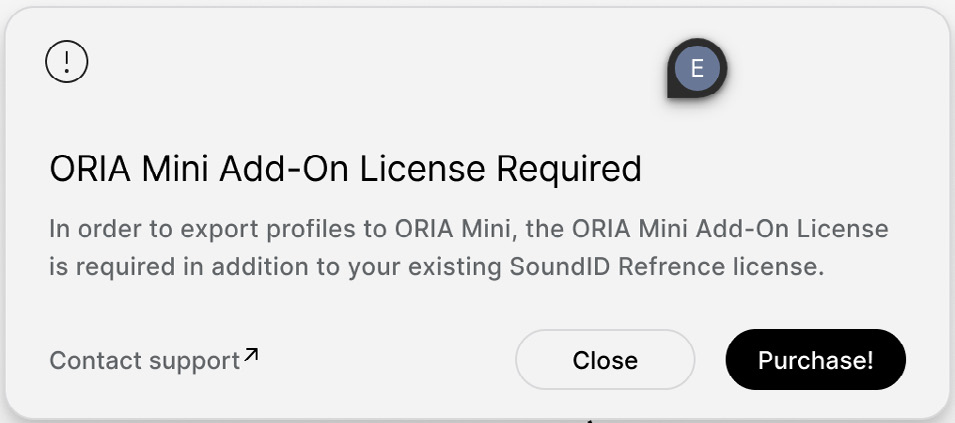
See SoundID Reference for the complete licence and export requirements.
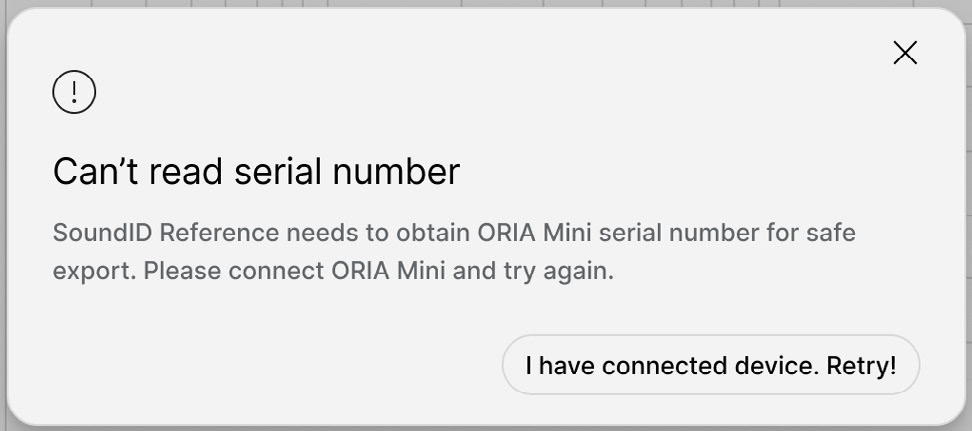
Serial number cannot be read
The first SoundID Reference export must use Direct transfer to ORIA Control Software while ORIA Mini is connected to the computer through USB.
If SoundID Reference cannot read the serial number:
- Check the ORIA Mini USB connection.
- Restart ORIA Mini by disconnecting and reconnecting USB.
- Try another USB port.
- Try another suitable USB cable.
- Connect ORIA Mini directly rather than through a hub or adaptor.
- Reopen ORIA Control and SoundID Reference.
- Retry the direct transfer.
Unable to reach ORIA Control on macOS
When SoundID Reference displays an Unable to reach ORIA Control message:
- Open System Settings > Privacy and Security > Local Network.
- Enable local-network access for:
- ORIA Control
- Audient Device Manager
- SoundID Reference
- Quit ORIA Control and SoundID Reference.
- Reopen both applications and retry the export.
Profile is for a different device
A Profile exported for the full-size ORIA cannot be imported into ORIA Mini.
Re-export the Profile from SoundID Reference and select Audient ORIA Mini as the target device.
Profile contains invalid data
ORIA Control accepts .BIN or .OPF Profile files exported from SoundID Reference or ORIA Control.
Check that:
- The file was created by SoundID Reference or ORIA Control.
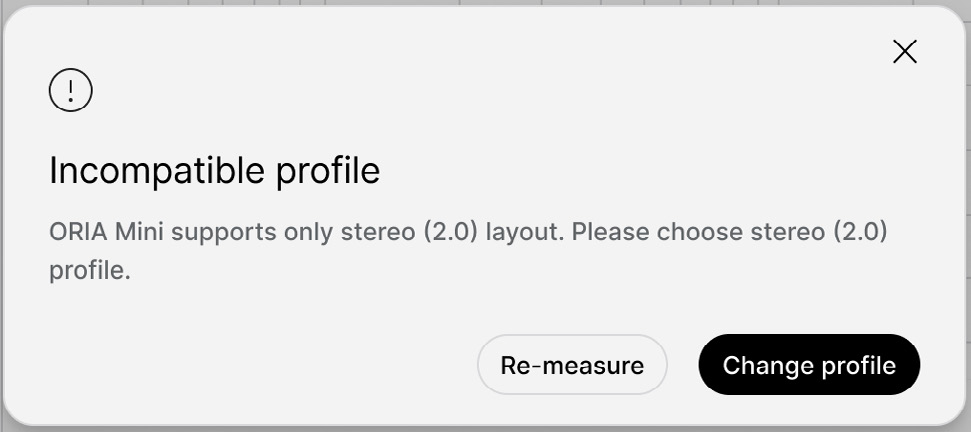
- The SoundID Reference file contains a 2.0 stereo calibration.
- The file has not been modified or renamed incorrectly.
Multichannel Profiles containing 2.1 or more channels cannot be imported into ORIA Mini.
Try exporting the Profile again if the error continues.
Profile path is invalid or inaccessible
Check that:
- The file is stored in a location accessible to your user account.
- Any USB or network drive containing the file is connected.
- Any cloud-storage location is connected and fully synchronised.
- Your user account has permission to access the file.
Move the Profile into your user folder and retry the import if necessary.
ORIA Control version is incompatible
Download and install the current version of the ORIA Control Desktop Software.
Reopen ORIA Control and retry the Profile import.
Firmware version is incompatible
Update ORIA Mini to the current firmware version.
When the update is complete, retry the Profile import.
See Firmware Updates.
SoundID Reference profile has expired
Re-export the Profile using a valid, permanent SoundID Reference licence.
Retry the import using the newly exported file.
Serial number does not match the registered device
An ORIA Mini Add-on licence is linked to one ORIA Mini serial number during the first direct transfer.
A separate Add-on licence is required for another ORIA Mini unit.
If the serial-number mismatch occurred because ORIA Mini was replaced under warranty, contact Audient Support for assistance.
Calibrating a 2.1 system
A multichannel SoundID Reference 2.1 Profile cannot be imported into ORIA Mini.
To use SoundID Reference with ORIA Mini bass management:
- Create a new Profile in ORIA Control.
- Configure the crossover on both the left and right speakers.
- Open SoundID Reference and measure the system as 2.0 Stereo.
- Select Audient ORIA Mini during the SoundID Reference hardware setup.
- Export the completed Profile to ORIA Mini.
- Overwrite the ORIA Control Profile containing the crossover settings.
Set the crossover before measuring. Re-measure the system after changing its crossover frequency.
See SoundID Reference for the complete process.
ORIA Remote cannot connect
Check that:
- ORIA Mini is connected to the computer through USB.
- ORIA Control is open.
- The iPad and computer are connected to the same local network.
- ORIA Remote has permission to access devices on the local network.
- The iPad has not been added to the Blocked Devices list.
On macOS, open System Settings > Privacy and Security > Local Network and make sure that local-network access is enabled for:
- ORIA Control
- Audient Device Manager
On Windows, make sure that audientdevicemanager.exe is permitted through Windows Defender Firewall.
Connection permissions can be managed from System > Remotes in ORIA Control.
See Remote Control and Integrations for the complete setup process.
Stream Deck warning indicator
A yellow warning symbol on a Stream Deck action means that Stream Deck cannot communicate with ORIA Control.
- Check that ORIA Control is open.
- If it is already open, quit and reopen ORIA Control.
- Allow the Stream Deck software a few moments to reconnect.
Stream Deck profile was not installed
The installer automatically adds only the Profile for the Stream Deck device that is connected and in focus during installation.
Profiles for other Stream Deck devices can be installed from the Elgato Marketplace.
See Remote Control and Integrations.
Restarting or resetting ORIA Mini
Restart ORIA Mini first by disconnecting USB, waiting a few seconds, and reconnecting it.
Use a factory reset only when other troubleshooting steps have not resolved the issue.
A factory reset permanently removes all Profiles stored on ORIA Mini.
Export any manual Profiles you want to keep before resetting the unit.
See Factory Reset for instructions.
Contacting support
If the issue continues, contact Audient Support.