ORIA Mini Manual
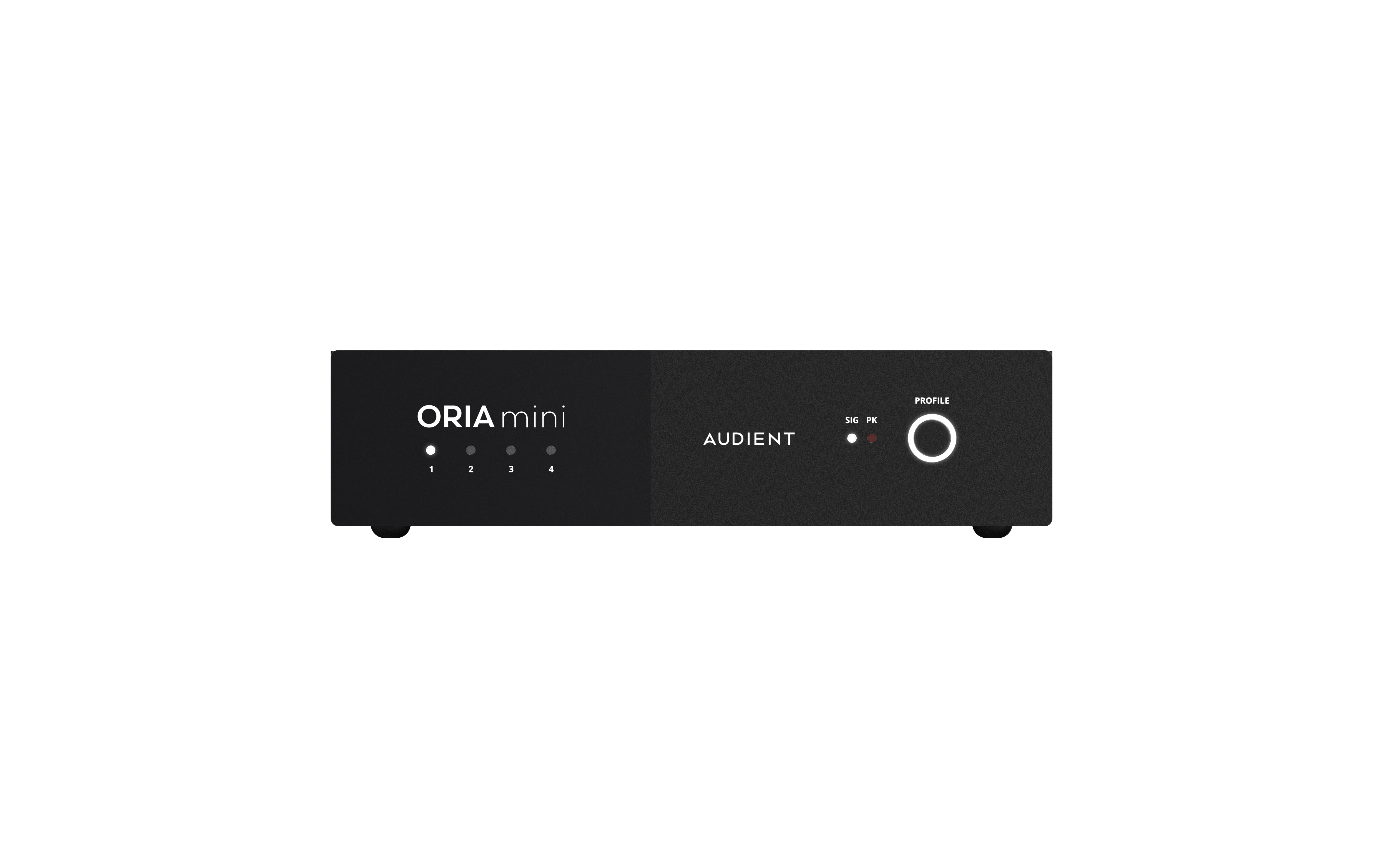
ORIA Mini connects between your audio source and speakers, providing monitor control and room correction.
What’s in the box
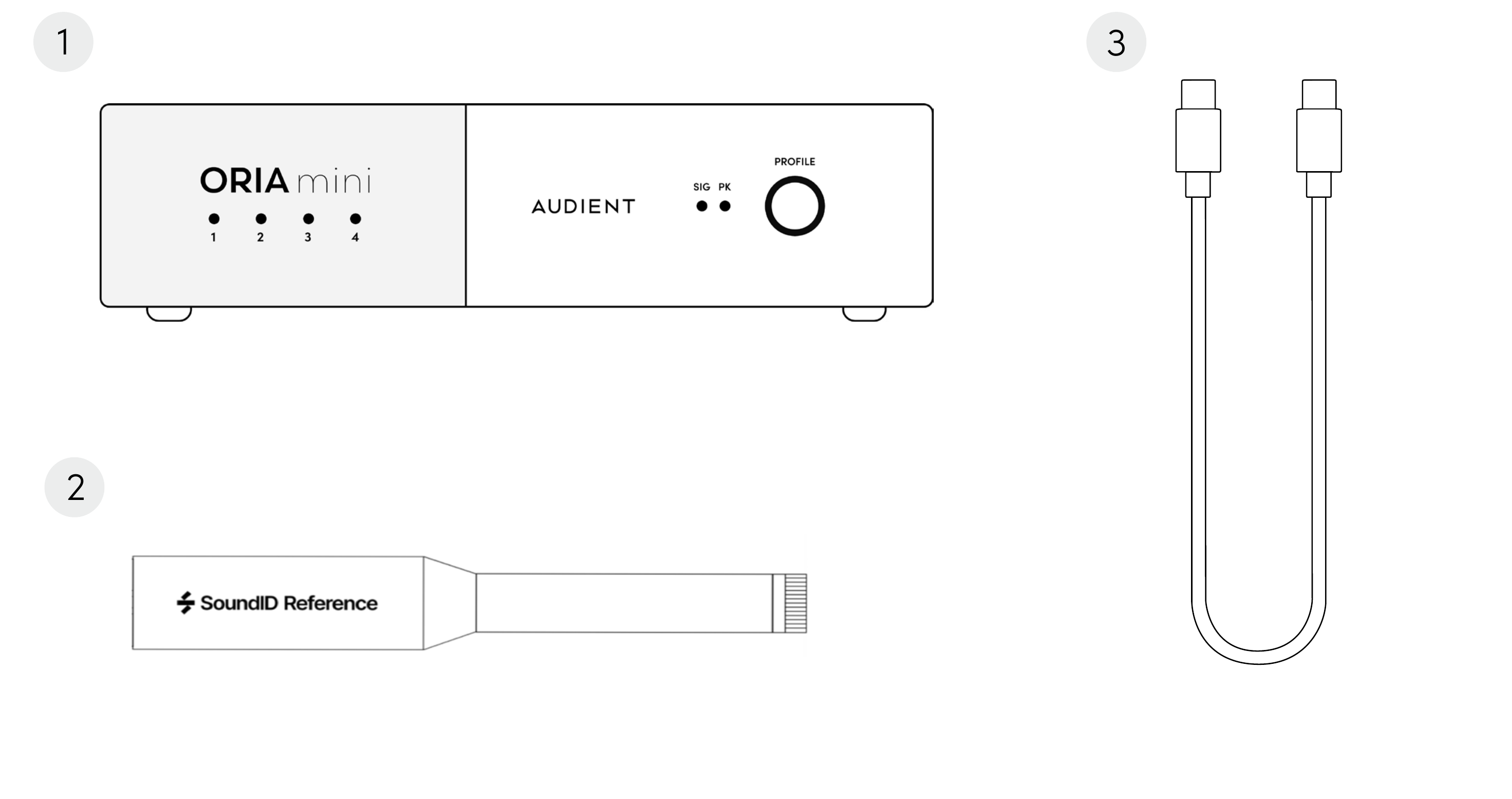
The ORIA Mini box contains:
- ORIA Mini
- Sonarworks measurement microphone and microphone clip
- USB-C to USB-C cable
Initial setup
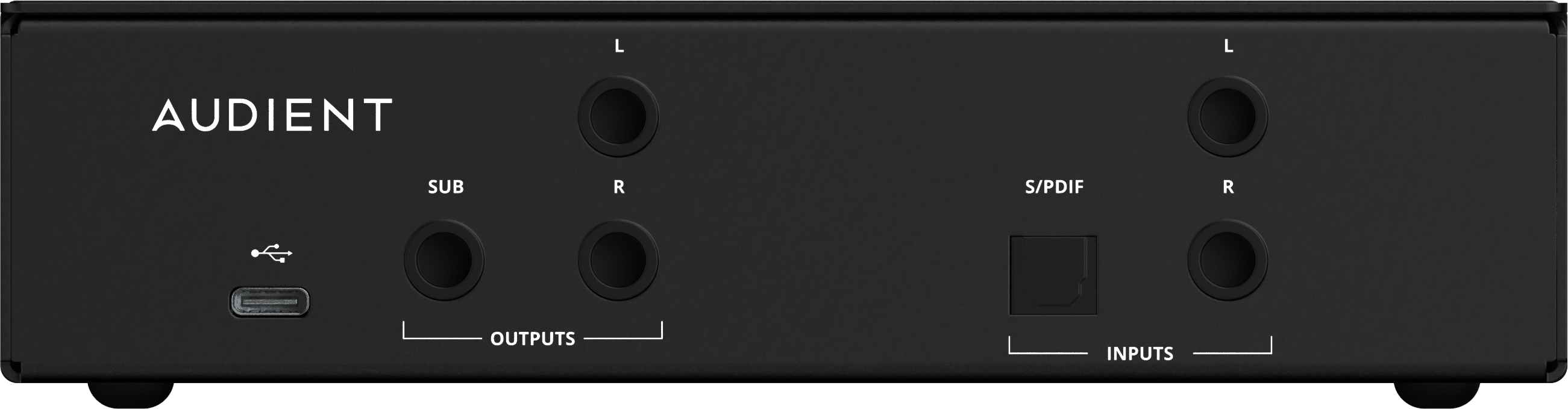
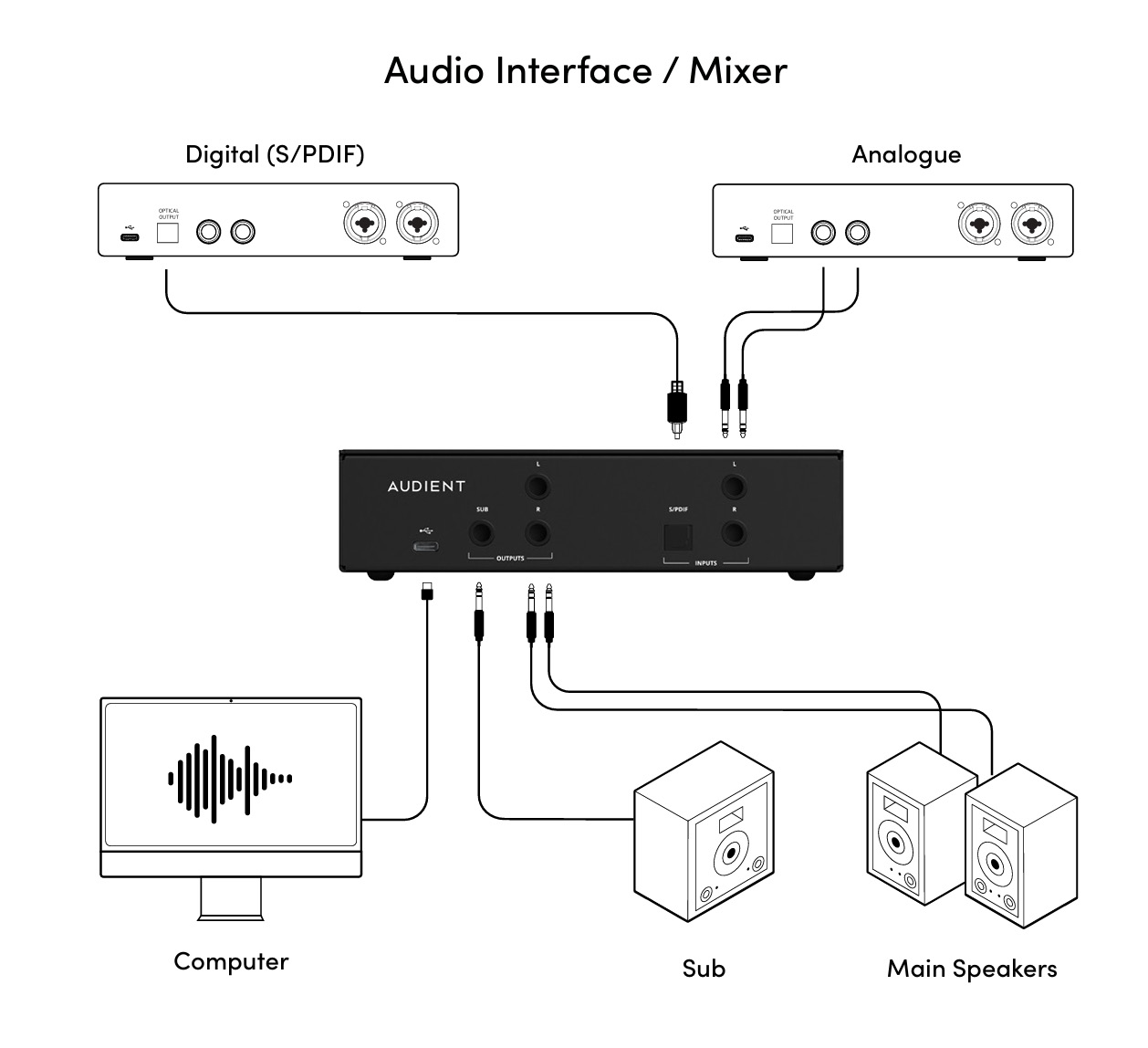
- Connect your audio source to the analogue TRS inputs or optical S/PDIF input.
- Connect the Left and Right outputs to your speakers.
- Connect the Subwoofer output if your system includes a subwoofer.
- Connect ORIA Mini to your computer using the included USB-C cable.
- Install and open the ORIA Control Desktop Software.
- Select the connected input source in ORIA Control.
Connecting an audio source
Analogue
Connect a line-level source, such as an audio interface or mixer, to the two balanced TRS inputs.
ORIA Mini also accepts unbalanced connections.
Digital
Connect a stereo optical S/PDIF source to the TOSLINK input.
Select the active Line or S/PDIF input in ORIA Control.
Connecting speakers
Connect the Left and Right outputs to:
- Powered studio monitors, or
- A suitable power amplifier connected to passive speakers
The ORIA Mini outputs operate at line level.
Connecting a subwoofer
Connect the dedicated Subwoofer output to the line-level input of your subwoofer.
When using a subwoofer with separate left and right inputs, connect the ORIA Mini Subwoofer output to the subwoofer's left input only.
Connecting USB
Connect ORIA Mini to a USB 3.0 or later port using the included USB-C cable.
The USB connection provides power and communication with ORIA Control. ORIA Mini does not send or receive audio through USB.